
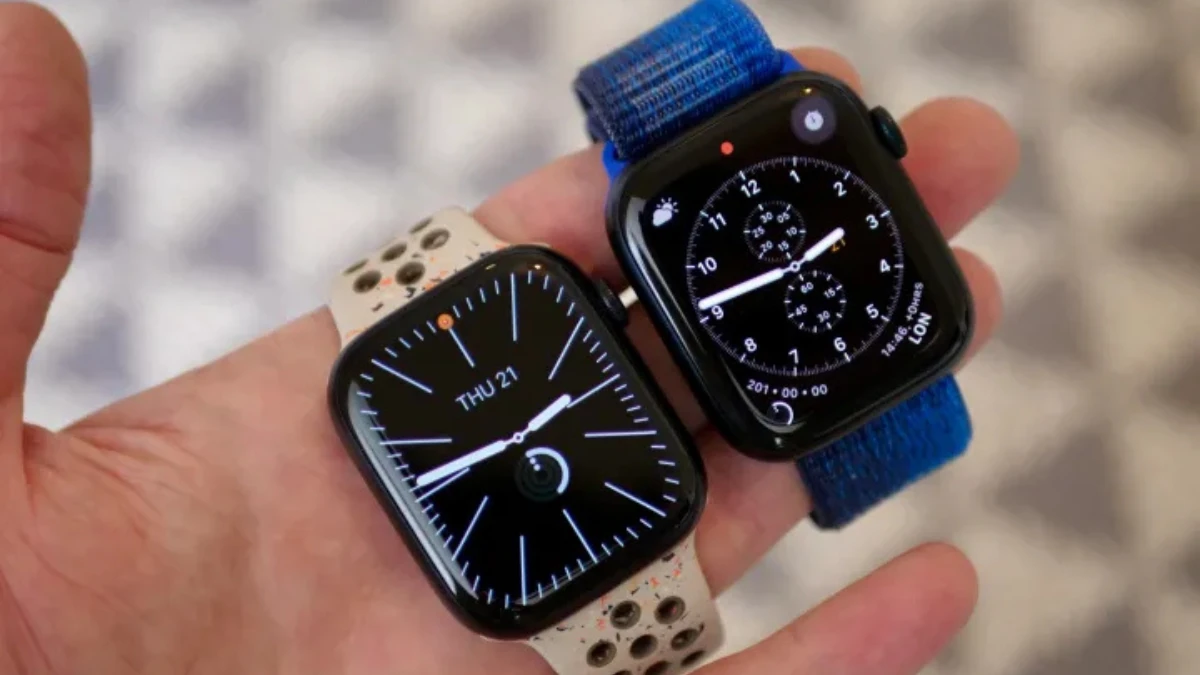
You just unboxed your new Apple Watch, and within 24 hours, the battery’s already dying. Most new Apple Watch owners make identical, preventable mistakes. They breeze through setup, leaving default configurations that kill battery life.
They assume “water resistant” means waterproof and end up with damaged devices. Notification chaos turns their wrist into a vibrating nightmare. They never adjust fitness goals set three years ago or understand which apps are secretly draining power in the background.
These common errors cost money and create frustration that makes people regret their purchase entirely. You’ll discover exactly which Apple Watch mistakes destroy your experience and how to avoid every single one.
#1. Ignoring Notification Settings From Day One
You’re Letting Every App Blast Your Wrist
New Apple Watch owners make a critical error: leaving notification management on autopilot. Every email, social media like, and group chat message triggers a wrist tap, creating notification overload that drains your battery and destroys the experience.
When your iPhone is unlocked, notifications appear there. Lock it, and everything shifts to your watch. Most users enable “Mirror iPhone,” copying every alert to their wrist—a recipe for constant interruptions.
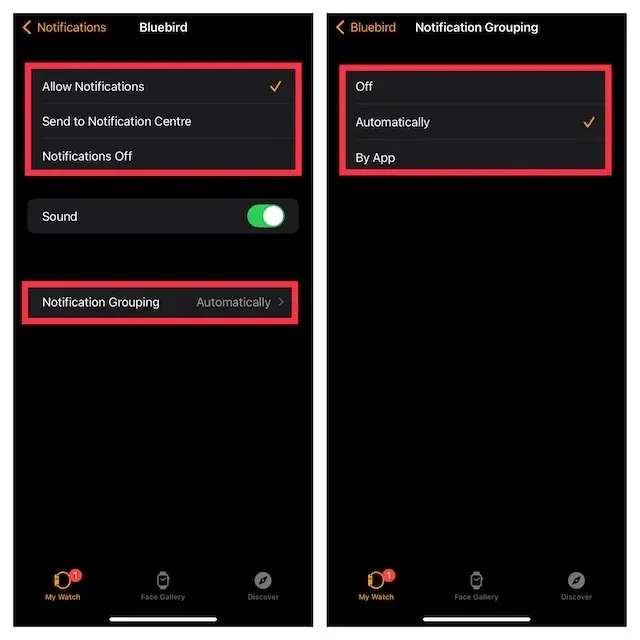
Open the Watch app, tap My Watch > Notifications, then customize each app individually. Choose “Custom” instead of “Mirror iPhone.” You’ll see three options: Allow Notifications (alerts with haptics), Send to Notification Center (silent storage), or Notifications Off.
Real-world culprits to fix:
- Email apps pinging for every message (including spam)
- Social media notifications that aren’t wrist-worthy
- Group chats vibrating every 30 seconds during active conversations
- News apps with breaking alerts you don’t need instantly
Enable Focus Mode to automatically filter notifications based on your activity, work mode silences personal apps, exercise mode blocks everything except fitness data, and personal time limits work interruptions. This Apple Watch setup step transforms your device from an annoying buzzer into a genuinely helpful assistant.
#2. Never Updating Your Fitness Goals
Your Activity Rings Are Still Set From Day One
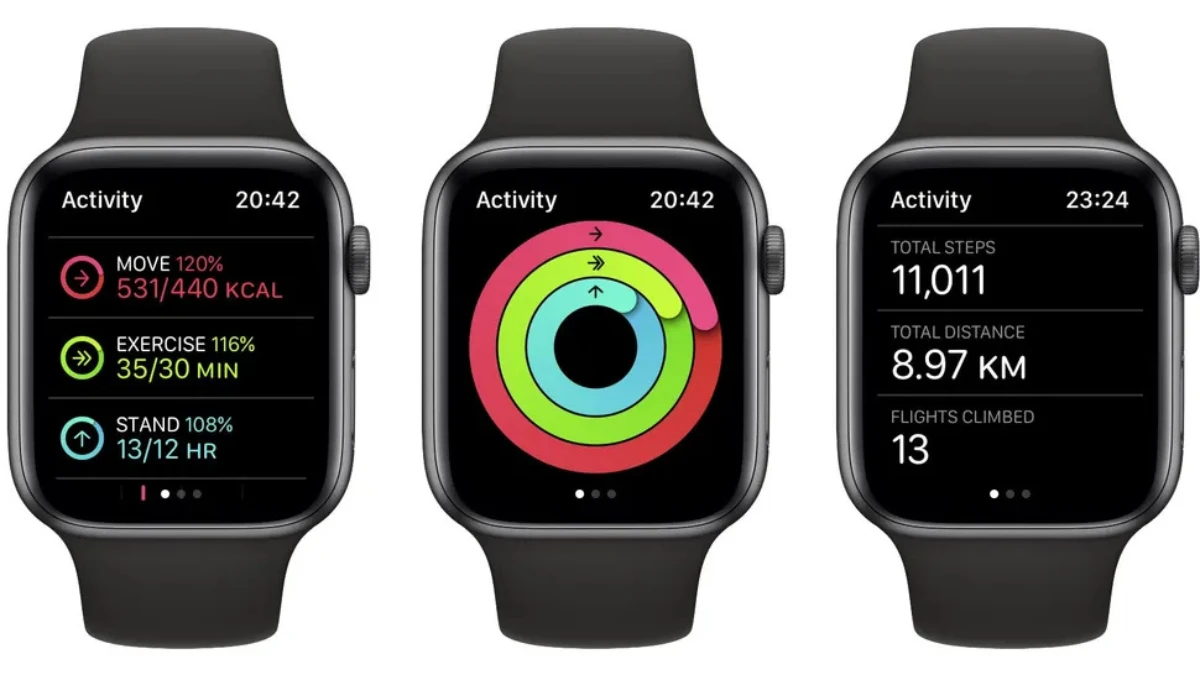
Most Apple Watch owners set conservative fitness goals during initial setup—then never touch them again. That 200-calorie Move goal you selected three years ago? It’s now laughably easy if you exercise regularly, killing your motivation through lack of challenge.
Outdated activity rings sabotage your progress. Goals set too low provide zero satisfaction when you close them by noon. Goals set impossibly high guarantee constant failure, turning activity tracking into a discouragement machine rather than a motivational tool.
If you’re crushing your Apple Watch workout targets daily, it’s time to level up. Consistently missing goals? Lower them to rebuild momentum. Open the Activity app on your iPhone, scroll down, and tap the +/- button in the bottom right corner.
Real scenarios demanding updates:
- You initially set a 200-calorie Move goal but now hit the gym four times weekly
- Your Stand goal remains at 6 hours when 12 hours is easily achievable with your desk job routine
- An ambitious 60-minute Exercise goal feels impossible for your current fitness level
Increase gradually, bump your Exercise minutes from 10 to 15, not 10 to 60. Small increments build sustainable habits and keep your activity rings challenging without becoming demoralizing. Your fitness goals should evolve with you, not stay frozen in time.
#3. Misunderstanding Water Resistance
Treating Water Resistant Like Waterproof
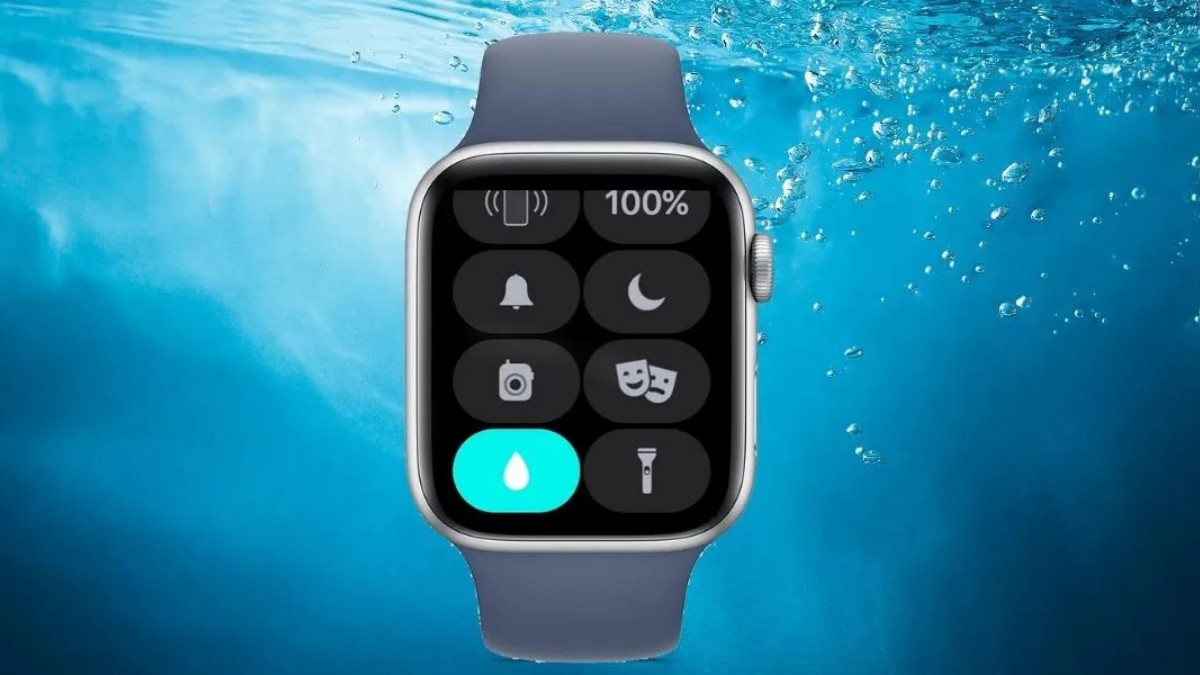
Series 2 and later models offer 50 meters water resistance; Ultra models push to 100 meters. Sounds impressive, but water resistance diminishes over time—it’s not a permanent condition. Seals degrade, impacts weaken protection, and suddenly your “swim-proof” watch isn’t.
Despite technical water resistance, soap, shampoo, and hot water attack the seals protecting your device. User forums overflow with reports of Apple Watch swimming failures after regular pool use, even though they’re rated for exactly that activity. Hot tubs and saunas are especially brutal, steam penetrates deeper than liquid water, and chemicals accelerate seal deterioration.
Protection tips:
- Your band matters—leather and stainless steel bands aren’t water resistant and will degrade
- After any water exposure, rinse your watch with fresh warm water and dry it thoroughly
- Skip the shower, hot tub, and sauna entirely to maximize seal longevity
#4. Killing Battery With Display Settings
Always-On Display Is Always Draining Battery
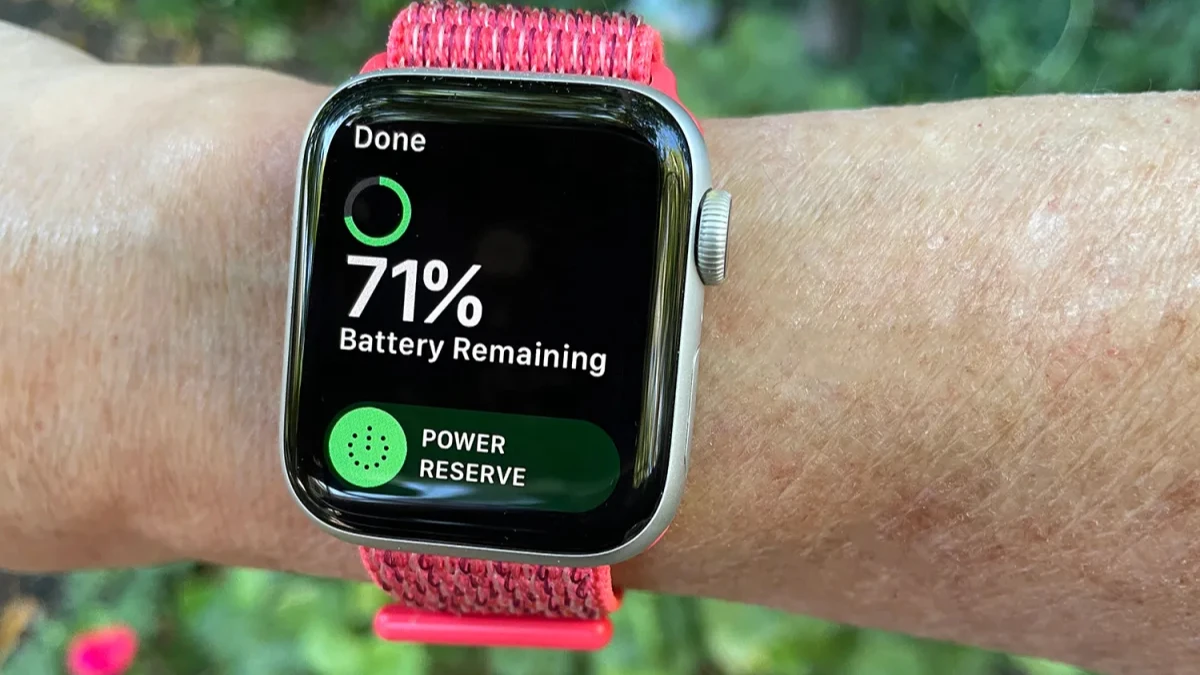
The Always-On Display feature looks slick, keeping your watch face constantly visible. It’s also the single biggest culprit behind Apple Watch battery life complaints, silently draining 30-40% more power than necessary.
New owners rarely question default display settings during setup. They marvel at the glowing screen, unaware they’ve just sabotaged their battery optimization efforts. Combined with brightness cranked to maximum, these settings transform a device that should last all day into one begging for a charger by dinner.
Apple’s Series 11 battery estimates now account for sleep tracking, claiming 24 hours versus previous 18-hour ratings, but that’s with optimized settings. Leave Always, On enabled with high brightness, and you’re back to charging midday. Even Ultra models, despite superior battery capacity, suffer significant drain from these display-hungry features.
Immediate fixes:
- Disable Always-On Display: Settings > Display & Brightness > toggle off Always On Display
- Lower brightness through Settings or swipe up for Control Center—outdoor brightness indoors wastes massive battery
- Your wrist-raise gesture still works perfectly; you’ll see your watch face instantly when needed
Indoor environments rarely require maximum brightness. Adjust based on lighting conditions rather than leaving it perpetually high. This single Apple Watch battery life adjustment often adds 6-8 hours of runtime, making sleep tracking actually feasible without midday charging panic.
#5. Ignoring Background App Refresh
Apps Are Running Wild When You’re Not Looking
While you’re living your life, dozens of apps are silently updating on your Apple Watch, constantly checking for new content and demolishing your battery. Background App Refresh is the hidden resource hog most new owners never investigate during Apple Watch settings configuration.
Apps refresh automatically whether you’re using them or not. Social media apps check for updates every few minutes. News apps pull stories hourly. Weather apps refresh constantly despite conditions changing slowly. This invisible activity consumes significant battery power for minimal benefit.
The complication loophole: Even when you disable Background App Refresh for specific apps, those with active complications on your watch face continue refreshing anyway. Understanding this exception is crucial for effective app management and battery saving tips.
Take control immediately: Navigate to Settings > General > Background App Refresh. You can disable it globally or selectively per app. Most apps don’t need constant updates on your wrist.
Smart refresh decisions:
1. Keep enabled: Workout apps (tracking real-time data), health apps (monitoring vitals), calendar apps (upcoming events)
2. Disable immediately: Games (no reason to refresh), shopping apps (you’ll open them when needed), most social media (check manually)
#6. Skipping Emergency Contacts Setup
Fall Detection Won’t Help If Nobody Knows
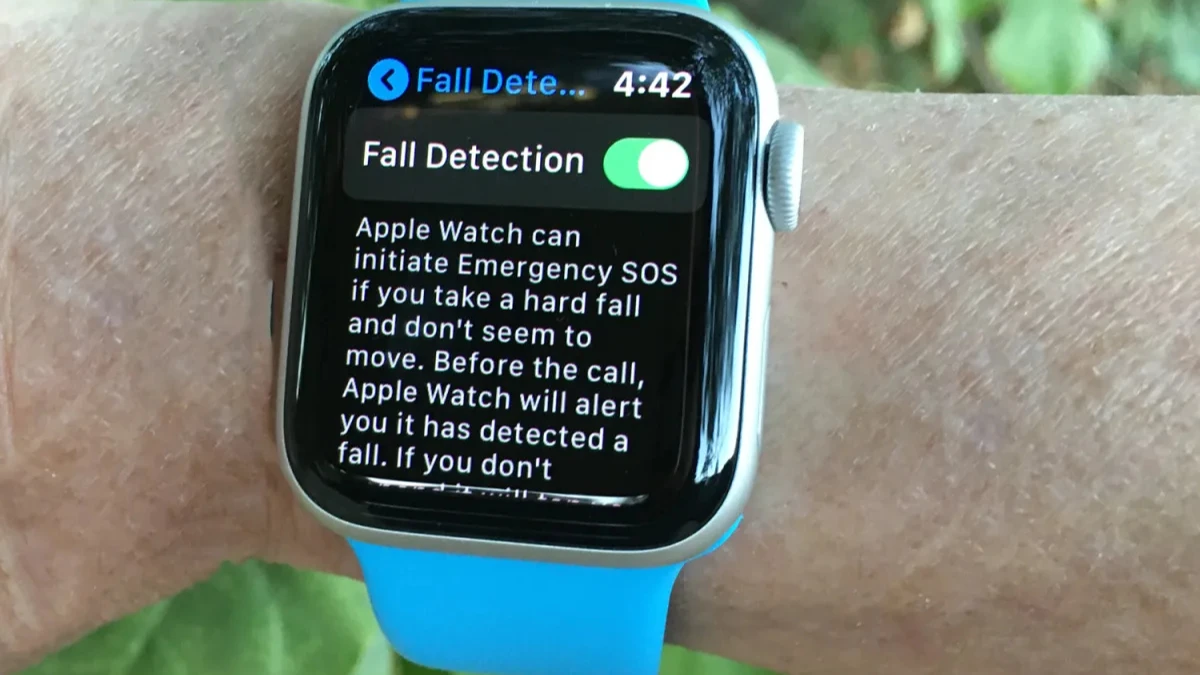
Your Apple Watch can detect when you’ve fallen and automatically call emergency services, but if you haven’t configured emergency contacts, your family learns about your accident from strangers, not your watch. Most users assume this critical safety feature configures itself. It doesn’t.
Fall Detection can alert 911, but without emergency contacts properly set up, the people who actually need to know, your spouse, parents, or children, receive nothing. The feature becomes half-functional, handling the emergency call but leaving loved ones in the dark.
The wrist detection requirement: Fall Detection only works automatically when Wrist Detection is enabled. Without it, even a serious fall triggers no response. Check this hidden dependency in your Apple Watch setup.
Complete setup process:
- Open Watch app > Emergency SOS > verify Fall Detection is enabled (automatic for users 55+, manual for younger users)
- Open iPhone Health app > tap your profile > Medical ID > Add Emergency Contacts
- Confirm Wrist Detection: Watch app > Passcode > ensure Wrist Detection is toggled on
Who needs this most:
- Hikers and trail runners in remote areas
- Elderly users at higher fall risk
- Solo exercisers without nearby help
User forums document fall detection failures traced to incomplete setup—watches detected falls but contacted nobody because emergency contacts weren’t configured. Don’t let safety features become false security.Retry
#7. Wearing It Wrong For Accurate Readings
Loose Fit Means Bad Data howtogeek
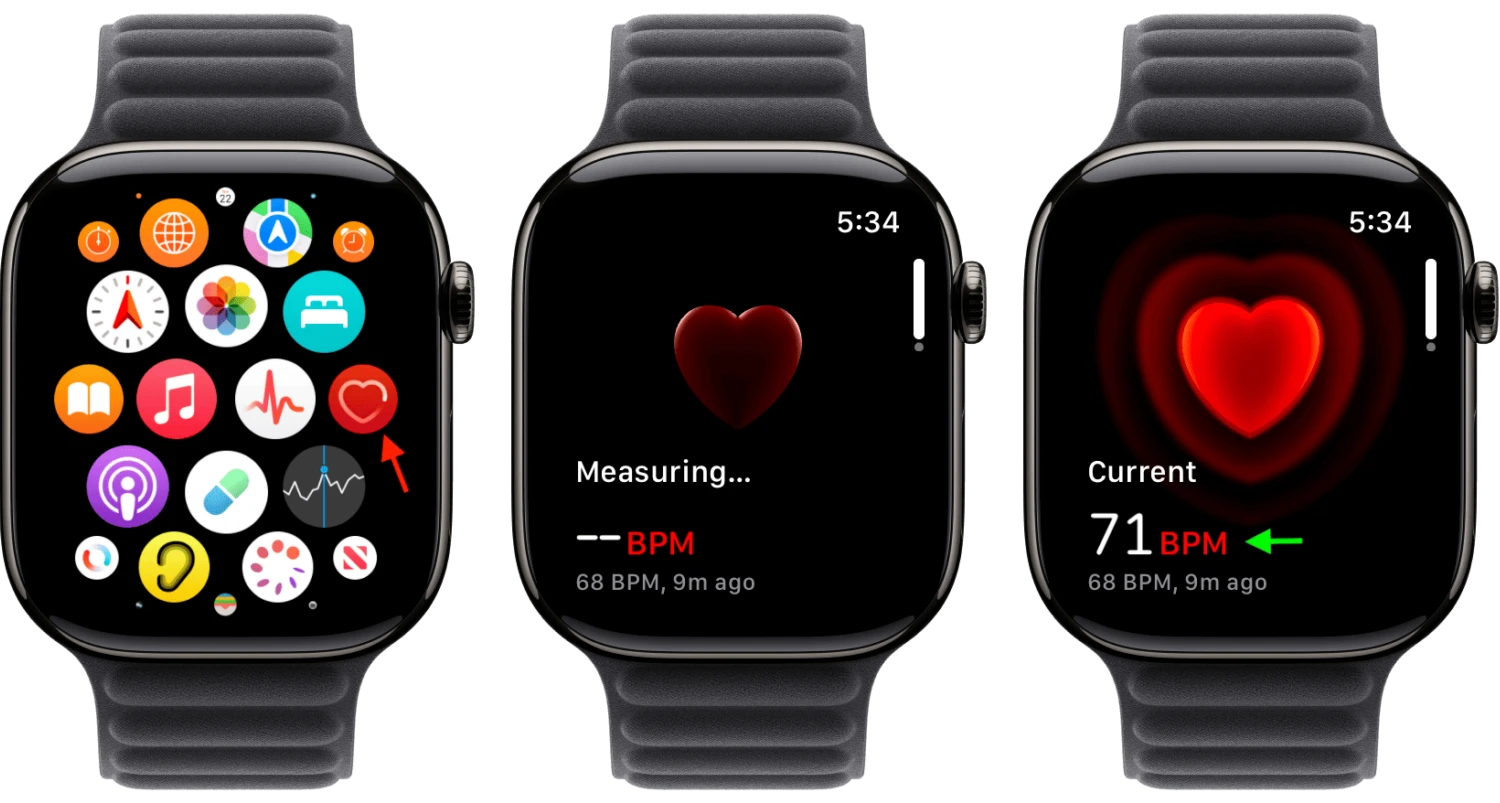
Your Apple Watch isn’t jewelry, it’s a precision measurement device. Wear it loosely or incorrectly, and every fitness tracking metric becomes unreliable. New owners treat bands like casual accessories, then wonder why their accurate heart rate readings are wildly inconsistent.
Heart rate monitoring requires consistent skin contact. When your watch bounces around during workouts, slides down your wrist, or sits too loose, the optical sensors capture movement artifacts instead of your actual pulse. Your workout data becomes fiction.
Common positioning mistakes destroying sensor accuracy:
- Wearing too loose, letting the watch slide and bounce.
- Positioning on the inside of your wrist where sensors can’t read properly.
- Wearing over sleeves or clothing (winter gear is a major culprit).
- Leaving it in the same position 24/7 without adjusting for activities.
The two-fit strategy: Tighten your band before workouts—snug but not uncomfortable, positioned on top of your wrist about a finger’s width from your wrist bone. During rest periods, loosen it slightly for comfort and skin breathing. This prevents irritation while maintaining measurement integrity.
Critical requirement: Wrist Detection must remain enabled for background heart rate readings and Stand tracking to function. Disable it, and your watch stops monitoring automatically throughout the day.
Winter warning: Sweat, movement, and temperature changes all affect readings. Cold weather reduces blood flow to extremities, making accurate measurements harder. Keep your watch snug and give sensors a few minutes to establish baseline readings before intense exercise begins.
#8. Not Using Low Power Mode Strategically
Running Out of Battery When You Need It Most
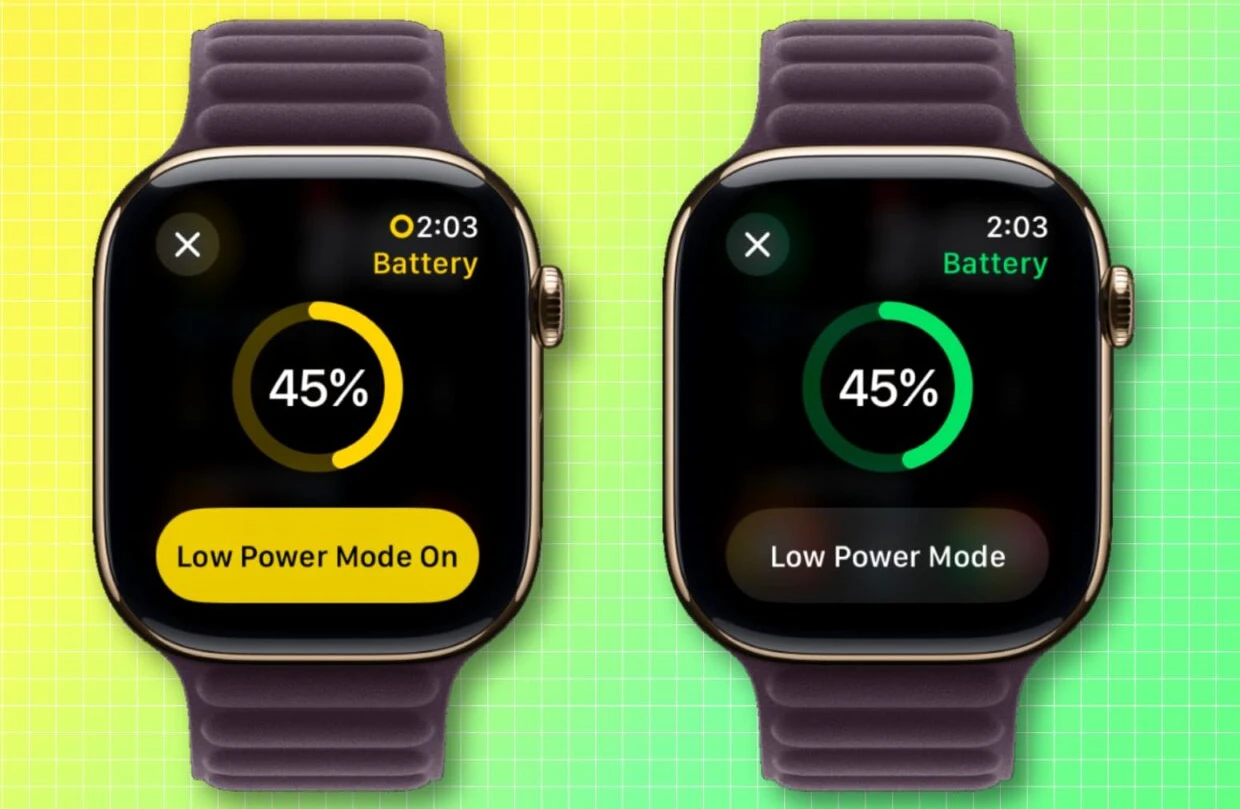
Low Power Mode is your emergency battery lifeline, yet most Apple Watch owners discover it only when their device is dying at 10%. This power saving feature disables Always-On Display, background heart rate monitoring, and blood oxygen measurements—extending battery life dramatically when you need it most.
New owners simply don’t know this battery life extension tool exists or when to deploy it strategically. The result? Dead watches during critical moments when functionality matters most.
Quick activation: Swipe up to Control Center, tap your battery percentage, then toggle Low Power Mode. On Ultra models, you’ll see an additional “Fewer GPS and Heart Rate Readings” option perfect for marathon workout sessions where precise second-by-second data isn’t essential.
Strategic use cases:
- Long flights or full travel days without charging access
- All-day events (weddings, conferences) where outlets are scarce
- Multi-hour hikes or endurance workouts
- Overnight tracking when you forgot to charge beforehand
Maximum extension trick: Combine Airplane Mode with Low Power Mode for emergency battery preservation. This pairing can stretch your remaining charge for hours, maintaining essential timekeeping and basic fitness tracking while shutting down wireless radios.
Auto-exit feature: Your watch automatically exits Low Power Mode when charging reaches 80%, so you won’t forget to re-enable full functionality. This prevents accidentally running in degraded mode indefinitely after the emergency passes.
#9. Using Outdated Software
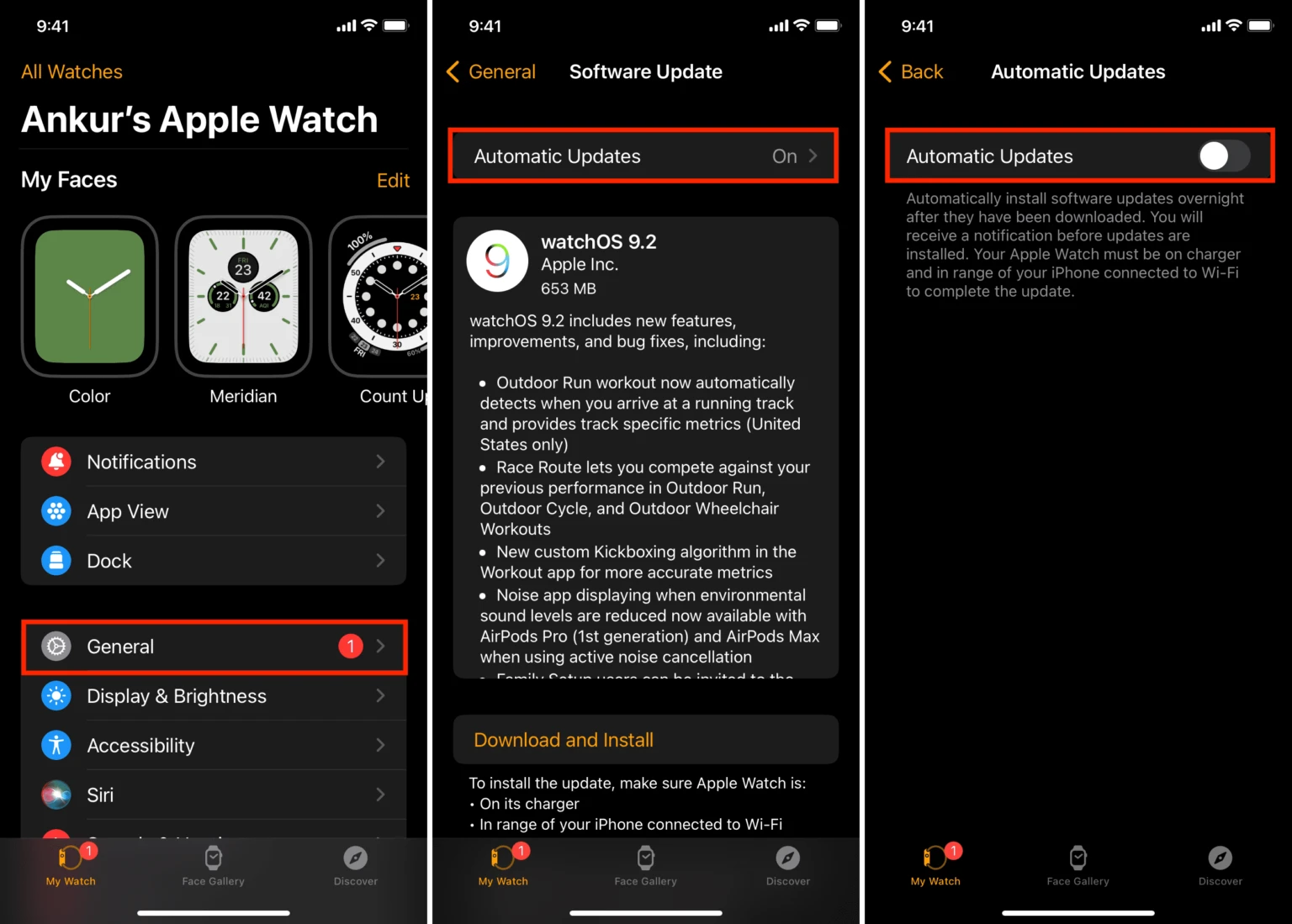
Missing Critical Updates And Security Patches.
Outdated watchOS versions silently sabotage your experience through unresolved bugs that destroy battery performance, security vulnerabilities leaving your data exposed, and missing features you don’t even know exist. Yet countless Apple Watch owners ignore software updates for months, wondering why their device underperforms.
Running old software isn’t just about missing new features—it actively degrades what you already have. Unpatched bugs can drain battery life by 20-30% compared to current releases. Meanwhile, you’re locked out of health innovations like Sleep Apnea Notifications and the Vitals app that only function on updated software.
watchOS 26 changes everything: The latest features include a completely redesigned Workout app interface, new wrist flick gestures for controls, and significant under-the-hood performance improvements. Users still on older versions face confusion when seeking help online, as instructions no longer match their outdated interface.
Update process: Open Watch app on iPhone > General > Software Update. Your watch must be charged to at least 50% and placed on its charger during installation.
Post-update reality: Expect temporary battery fluctuations for 2-3 days after major watchOS updates. Background indexing and optimization tasks run during this period, causing slightly reduced battery life before performance stabilizes and often improves beyond previous levels.
What you’re missing: Bug fixes addressing known battery drain issues, security patches protecting against discovered vulnerabilities, and health features that could genuinely impact your wellbeing. Stop delaying—update tonight.
