
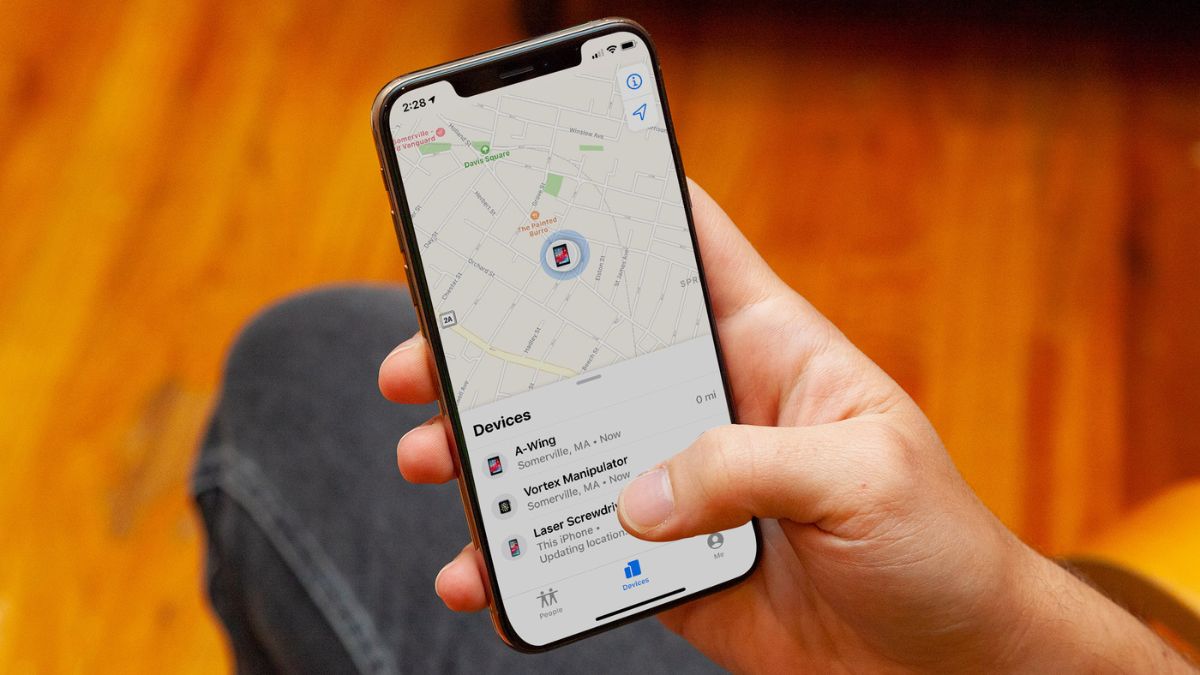
Do you think your location is private when you turn off your GPS? Most people do. But mobile carriers have been quietly tracking your exact street address for years. They do this by triangulating the signals from nearby cell towers. You might think turning off app location services protects you. Instead, it leaves your cellular network data completely exposed to massive data brokers.
These companies buy and sell your daily movements. But Apple has finally pushed back to protect your privacy. Today, you will learn how to use the iOS 26.3 Limit Precise Location feature to stop this tracking. This new setting restricts network data to a generalized neighborhood radius.
It blurs your exact spot on the map. Best of all, you can hide your location from cell network trackers without losing access to emergency services. Your phone will still connect to emergency responders when you need help. These steps to change this setting right now. You can take back your privacy in just two minutes.
#1. Stop Your Cell Carrier From Tracking Your Exact Location
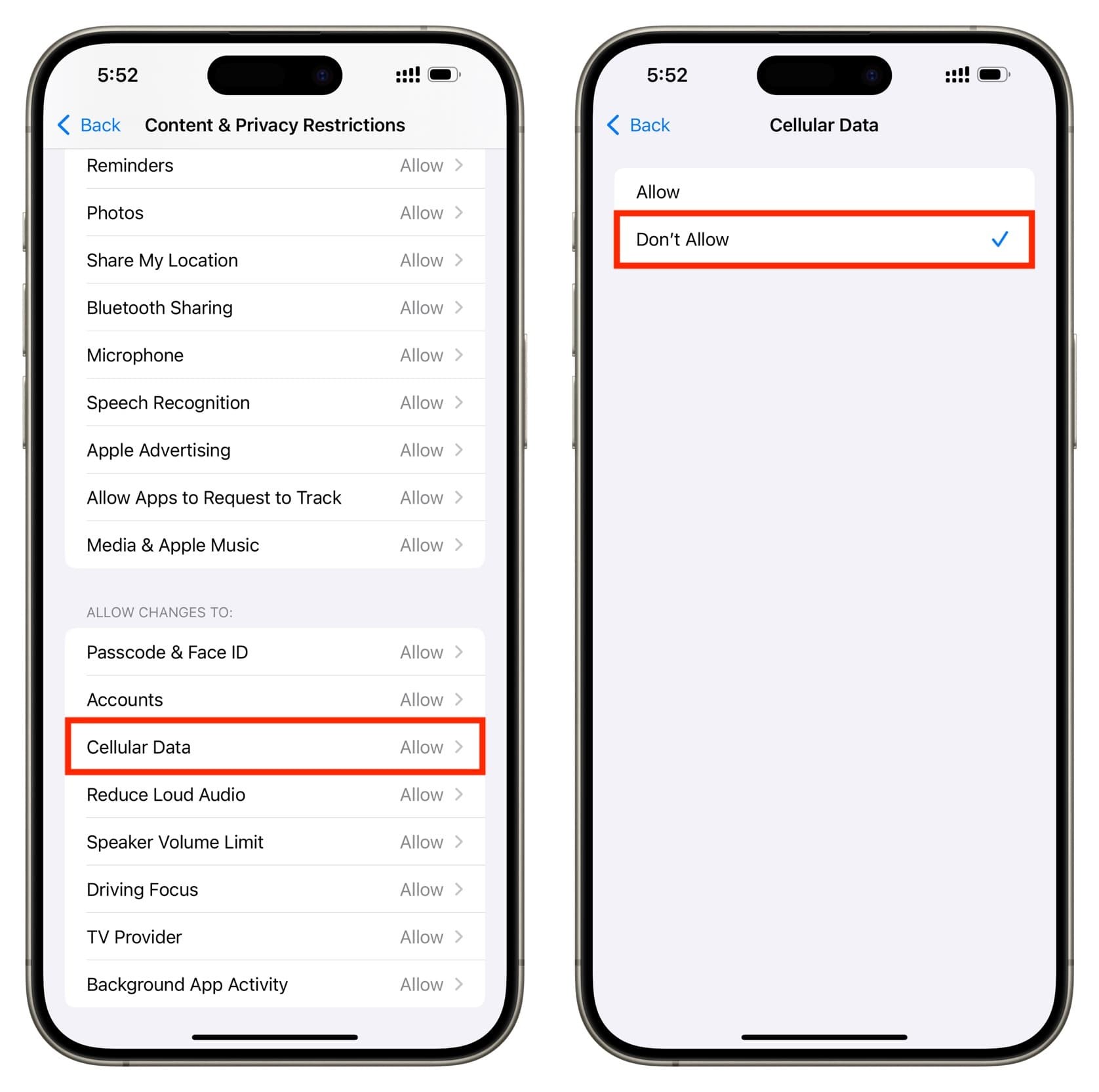
For years, mobile carriers have quietly tracked your exact street address. They do this by checking your connection to nearby cell towers constantly. Most people assume turning off app location services protects them. But this leaves your cellular network data completely exposed to massive data brokers. Today, you will learn exactly how to fix this problem.
You can use the new Apple cellular privacy setting in iOS 26.3 to restrict network data completely. This blocks companies from finding your house. You still keep full access to emergency services. You will stop paying your cell provider to sell your private data. Restricting this tracking is the ultimate step in securing your daily privacy.
#2. Cellular Carriers Actually Track Your iPhone
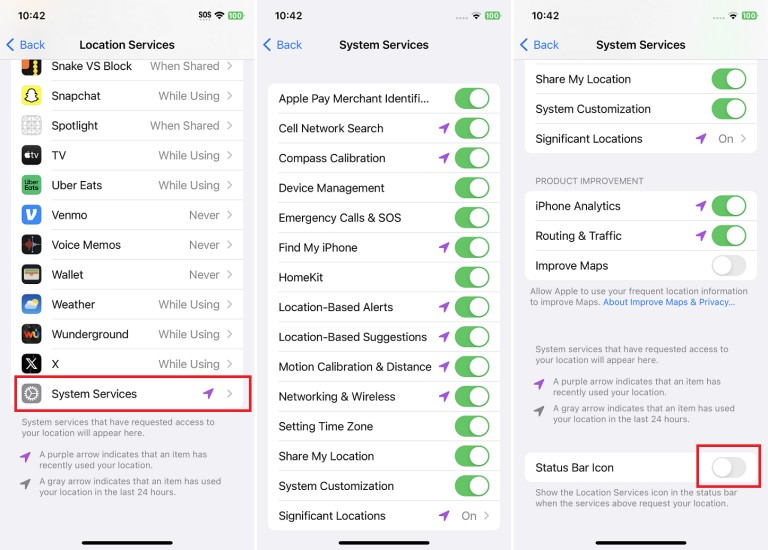
Turning off location services stops apps from seeing where you are. But your phone still talks to cell towers every few seconds. Your phone constantly pings multiple nearby cell towers to keep your signal strong. Carriers measure the time it takes for these signals to bounce back to the tower. This lets them triangulate your exact street-level address.
This hardware-level tracking happens even when your app-level GPS location services are turned off. And here is why that matters. The cellular data industry frequently monetizes this granular data. They sell it to third parties without your explicit consent. A data broker can buy a map showing a dot moving from your specific house to your specific office building.
You need to disable carrier tracking iPhone settings to stop this invasion of privacy. You pay for your cellular service. Your carrier should not make extra money tracking your daily commute.
#3. The iOS 26.3 Limit Precise Location Feature
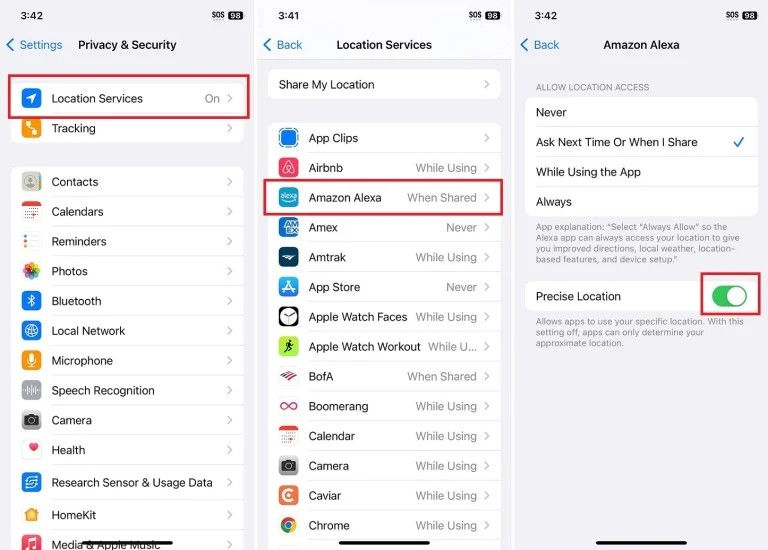
Apple recently pushed back against this carrier tracking. They introduced a new privacy feature in the recent iOS update. The iOS 26.3 Limit Precise Location feature limits the information sent to cellular networks. It downgrades your tracking precision from a specific address to a general neighborhood radius. This blurs the map for anyone trying to buy your personal data.
It does not affect emergency responder tracking at all. E911 services still receive your exact location if you need immediate help. Your app-level location sharing, like Find My, also stays completely intact. Apple’s official release notes confirm that the setting does not impact your signal quality or voice calls. It simply helps you hide your location from cell network brokers. The feature gives your hardware control back to you.
#4. Supported Devices and Carriers for the Privacy Update
Older modems simply do not support the new secure protocol. You need a device with an Apple C1 or C1X modem inside. Currently, you can find this modem in the iPhone Air, iPhone 16e, and iPad Pro M5 with WiFi and Cellular. Several global cellular carriers currently support this protocol right now. You can use it on Boost Mobile in the US. It works on EE and BT in the UK.
Telekom in Germany and A1 in Austria also support Apple’s cellular privacy settings. More networks will adopt the standard over the next year. Keep an eye on your carrier updates if they are not on the list yet. Upgrading your phone might be worth it for the privacy alone.
#5. Turn Off Carrier Tracking on iOS 26.3
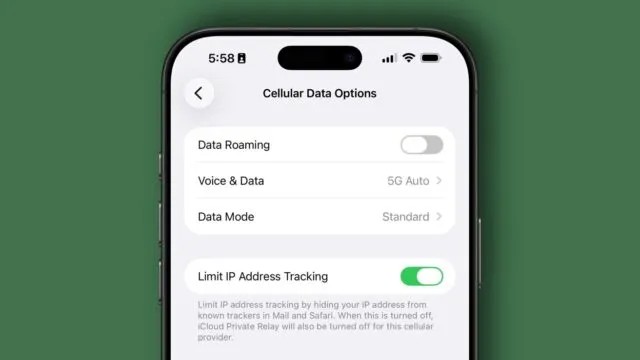
You can take control of your data right now. Follow these exact steps to change your settings today. First, open the Settings app on your phone. Next, tap Cellular. Then, access Cellular Data Options. If you use Dual SIM, select your specific SIM line first. Scroll down to toggle the new setting on. You may see a prompt to restart your device after toggling the setting.
Do this to ensure the network connection resets properly. Restricting cell network tracking is the best step for securing your mobile privacy. It closes the massive loophole that standard app permissions miss. Check your Cellular Data Options right now. Drop a comment below if your current carrier supports the feature yet. Sharing this helps other people protect their location data too.
