
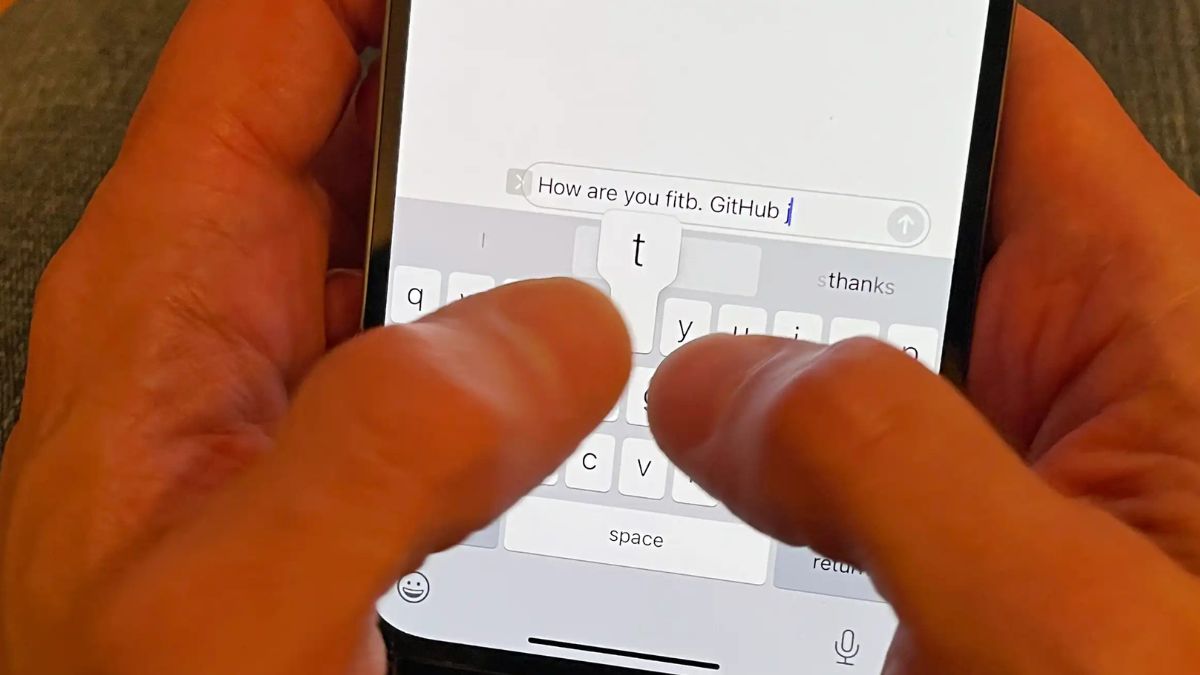
You’re not losing your mind. Your iPhone autocorrect problems started probably after an iOS update. Words you spelled correctly get changed to wrong words. Jobs becomes job a. Hello turns into He’ll.
Common words you’ve typed a thousand times now get mangled for no reason.You did nt change any settings. You re typing the same way you always have. But somehow your phone decided you can’t spell anymore.
Apple changed how autocorrect works in iOS 17 and iOS 18. Stupid in every text message. iOS 18 autocorrect went haywire which to try first and how to stop autocorrect from changing correct words ever again. The process takes about 5 minutes.
1. Apple’s Autocorrect Overhaul Backfired

Your autocorrect didn’t suddenly forget how to spell. Apple changed how it works. Apple rolled out iOS 17 with a brand new autocorrect system. They replaced the old dictionary based with something called a transformer language model.
iOS 17, then got way worse. iOS 17.4 dropped, people started flooding Apple’s forums with complaints. The new version added spacing errors and broke autocorrect for people typing in multiple languages.
What People Are Seeing ?
Your phone changes food to good even when you’re clearly talking about eating. It swaps correct words for different words by changing just one or two letters. And it does this to words you spelled perfectly.
One iPhone user who’s had Apple phones for 15 years said the iOS 18 autocorrect issues are completely debilitating. That’s not an exaggeration. When your phone changes correct words into gibberish, you look stupid in every text you send.
2. Turn Off Apple Dictionary
Apple Dictionary setting actually does. Apple Dictionary setting in iOS 18 is connected to that broken causing all your problems. Phone uses Apple’s dictionary to help with autocorrect.
Turning it off doesn’t kill all autocorrect. Your phone still catches actual typos. It just stops using the dictionary that’s causing the glitch.
How to turn off Apple Dictionary
Open Settings, Tap General, Tap Dictionary you might need to scroll down, Find Apple Dictionary in the list, Tap the checkmark to uncheck it, Close Settings and test your typing. Checkmark disappears when it’s off.
What if you don’t see Dictionary in Settings?
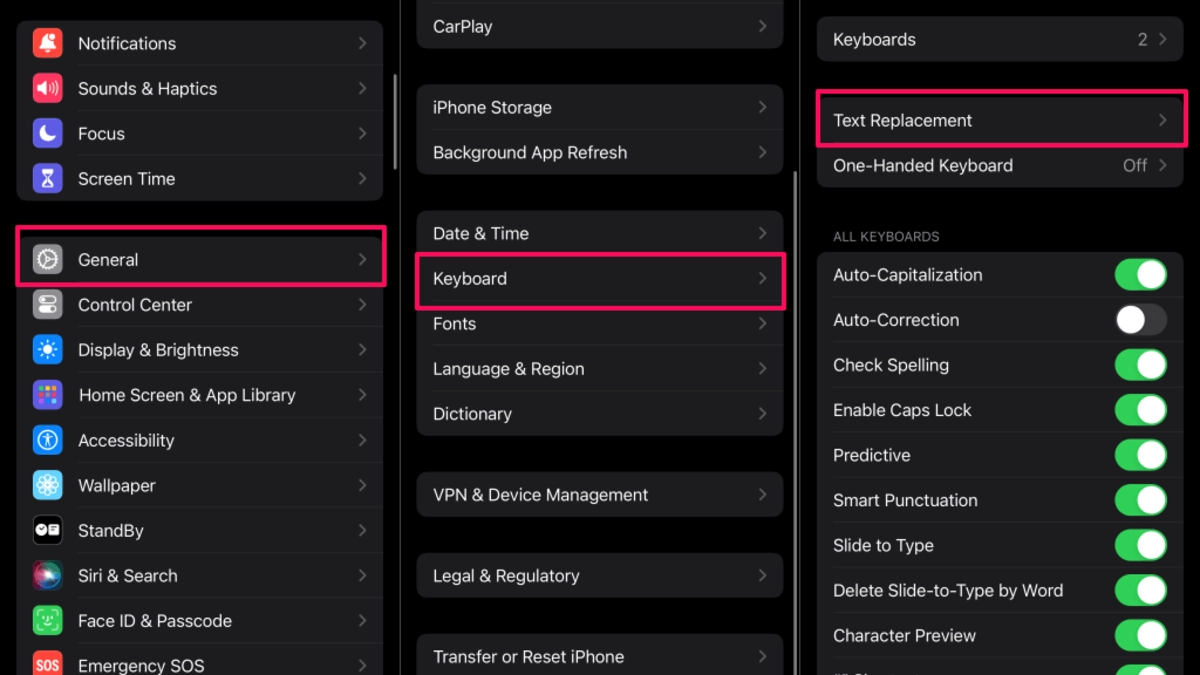
iOS versions have this in a different spot. Settings > General > Keyboard > Text Replacement. Or search “Dictionary” in your Settings search bar. iOS 18 dictionary setting is there. It’s just hidden in a place most people never look.
3. Update to iOS 18.1.1
Apple knows their autocorrect is broken. The iOS 18 update that caused so many problems. Apple’s been releasing patches to fix the mess they made. One user updated to iOS 18.1.1 and reported that all their autocorrect issues disappeared.
Some people update to the latest iOS version and still have the same issues. Update your phone AND reset your keyboard dictionary. Or update AND turn off Apple Dictionary.
How to update your iPhone?
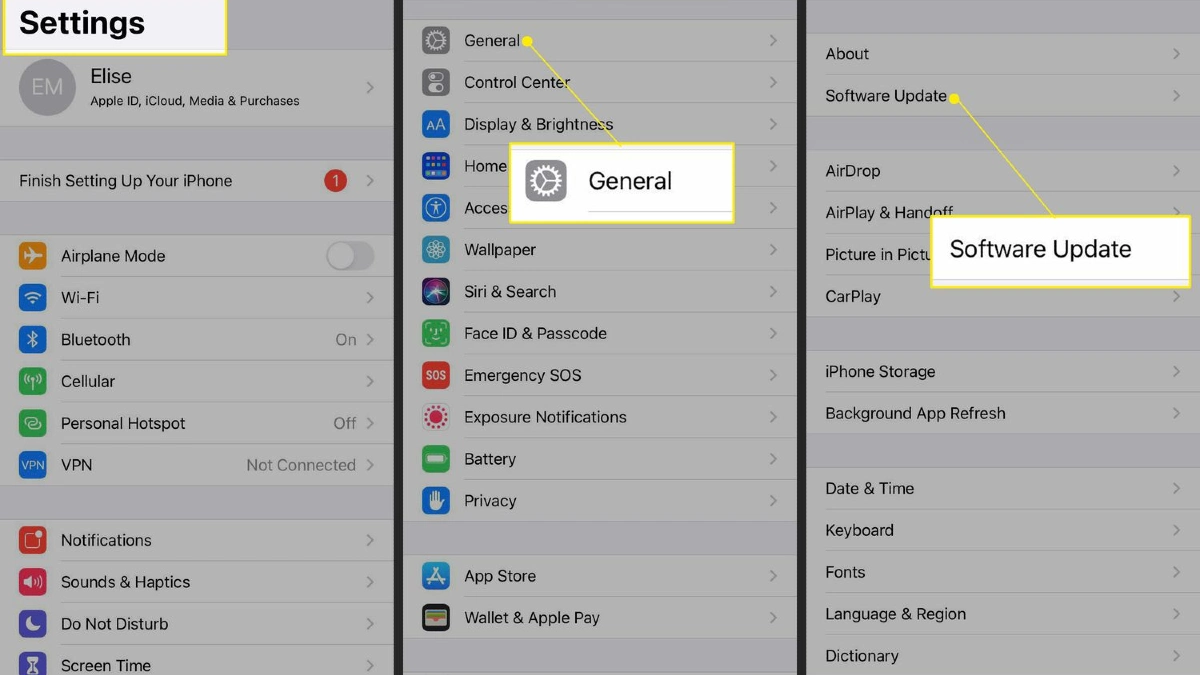
Open Settings, Tap General, Tap Software Update, If an update shows up, tap Download and Install,Wait for it to finish,Your phone will restart automatically. After your phone restarts, go back and check you’re on the newest version. Add problem words to text replacement.
It’s a Band Aid. But sometimes a Band Aid. When to use text replacement iPhone. Or well turns into we’ll every time. Any word you type more than 5 times a day. Stick to your top 5 to 10 problem words. More than that gets hard to manage.
How text replacement stops autocorrect
When you add a text replacement, you’re telling your phone. Your phone keyboard shortcut and replaces it with the phrase you want. Both are the same word. But behind the your phone to stop autocorrect from words.
4. Remove Extra Language Dictionaries
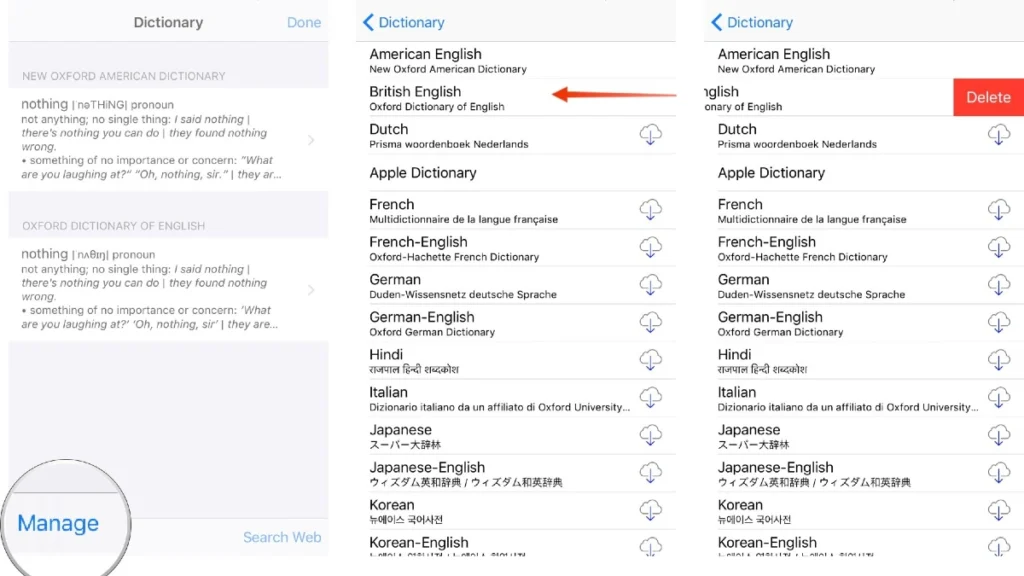
Your iPhone might have dictionaries you don’t even know about. This is a weird one. Some people check their dictionary settings and find two copies of every language. English US listed twice. Spanish twice. French twice.
Why extra dictionaries cause problems ?
When you type your phone checks against every dictionary you have enabled. If you’ve got English, Spanish, French, and German all turned on, your phone tries to autocorrect using all four languages at once.
iPhone language settings get even messier when dictionaries duplicate themselves. Your phone checks the same language twice and gets conflicting suggestions.
Check your dictionaries right now
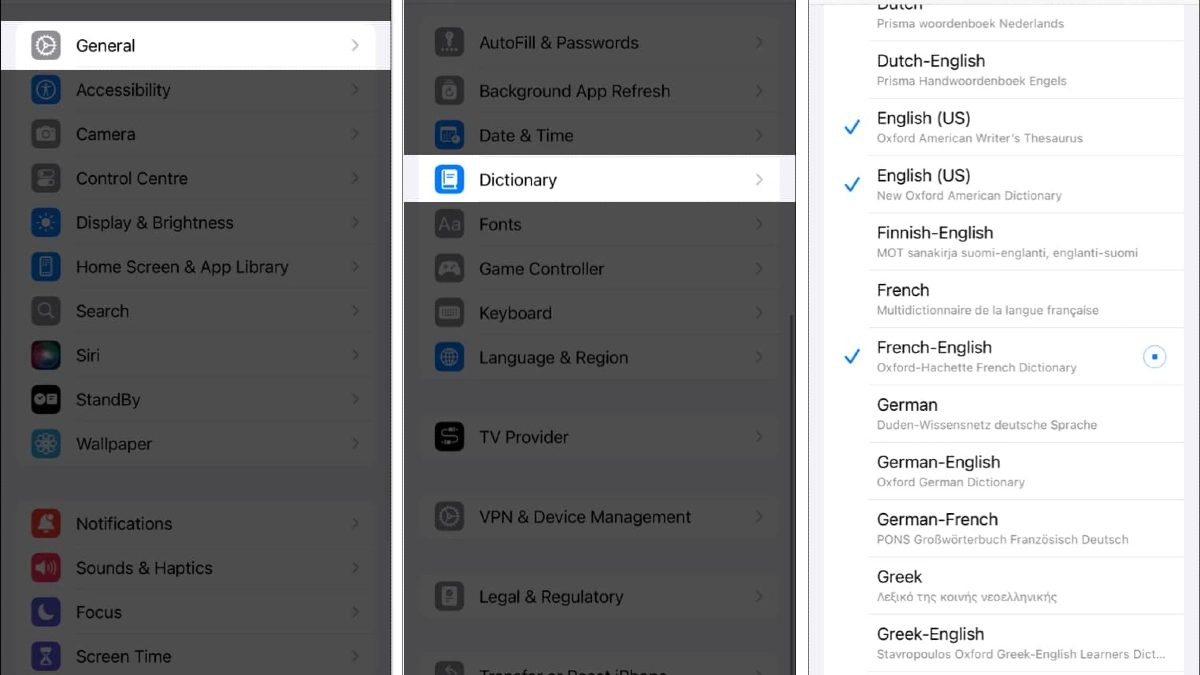
Most people have didnt now how many dictionaries are enabled. Open Settings, Tap General, Tap Dictionary, Every language that has a checkmark. In Settings ,General, Dictionary.
If you see duplicates, uncheck both and then check just one. Leave only the languages you actually type in.
5. Turn Off Autocorrect Completely
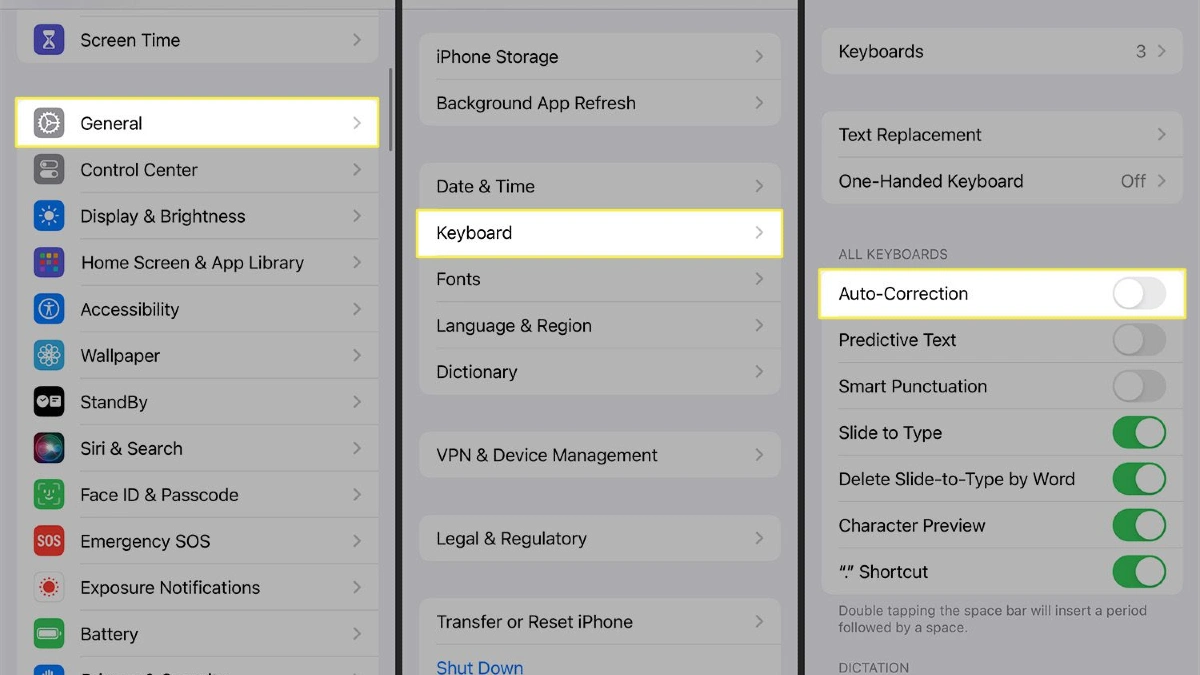
Autocorrect still stupid, you have one option left. Disable iPhone autocorrect entirely. Many iPhone users haven’t used autocorrect in years. They say typing better without it. No surprise corrections. No going back to what autocorrect.
What you lose when you turn off autocorrect ?
If you make a lot of typos this will be hard at first. Your phone won’t catch anymore. Type teh instead of the and it stays teh. Miss a letter and nobody fixes it for you. You can still keep spell check on. Your phone will underline misspelled words in red. You just have to tap and fix them yourself..
Keep spell check on

Don’t turn off Check Spelling when you turn off autocorrect. Check Spelling just underlines words it thinks are wrong. It doesn’t change anything automatically. You stay in control. This gives you the best of both worlds.
6. Check for Third-Party Keyboard Conflicts
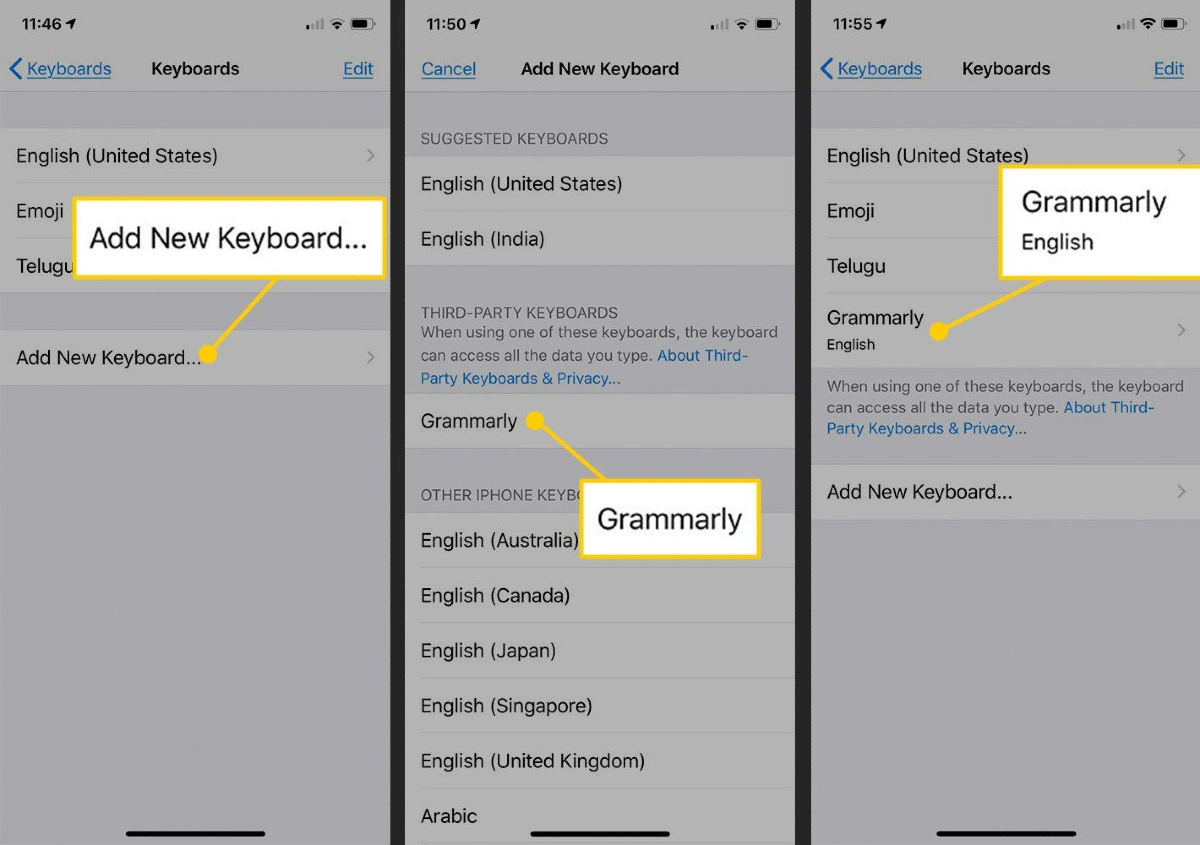
Gboard or SwiftKey app might be causing your problems. Third party keyboards are great when they work. But sometimes they fight with Apple’s autocorrect system and a mess.
Why keyboard apps cause conflicts?
When you install Gboard on iPhone or any other keyboard app another layer on top of Apple’s system. Autocorrect systems trying to work at the same time. Apple’s autocorrect tries to change your words.
Gboard tries to change them too. They don’t always agree. Your text gets mangled by both systems fighting each other. Third party keyboards haven’t updated for iOS 18 yet.
Note about Gboard
Gboard is the third party keyboard. It’s also one of the biggest conflict sources. The glide typing in Gboard sometimes clashes with Apple’s autocorrect in weird ways. Gboard updating it to the latest version in the App Store. Developers often patch these conflicts.
