
The moment unbox a new iPhone, I don’t admire the titanium frame. I head straight for the Settings app to shut down the digital backdoors Apple leaves open by default. Most people believe that Apple’s privacy ads mean their device is safe right out of the box. That is a mistake.
Even with a $1,200 phone, features like Significant Locations and Cross-App Tracking are turned on. These settings turn your phone into a fast data harvesting beacon for advertisers. They can even help hackers if you aren’t careful. As a cybersecurity expert, I know that “default” is rarely “secure.”
These can fix your iPhone privacy settings 2026 and boost your iOS 26.3 security. We will disable five high-risk features. This protects your physical location, your browsing habits, and your personal data.
#1. Kill “Significant Locations” to Stop iPhone Tracking
Your iPhone knows where you live. It also knows where you work, where you buy your coffee, and which gym you visit. It keeps a list of these places under a feature called Significant Locations. Apple says this data is encrypted, meaning they can’t see it. However, the data stays on your phone.
If someone gets your passcode, they can see exactly where you spend your time. For anyone worried about location privacy, this is a huge hole in your armor. System Services are the most overlooked tracking vectors in iOS. While most people worry about apps like Facebook, these hidden system tools are often doing the most work in the background.
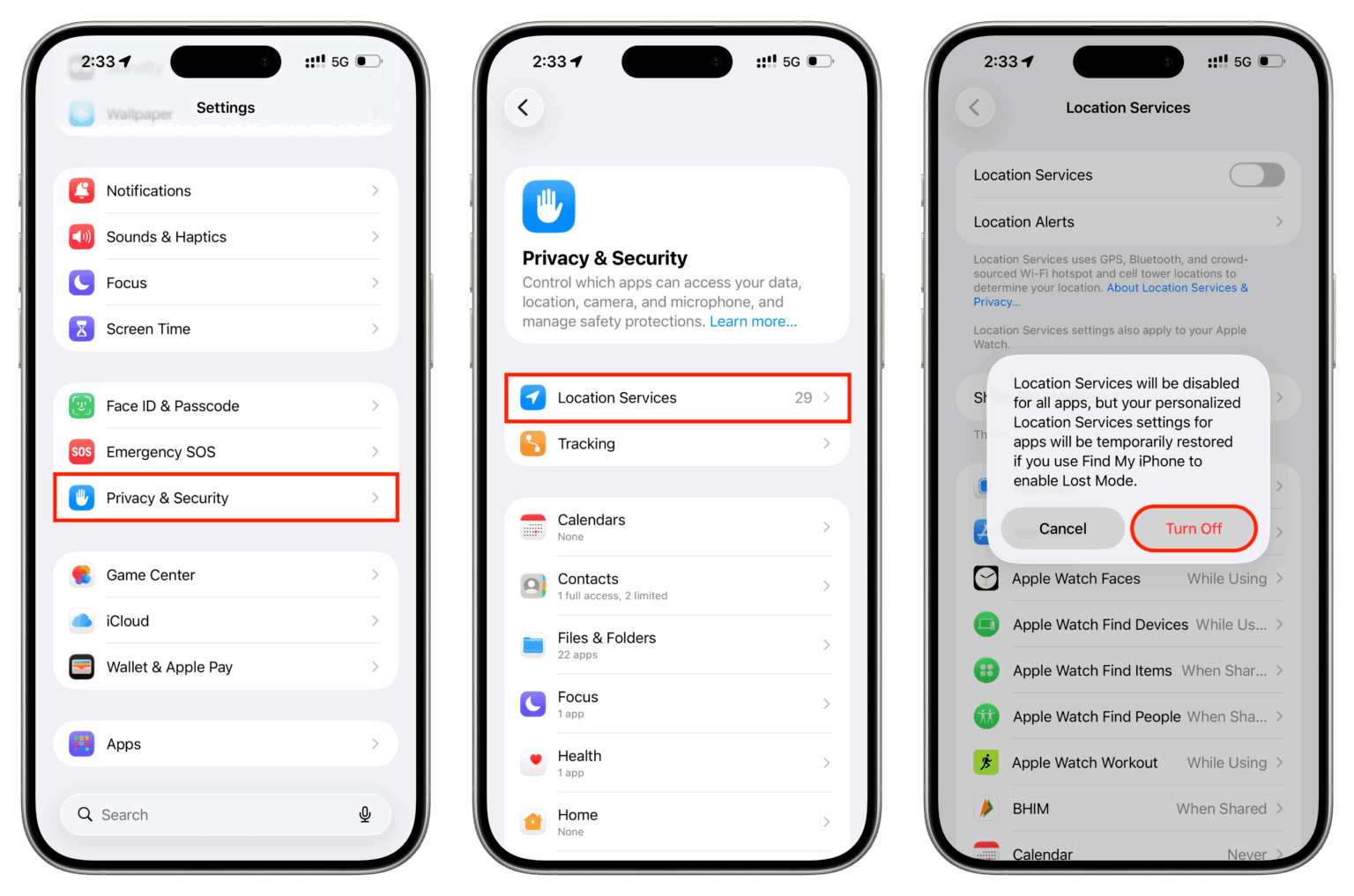
- Open Settings.
- Tap Privacy & Security.
- Go to Location Services.
- Scroll to the bottom and tap System Services.
- Find Significant Locations and toggle it OFF.
#2. Revoke “Allow Apps to Request to Track.”
Most apps want to follow you after you close them. They use something called the IDFA (Identifier for Advertisers). In 2026, this ID is still the primary way companies link your activity on one app to your activity on a website. You have probably seen the pop-up asking “Allow App to Track?” Selecting “Ask App Not to Track” is okay, but never letting them ask is better.
Since Apple launched these privacy controls, companies like Meta have lost billions of dollars. This proves how much money they make by selling your habits. When you stop cross-app tracking, you break the chain that advertisers use to follow you around the internet. It protects your iPhone’s data privacy by making you invisible to their data-collection tools.
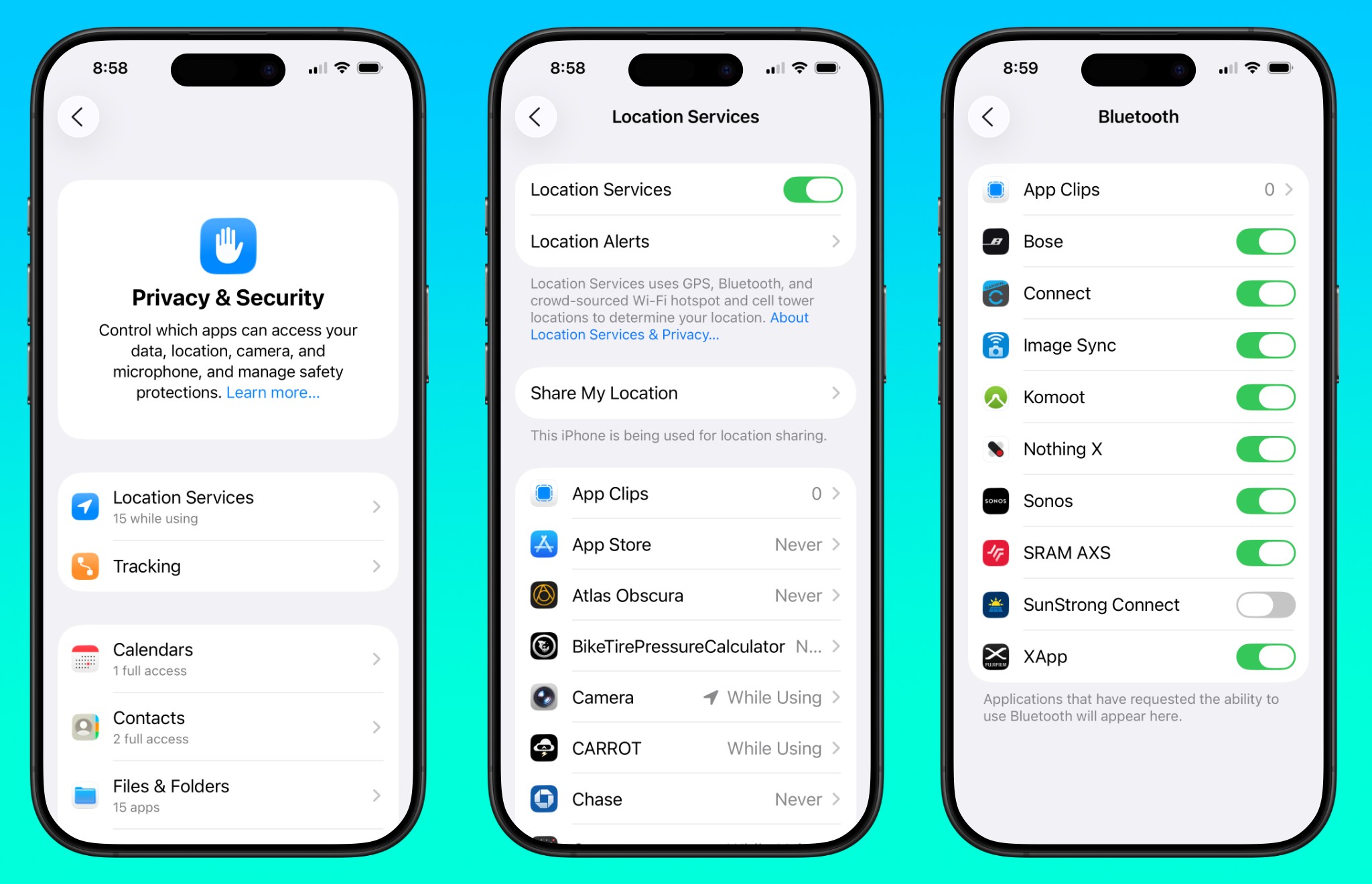
- Go to Settings.
- Tap Privacy & Security.
- Tap Tracking.
- Switch Allow Apps to Request to Track to OFF.
#3. Disable “Personalized Ads” and Apple’s Own Tracking
Many people think that stopping other apps also stops Apple. That isn’t true. Apple has its own ad platform. They watch what you search for in the App Store and what you read in the News app. They use this to show you ads that they think you will like.
If you search for “crypto” in the App Store, Apple might start showing you finance ads. This is Apple data collection in action. Even if they don’t sell this data to others, they are still building an internal profile of who you are and what you care about. To stay private, you need to sever this link.
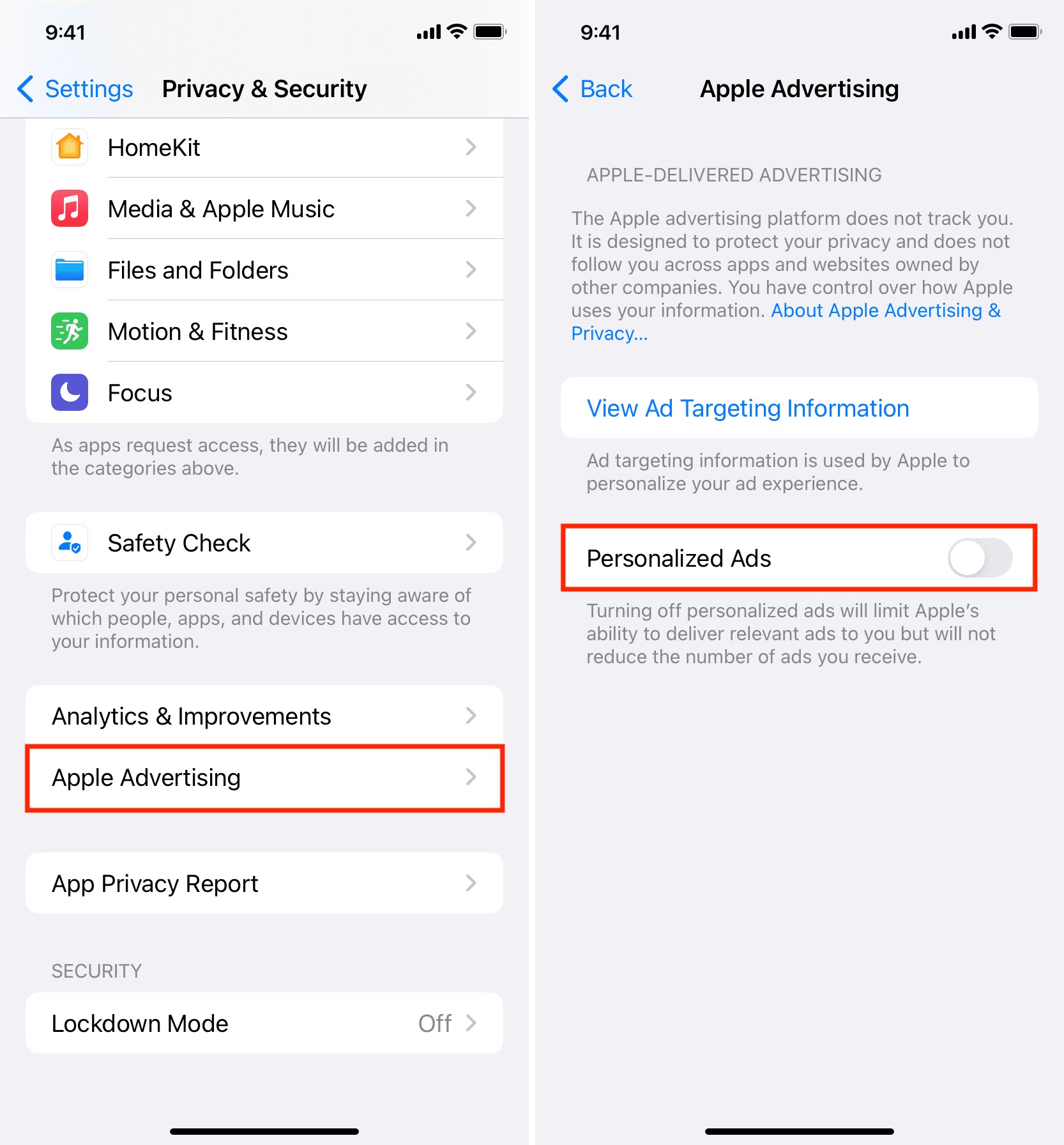
- Open Settings.
- Tap Privacy & Security.
- Scroll down to Apple Advertising.
- Toggle Personalized Ads to OFF.
#4. Deactivate “Siri & Dictation” History & Logging
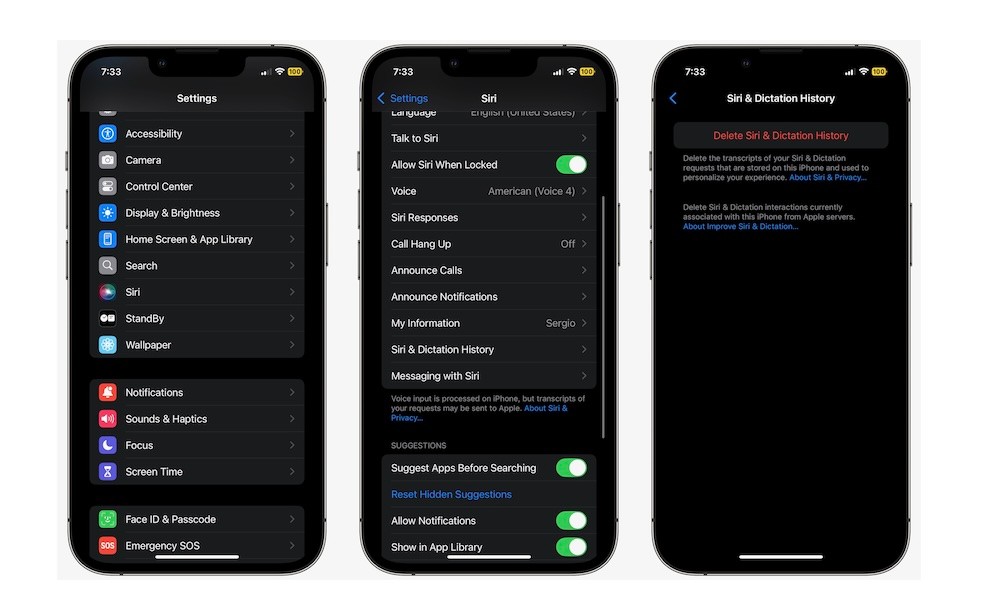
Siri is always listening for its wake word. To make the service better, Apple sometimes lets employees listen to small snippets of your voice recordings. Apple’s 2026 Transparency Report shows that they still use some audio data to fix bugs and improve accuracy. For someone who wants total privacy, an “always-on” microphone is a major liability.
You might say something private near your phone without realizing it. If that snippet gets sent for review, a human could hear it. Audio data logging is a risk you don’t need to take. You can keep using Siri while stopping Apple from keeping your voice recordings.
- Go to Settings.
- Tap Privacy & Security.
- Tap Analytics & Improvements.
- Toggle Improve Siri & Dictation to OFF.
- Then, go to Settings > Siri & Search > Siri & Dictation History and tap Delete Siri & Dictation History.
#5. Turn Off “Lock Screen Access” for High-Risk Features
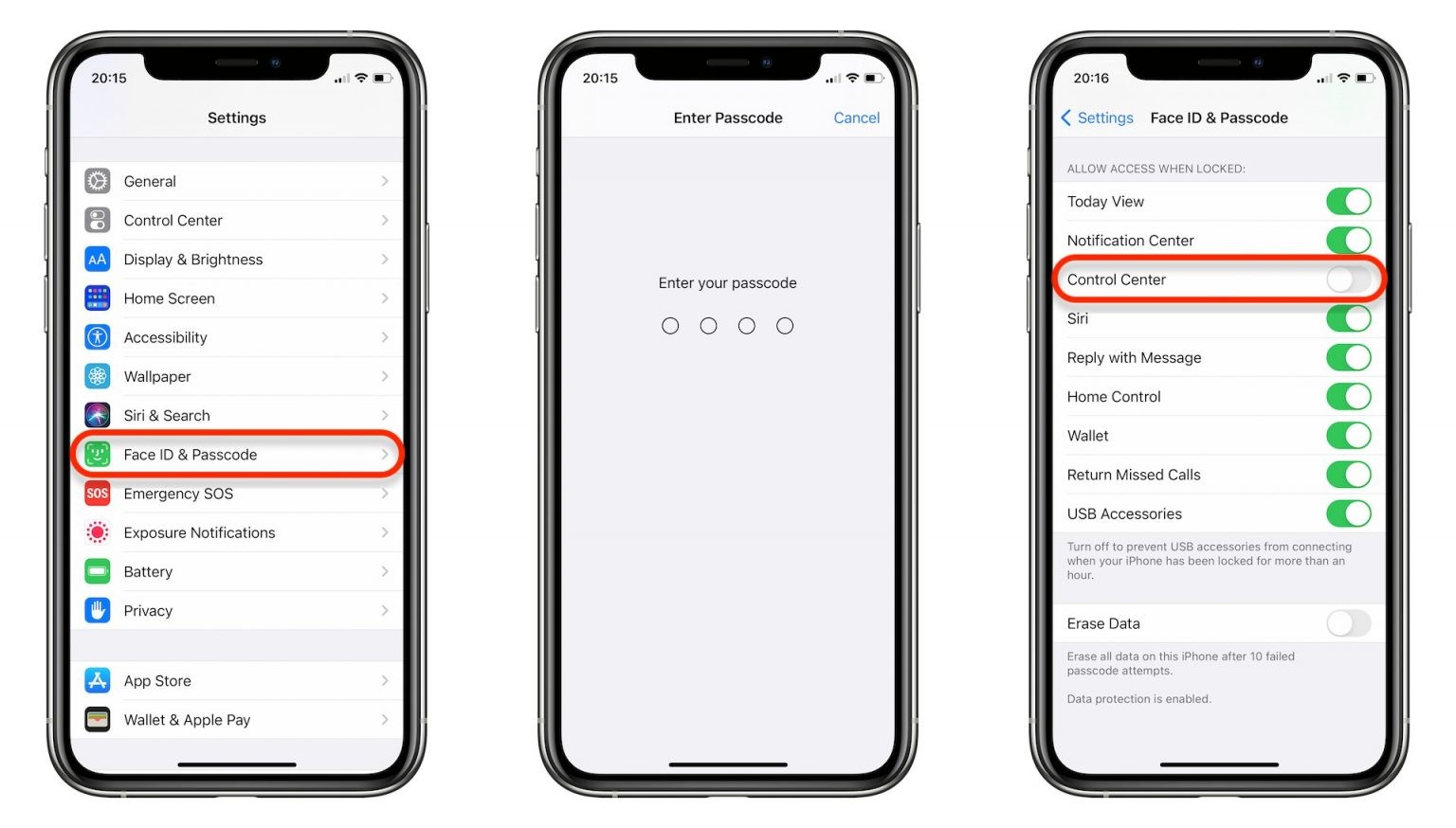
Convenience is often the enemy of security. Your iPhone lets you use the Control Center and Siri even when the screen is locked. This seems helpful, but it opens a door for hackers. In 2026, “Bracel-jacking” is a real threat. This is when malicious charging cables or accessories try to pull data from your phone the moment you plug it in.
If your USB port stays active while the phone is locked, a bad cable can “talk” to your device. By turning off lock screen access, you lock the gates. This is a key part of iOS 26.3 security. You want your phone to be a brick to anyone who doesn’t have your face or your passcode.
- Open Settings.
- Tap Face ID & Passcode.
- Scroll down to the Allow Access When Locked section.
- Toggle OFF for Control Center, Siri, and Accessories.
