
Your photos, messages, and documents sit in iCloud right now. Most iPhone users store their whole digital life in iCloud without knowing if it’s protected. One weak password or one clicked phishing link could expose everything, private photos, financial documents, personal messages, and years of irreplaceable memories.
Default iCloud settings leave gaps in security. Apple provides powerful tools to protect iCloud data, but many remain turned off unless actively enabled. Hackers target iCloud accounts specifically because people assume Apple handles all the security automatically.
What follows are seven specific actions to take today to lock down iCloud storage security. Learn which settings to turn on, how to spot fake Apple emails, and what to do if something goes wrong.
1. Turn On Two-Factor Authentication Right Now

The single best thing you can do for your iCloud takes two minutes. Two factor authentication protects your Apple ID security better than anything else. It’s simple. You give two pieces of proof when you log in. First, your password. Second, a six, digit code sent to your iPhone or other trusted device. Both pieces must match, or you can’t get in.
Why does this matter so much? Most compromises come from human factors such as weak passwords, phishing, and reused credentials. Hackers don’t break into Apple’s servers. They trick you into giving up your password. Or they buy stolen passwords from data breaches on other websites. With two, factor authentication a stolen password isn’t enough. The hacker also needs physical access to your device to get that second code.
Apple requires two, factor authentication for many features now. You need it for iCloud account protection features like Advanced Data Protection. You need it to use Apple Pay. You need it to sign in to new devices. If you haven’t set it up yet, Apple has been pushing you to do it. Now’s the time.
But 2FA isn’t perfect. You can still fall for phishing scams that steal your verification codes. Some hackers use SIM swapping to intercept your text messages. That’s why you should use authentication codes from your device instead of SMS when possible. Apple sends codes directly to your trusted devices. That’s more secure than text messages.
2. Enable Advanced Data Protection for Maximum Security

Apple’s basic security is good. But there’s a stronger option most people don’t know about. It’s called Advanced Data Protection. This feature offers the highest level of cloud data security with end-to-end encryption for your iCloud data. Regular iCloud security protects your data when it moves between your device and Apple’s servers. Advanced Data Protection goes further. It encrypts your data so thoroughly that only you can read it.
Your trusted devices retain sole access to the encryption keys for the majority of your iCloud data. Apple doesn’t have a copy of these keys. They can’t see your photos. They can’t read your notes.This matters for iCloud backup safety. Using end-to-end encryption, Advanced Data Protection safeguards your data so even if there is ever a security breach at Apple, your data will still be safe. Hackers could break into Apple’s servers tomorrow. Only your iPhone, iPad, or Mac has the key.
With standard protection, Apple can help you reset your account and get your data back. Without one of these, losing your password means losing everything. Scroll down and tap Advanced Data Protection. Read through Apple’s warnings. Set up your recovery contact or recovery key. Then tap Turn On Advanced Data Protection.
You need two, factor authentication enabled first. Apple won’t let you turn on Advanced Data Protection without it. That’s another layer making sure you’re really you. Advanced Data Protection isn’t for everyone. But if you store sensitive information
3. Create a Password That Actually Keeps Hackers Out
A study suggests the average person has around 100 passwords. Most people can’t remember that many. So they reuse the same password everywhere. Or they pick something simple like their dog’s name plus their birth year. Current secure password guidelines emphasize length as a critical factor, aim for passwords at least 12 characters long. Length beats complexity every time. A 12-character password is harder to crack than an 8-character password, even if the shorter one has symbols and numbers.
Apple ID password needs to be one of your strongest. It protects your photos, messages, contacts, and payment information. Don’t use anything someone could guess. Never use birthdays, pet names, or “password123.” Don’t use your address or your kids’ names.
A strong password should include uppercase and lowercase letters, numbers, and special characters. But mixing in a “!” or “@” doesn’t make “Password1!” secure. It just makes a weak password slightly less weak. You need real randomness and real length.
4. Let a Password Manager Remember Everything
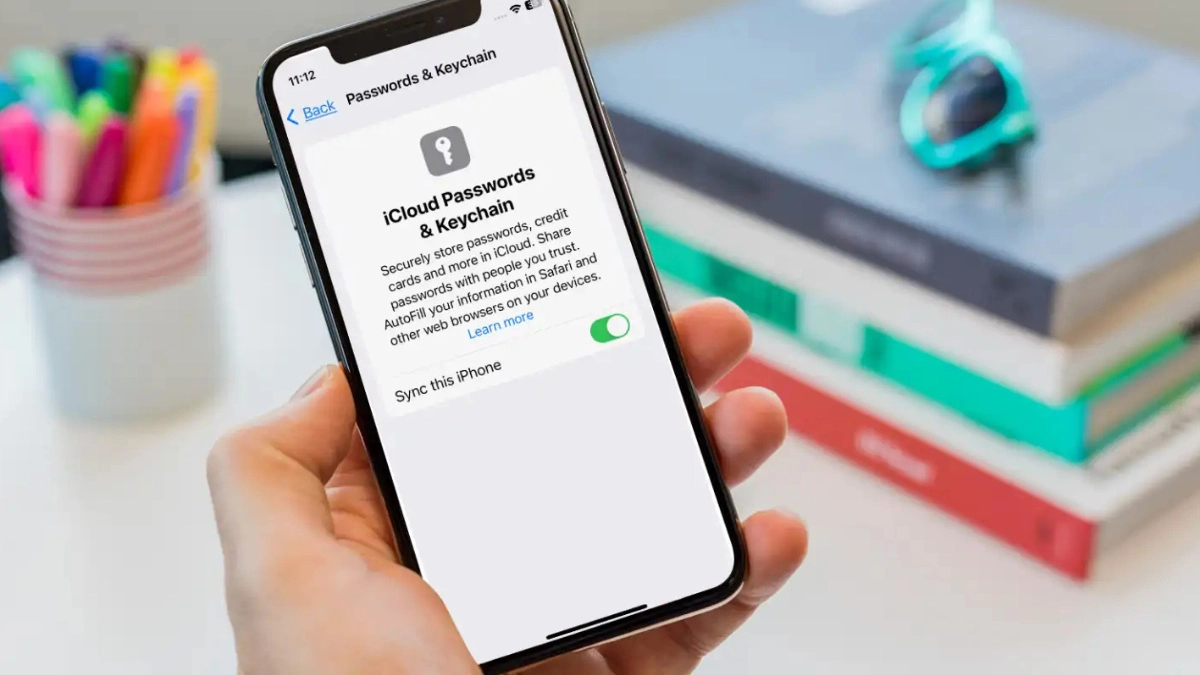
Password managers solve this problem by generating and storing unique, complex passwords for every account you have. They keep everything encrypted behind a single master password, he only one you need to remember.
For 2025, top, rated options include NordPass, Keeper, RoboForm, and Bitwarden. Notably, NordPass, Keeper, and RoboForm have never experienced a data breach, making them particularly trustworthy for protecting your secure passwords. Apple users can use the built, in Passwords app, which offers solid iCloud storage security across all devices.
They automatically fill in your credentials when you visit login pages, eliminating manual typing that could expose you to keyloggers. The software syncs across all your devices, so your passwords are always available whether you’re on your phone or computer.
5. Don’t Fall for Fake Apple Emails
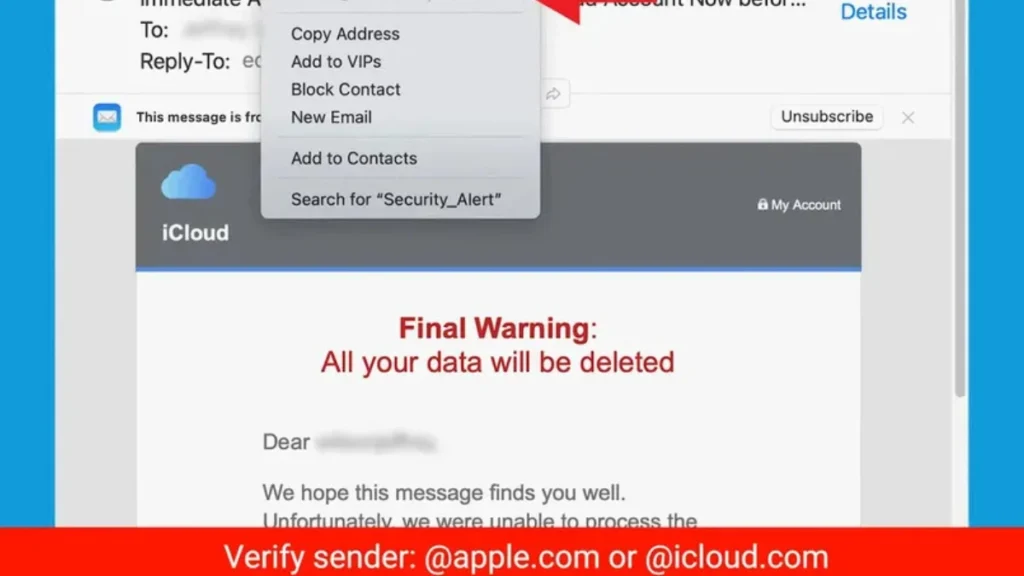
That email saying your iCloud is full? It’s probably fake. iCloud phishing scams are becoming increasingly sophisticated, with Apple targeted in just under one in 10 phishing attempts from January to March 2025. Scammers use urgent wording like “Payment Failure for iCloud Storage Renewal” or “iCloud Suspended. Fix it before Mon, 13 January 2025” to create panic.
Legitimate Apple emails always come from @apple.com or @icloud.com domains—check the full email address, not just the display name. Hover over links before clicking to see where they actually lead. Common phishing claims include storage being full, payment failures, or account suspension threats. In 2023, the FBI received nearly 300,000 phishing complaints, with losses approaching $19 million.
To protect your iCloud account, never click links in suspicious fake Apple emails. Instead, open your iPhone settings or type icloud.com directly into your browser. When in doubt, don’t click. Go straight to your device settings instead.
6. Plan Ahead: Set Up Account Recovery Now

Lock yourself out of iCloud with Advanced Data Protection, and Apple can’t save you. Advanced Data Protection depends on you never forgetting your password, Apple deliberately can’t access your data, which means they also can’t help with account recovery if something goes wrong.
You have two choices: recovery contacts and recovery keys. Recovery contacts are trusted people, family members or close friends, who can help you regain iCloud access if you’re locked out. A recovery key is a 28, character code that works like a master password reset tool.
To set up recovery options, go to Settings > [Your Name] > Password & Security. Choose at least one method. If you select a recovery key, write it down immediately and store it somewhere secure, not in your iCloud account. Without recovery contacts or your recovery key, a forgotten password means permanent data loss.
7. See Which Devices Access Your iCloud
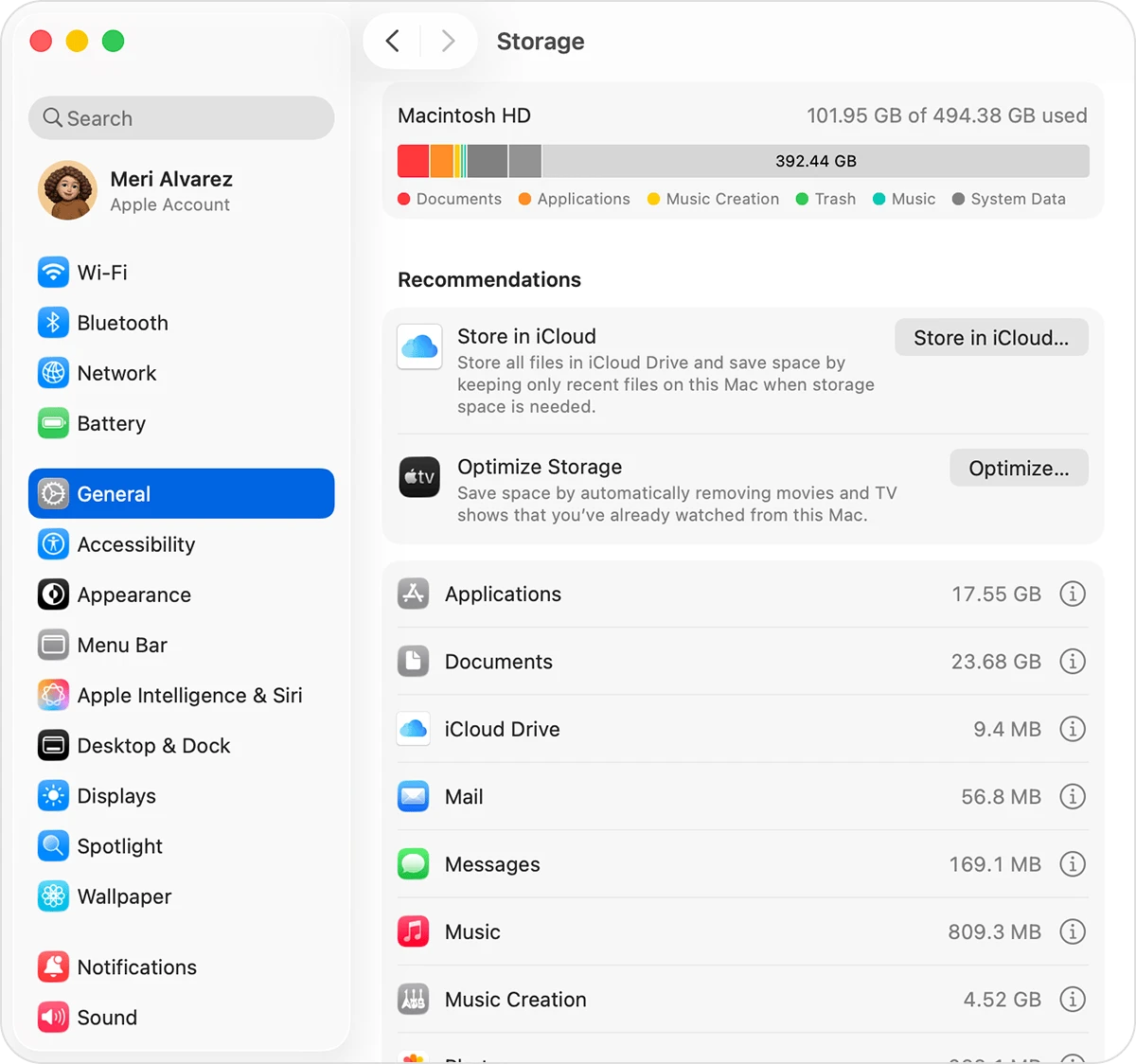
Old iPad you gave away three years ago? It might still be connected to your iCloud. Every device signed into your Apple ID has access to your data, and forgotten devices create unnecessary security risks. If you lose your Apple device and it’s not secured with a passcode, someone could access your iCloud and everything stored within it.
Tap any device to view details or remove it. If you see anything unfamiliar or outdated, remove it immediately by selecting “Remove from Account.”For added device security, turn on Stolen Device Protection under Settings > Face ID & Passcode. This feature requires biometric authentication and security delays for sensitive actions when your device is away from familiar locations.
8. Act Fast If Someone Gets Into Your iCloud
Suspect someone has your iCloud password? A compromised account gives attackers access to your photos, messages, contacts, and more. Acting quickly limits the damage and helps you regain control before sensitive data is stolen or deleted.
Follow these steps in order. First, change your Apple ID password immediately at appleid.apple.com or through Settings > [Your Name] > Password & Security. Next, sign out of all devices from your Apple ID settings to kick out the intruder. Review recent account activity to see what data was accessed, check purchase history, iCloud Drive, and photo uploads for anything suspicious.
If you haven’t enabled two, factor authentication, turn it on now to prevent future iCloud security breaches. If you’re completely locked out and can’t reset your Apple ID, contact Apple Support immediately through apple.com/support for assistance with account recovery. Fast action can stop a hacker from doing real damage.
Protect Your Digital Life Today

Your iCloud holds your digital life, photos, messages, documents, and backups of everything that matters. Protect it with these seven steps: turn on two-factor authentication, enable Advanced Data Protection, create strong passwords, use a password manager, watch for phishing scams, set up recovery options, and review connected devices. Each layer adds security that keeps hackers out and your data private.
Open your iPhone settings right now and turn on two, factor authentication. That one action takes two minutes and blocks most hackers from accessing your account, even if they steal your password. From there, work through the other steps at your own pace, enable Advanced Data Protection for maximum encryption, set up a password manager to eliminate weak passwords, and add recovery contacts so you never lose access.
