
Apple tells you, “What happens on your iPhone, stays on your iPhone,” but that is only true if you know which switches to flip. Most of us trust that a brand-new phone is set up to protect us by default. In reality, “default” usually means “convenient for Apple.”
If you are running iOS 19 or the latest 2026 updates, you have more power than ever to stop this, but the menus are buried deep. These 7 specific iPhone privacy settings are compromising your personal data protection. By the time you finish reading, you will have moved your phone from “factory default” to “maximum privacy,” making sure your private life actually stays private.
In 2026, data is more valuable than ever. To protect yourself, you need to change how your phone handles your info. These step-by-step 7 settings you should change right now to stop iPhone tracking.
#1. Significant Locations
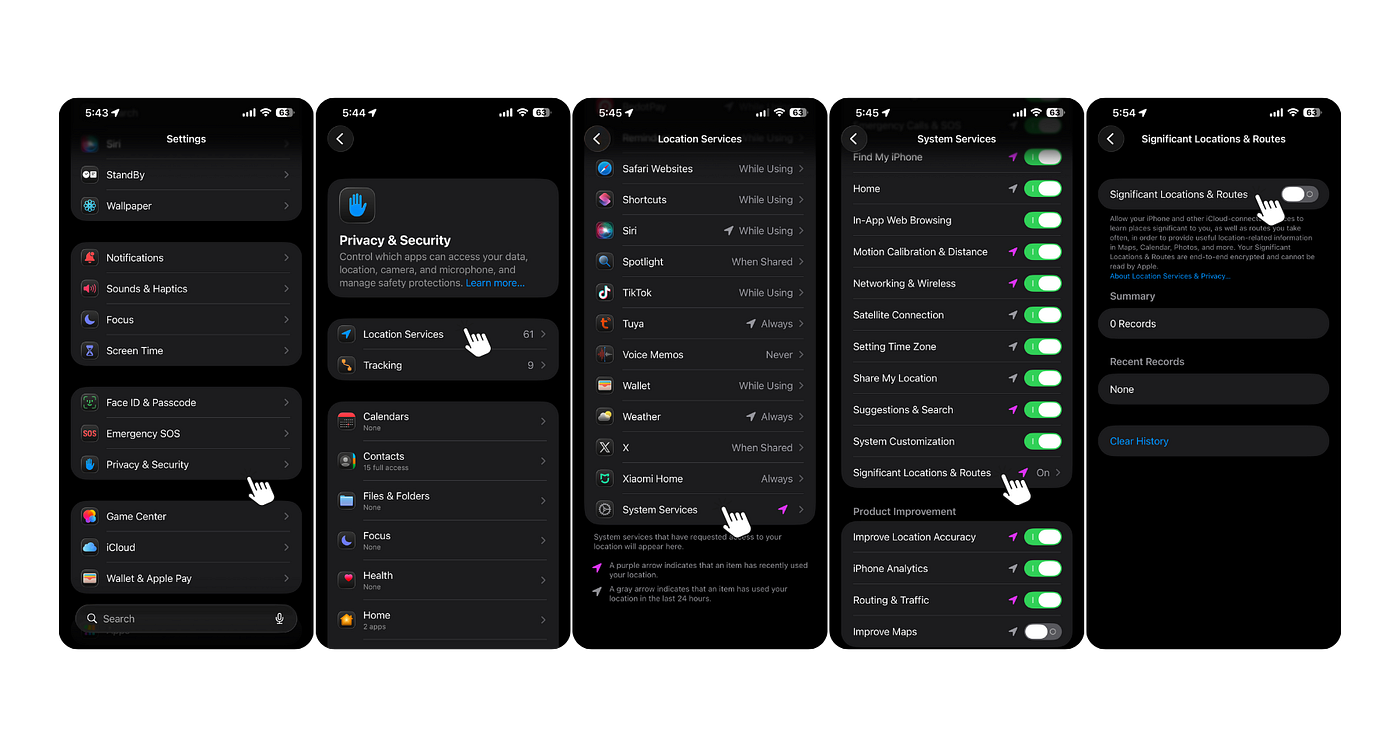
Your iPhone keeps a hidden list of everywhere you go frequently. It knows exactly when you left your house, where you work, and which friends you visit most. Apple says this is for “predictive traffic routing,” but it creates the best digital map of your life. If this setting is on, your phone is doing the hard work for them.
- Open Settings. Tap Privacy & Security.
- Tap Location Services.
- Scroll all the way to the bottom and tap System Services.
- Find and tap Significant Locations. You will need to use FaceID or your passcode to enter.
- Toggle the switch to Off.
- Tap Clear History to wipe the map of places you have already visited.
#2. App Tracking Transparency
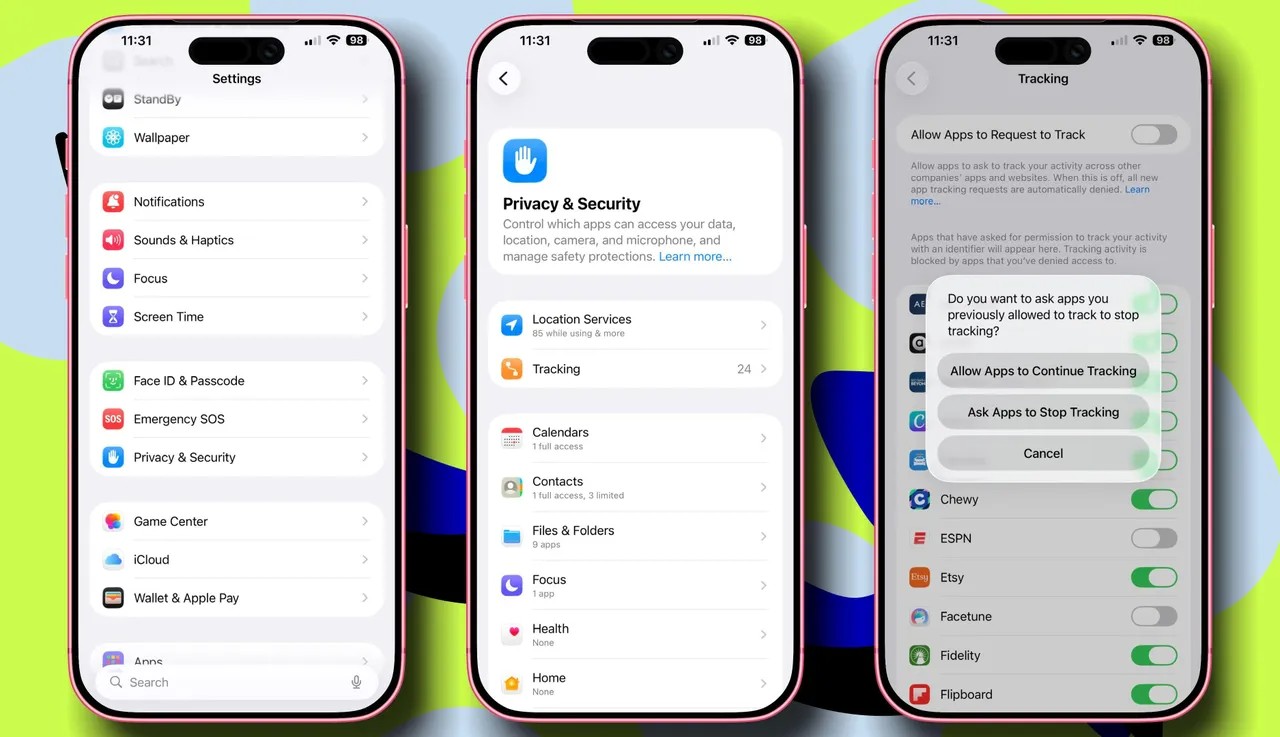
Apps want to follow you across the internet. They look at what you buy on Amazon and then show you ads for it on Instagram. This is called “cross-app tracking.” Apple has a tool to stop this, but many people leave it set to “Ask,” which means you get a pop-up every time you download a new app. It is better to tell every app “No” by default. 68% of users in 2026 choose to block these requests automatically to stay private.
- Open Settings.
- Tap Privacy & Security.
- Tap Tracking.
- Switch off Allow Apps to Request to Track.
#3. iPhone Analytics & Improvements
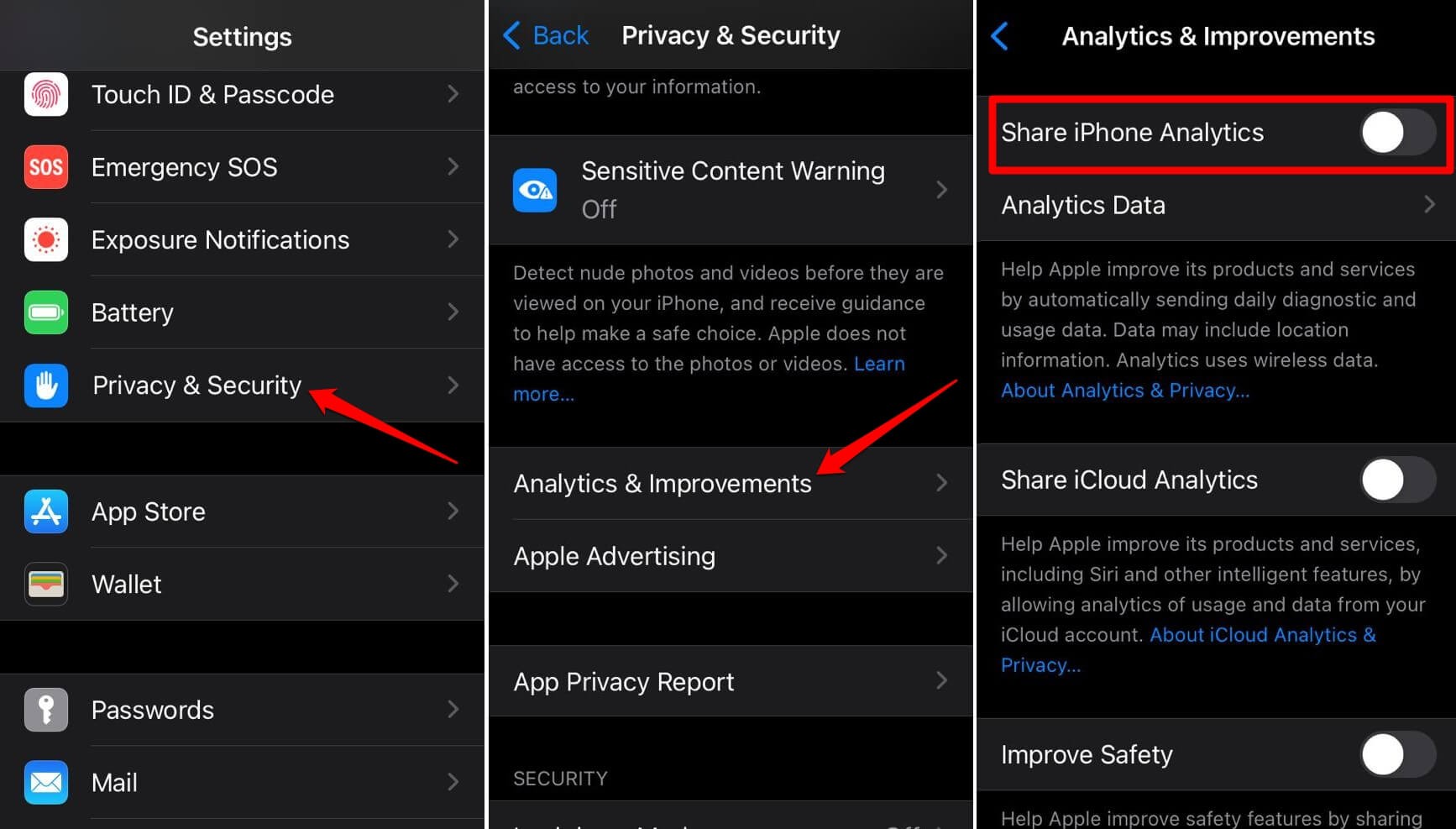
Your phone sends a daily report to Apple about how you use your device. It includes things like how many times you pick up your phone or if an app crashes. While Apple says this data is “anonymous,” it can still be used to create a digital fingerprint of your personality and habits. Plus, sending these logs in the background drains your battery.
- Open Settings.
- Tap Privacy & Security.
- Scroll down and tap Analytics & Improvements.
- Toggle off Share iPhone Analytics.
- Also, turn off “Share iCloud Analytics” and “Improve Health & Activity”.
#4. Personalized Ads
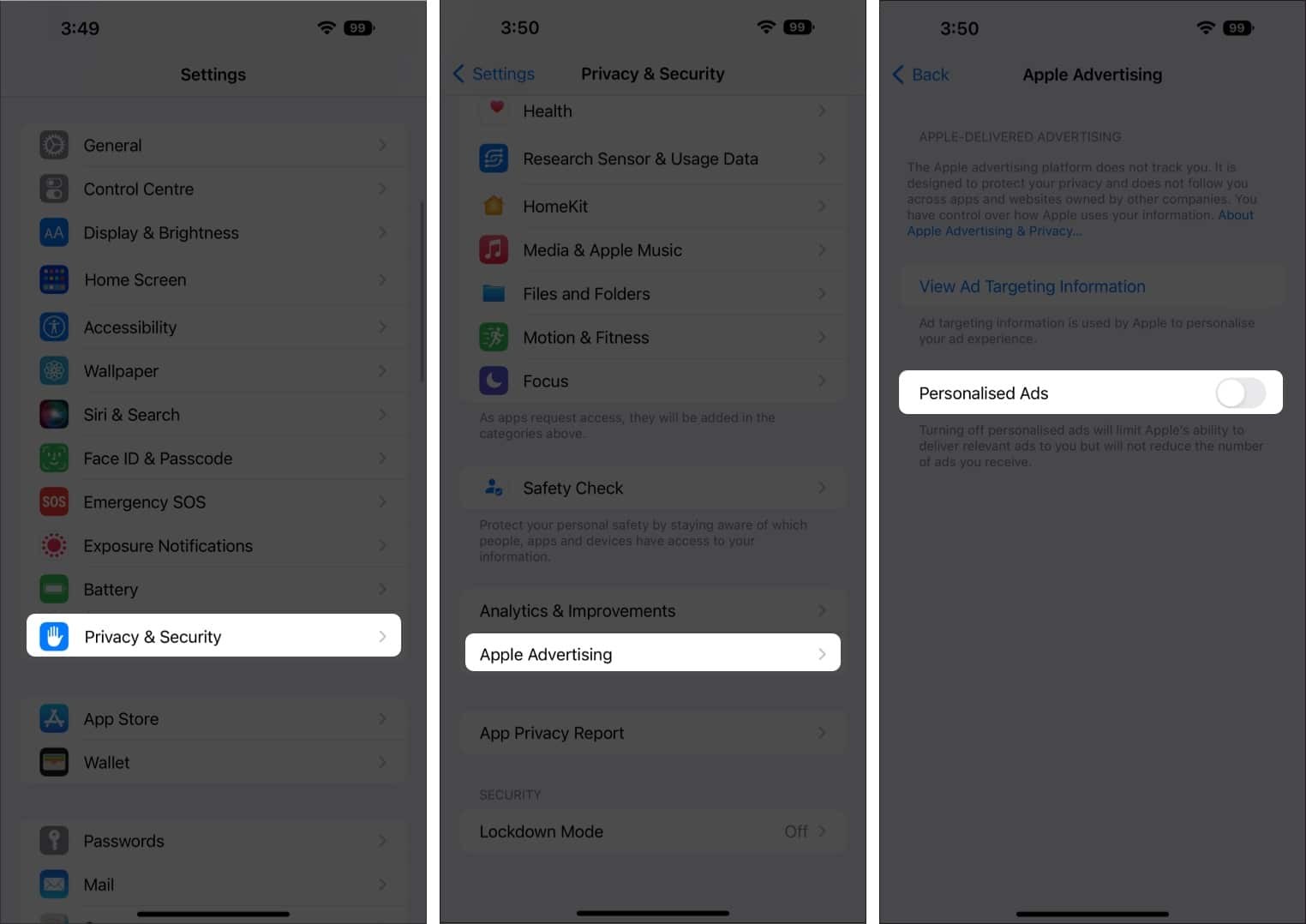
Apple has its own advertising platform. It uses your search history in the App Store and your Apple News reading to show you “personalized” ads. This means Apple is watching your interests to make money from advertisers. You can stop this without losing any phone features.
- Open Settings.
- Tap Privacy & Security.
- Scroll down and tap Apple Advertising.
- Toggle off Personalized Ads.
#5. Mail Privacy Protection
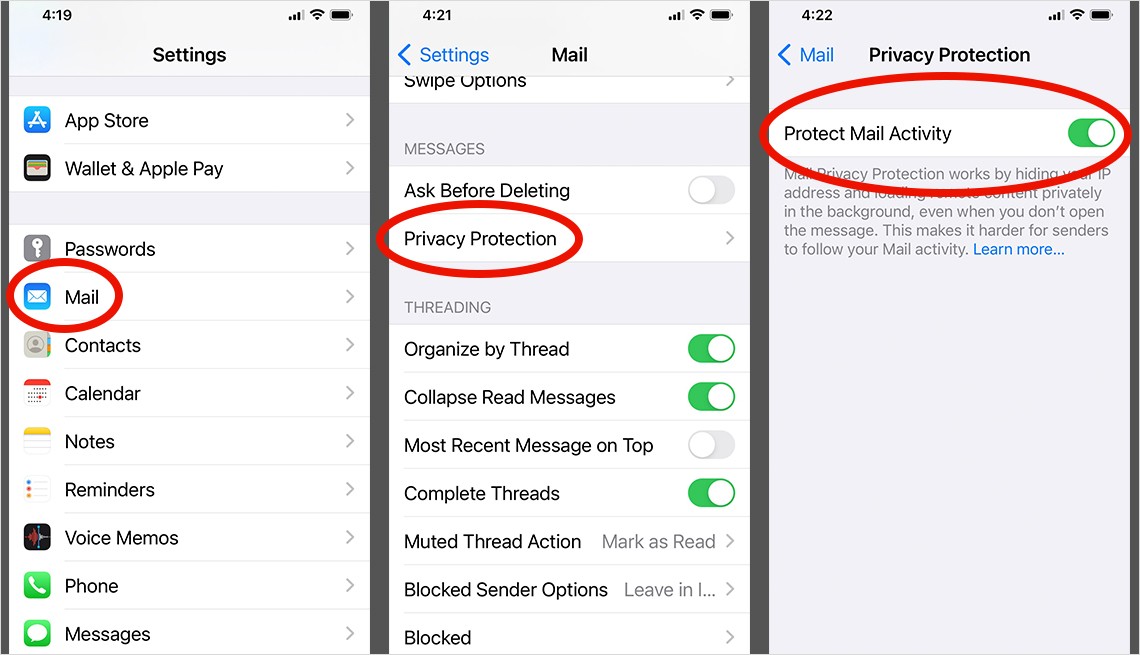
Email marketers use “tracking pixels” to spy on you. These are invisible images inside an email. When you open the mail, that image sends a message back to the sender. It tells them your IP address (your location) and the exact time you opened the message.
- Open Settings.
- Scroll down and tap Mail.
- Tap Privacy Protection.
- Toggle on Protect Mail Activity.
#6. Apple Intelligence & Siri Learning
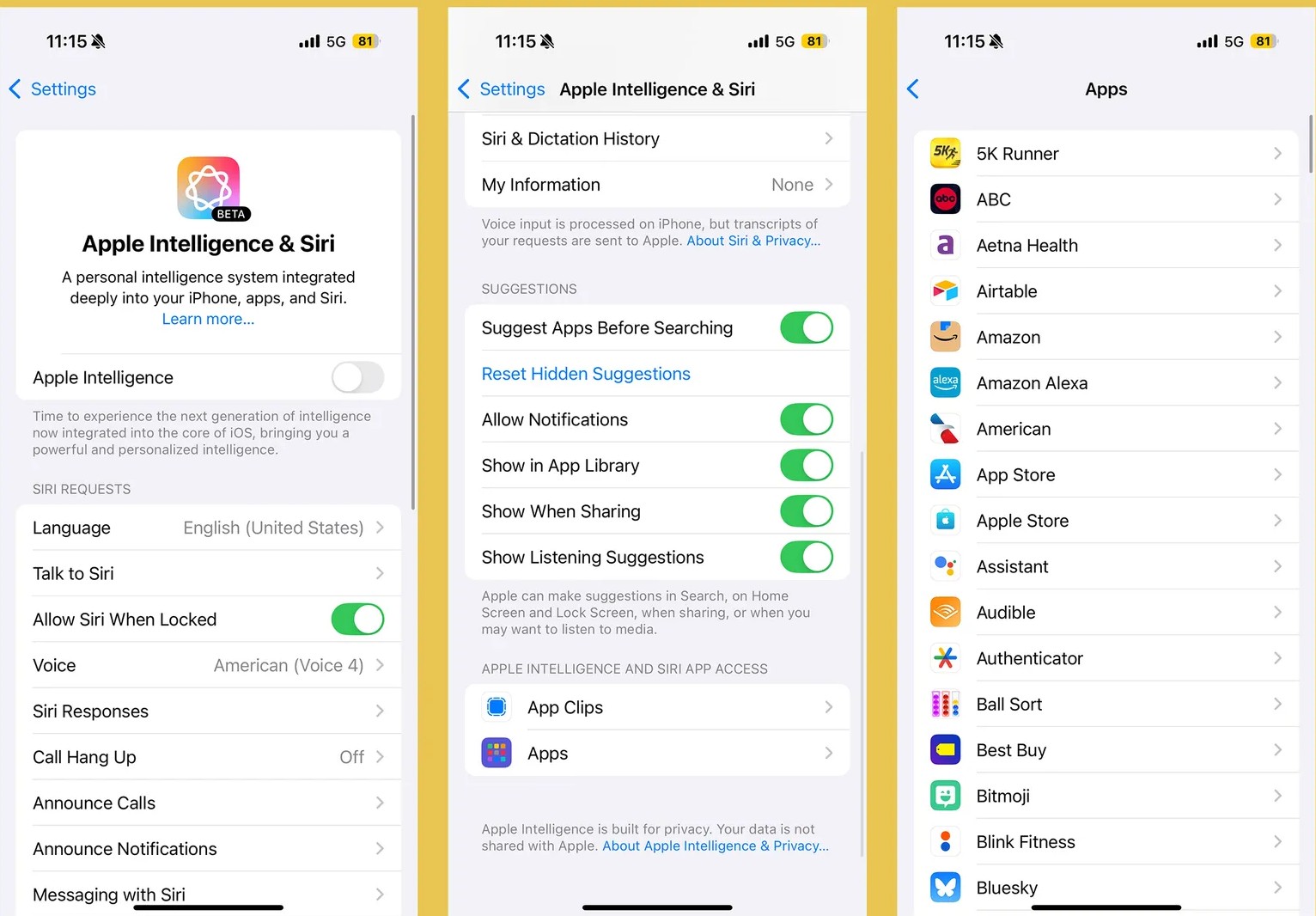
In 2026, Apple Intelligence (AI) is a major part of your phone. Siri now “learns” from the apps you use to offer better suggestions. For example, if you look at a flight in your email, Siri might suggest a calendar event. AI is indexing your private data from third-party apps. You should turn this off for apps that hold sensitive info, like banking or health apps.
- Open Settings.
- Tap Apple Intelligence & Siri.
- Scroll down to the list of apps.
- Tap a sensitive app (like Health or Bank).
- Toggle off Learn from this App.
#7. Safari Cross-Site Tracking
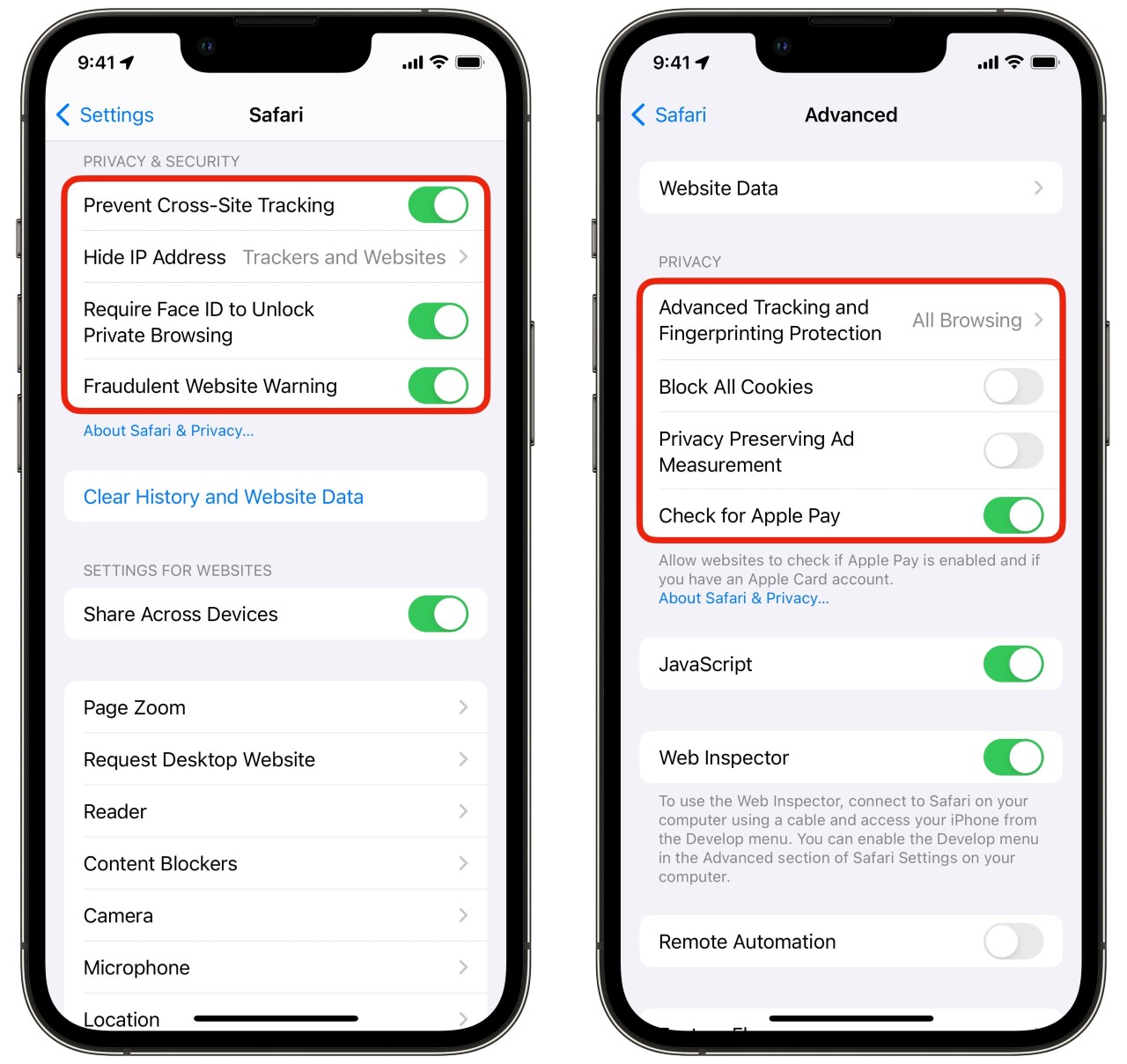
Advertisers use “cookies” to follow you as you browse the web. If you look at a pair of shoes on one site, those shoes “follow” you to every other site you visit. Safari can block this, but you need to make sure the setting is active. About 37% of people use ad-blockers now, but this built-in setting is just as important.
- Open Settings.
- Scroll down and tap Safari.
- Under the Privacy & Security section, make sure Prevent Cross-Site Tracking is turned on.
- Set Hide IP Address to From Trackers.
