

Let’s be honest. Is your Apple Notes app just a graveyard for old grocery lists and random numbers? If so, you’re probably using only about 10% of its real power.
Most people treat Notes as a simple scratchpad. It’s fine for a quick thought, but when it’s time for “real” work, you probably jump to a complex, paid app. This is a big mistake. You’re ignoring a powerful tool that’s already in your pocket, all while paying for features you might not need.
We’ve found 17 hidden Apple Notes features that change everything with new 2025 tricks, like transcribing audio from your meetings organizational hacks, like how to create your own personal wiki. These Apple Notes tricks will help you finally get organized, all for free.
Organize Your Chaos
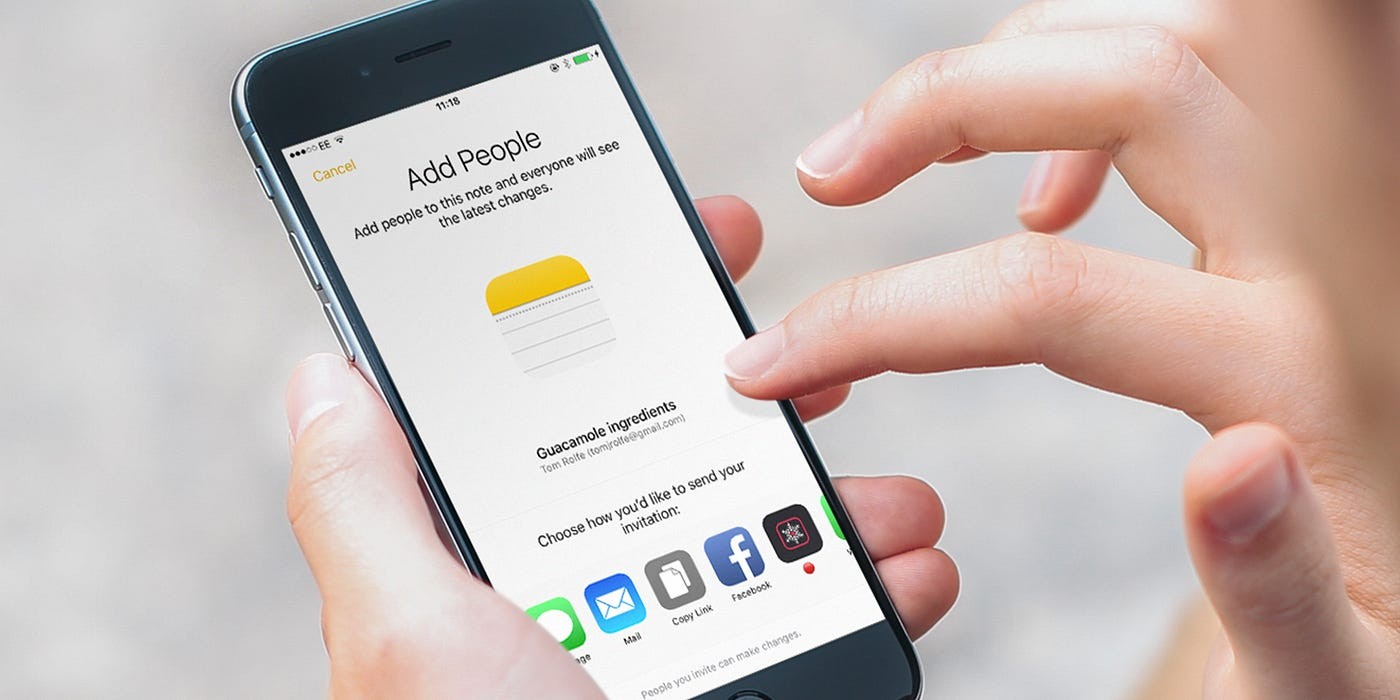
If your Notes app is just one long, chaotic list, you’re not alone. It’s hard to find anything. You probably have grocery lists from 2022 mixed with important work ideas.
You don’t need a new app to get organized. You can fix this mess with a few simple Apple Notes tips. These first four tricks will help you build a clean system so you can find what you need, when you need it.
Trick#1. Let Smart Folders Do the Work
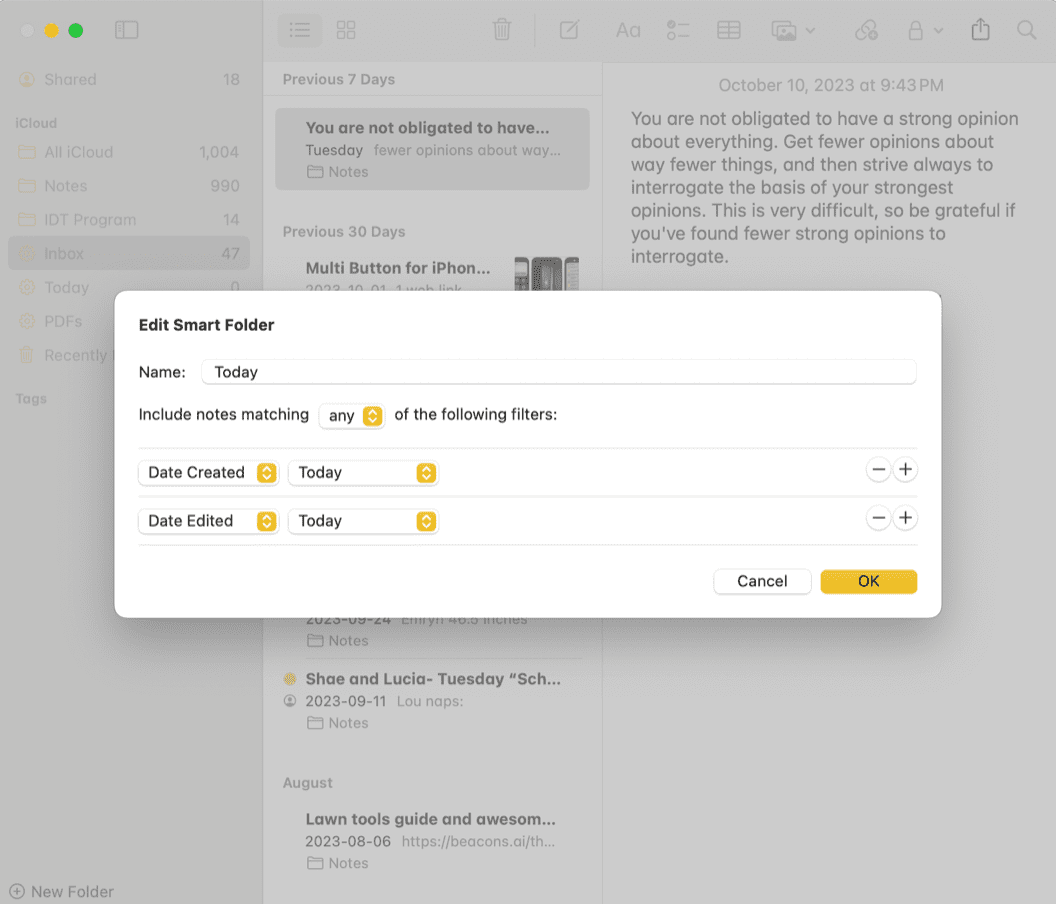
A Smart Folder isn’t a real folder you drag notes into. Instead, it’s a saved search that automatically groups your notes for you. You set the rules, and the folder fills itself. This is a great way to organize Apple Notes without any effort.
i. How to use it: Create a Smart Folder and set the filter to “Tags.” Then, choose a tag like #ideas. Now, any note you tag with #ideas will instantly appear in this folder.
ii. Another example: Create a Smart Folder for “All Notes from This Week.” This lets you quickly see all your recent work in one place.
Trick#2. Put Folders Inside Folders (Nesting)
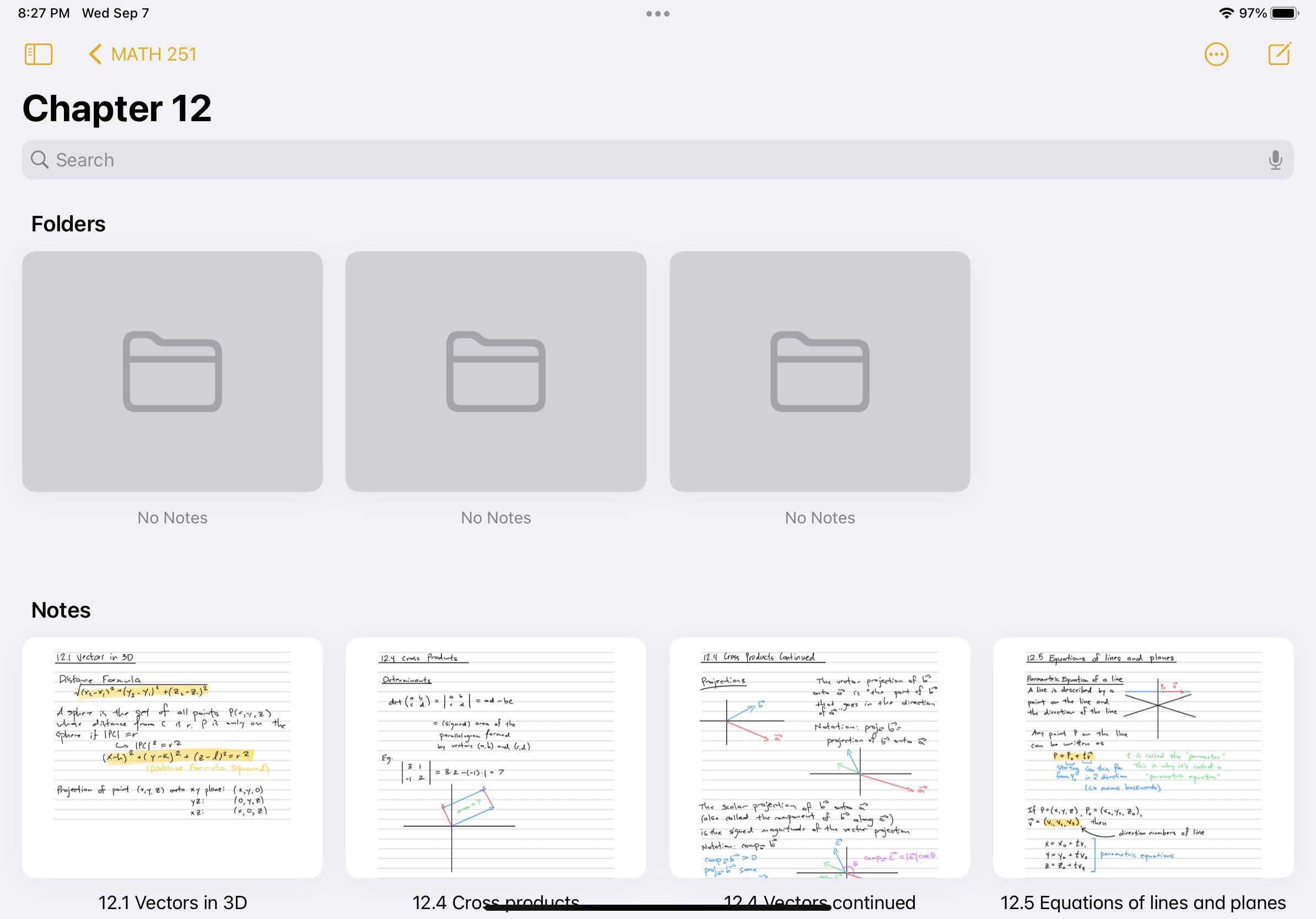
This one seems basic, but many people don’t know it’s possible. You can create folders inside other folders. This is the key to building a clean structure. Stop dumping everything into one “Work” folder.
i. How to use it: Create a folder called “Work.” Then, drag another folder called “Projects” right on top of the “Work” folder. It will “nest” inside.
ii. Your new structure: You can build it out like this: Work > Projects > Project X > Meeting Notes. This makes it much easier to find specific notes.
Trick#3. Use #Tags Anywhere in a Sentence
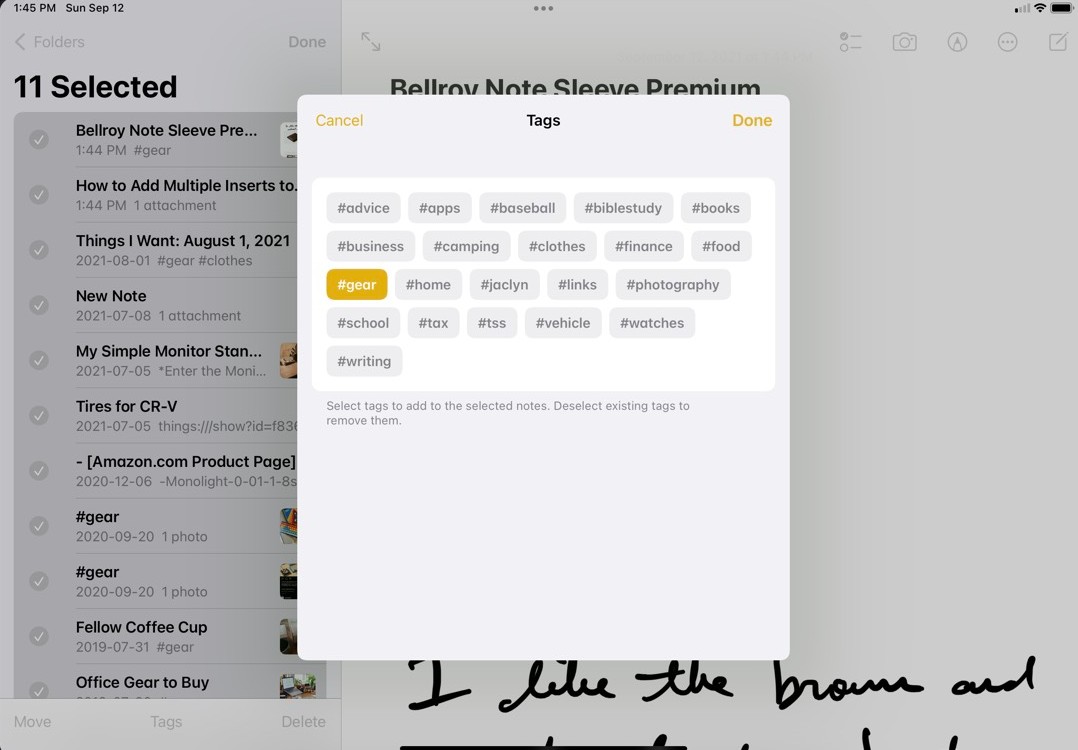
Most people write a note and then add a list of tags at the very bottom. It can look messy. A better way is to put the tag right in the sentence. Apple Notes will find it no matter where it is.
i. How to use it: As you’re writing, just type the tag.
ii. Example: “I had a great #idea for the new marketing plan” or “Checked in with John about the #urgent bug report.” It feels natural and keeps your notes clean.
Trick#4. Pin Your Most Important Note
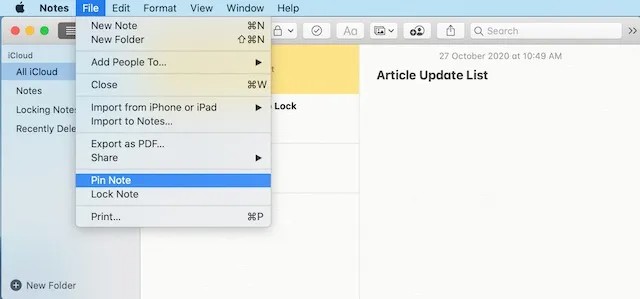
This is the simplest trick, but you should start using it today. If you have one note you open all the time, you can “pin” it to the top of the list. It will always stay at the top, so you never have to hunt for it.
i. How to use it: On your iPhone, just swipe right on the note and tap the yellow pin icon. On a Mac, right-click the note and choose “Pin Note.”
ii. Good for: Your main to-do list, weekly goals, or a grocery list you use all the time.
Trick#5. Fold Sections You Don’t Need (New in 2025)
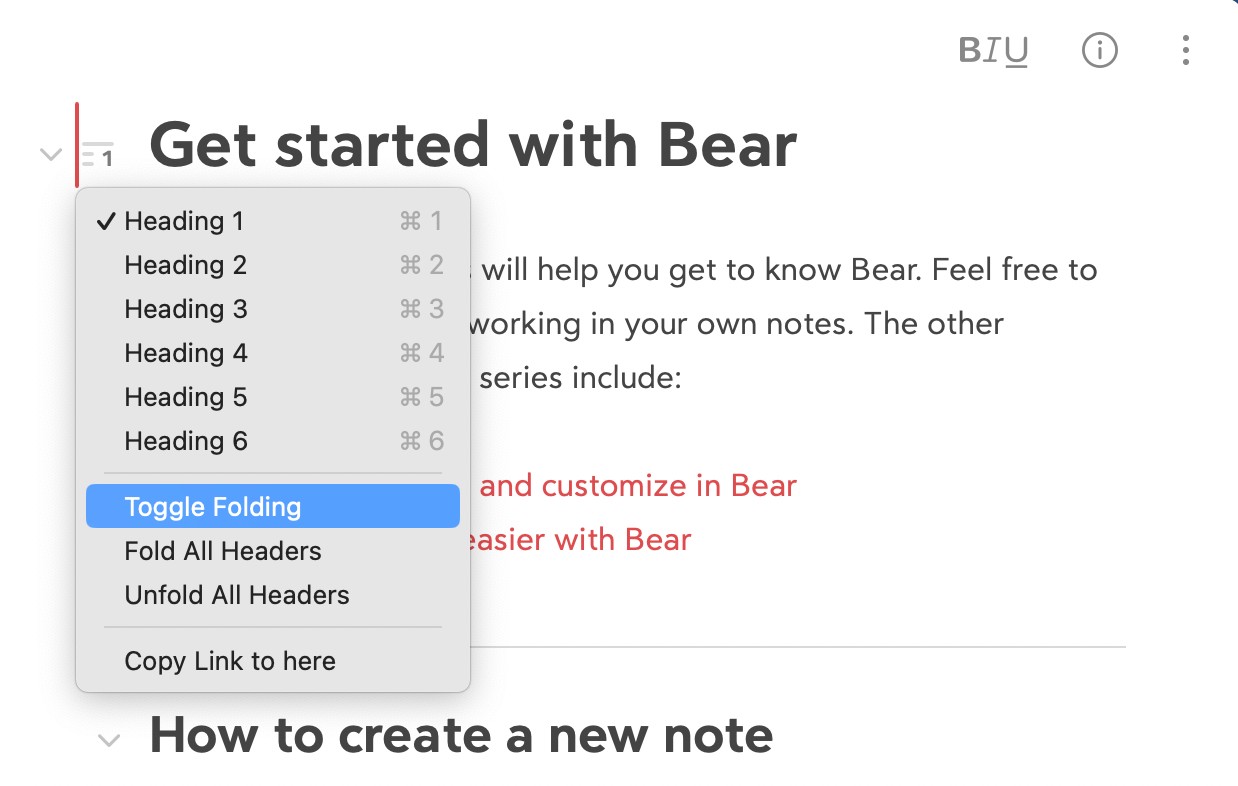
This is one of the best new Apple Notes features (from iOS 18/macOS Sequoia). If you have a very long note, you can now fold or collapse sections you don’t want to see. It’s good for meeting notes or class outlines.
i. How to use it: Format your text with “Header” styles (like Heading 1, Heading 2). A small arrow will appear next to the header.
ii. What it does: Tap the arrow to hide everything under that header. Tap it again to show it. This lets you see your main outline at a glance.
Trick#6. Use Real Highlighting
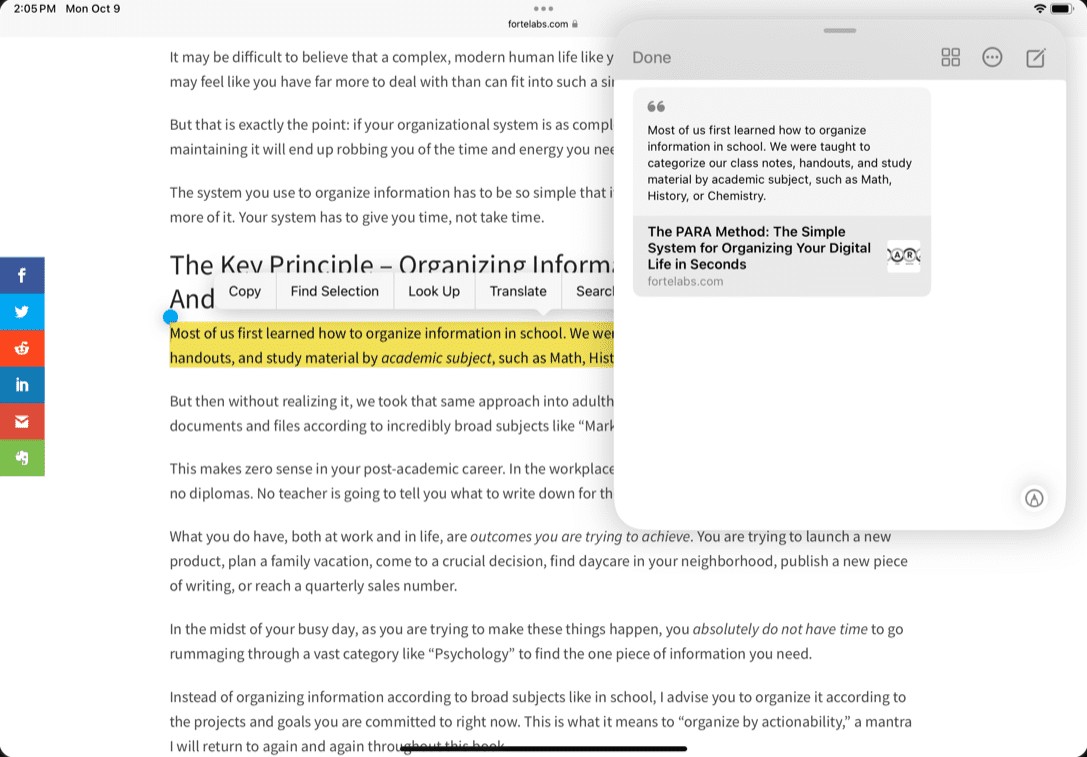
For years, you could only bold, italic, or underline text. Apple finally added a real highlighting tool. This is great for pulling out key quotes, deadlines, or action items.
i. How to use it: Select your text, tap the format icon (“Aa”), and look for the new “Highlight” option. You can even choose different colors.
Trick#7. Make Text Stand Out with Monospace
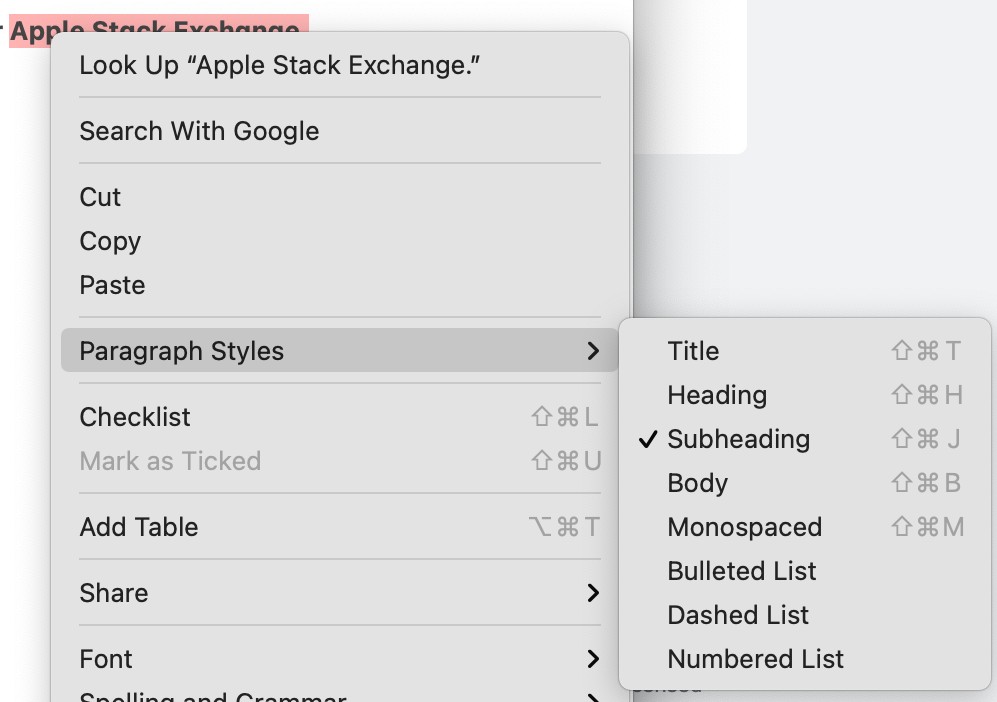
Sometimes you need to write text that looks different from the rest of your note. This is where the Monospaced style comes in. It’s a simple, clean font where every letter takes up the same amount of space.
i. How to use it: Select your text, tap the format icon (“Aa”), and choose “Monospaced.”
ii. Good for: Code snippets, phone numbers, or any ID you want to copy and paste easily.
Trick#8. Start a Checklist Instantly
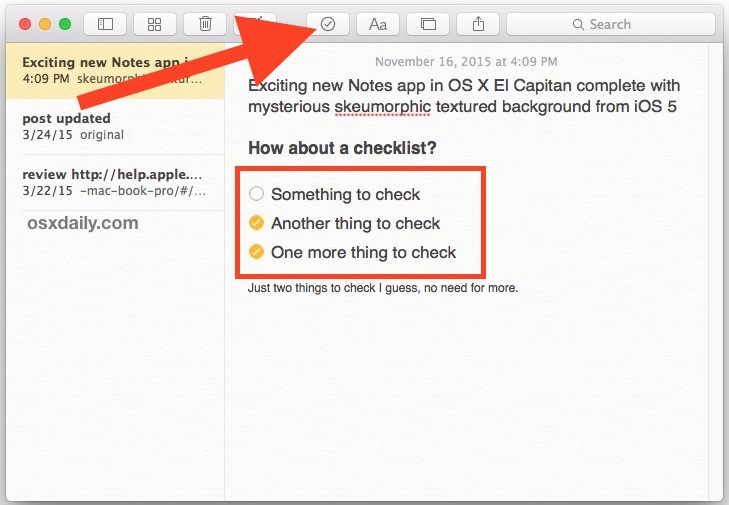
You don’t need to tap menus to start a to-do list. You can use a simple shortcut.
i. How to use it: At the start of a new line, just type a dash and a space (- ). Or type an asterisk and a space (* ).
ii. What it does: Apple Notes will instantly turn it into an empty checklist bubble. This makes creating quick to-do lists much faster.
Trick#9. Use the Built-in Document Scanner
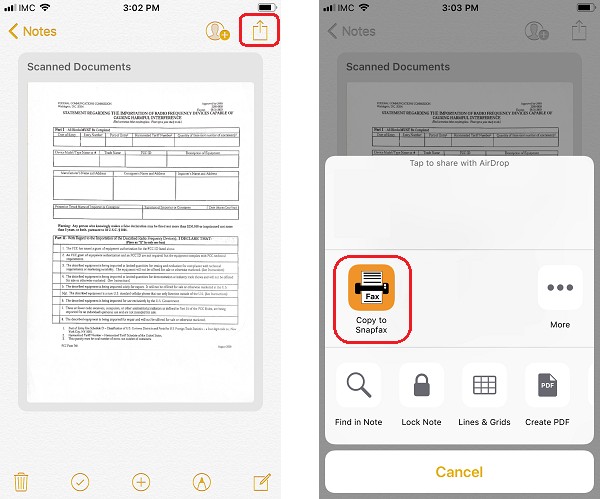
Stop taking blurry photos of receipts or contracts. Apple Notes has a high-quality document scanner hidden inside it. The best part? It’s not just a picture.
i. How to use it: Tap the camera icon in a note and choose “Scan Documents.” It finds the edges, straightens the page, and removes shadows.
ii. Here’s the proof: After you scan to Apple Notes, the app reads the text inside the image. You can search for the store’s name on a receipt, and Notes will find it.
Trick#10. Search Your (Messy) Handwriting
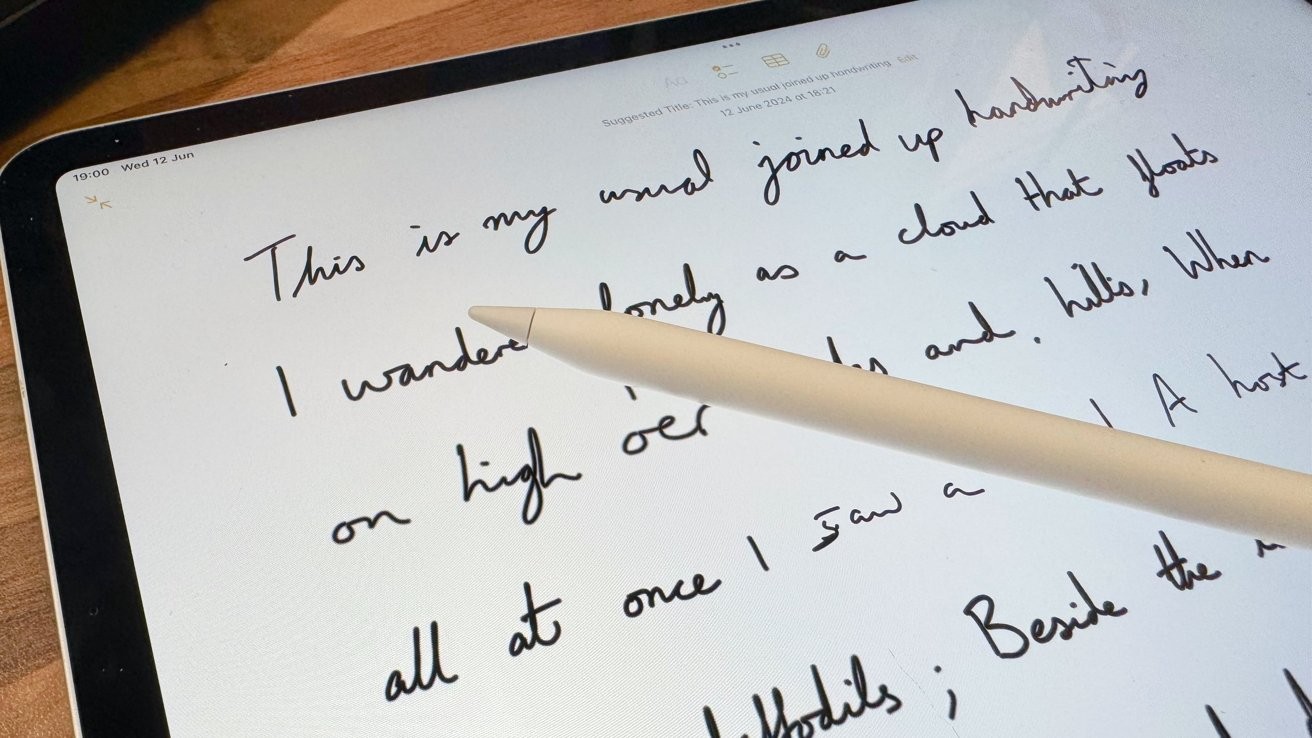
If you use an Apple Pencil, you know your handwritten notes can get lost. But Apple Notes can read your writing, even if it’s messy.
i. How to use it: Just write by hand as you normally would.
ii. What it does: Later, use the search bar to type a word you wrote. Notes will find it and highlight your Apple Notes handwriting. It works just like searching for typed text.
Trick#11. Add Simple Tables to Organize Info
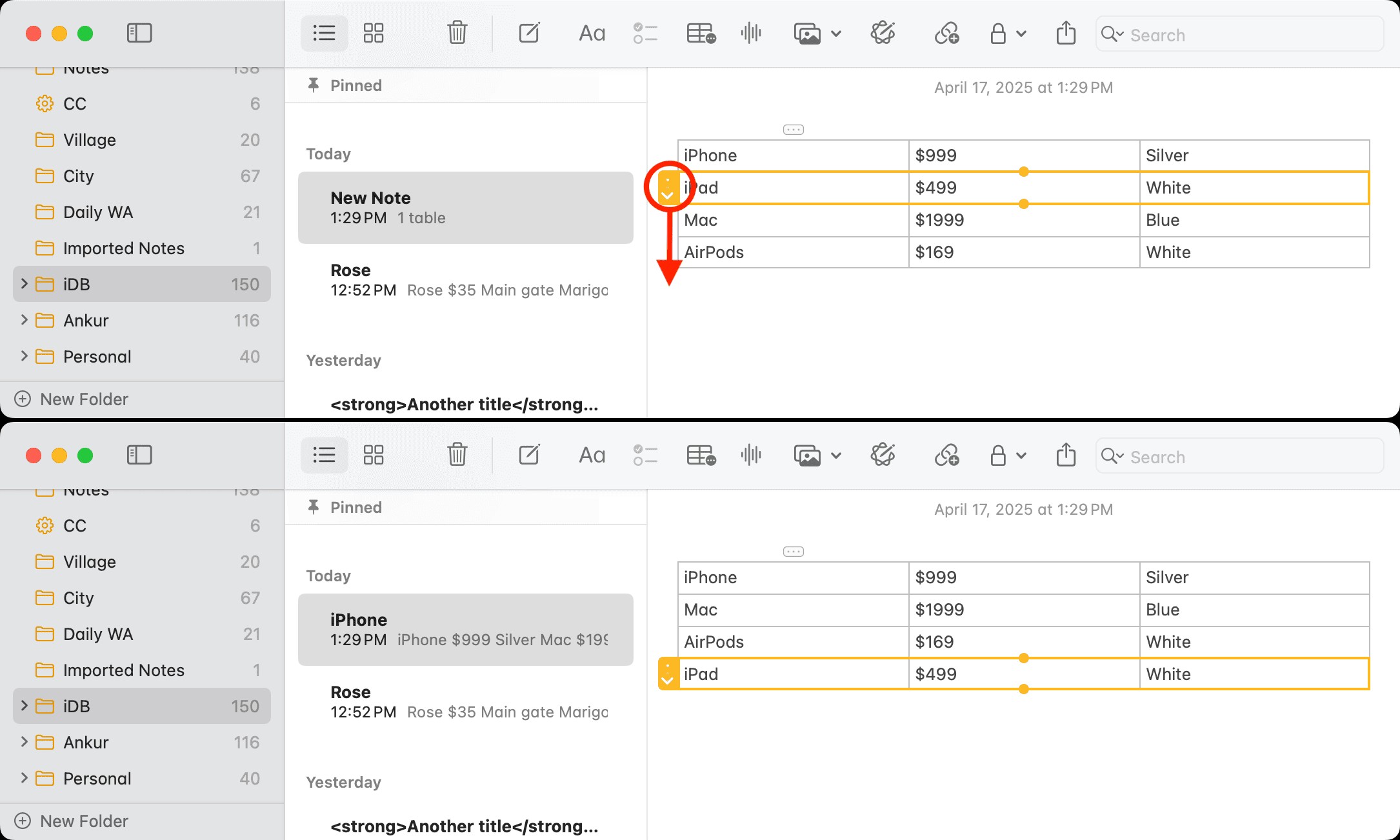
Sometimes a bullet list isn’t enough. If you need to organize info cleanly, use a table.
i. How to use it: Tap the table icon. It’s that simple.
ii. Good for: Comparing product features, planning a budget, or making a simple schedule.
Trick#12. Drop in a PDF and Mark It Up
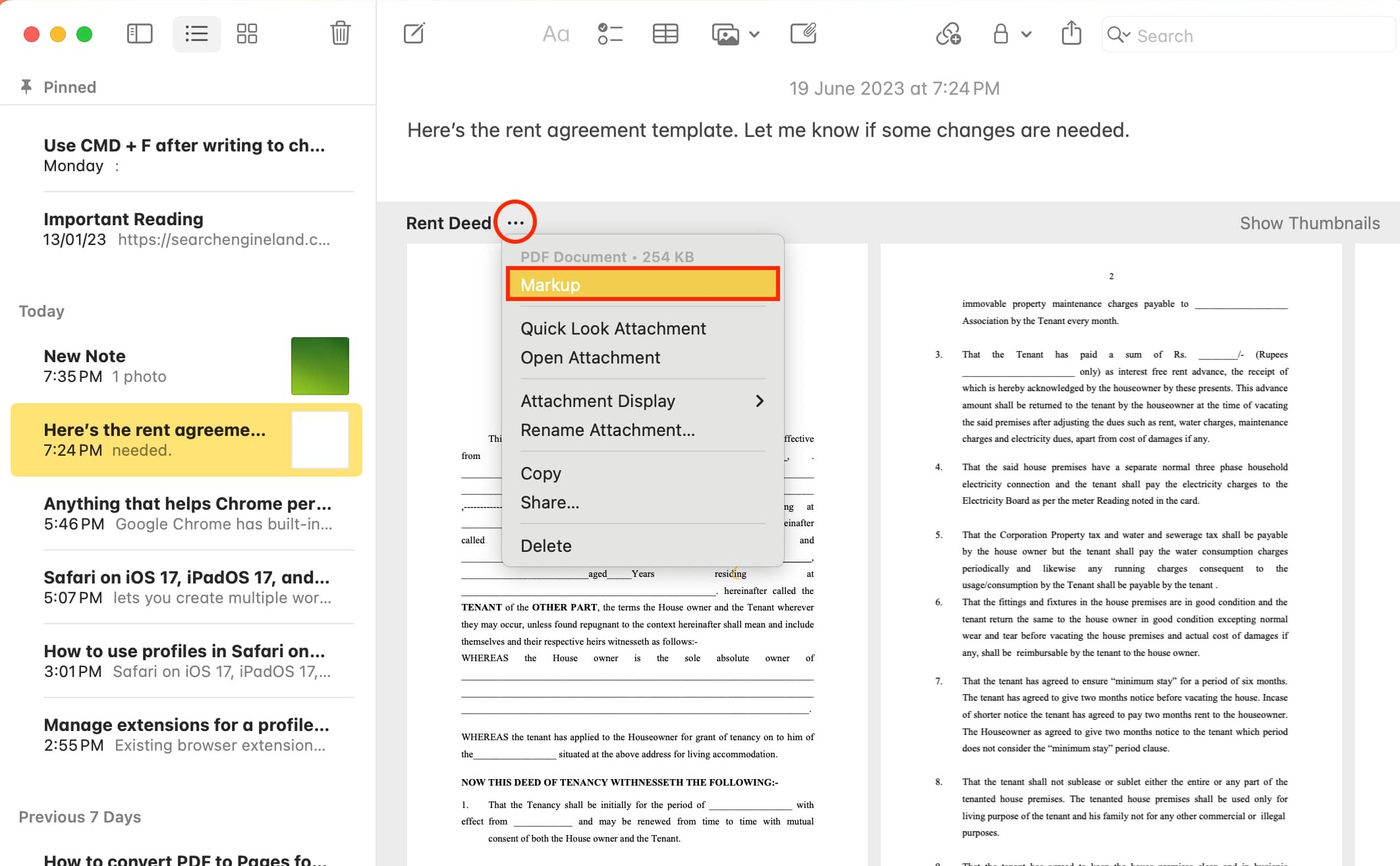
You can drop any PDF file right into a note. This is great for keeping all your project info in one place. You don’t need a separate app to sign a form or add notes.
i. How to use it: Drag a PDF into your note. Tap on it, and then tap the markup icon (the little pen tip).
ii. What it does: You can draw, highlight, or add your signature directly onto the PDF.
Trick#13. Get Live Audio Transcription
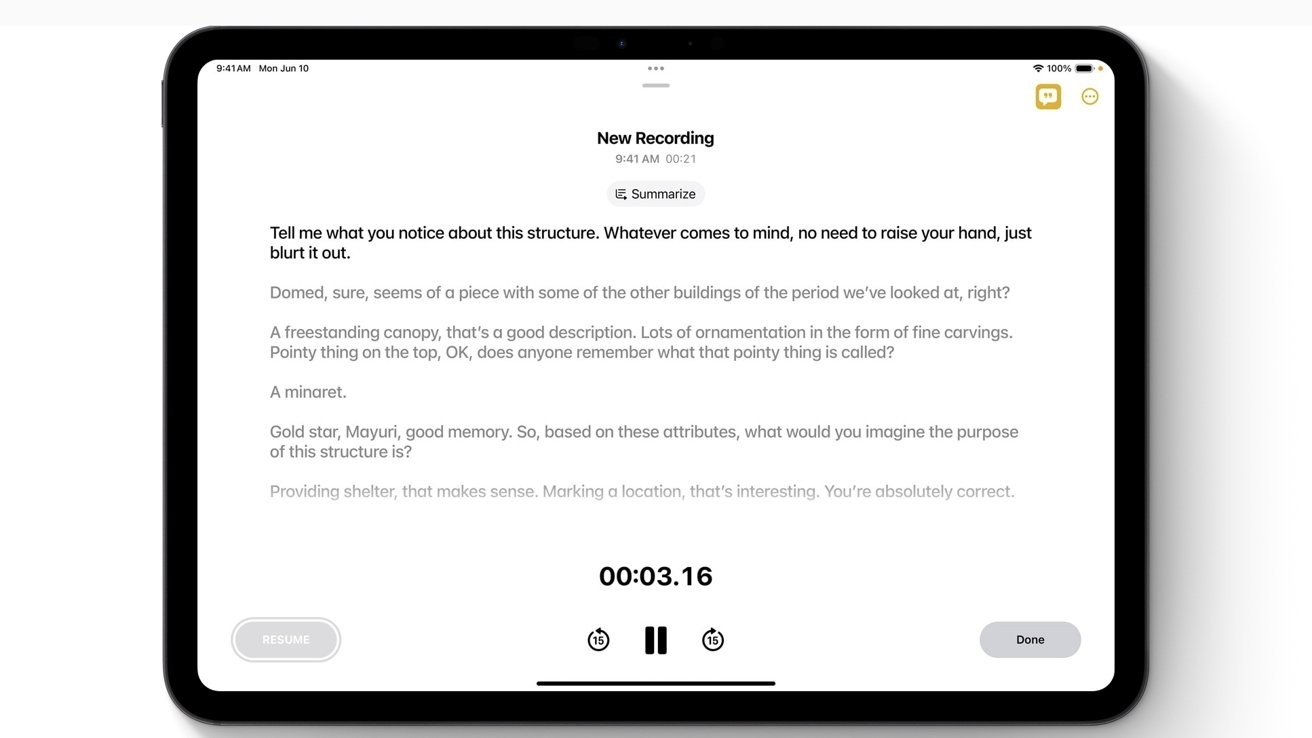
This is a huge one. You no longer need a separate app to record and transcribe a meeting or lecture.
i. How to use it: Tap the new record button (it looks like a waveform). As you record, Notes will type out what it hears in real-time.
ii. Why it’s great: You get a full text transcript instantly. The audio is saved with the text. You can tap on any word in the transcript, and Notes will play the audio from that exact moment. This is amazing for Apple Notes transcription.
Trick#14. Get Instant Answers with “Math Notes”
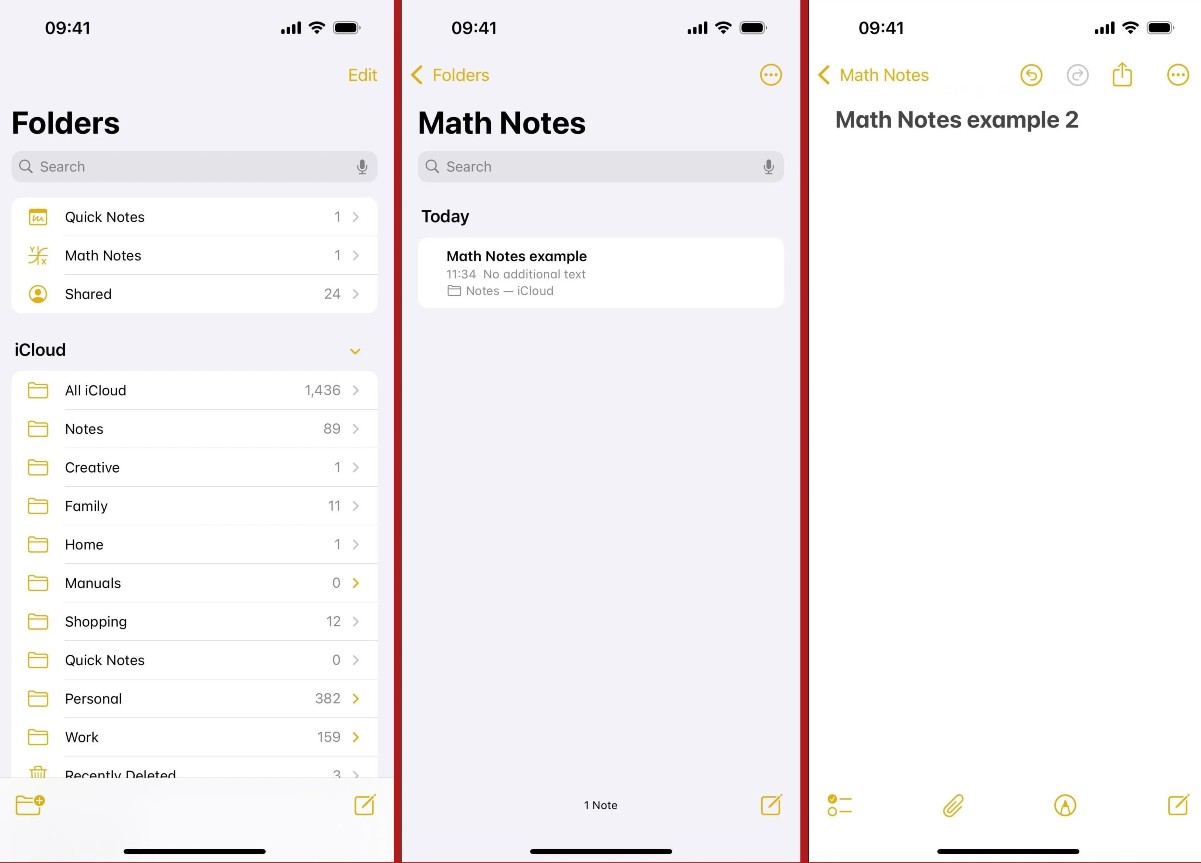
Notes is now a calculator. You don’t need to leave the app to figure out a budget or check your homework.
i. How to use it: Just type or write an equation, like 185 * 5 =. As soon as you type the equals sign, Notes will solve it and show the answer.
ii. What it does: It works for simple math or even more complex problems. It’s a quick way to do math without breaking your focus.
Trick#15. Link Notes Together to Build a Wiki

This trick lets you connect your notes. You can create your own personal wiki for your projects, classes, or life.
i. How to use it: Just type >> (two “greater than” symbols). A menu will pop up showing your other notes. Tap the one you want to link.
ii. Why it’s great: You can link Apple Notes to create a main “Project” note that links to all your “Meeting” notes and “Idea” notes. Everything is connected and easy to find.
Trick#16. Get Someone’s Attention with @Mentions
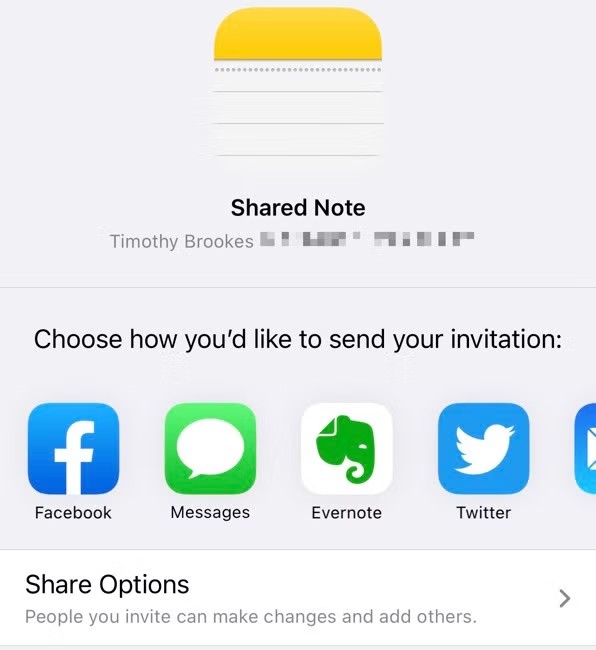
When you share Apple Notes with someone, how do you ask them a question about it? You probably text them. A better way is to “mention” them right in the note.
i. How to use it: Just type @ followed by their name (like @John).
ii. What it does: They will get a notification that you mentioned them. It’s a great way to assign a task or point out a change (e.g., “@Maria, can you pick this up?”).
Trick#17. See Who Changed What with “Activity View”
When many people are in one note, it can get confusing. You open it and see new text, but you don’t know who added it or when.
i. How to use it: You can see a summary of all recent changes.
ii. What it does: It shows you who changed what and when. Each person’s changes are highlighted in a different color. This means you can quickly catch up on what’s new without having to ask.
FAQs
1. Can Apple Notes really transcribe audio?
Yes. This is a new feature in iOS 18 and macOS Sequoia (from 2024/2025).
2. How do I link one note to another?
You can quickly link notes to build your own wiki. Just type >> (two “greater than” symbols). A menu will pop up showing your other notes.
3. Can I search for text inside scans or my handwriting?
Yes. When you use the “Scan Document” feature, Apple Notes saves it as a searchable PDF, not just a photo. The app can also read most handwriting (in supported languages).
