
Your iPhone isn’t just a communication tool; it’s a digital historian. It is secretly recording almost your entire life journey. You know your phone uses location for simple things, like getting directions in Maps or checking the weather. That makes sense. But the real problem is the hidden stuff.
Your phone runs background tracking by System Services and features like Significant Locations that record your every move. This quiet collection of data compromises your privacy and drains your battery. You have to know what your device is doing.
These hidden features and disable them for good clear, simple steps to stop iPhone tracking at three levels: the hidden System Services, the individual app permissions, and the “nuclear option” for maximum control.
#1. Unmasking Your Hidden Location History with Significant Locations
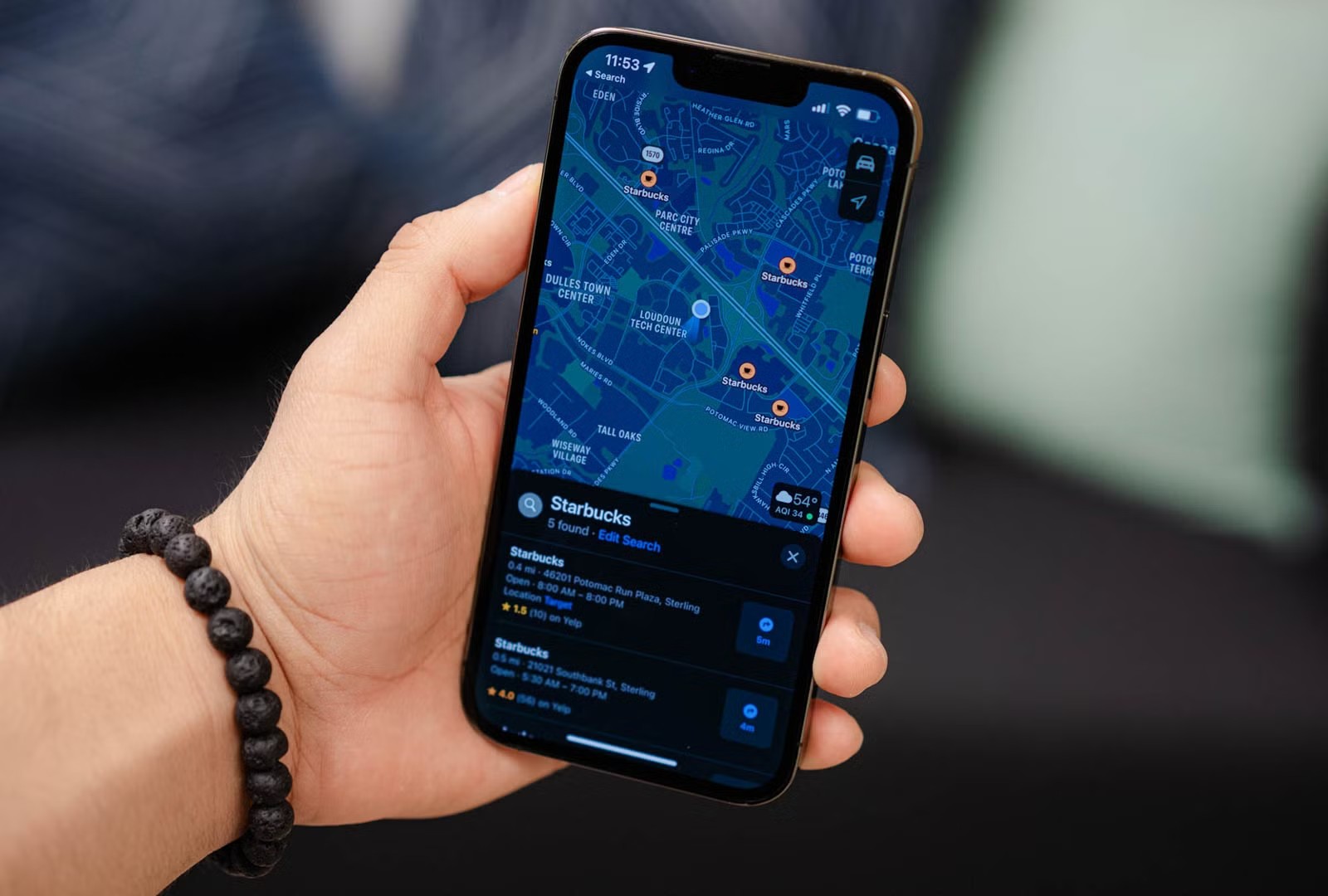
Your iPhone has been building a secret diary of where you go, logging your frequently visited places, dates, and times. It keeps this data hidden away, calling it Significant Locations.
This isn’t a map of where you drove last week. This is a list of places where you stop and spend time, like your favorite coffee shop, your workplace, or a friend’s house. While Apple says this location history is end-to-end encrypted, meaning only your devices can read it the data itself is incredibly valuable.
You might be surprised by how much tracking is happening. Statistics show that about 82.78% of iOS apps track some kind of private user data. That’s why you need to take control of the basics, starting with this hidden list.
Step-by-Step Guide to View Location History
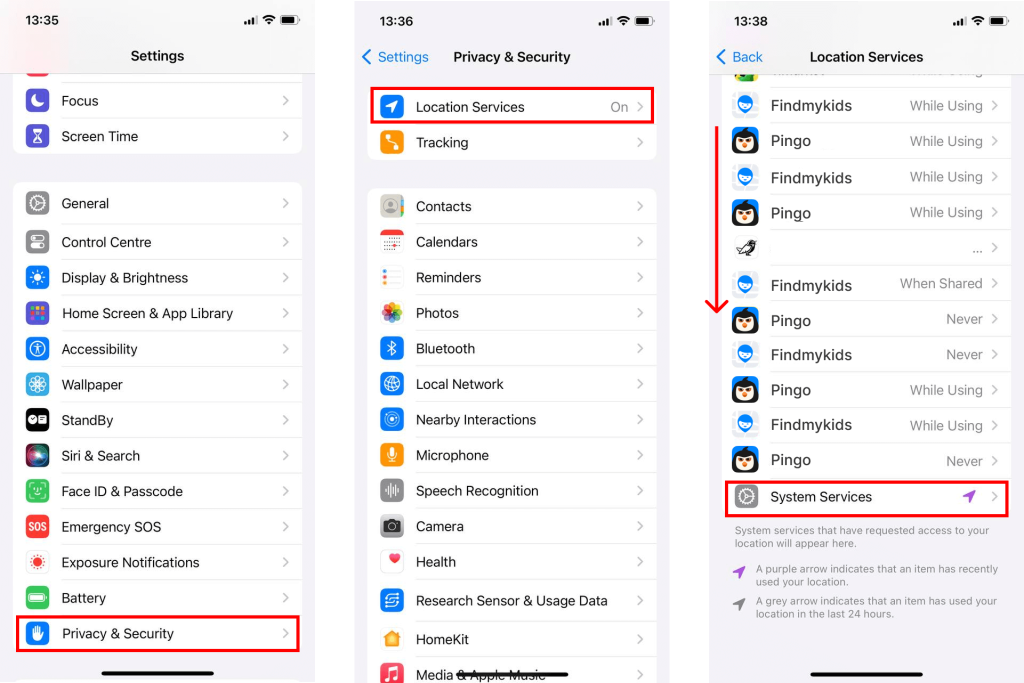
It’s simple to find your recorded locations. You need to follow this path exactly:
- Open Security.
- Tap Privacy & Security.
- Tap Location Services.
- Scroll way down and tap System Services.
- Tap Significant Locations. You will need to use Face ID or your passcode here.
Tapping one of these reveals a map and a detailed list of exact addresses, dates, and times you were there. For example, you might see “Gym” or “Vacation Home” listed with timestamps showing exactly when you arrived and when you left.
How to Disable Significant Locations and Clear Data
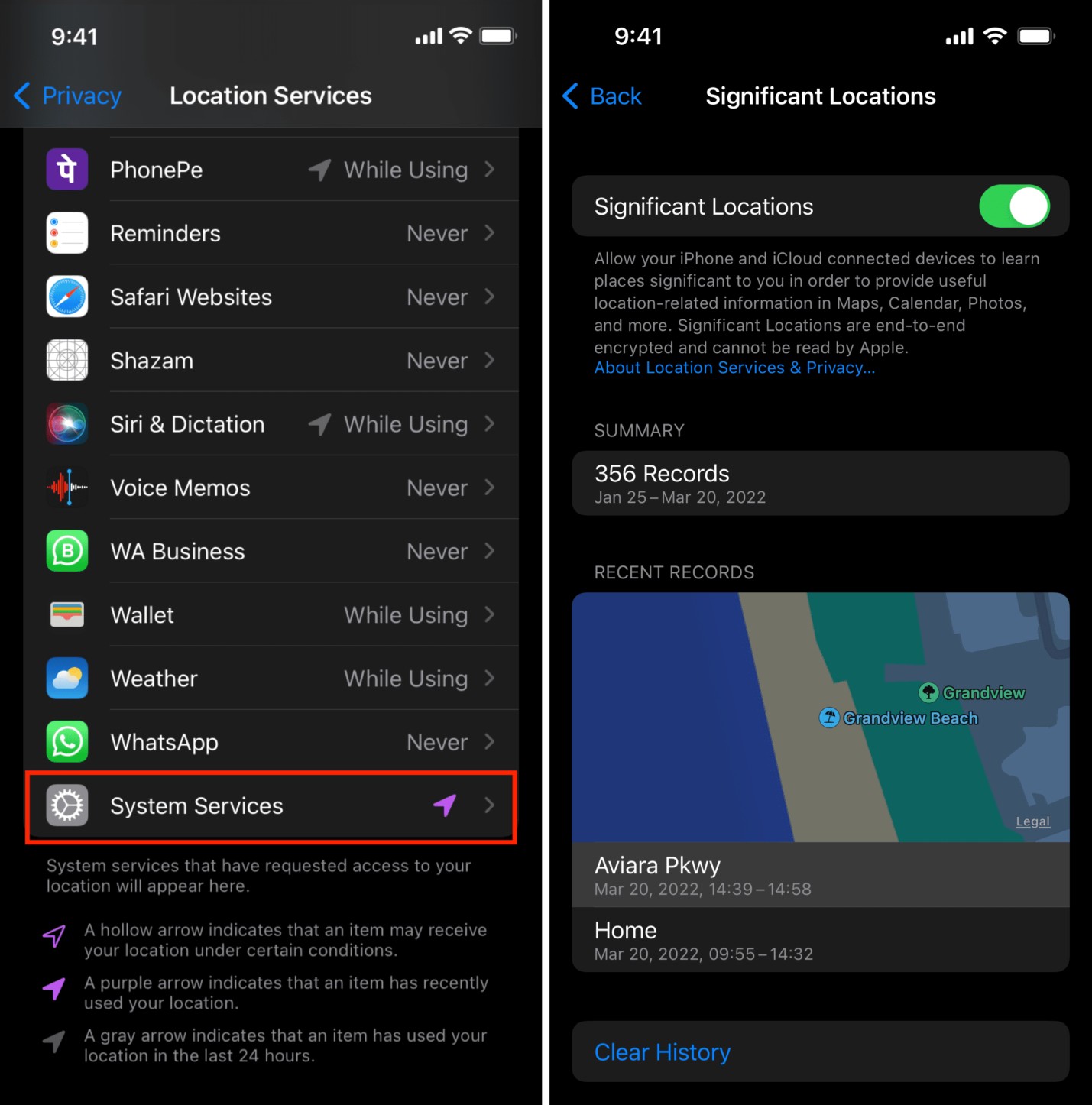
Seeing the list is often enough to make you want it gone. To protect your privacy and make sure this hidden data collection stops:
- On the Significant Locations screen, look at the top.
- Toggle the main switch off.
- Below the list of records, tap Clear History.
#2. How to Stop iPhone Tracking in System Services
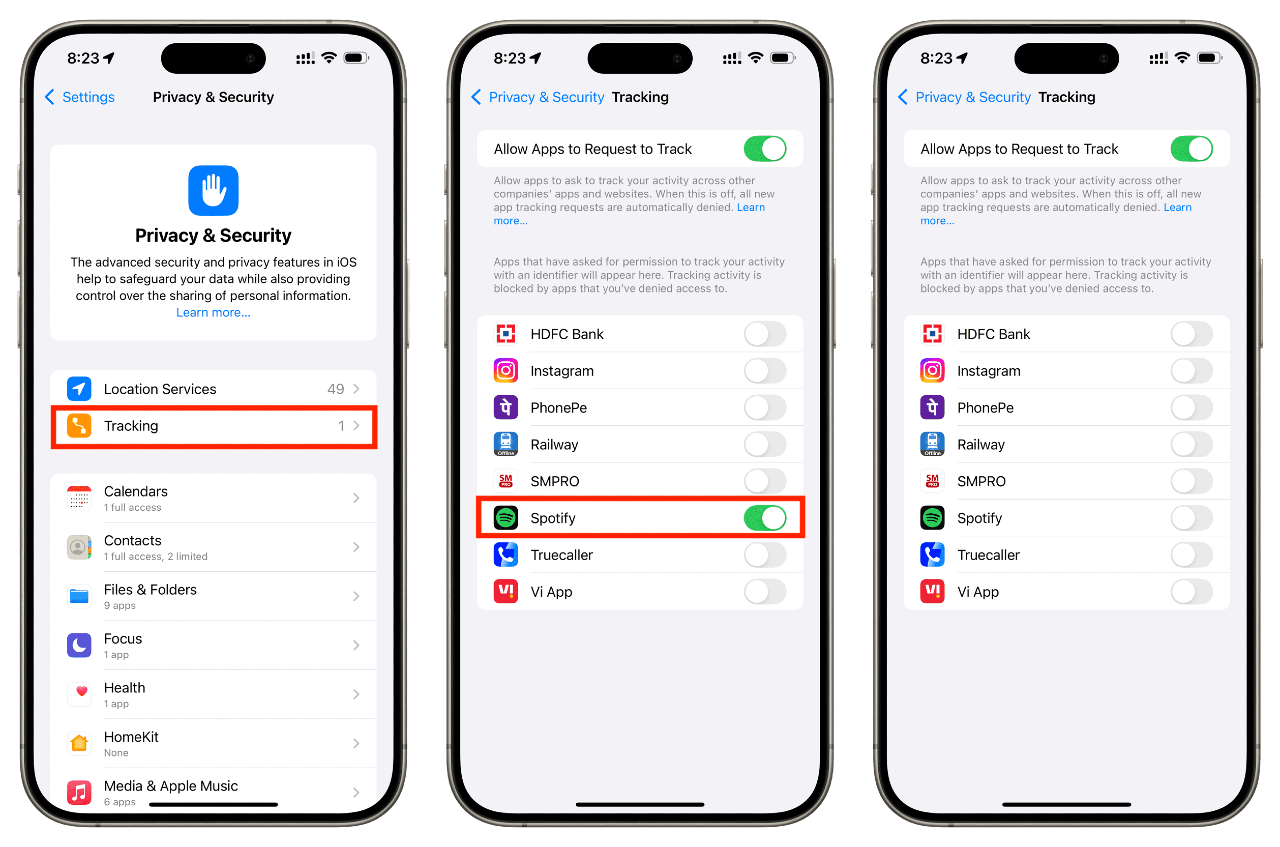
You need to tackle the background tasks your iPhone does for Apple itself. These are called System Services. These services use your location silently, often without a purple arrow indicator, which is why they are a primary concern if you want to stop iPhone tracking.
System Services run constantly to help features like your clock set the correct time, or to improve Apple Maps. Some of them are essential, but many are optional and are mostly used to send anonymous data back to Apple. You can turn off most of these without hurting your phone’s main functions.
We need to review the list one by one. Here is a simple guide for balancing privacy and function:
| Services to KEEP ON (Essential) | Services to TURN OFF (Optional/Privacy Risk) |
| Emergency Calls & SOS | iPhone Analytics |
| Find My iPhone | Routing & Traffic |
| Share My Location (If you use it) | Improve Maps |
| Setting Time Zone (If you don’t travel often) | |
| Location-Based Alerts/Suggestions |
You are looking for the best way to stop iPhone tracking without breaking features you need. Turning off the services in the “Turn Off” column reduces background location use. Keeping Emergency Calls & SOS on is vital; your phone must be able to use your location for 911/emergency services.
Precise Step-by-Step Toggle Guide
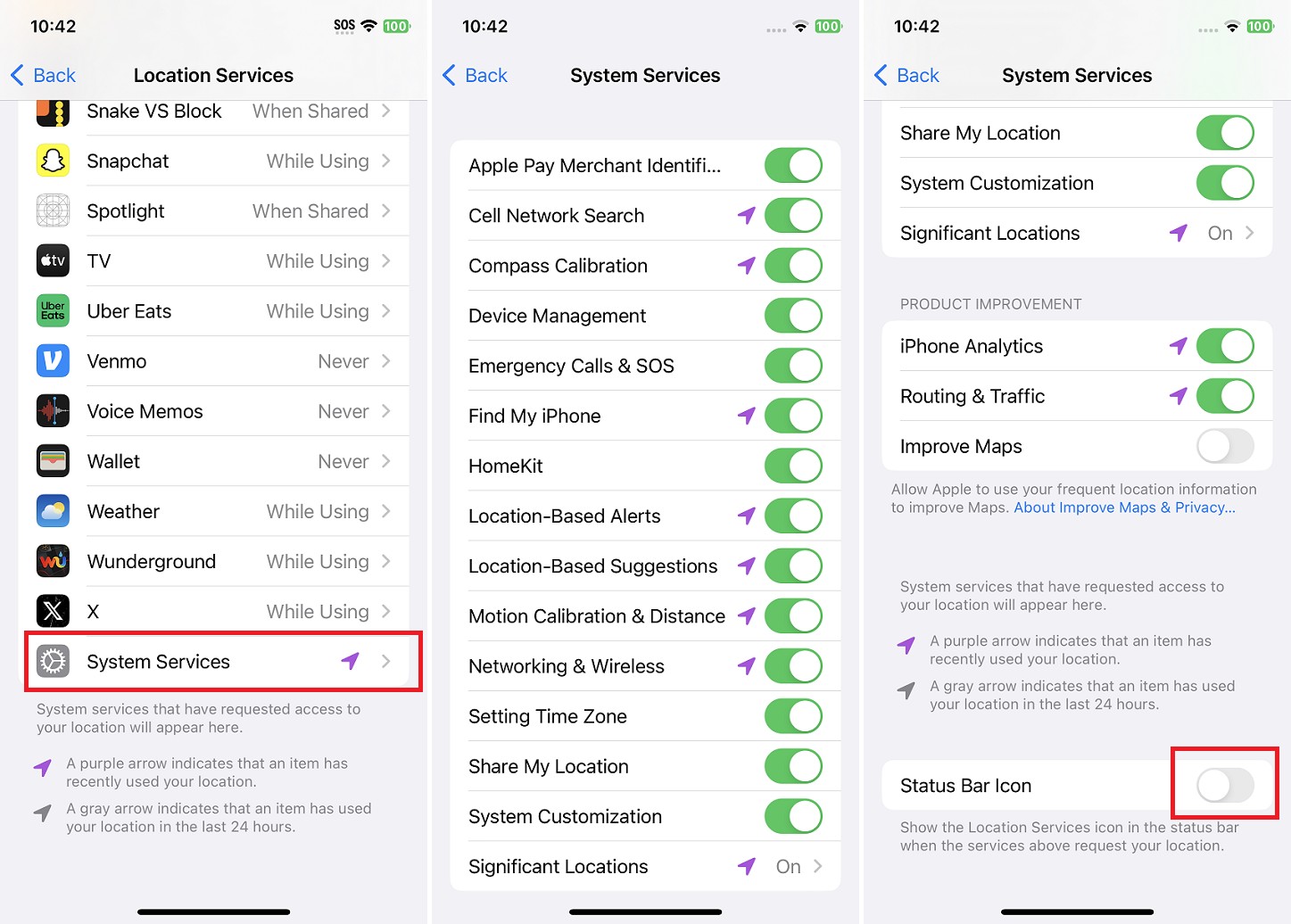
Here is where you find and change these settings:
- Go to Settings > Privacy & Security > Location Services.
- Scroll down to the very bottom and tap System Services.
- Go through the list and turn off everything listed in the TURN OFF column above.
The Networking & Wireless Debate
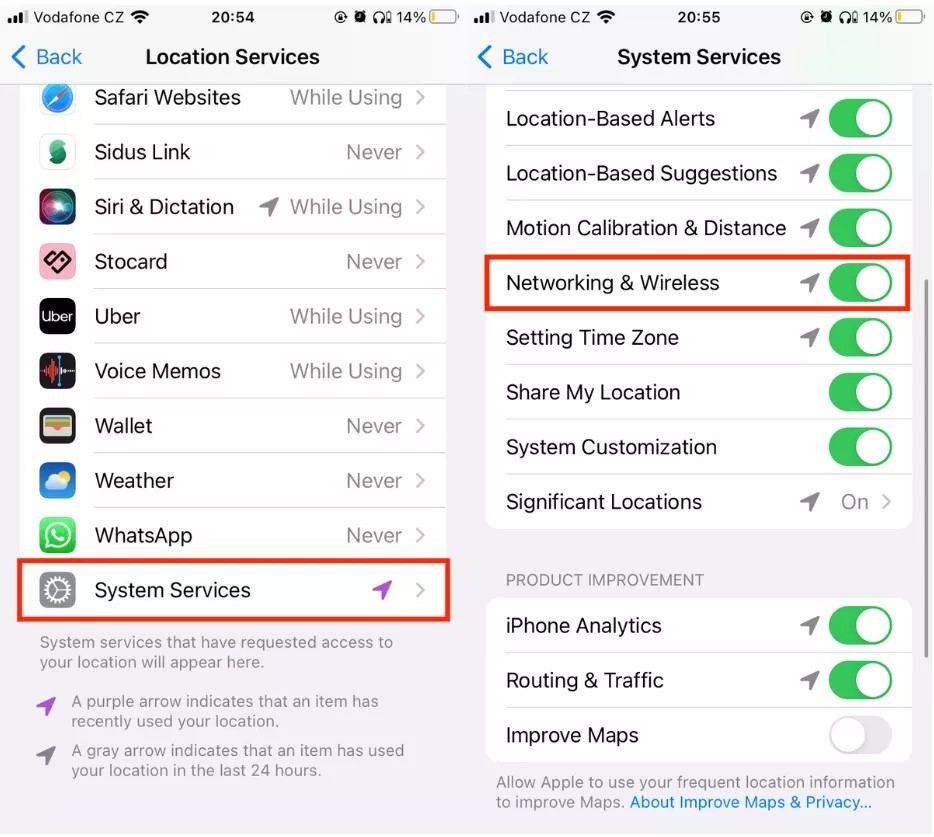
It helps your iPhone improve the performance of Wi-Fi and Bluetooth. Many people wonder if they should turn it off. For better privacy, it is generally safe to disable this setting.
If you notice any weird behavior with your Wi-Fi or Bluetooth, you can always come back and turn it back on. For most people, turning it off is an easy way to further cut down on background location pings.
#3. Managing iPhone Location Services for Third Parties
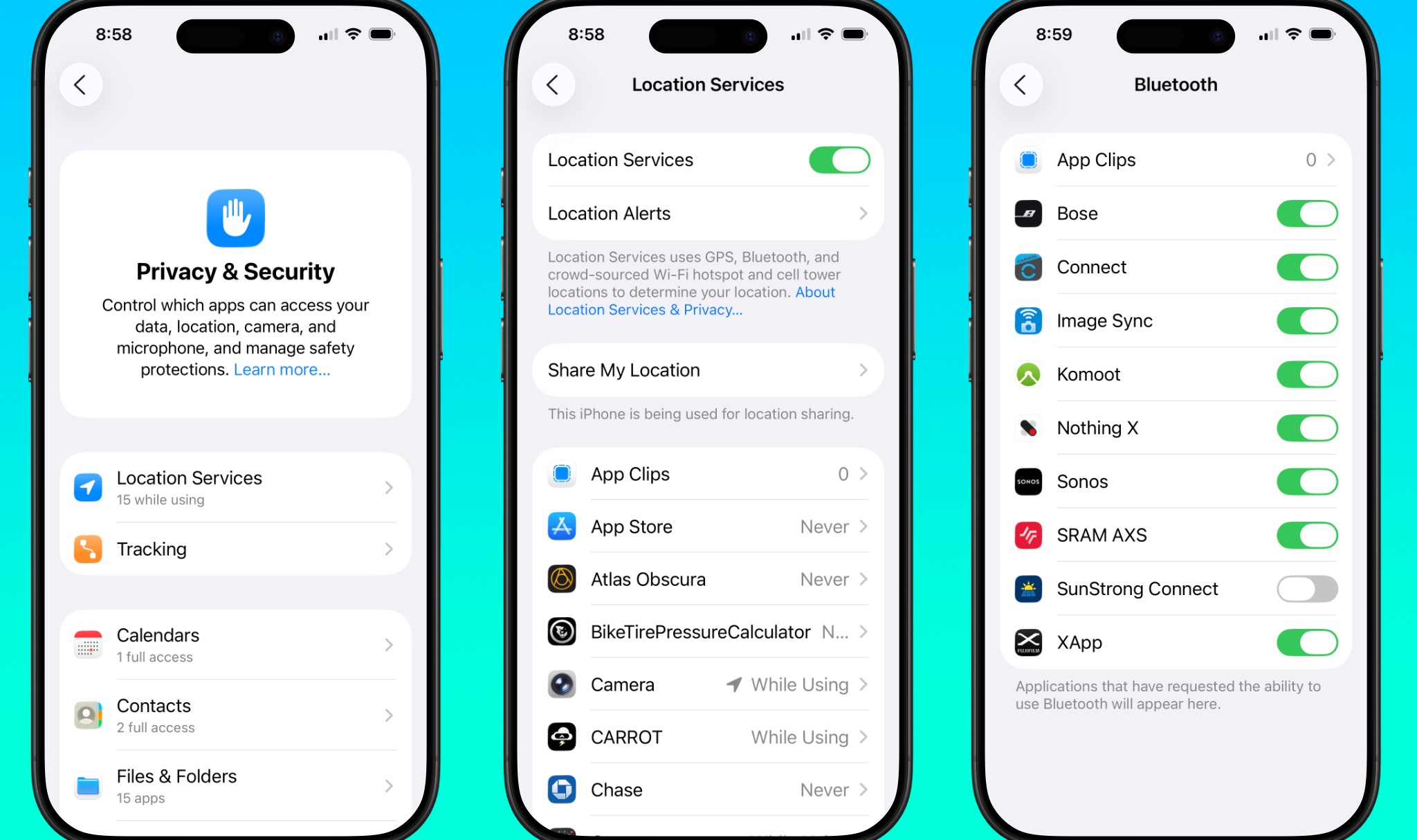
Apple’s background tracking is one thing, but third-party apps are often worse. They are a big source of unwanted data collection. This is where you master your iPhone location services permissions. Every app that wants to use your location asks for one of four permission levels.
To start, go to Settings > Privacy & Security > Location Services. Scroll down and look at the list of all your apps.
Auditing Your Apps and Background Location
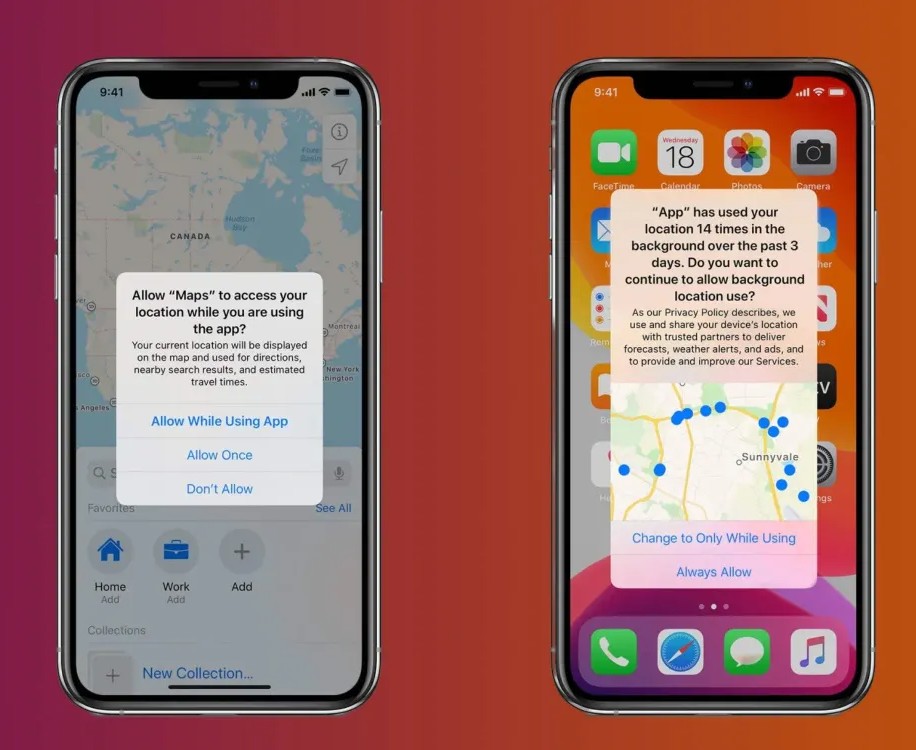
When reviewing your apps, look for two things:
- The Purple Arrow: Apps with a purple arrow next to them have used your location recently. This is a great indicator of which apps are actively tracking you.
- The ‘Always’ Setting: Only apps like Find My iPhone, health trackers, or navigation apps (like Google Maps) should ever be set to “Always.” Change all others to While Using App or Never.
Statistics show that about 18.44% of iOS apps have access to your background location using the ‘Always’ setting. You need to reduce that number to zero for non-essential apps.
Precise vs Approximate Location
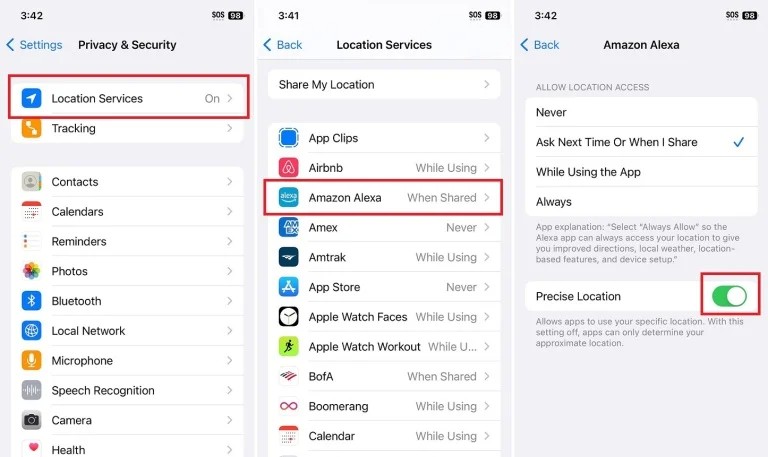
When an app is set to “While Using App,” you will see a toggle for Precise Location on that app’s settings screen. You should turn Precise Location off for nearly every app.
For example, a weather app needs to know your general area to give you a forecast, but it does not need to know your exact house number. Changing its permission to While Using and disabling Precise Location is the perfect balance to disable app tracking while keeping the app useful.
The ATT Framework and Tracking
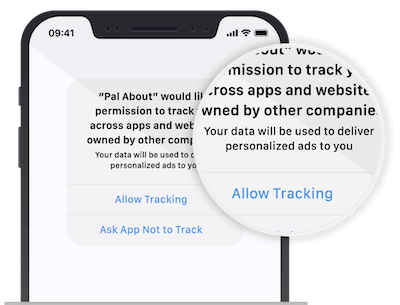
You may have heard of Apple’s App Tracking Transparency (ATT). This is the feature that forces apps to ask, “Do you want to allow this app to track you across other company’s apps and websites?” You manage this main setting here: Settings > Privacy & Security > Tracking.
While ATT is helpful, it is not a complete solution. It mainly limits ad-based tracking. It does not stop location data collection. That is why manually adjusting your iPhone location services and Precise Location settings for every app is still the most crucial step you can take.
#4. The Nuclear Option How to Disable Location Completely (and Get a Fresh Start)
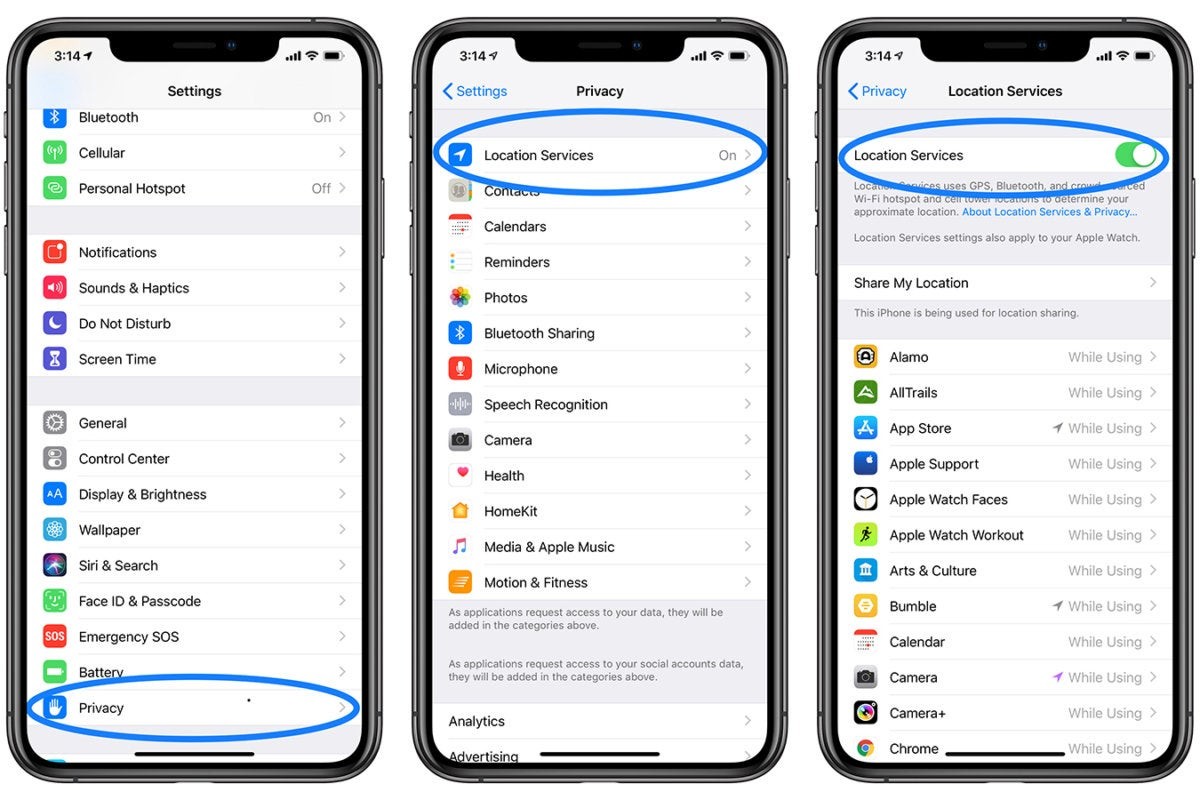
Turning Location Services Completely Off This is the big red button. If you are an extreme privacy user and you don’t use many location-based apps, you can shut down all tracking at once. This means no app, no system service, and no Apple feature can use your location.
- Go to Settings.
- Tap Privacy & Security.
- Tap Location Services.
- Toggle the main switch at the top to OFF.
This is the most secure privacy setting you can choose. However, choosing this option has big trade-offs. You will lose useful features that rely on knowing where you are. You will lose the ability to use GPS navigation like Apple Maps or Google Maps. You will lose location-based reminders (like “Remind me to buy milk when I get to the store”).
The Reset Button Get a Fresh Start
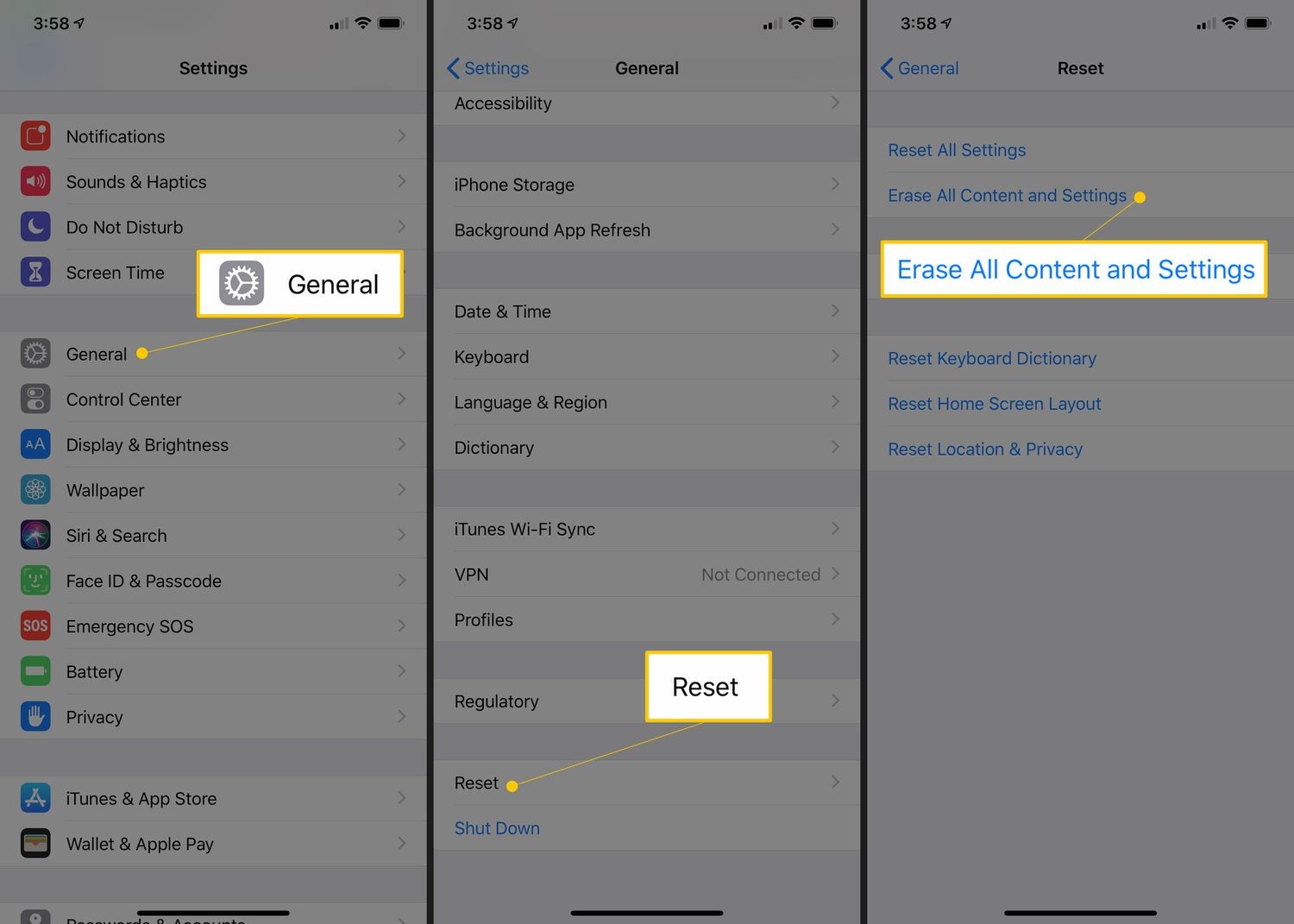
If turning off location entirely is too much, there is a helpful “Reset Button” that fixes tracking issues without losing important features.
Over time, you have permitted dozens of apps. You probably don’t remember which ones you said “Always” to. The best way to clean this up is to use the Reset Location & Privacy feature.
The huge benefit here is that the next time you open an app like Weather or Instagram, it is forced to ask for your location permission again. You can then make a careful audit of your choices and give the correct permission (like “While Using App” and no Precise Location) to every app from a fresh start.
- Go to Settings.
- Tap General.
- Tap Transfer or Reset iPhone.
- Tap Reset.
- Select Reset Location & Privacy.
You will need to enter your passcode to confirm. After this, you are fully in control of which apps start tracking you again. It is a powerful cleanup tool.
