
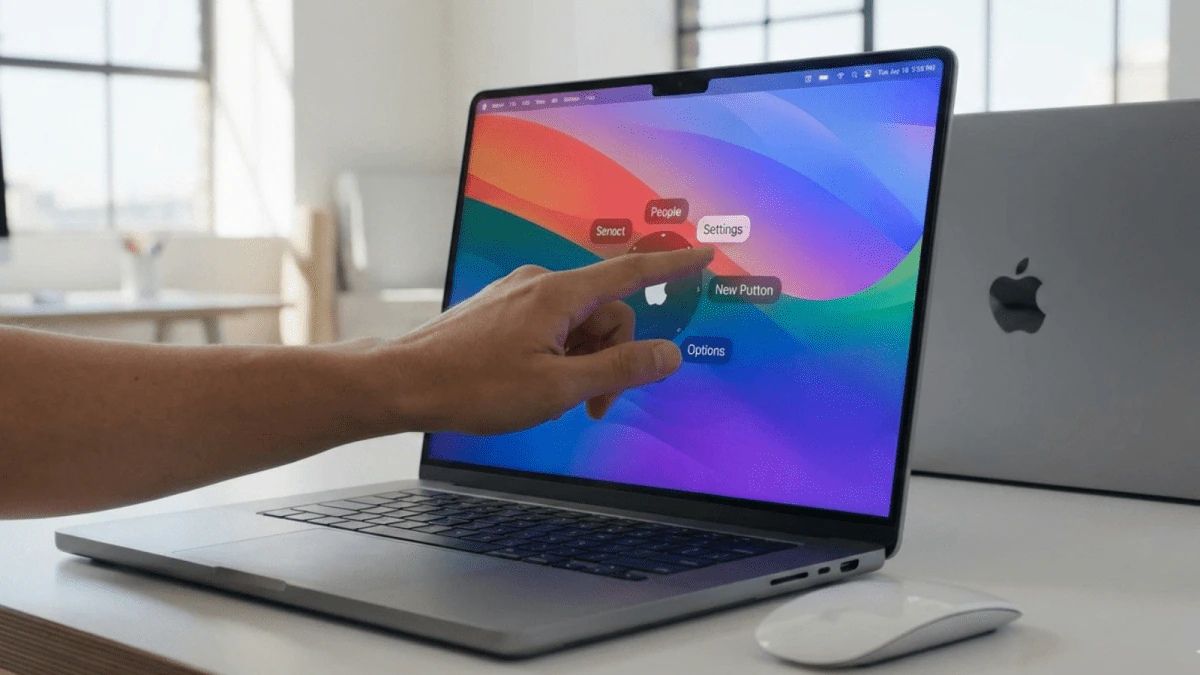
Your M2 or M3 Mac was a beast last year. It handled every tab and app without a single stutter. But now it’s 2026, and that annoying spinning “beachball” is back.
You might think your computer is getting old, but the problem is how the new macOS Tahoe update handles your screen and background tasks.
The new “Liquid Glass” design looks cool, but it’s a massive resource hog. It forces your Mac to use “Swap Memory” much earlier than before.
Apple Intelligence is constantly working behind the scenes and eats up your power, causing major Apple Silicon lag.
Exactly why 2026 software is taxing your 2024 hardware. These “buried” toggles can reclaim 15-20% of your CPU power. This simple fix takes less than 3-minutes to finish. Once you flip this switch, you can fix slow Mac 2026 issues and get back to your peak macOS Tahoe performance.
#1. The “Liquid Glass” Tax
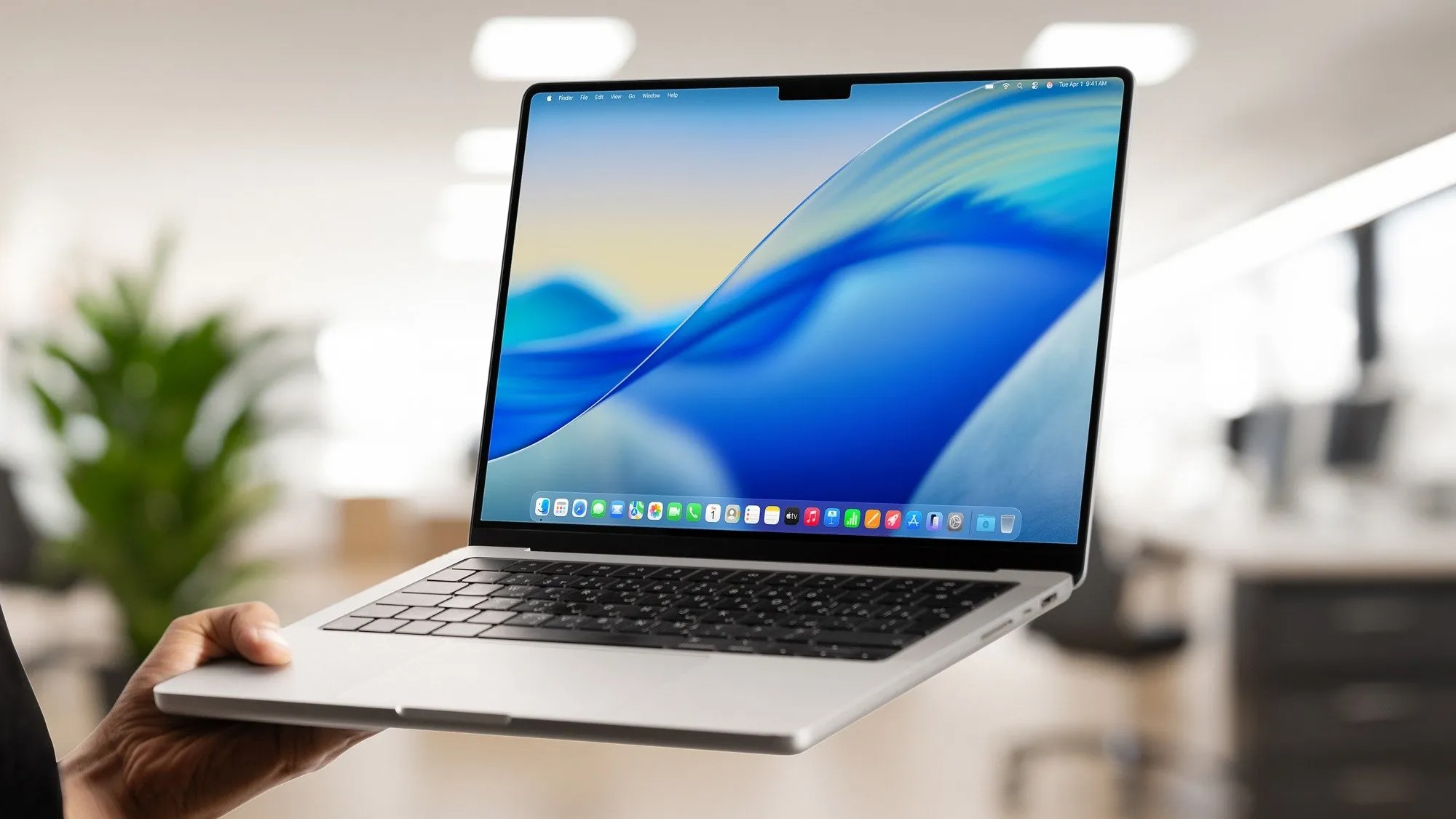
If your MacBook feels like it’s wading through shoulder-deep mud, you aren’t imagining things. Your hardware didn’t suddenly break, but the software definitely changed.
With the release of macOS Tahoe, Apple introduced a new design language called “Liquid Glass.” This UI makes every window, sidebar, and menu look like a piece of frosted crystal.
The Cost of “Dynamic Refraction” No One Realizes
Unlike older versions of macOS, “Liquid Glass” isn’t a static image. It uses a process called Dynamic Refraction, which means your Mac is constantly calculating how light should bend through your open windows in real-time.
Every time you move a folder or scroll through a website, your GPU (Graphics Processing Unit) has to redraw those blurs.
For base-model MacBook Airs with 8GB of RAM, this causes WindowServer GPU usage to spike by up to 30%.
When your graphics chip is busy drawing pretty glass effects, it has less power for your actual work.
The 48-Hour “Update Hangover”
If you just installed a macOS update in the last two days, your lag might be temporary. Apple Intelligence now performs a massive “indexing” sweep every time the system changes.
It scans every photo, email, and document to power the Siri 2.0 search features, leading to a 48-hour window of high heat and “beachballing” while your Mac does a full-body workout in the background.
#2. The 3-Minute Fix – Disabling the Visual Weight
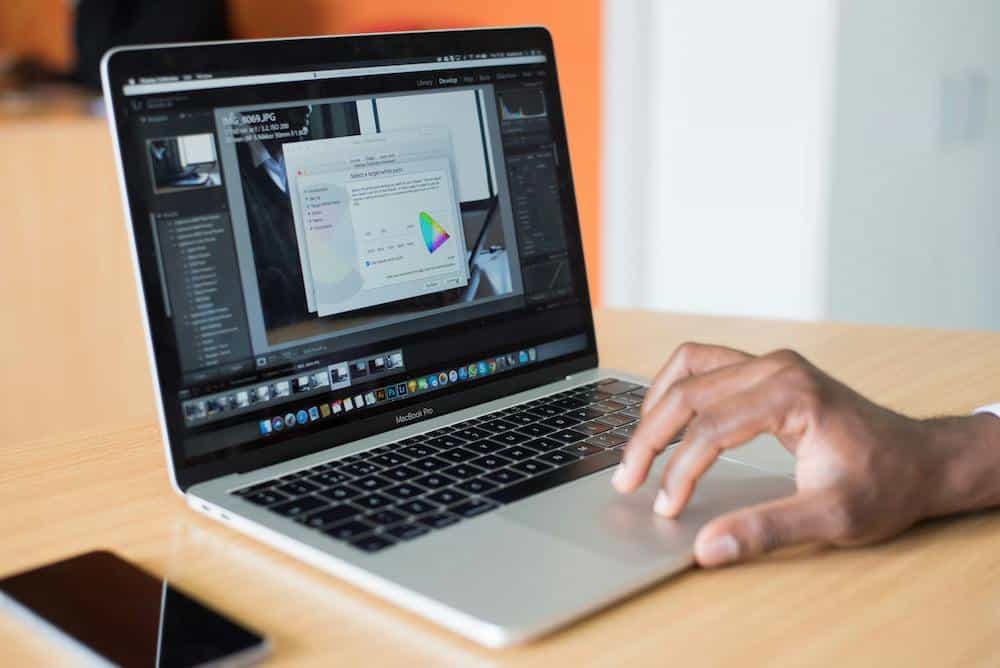
You don’t need to trade in your M1 or M2 Mac for a newer model yet. The biggest performance drain in 2026 is a setting that Apple has buried deep within the menus.
By turning off these glass effects, you stop the constant GPU throttling.
Step 1: Kill The Transparency
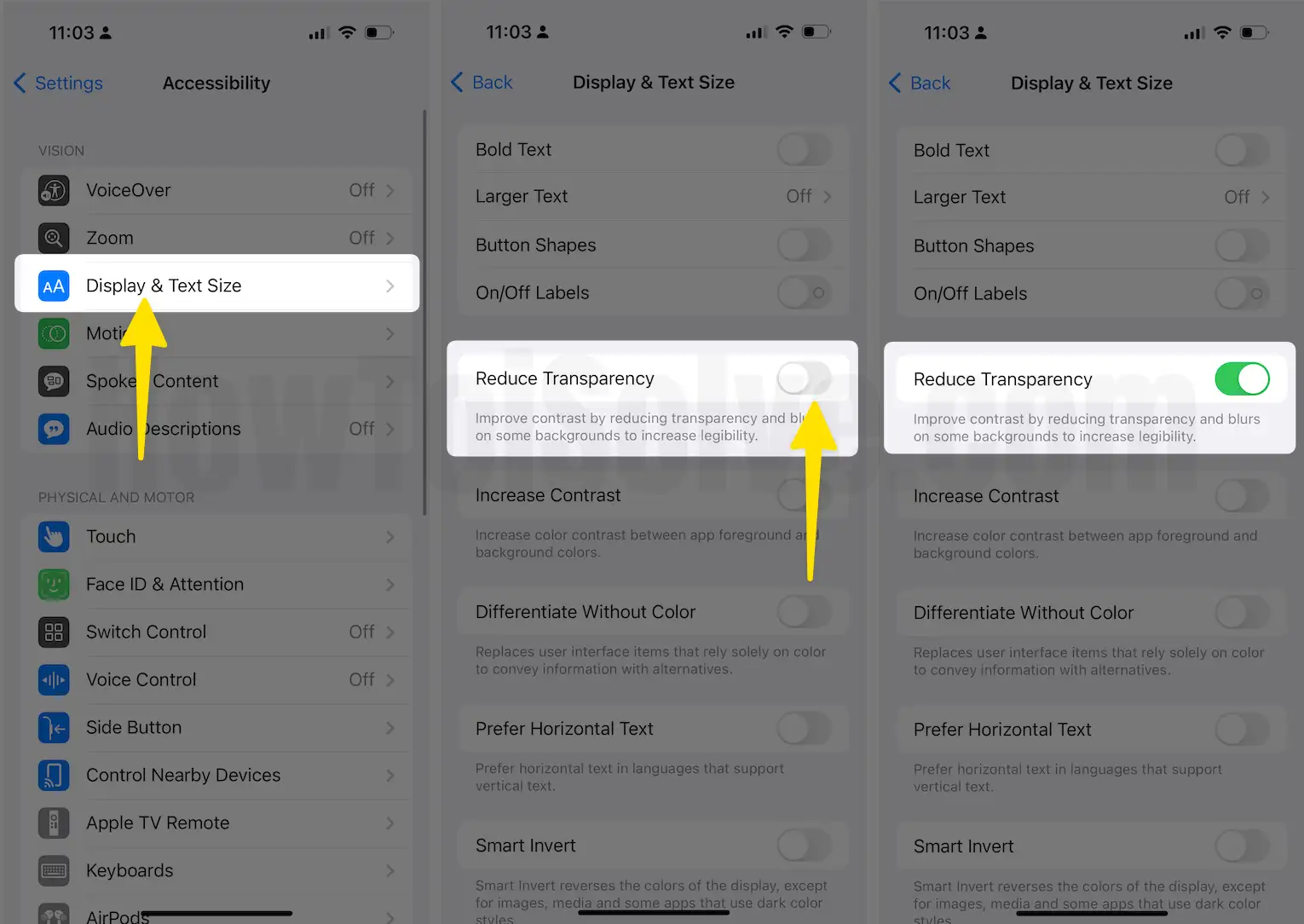
This is the single most effective “instant” speed boost you can give a sluggish Mac:
- Click the Apple Menu and open System Settings.
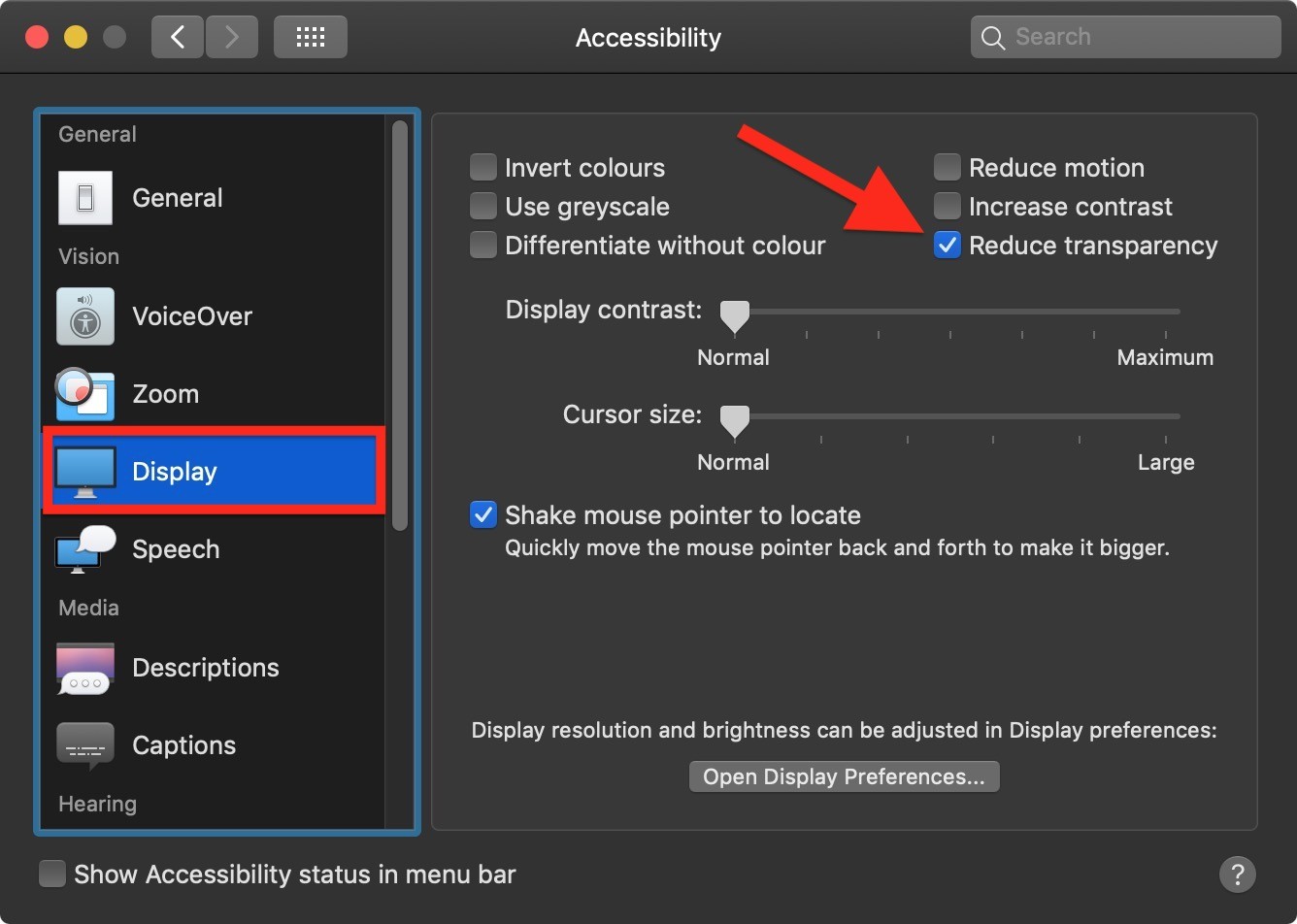
- Scroll down to Accessibility (it’s more effective here than in the “Display” menu).
- Select Display from the sidebar.
- Locate the toggle for Reduce Transparency and turn it ON.
The frosted glass look will disappear and be replaced by solid grey or white backgrounds. While it looks a bit “flatter,” the performance jump is immediate.
Step 2: Why This Reclaims Your Memory
When you turn off transparency, your Mac no longer has to store complex “blur maps” in its temporary memory.
Users on Reddit and tech forums have reported that disabling this one setting leads to an instant 2GB drop in Swap Memory usage.
Step 3: The “CoreSpotlight” Pro Tip
If your Mac still stutters after the transparency fix, try this manual reset:
- Open Finder.
- Press
Cmd + Shift + G. - Paste this path:
~/Library/Metadata/CoreSpotlight/. - Delete the files inside and restart your Mac. This forces the search index to stop “hanging” on old 2025 data and start fresh, which often clears out stuck background processes.
#3. Managing “Cryptex” and Background Tasks
Apple’s new security and AI features are great for safety, but they are heavy. In 2026, the “8GB RAM limit” is finally hitting a wall.
If you have an 8GB machine, you have to be aggressive about what runs behind the scenes.
Monitoring the New “Real Memory” View
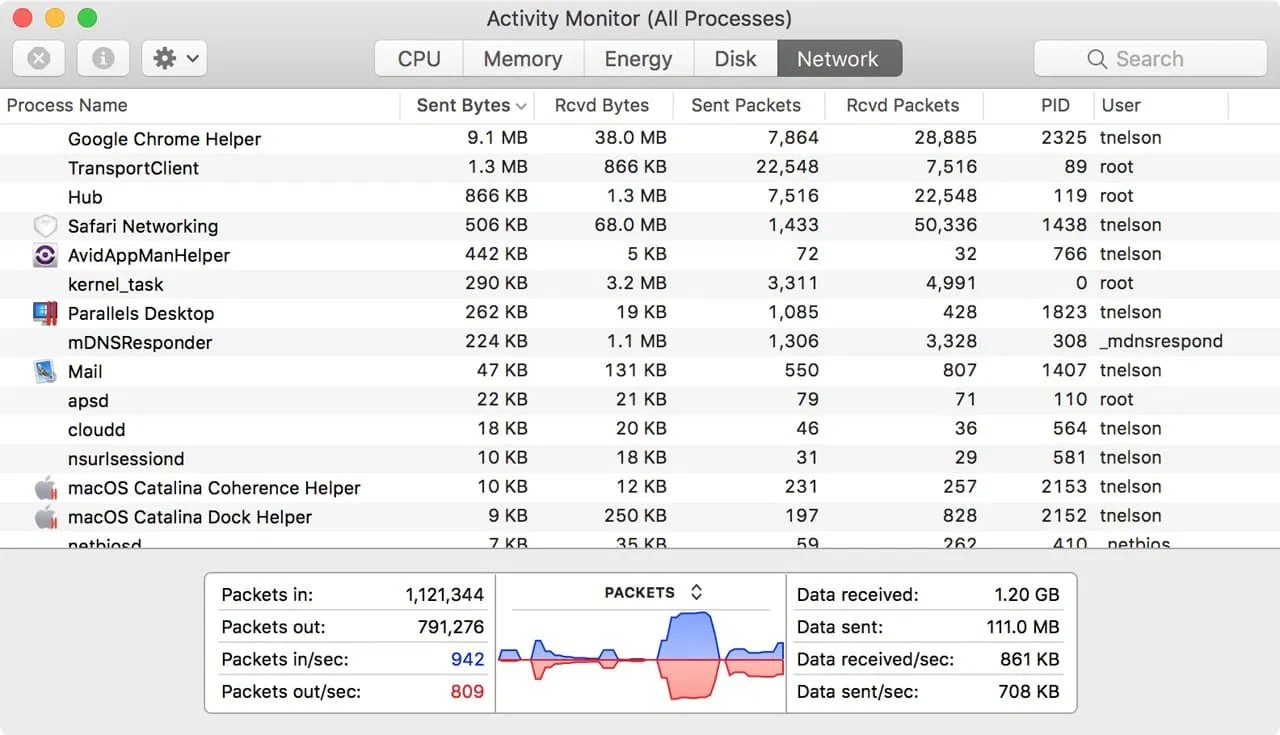
Open your Activity Monitor (Cmd + Space, then type “Activity”). In 2026, there is a new “Real Memory” column. This shows you exactly how much physical RAM a process is taking. Look for anything labeled:
1. Apple Intelligence Cloud Sync
2. Manager
3. Neural Engine Helper
Toggling “Power Efficient” Security
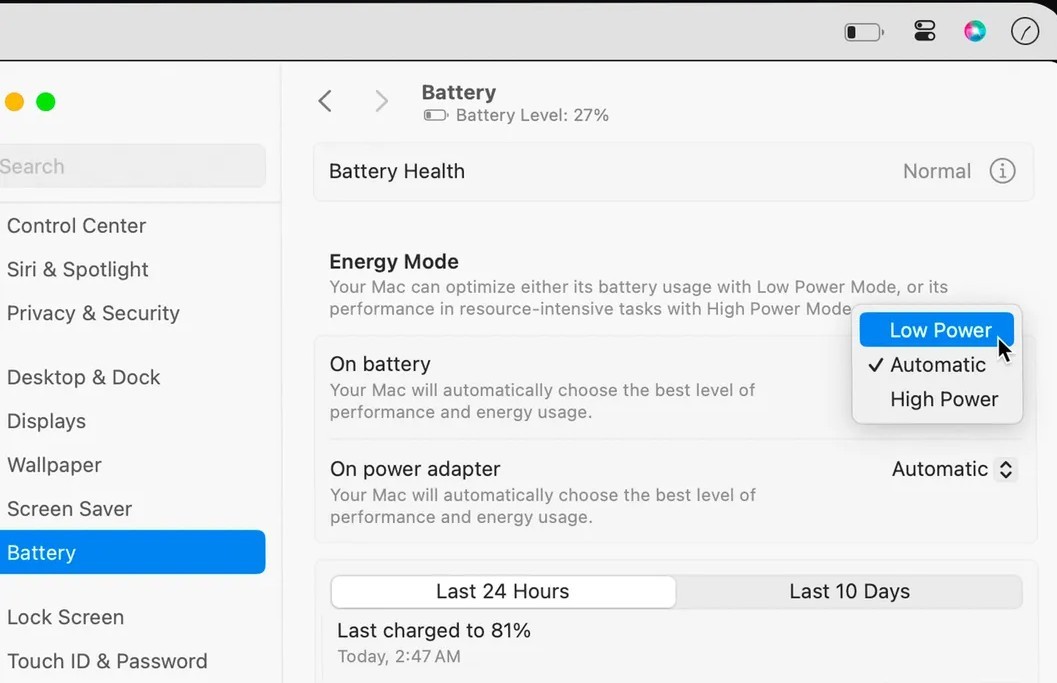
You can’t turn security off, but you can tell it when to run. Go to System Settings > Privacy & Security > Background Security Improvements.
Switch this to “Power Efficient” mode that makes your Mac wait until you are plugged into a wall charger before it starts heavy security scanning.
It prevents your battery from draining and your CPU from spiking while you’re working at a coffee shop.
The Only Metric That Matters: Memory Pressure
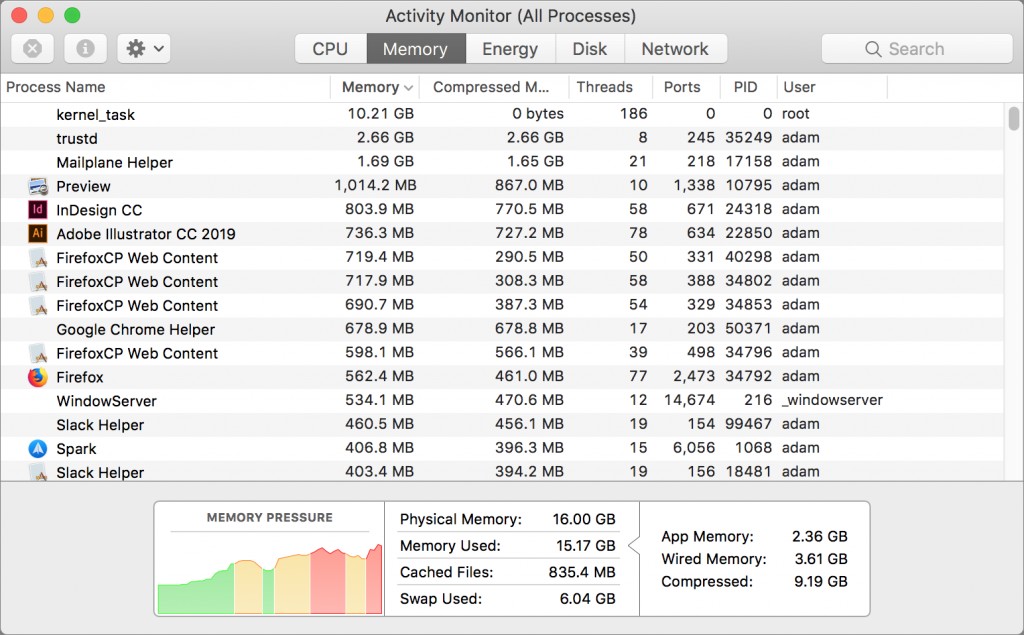
Ignore the “Used Memory” number. Instead, look at the Memory Pressure graph at the bottom of Activity Monitor.
1. Green: Your Mac is happy.
2. Yellow: You are using “Swap,” which slows things down.
3. Red: Your Mac is “swapping” data to the hard drive so fast that it’s causing permanent lag.
By clearing the “Liquid Glass” tax and managing your background “Cryptex” tasks, you can usually keep that graph in the green, even on older 8GB machines.
