
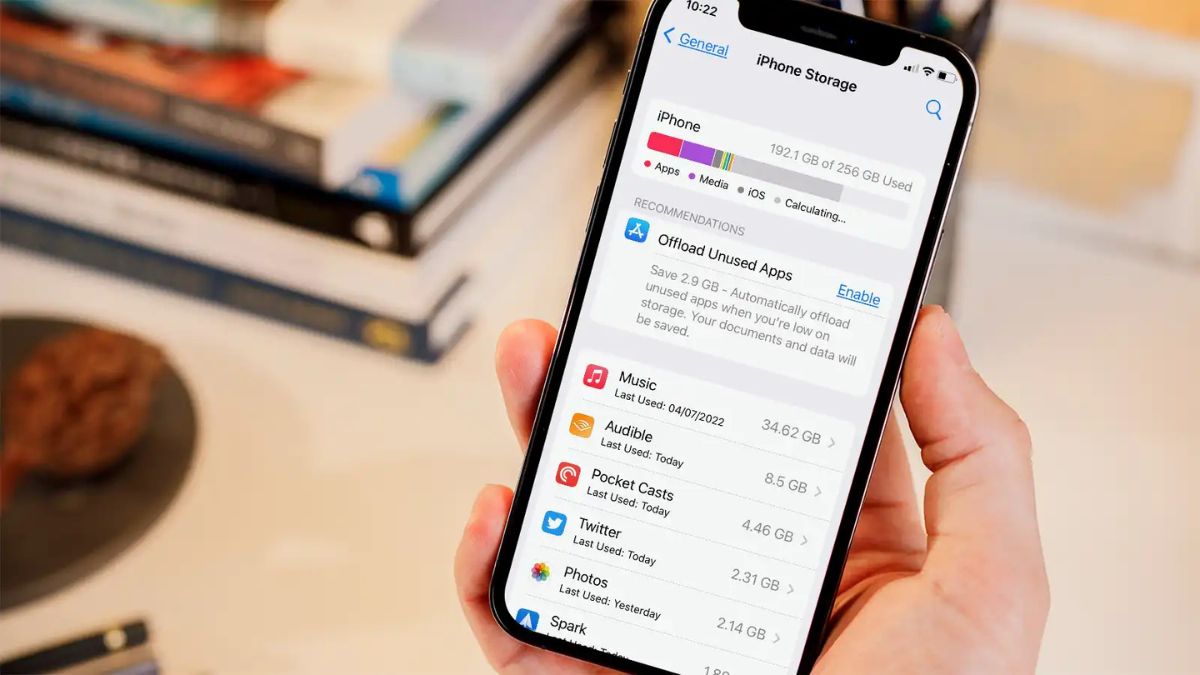
You open your settings, delete ten videos, and two days later, the warning is back. It’s frustrating, especially if you have an older iPhone or one with base storage. You look at the storage graph and see a huge, mysterious chunk labeled “System Data” or “Other.” You can’t delete that. It feels like your phone is fighting you for space.
Your iPhone Storage is full of hidden files your iPhone saved and then forgot to delete. These are the secret gigabytes eaters. These 2025 proof, step-by-step plan to expose and clean out the 9 hidden files on your phone.
You will learn simple actions that free up massive space. You’ll finally be able to understand and Clear System Data, get your phone running smoothly again, and take control of your storage.
#1. The ‘Hard Reboot’ Flush
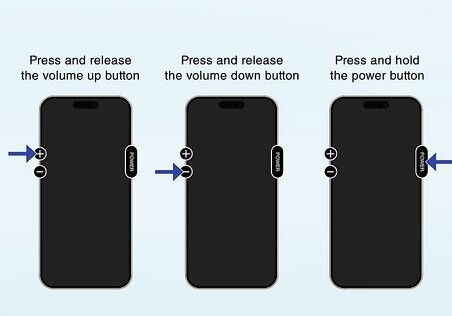
A hard reboot forces the operating system (OS) to ditch most of its short-term cache and useless temporary files. This often instantly shrinks the System Data bar by a few gigabytes.
Quickly press and release the Volume Up button then press and release the Volume Down button. Press and hold the Side button (the power button) until the screen goes black and the Apple logo appears. Let go of the button.
#2. The Reinstall Method (The Only Sure Way)
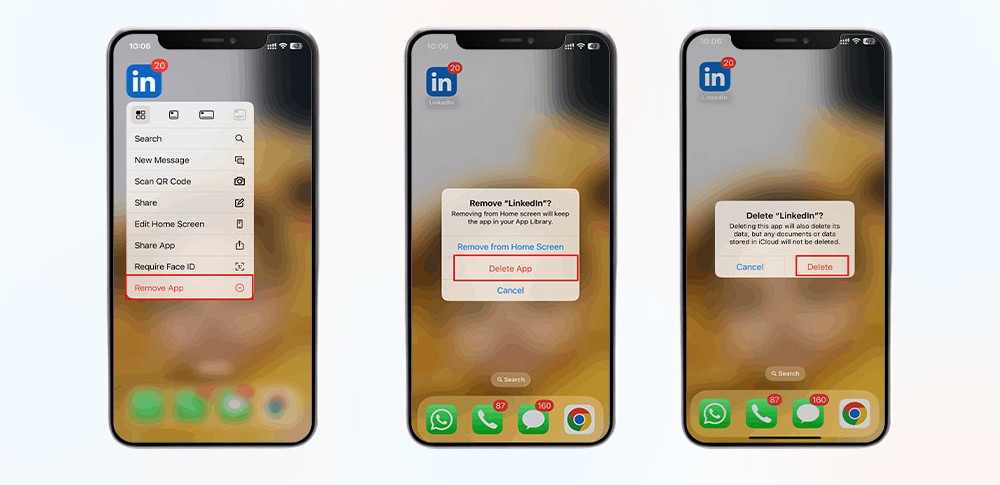
The most social media apps (like Instagram and TikTok) do not have a “Clear Cache” button. The only way to completely zero out their App Cache is to delete the app and re-download it.
Press and hold the app icon until the menu appears. Tap “Delete App.” (You are only deleting the app binary and the temporary data, not your account.) Go to the App Store and download the app again.
Your account login will be fresh, but its App Cache and temporary storage are gone. This is a simple, effective way to get many gigabytes back and is a key step to help Clear System Data related to apps.
#3. The In-App Clear (For Spotify & Telegram)
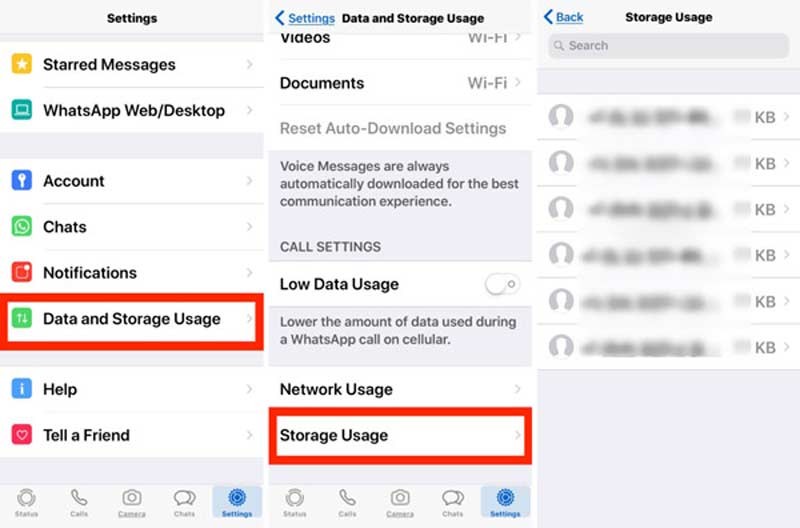
Some apps are honest and provide a clear option:
Spotify: Go to Settings > Storage. You can delete all Downloads and clear the app’s cache directly without losing your playlists.
WhatsApp/Telegram: Use Settings > Storage and Data > Manage Storage. Here, you can bulk-delete large media files saved from chats without deleting the entire app.
#4. Review Large Attachments
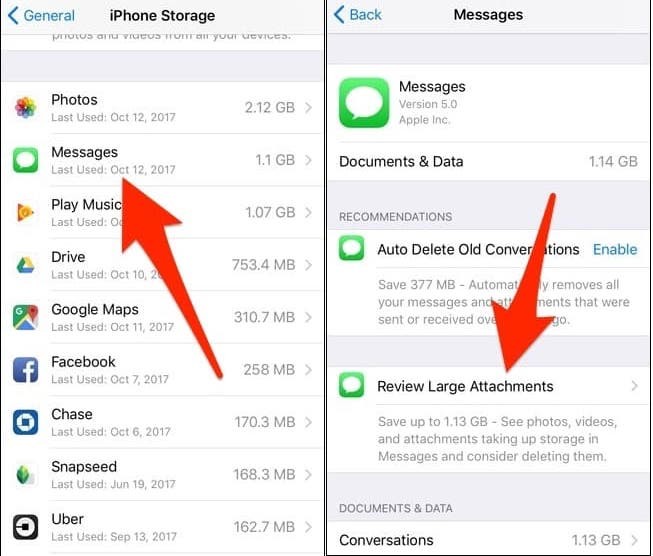
This tool shows you a list of every large photo and video sent through Messages, ordered from biggest to smallest. This is fast and powerful.
Go to Settings. Tap general and then tap iPhone Storage. Scroll down to messages. Under the Recommendations section, tap Review Large Attachments. Select the old, unwanted media and delete it directly from this list.
#5. Auto-Delete Old Messages
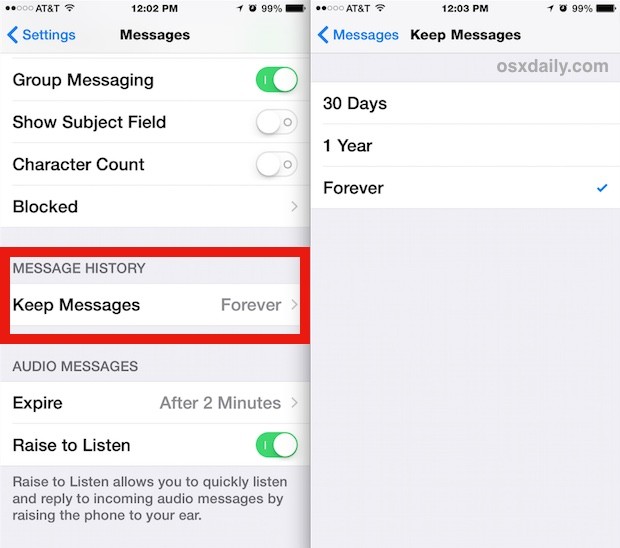
Stop the storage drain from happening again. Change your settings so your iPhone automatically deletes old messages data after a set time.
Go to settings. Scroll down to Keep Messages. Change the setting from “Forever” to “30 Days” or “1 Year.” This is a proactive way to manage your iPhone Storage without thinking about it later.
#6. The Standard Safari Clear
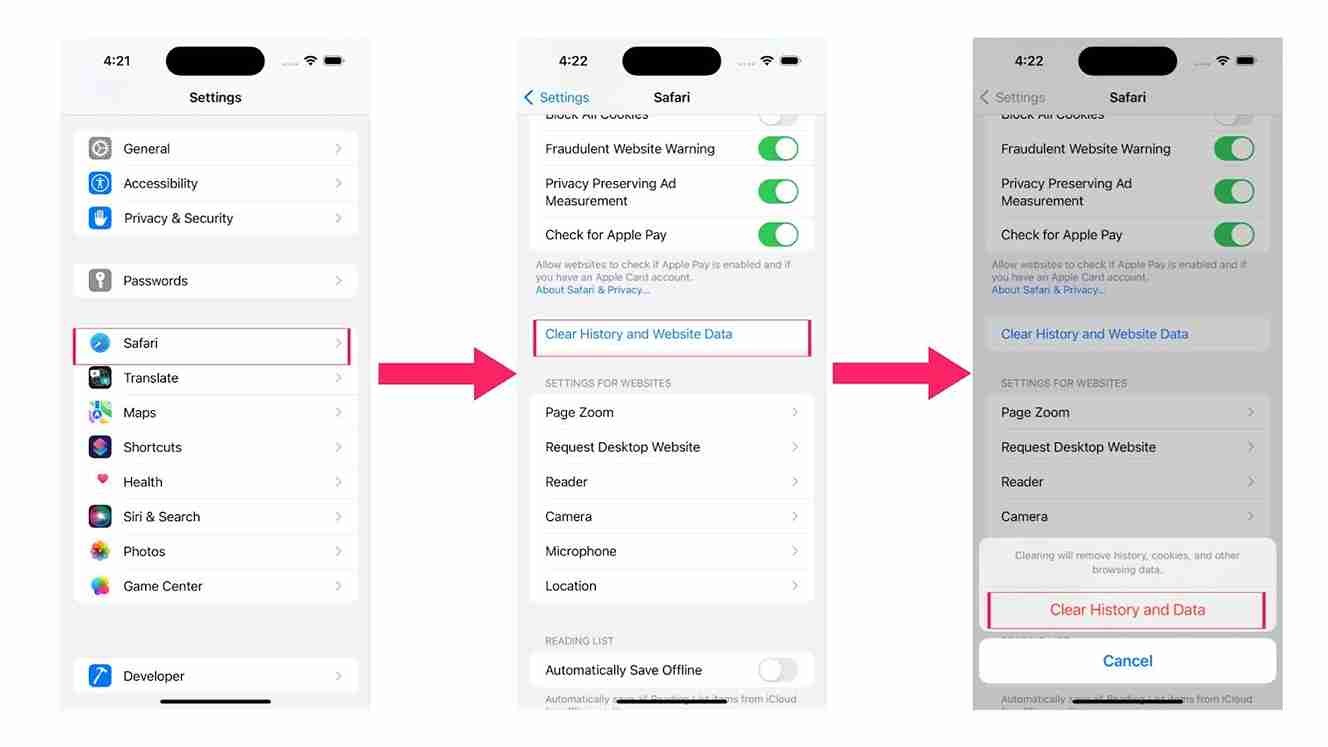
The first, basic step is to clear your history and cookies. Go to settings and scroll down and tap Safari. Tap Clear History and Website Data.
#7. The Deeper Website Data
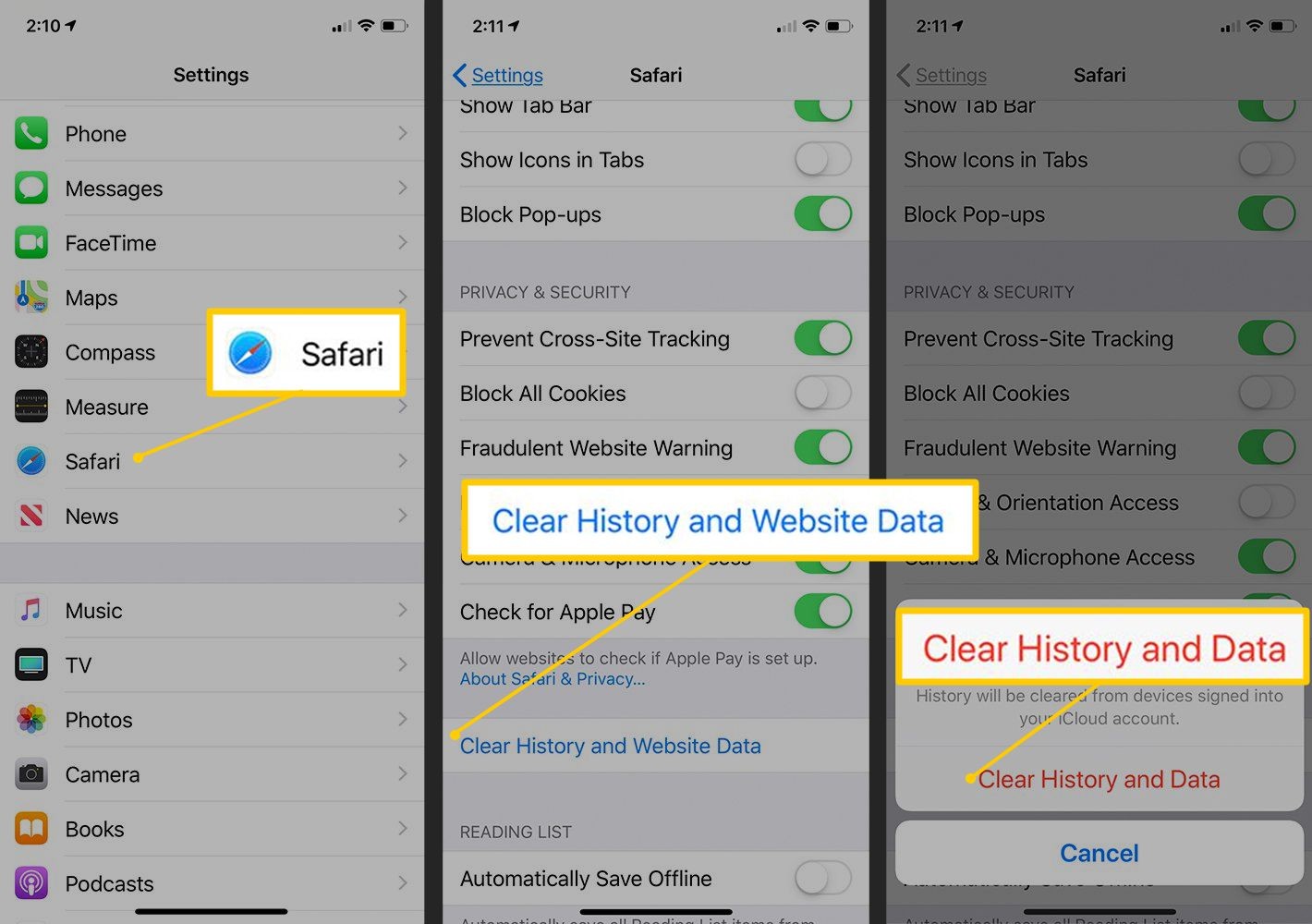
The basic clear doesn’t always delete all the saved data. To fully clean out the largest stored files left behind by sites you visited years ago, you must go deeper. This is the surest way to Clear System Data linked to browser use.
Go to Settings, scroll down and tap safari. Tap advanced, tap Website Data. Tap Remove All Website Data. It will remove all saved logins and cookies for all websites. You will have to sign back into sites like Amazon or Facebook. But the storage you reclaim is worth the minor hassle.
#8. Turn Off The Duplicates
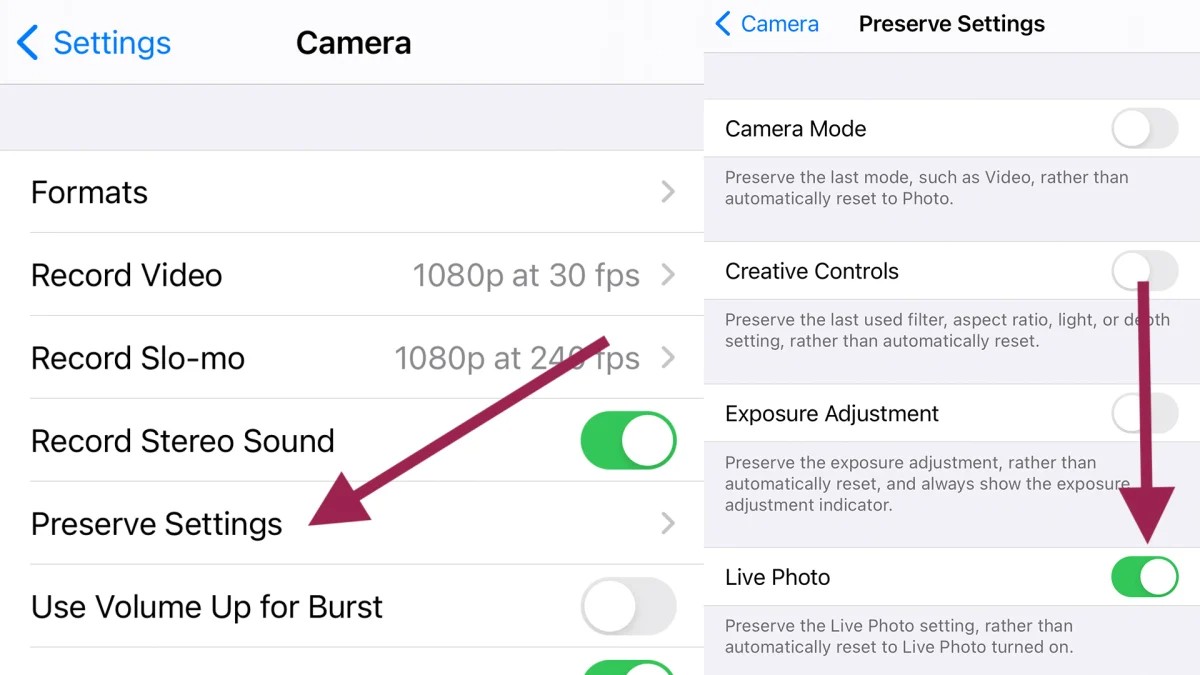
You need to tell your iPhone to stop saving these extra files automatically.
Stop Saving Extra HDRs: Go to Settings > Camera. Scroll down and turn off the “Keep Normal Photo” switch. Now, your iPhone only keeps the better HDR version.
Disable Live Photos: Open the Camera app. Tap the Live Photo icon (the two circles) to make sure the slash appears across it. To make sure it stays off, go to Settings > Camera > Preserve Settings and turn the Live Photo switch on. This makes the setting stay off every time you close the Camera app.
#9. The Files App Purge
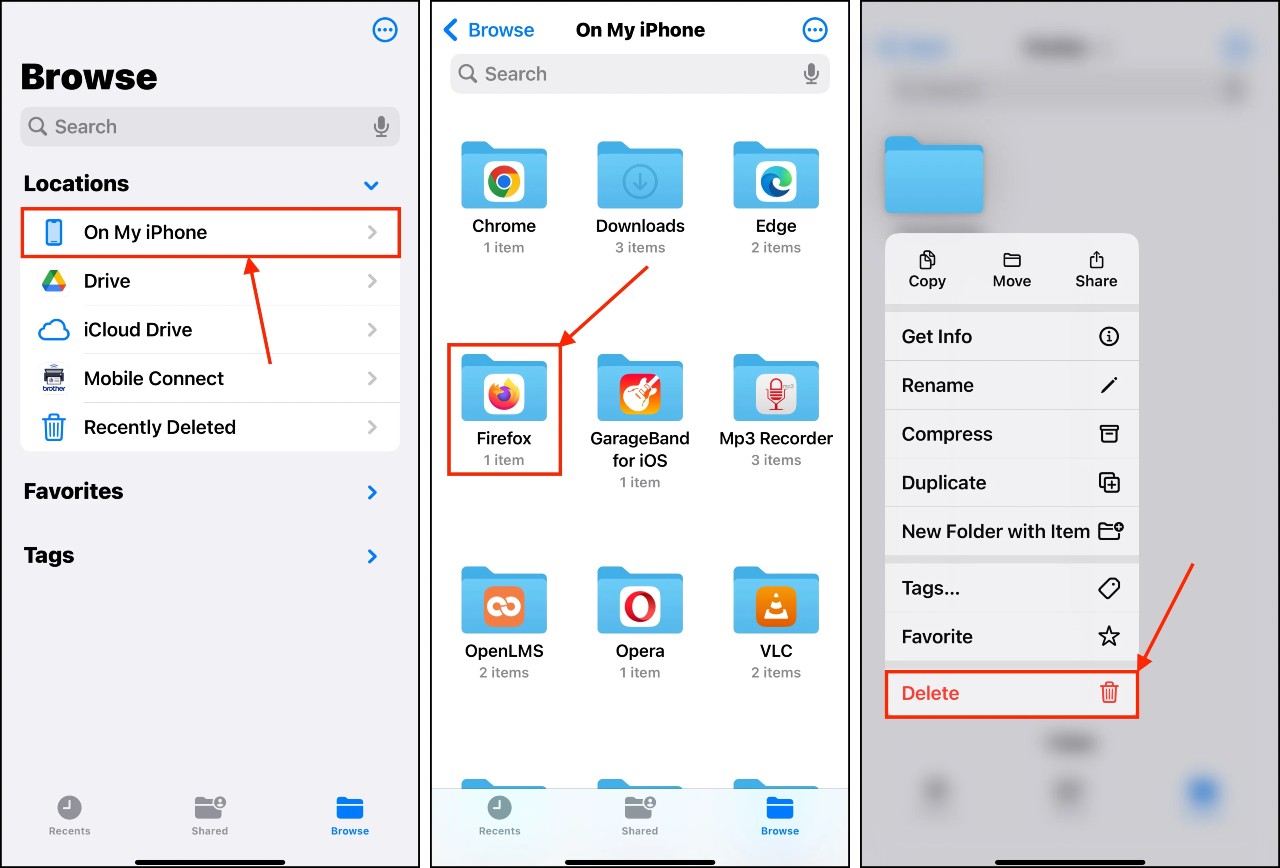
This is an easy, fast way to clear the items you truly forgot about. You just need to know where to look.
Open the Files App (the blue folder icon). Tap Browse at the bottom. Under Locations, tap On My iPhone,Tap the Downloads folder.
Look at the file sizes. Any single file over 100MB is a great candidate for deletion. Press and hold the large file, then tap Delete.
Make it a habit to check this folder once a month. You will stop that secret storage drain from those large, unnecessary downloads.
#10. The Nuclear Option to Reset System Data
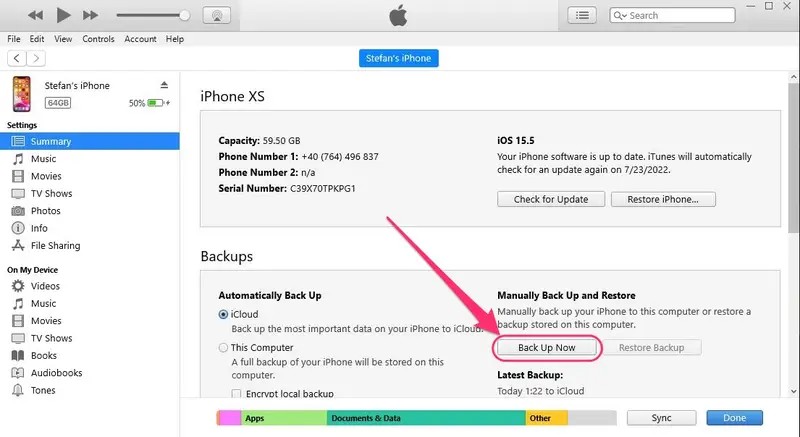
If you have tried everything above the hard reboots, clearing App Cache, and deleting browser data and your “System Data” bar is still huge, you have a deep problem. The data is corrupted or stuck.
At this point, you have only one guaranteed fix. We call it the Nuclear Option: Backup and Restore.
You are basically wiping your phone clean and then putting all your apps and settings back onto the fresh phone. This process forces the iPhone to rebuild its file structure correctly and completely zero out all the junk that makes up bad System Data.
Expert Consensus The Guaranteed Fix
Tech experts agree that a full restore is the only way to fix some stubborn, huge System Data issues. It takes time, but it works 100% of the time.
Full, Verified Backup First: You must save everything important.
- Plug your iPhone into your Mac or PC and perform a full backup.
- Or, use iCloud to perform a full backup. Check the time stamp to be sure it finished.
Erase the Phone: Go to Settings > General > Transfer or Reset iPhone > Erase All Content and Settings. This makes the phone factory new.
Restore the Backup: During the setup, choose “Restore from iCloud Backup” or “Restore from Mac/PC.”
Your phone will now run faster, and that annoying “System Data” bar will finally be shrunk back down to a small, normal size. You reclaim many gigabytes instantly.
