

Your iPhone knows where you live, where you work, and everywhere you go between those places. You bought an iPhone because Apple says it’s private. And compared to other phones, it is. But here’s what Apple doesn’t advertise: several iPhone privacy settings are turned ON by default, quietly collecting and sharing your personal data.
They collect information about how you use your phone. And they’re all buried in menus most people never open. 5 privacy and security settings that cybersecurity experts say you should change today. Each one takes less than 2 minutes to fix.
They matter for your privacy. And exactly how to turn them off, with step-by-step instructions you can follow right now. No technical knowledge needed. No complicated setup. Just simple changes that give you back control over your personal data.
1. Turn Off App Tracking So Companies Can’t Follow You
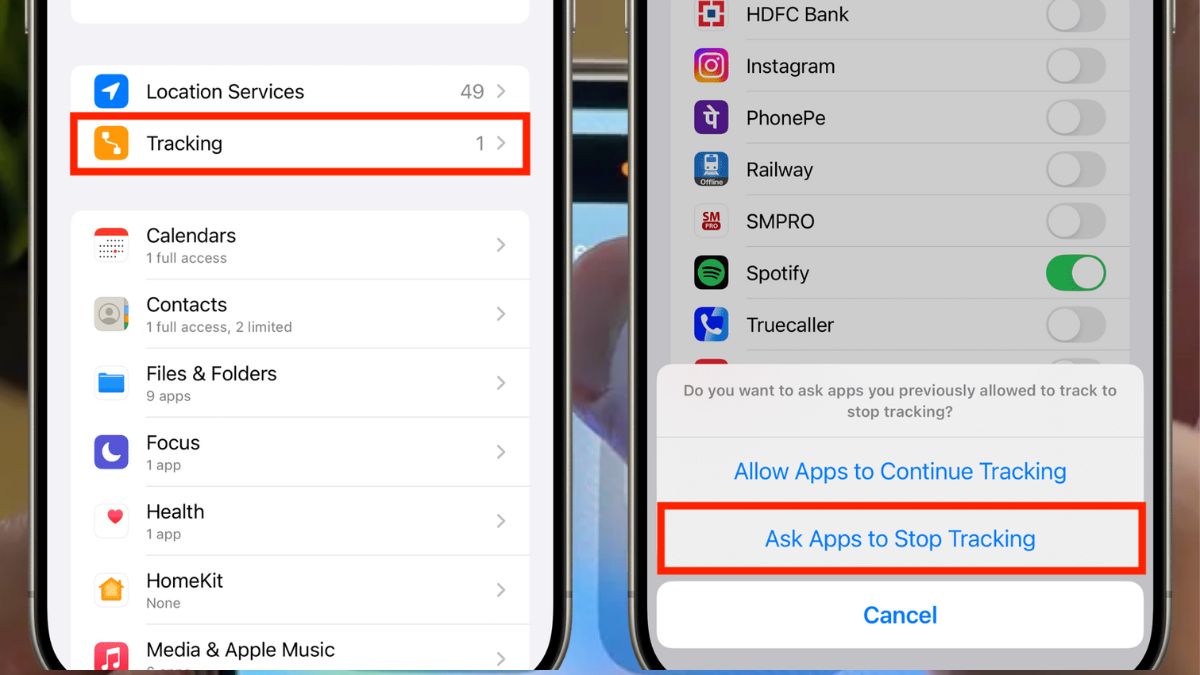
When you use apps on your iPhone, many of them try to track what you do. They watch which other apps you open. They see which websites you visit. They build a profile about you so they can show you targeted advertising. Apps share this number with advertisers.
Running shoes in one app just opened a fitness app. App Tracking Transparency stops apps from using your device ID to track you across different apps and websites, 9to5Mac. It’s a feature Apple added that actually works.
What Doesn’t This Stop?
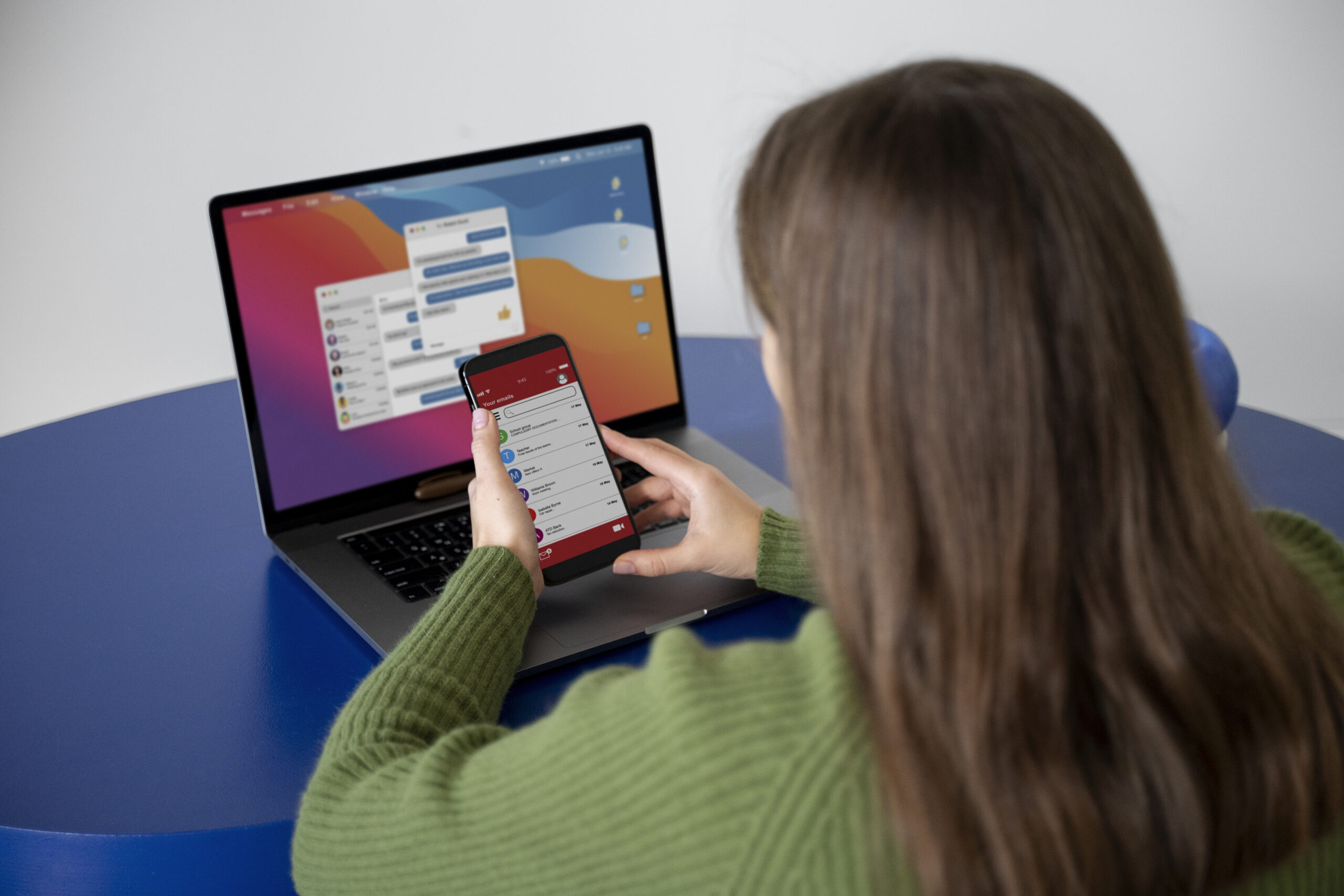
Apps can still collect some data, like your IP address, PIRG. That’s the number that identifies your internet connection. But cross app tracking is the big one. That’s how companies build detailed profiles about your habits, your interests, and your shopping behavior. Turning off app tracking stops most of that. This takes 30 seconds to set up. And it cuts off the main way companies spy on what you do with your phone.
2. Stop Your iPhone From Logging Everywhere You Go
There’s a feature called Significant Locations buried in your iPhone privacy settings. It quietly logs places you visit most often, including timestamps and visit frequency, SheFinds.This means your phone knows where you live. Where do you work? Which gym do you go to? Which grocery store do you shop at? When you visit these places, and how often.
How To See What’s Already Been Collected
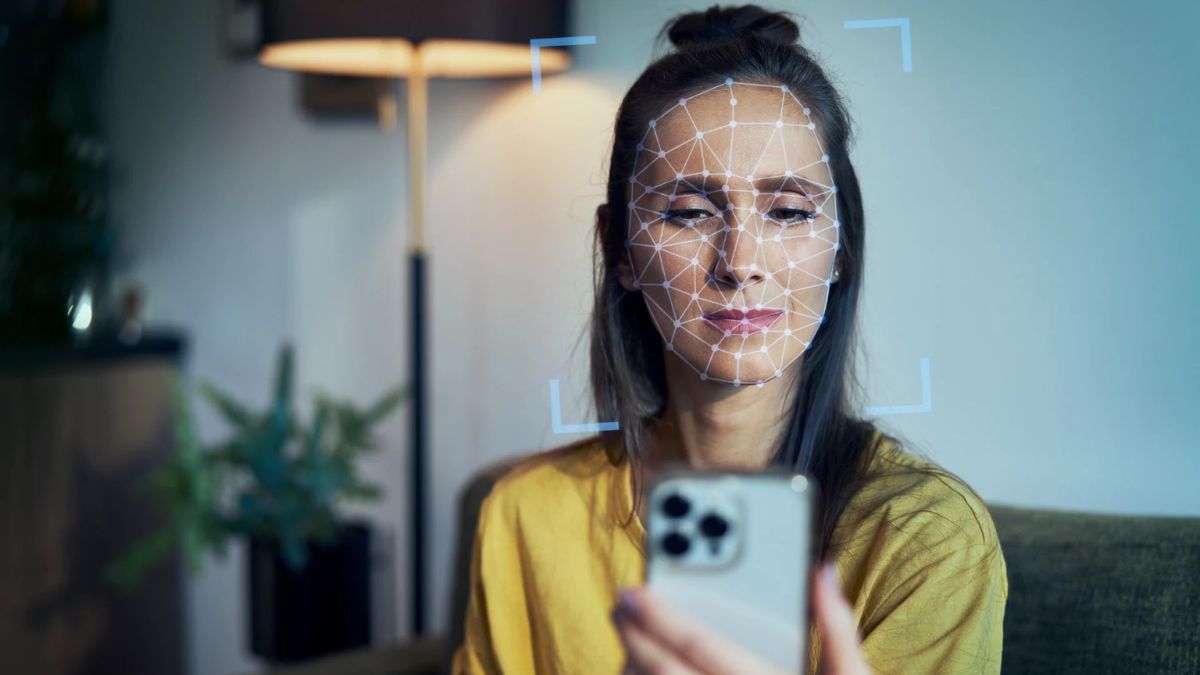
Open Settings, Tap Privacy & Security, Tap Location Services, Scroll all the way to the bottom and tap System Services, Tap Significant Locations & Routes, Use Face ID or your passcode to unlock. Tap any city, and you’ll see the exact locations you visit there, plus how many times you’ve been to each place.
3. Turn Off iPhone Analytics That Apple Collects About You
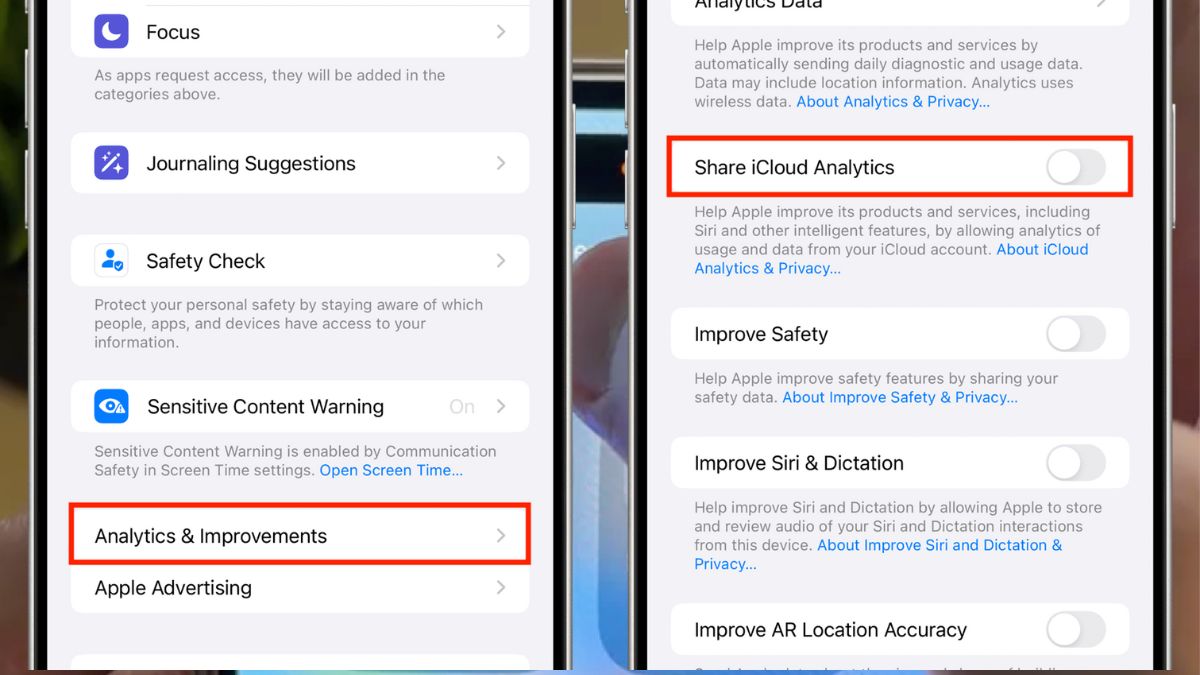
Apple collects data about how you use your iPhone. Most people never turn this off. Analytics sharing sends data about crashes, app usage, and how you use your device to Apple SheFinds. This “little toggle” is sending detailed logs to Apple every day, SheFinds. Apple says it needs this information to make its products better. And maybe that’s true. But you’re still giving away your behavioral data.
How To Turn Off All Analytics?
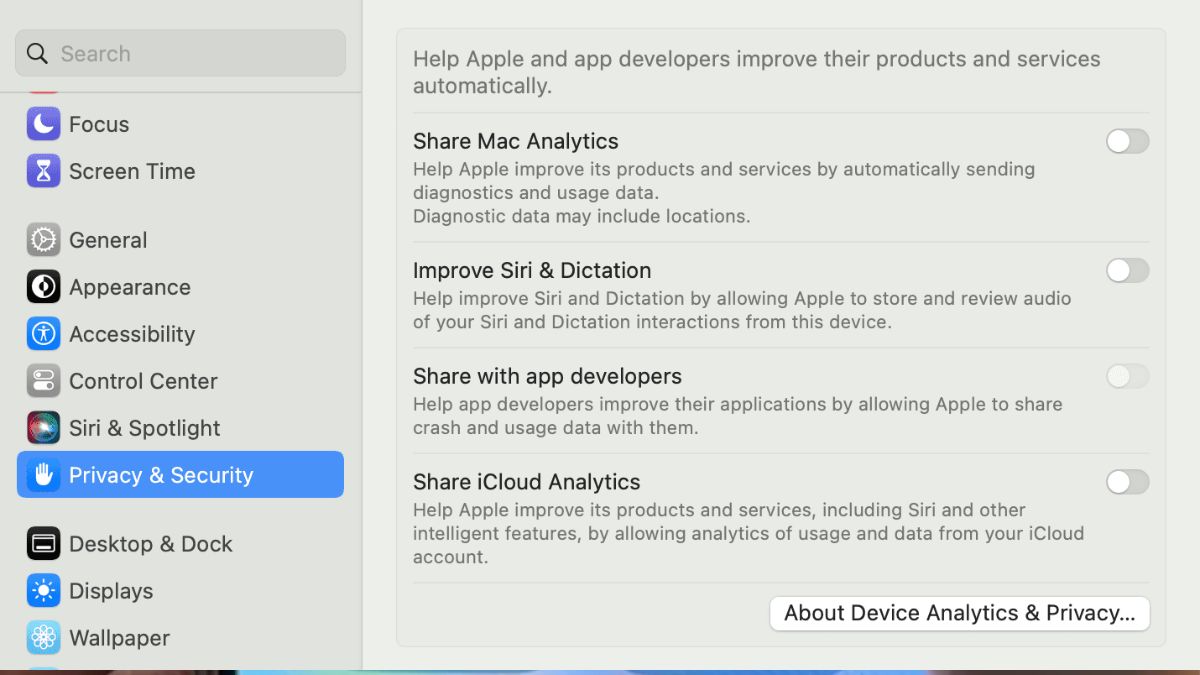
Open Settings, Tap Privacy & Security, Scroll down to Analytics & Improvements, Turn OFF “Share iPhone Analytics, “Turn OFF “Improve Siri & Dictation, “Turn OFF “Share with App Developers”, Turn OFF “Share iCloud Analytics.”Each one of these sends different types of information.
The first toggle stops Apple from collecting general usage data about your phone. The second one stops them from recording what you say to Siri. The third one prevents app developers from seeing crash reports from their apps on your device. And the fourth stops data about how you use iCloud.
4. Remove Location Data From Photos Before You Share Them
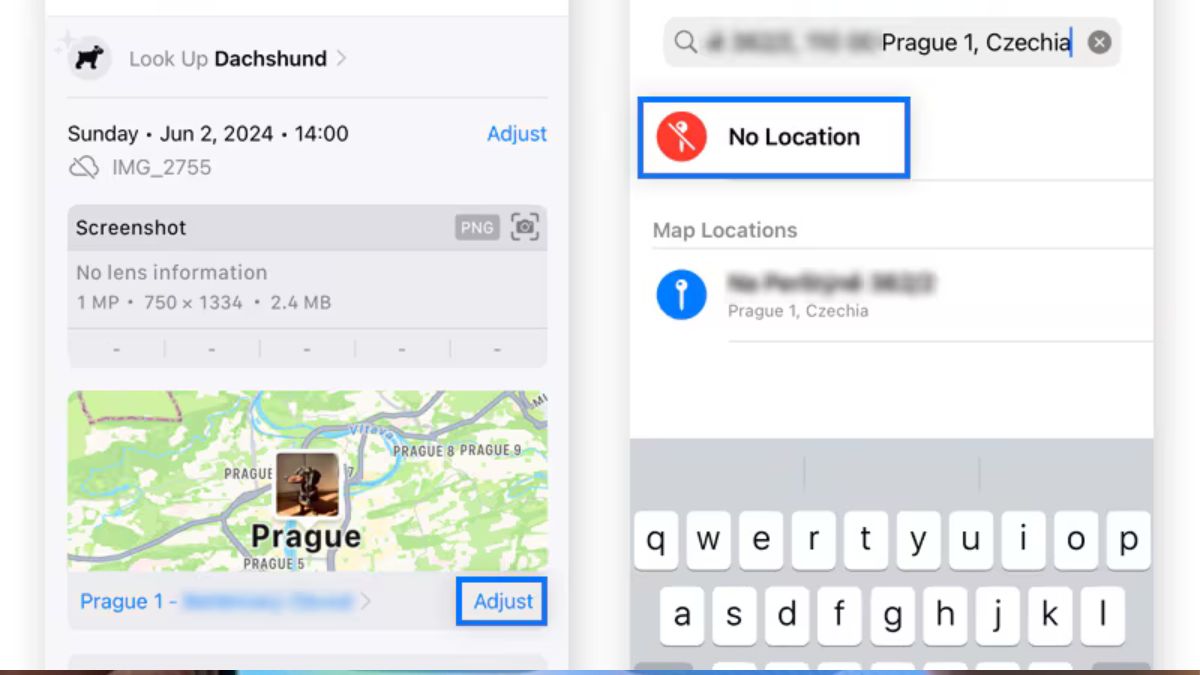
EXIF data includes exact GPS coordinates, date, time, and camera settings embedded in every photo. This metadata is invisible when you look at the picture. But it’s there. Photos shared online can reveal your home address, workplace, or where your kids go to school. That photo you posted of your morning coffee? It might show your home’s GPS coordinates. The picture of your kid’s first day of school. That could reveal which school they attend.
Which Option Should You Choose?
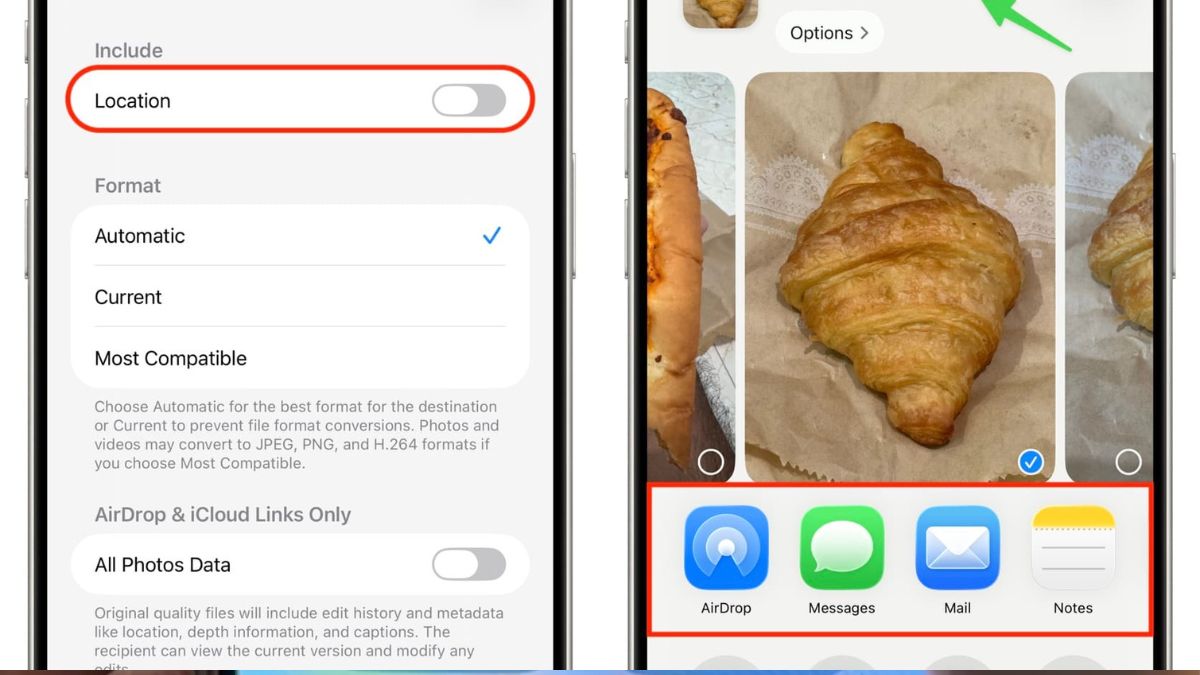
If you use location data to organize your photos, keep it on and just remove it when sharing. If you don’t care about organizing photos by location, turn it off completely. Better safe than sorry. Either turn off location for Camera, or always check Options when sharing photos. Don’t let your pictures broadcast where you live.
Apps request camera and microphone access, but many don’t need it to function, PIRG. They ask for app permissions anyway. And once you tap “Allow,” they have access whenever they want. Third-party apps are notorious for collecting unnecessary data, according to PIRG. The more access they have, the more data they can grab.
5. Check Which Apps Are Using Your Microphone
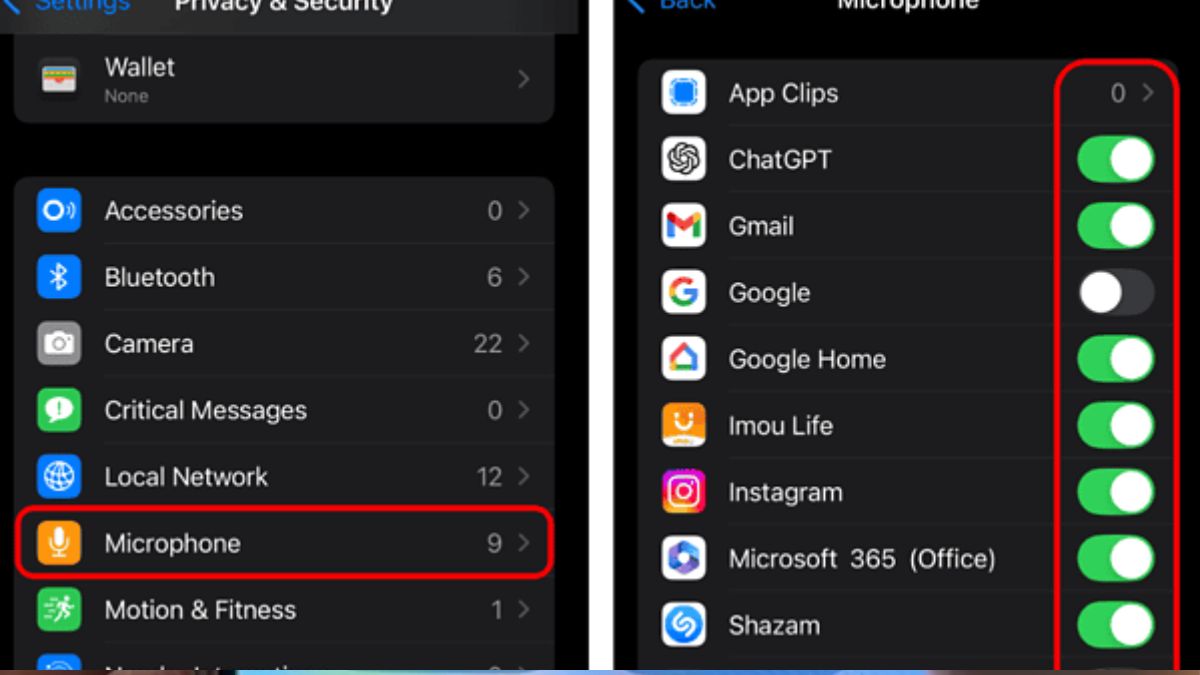
Some apps request access to your microphone or camera. Then never use them. Apps request camera and microphone access, but many don’t need it to function, PIRG. They ask for app permissions anyway. And once you tap “Allow,” they have access whenever they want. Third-party apps are notorious for collecting unnecessary data, according to PIRG. The more access they have, the more data they can grab.
Apps That Actually Need Access
Camera apps need camera access, Video chat apps need camera and microphone, Voice recording apps need microphone access, and Fitness apps might need Bluetooth for your smartwatch.
But most apps don’t need these permissions. Games don’t need your microphone. Shopping apps don’t need your camera unless you’re scanning barcodes. If you set something to “Never” and the app breaks, you can always change it back. But most apps work fine without access.
