
Every new iOS update promises exciting features, but ignoring one vital step can turn that excitement into a nightmare of lost photos and messages. You just saw that notification for the newest software update, maybe iOS 26.1. You want the security fixes and new tools.
The risk of a device failure during an update is small, but it’s real. A sudden loss of power or a simple Wi-Fi glitch can corrupt your data forever. You lose your pictures, your texts, and your settings. You need a simple, reliable safety net to make sure your life stays on your phone.
The single, critical step you must take: a full backup. This is the only way to guarantee your data’s safety why it’s so essential. Then, these complete, 5 point iOS update preparation checklist that how to Backup iPhone Before Update and install the new software with zero worry.
#1. Why You Must Backup iPhone Before Update (Or Risk Losing Everything)
Every time Apple releases a new iOS update, it’s exciting. You get new features and important security fixes. But if you ignore one simple step before updating, that excitement can quickly turn into a total disaster. Losing all your photos, messages, settings, and health data forever.
What Could Go Wrong? The “What If” Scenario
Think of your iPhone update as a major surgery for your device. Most of the time, the surgery goes perfectly. But sometimes, things go wrong, and you need a safety net. Few common reasons a software update can fail and leave you with a blank screen:
1. Power Loss: If your iPhone dies halfway through the update process, the installation stops. This can damage the core files, leaving your phone stuck on the Apple logo.
2. Bad Wi-Fi: A sudden Wi-Fi interruption during the download or installation can corrupt the software files.
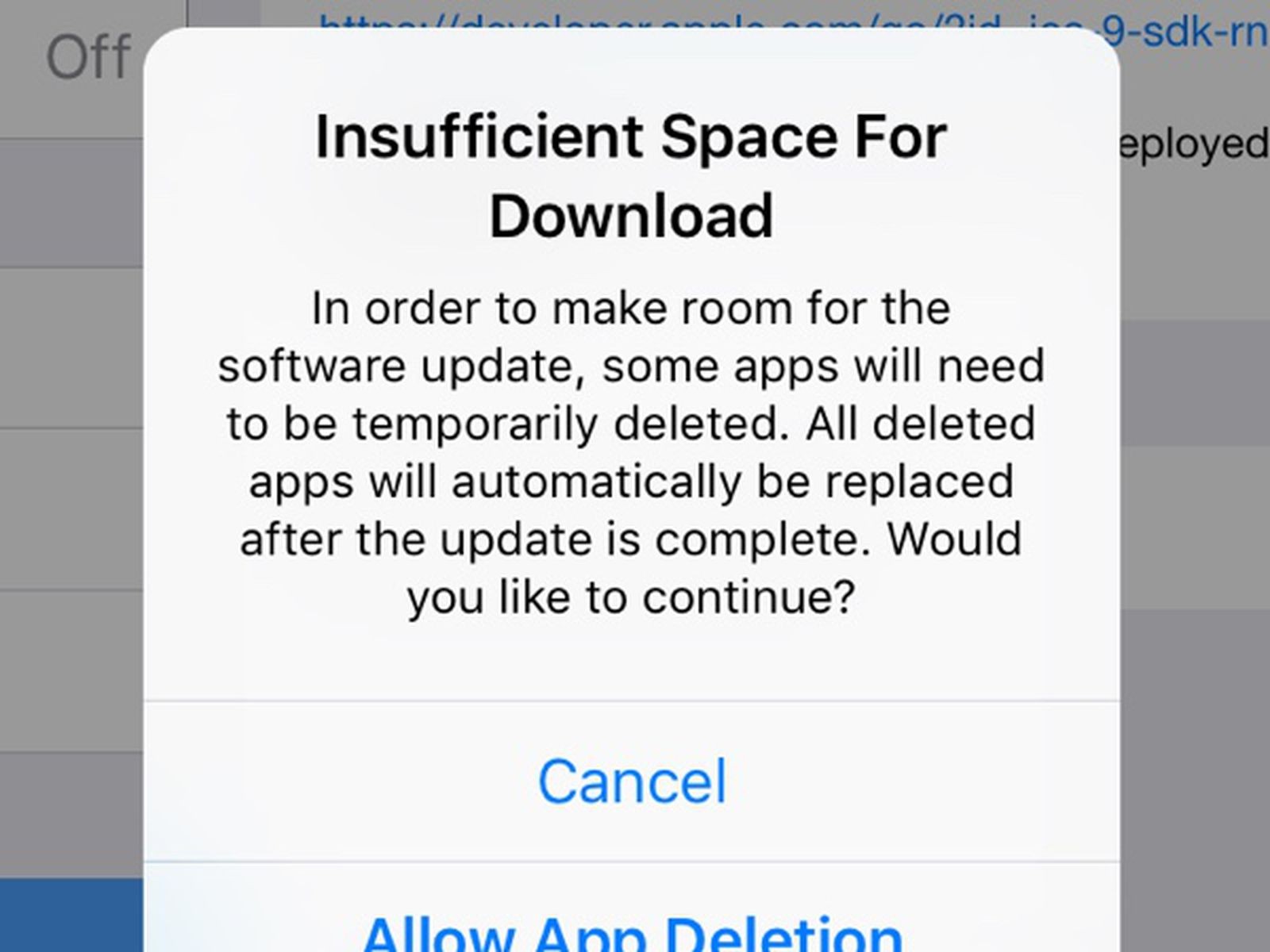
2. Not Enough Space: The update needs space for the new files and for the installation process. If you don’t have enough room, the update can stall and crash the phone.
3. Rare Bugs: Very rarely, even a new software version can have a bug that causes a data corruption on certain devices.
The Safety Net What a Complete Backup Saves
Your backup is the complete digital copy of your life on your phone. It’s the critical step that means a broken update is only an inconvenience, not a catastrophe. When you create a backup, it copies everything:
1. Settings: Your home screen layout, Wi-Fi passwords, and device preferences.
2. App Data: All your progress in games, the documents inside your apps, and account details.
3. Messages & Photos: Your entire camera roll and all your text message history.
4. Health Data: Important fitness and health information tracked by your device.
By doing this, you prevent data loss iPhone because even if you have to wipe the phone clean, you can put every single thing back exactly where it was.
The Two Best Ways to Protect Your Data
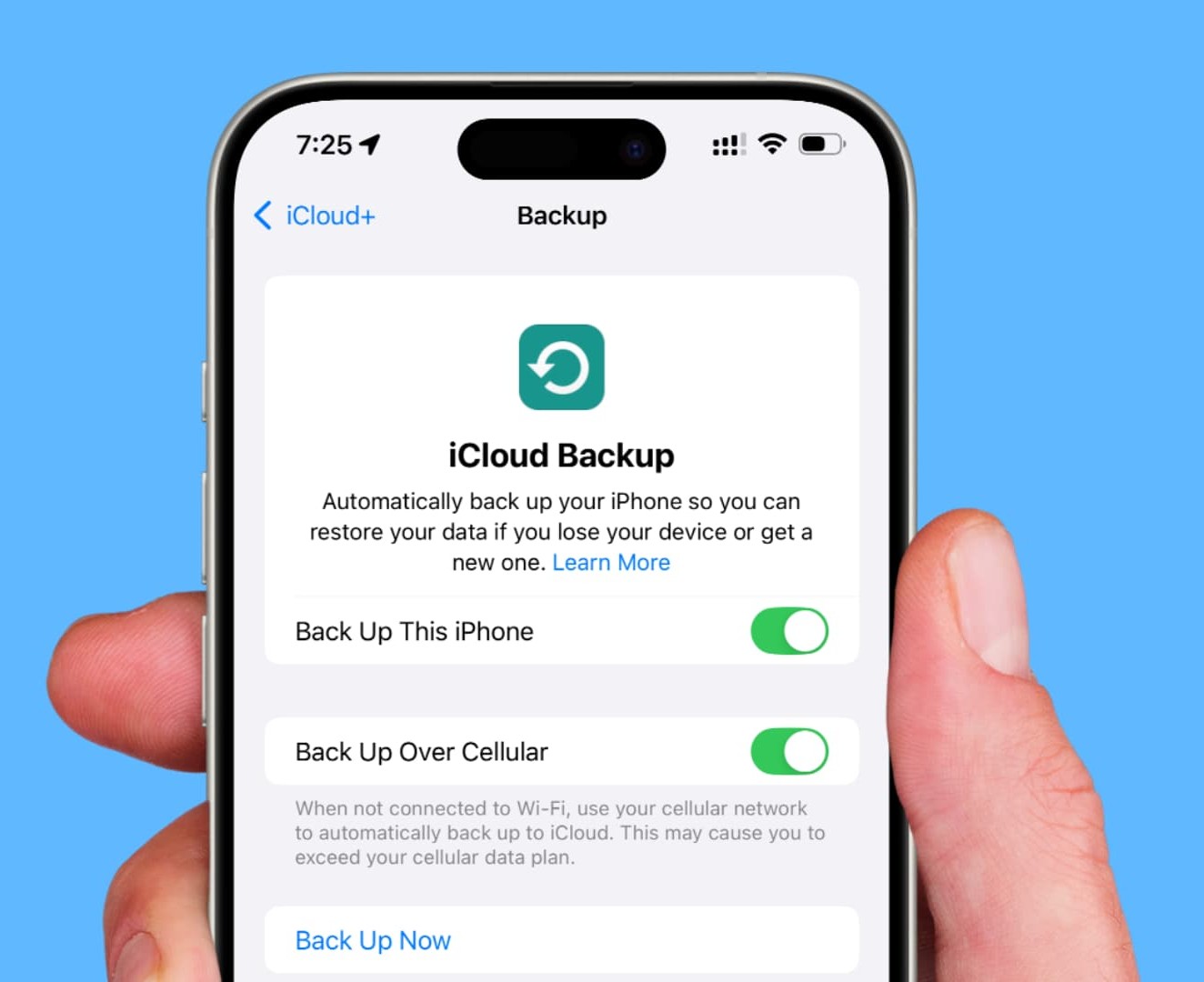
To make sure your data is truly safe, you have two great options. We strongly recommend doing at least one of these every time you get ready for a big update.
1. iCloud Backup (The Easy Way): This saves your data to Apple’s cloud storage. It’s simple and you can do it right from your phone.
2. Computer Backup (The Fullest Protection): This saves your data to your Mac (using Finder) or your Windows PC (using the Apple Devices app or iTunes).
#2. The Ultimate 4-Point iOS Update Preparation Checklist
Before you tap “Install Now,” you need to quickly check four things. Running this checklist helps prevent a failed update and stops future problems. This is the simple setup work that guarantees a smooth installation.
Check Your Device Compatibility
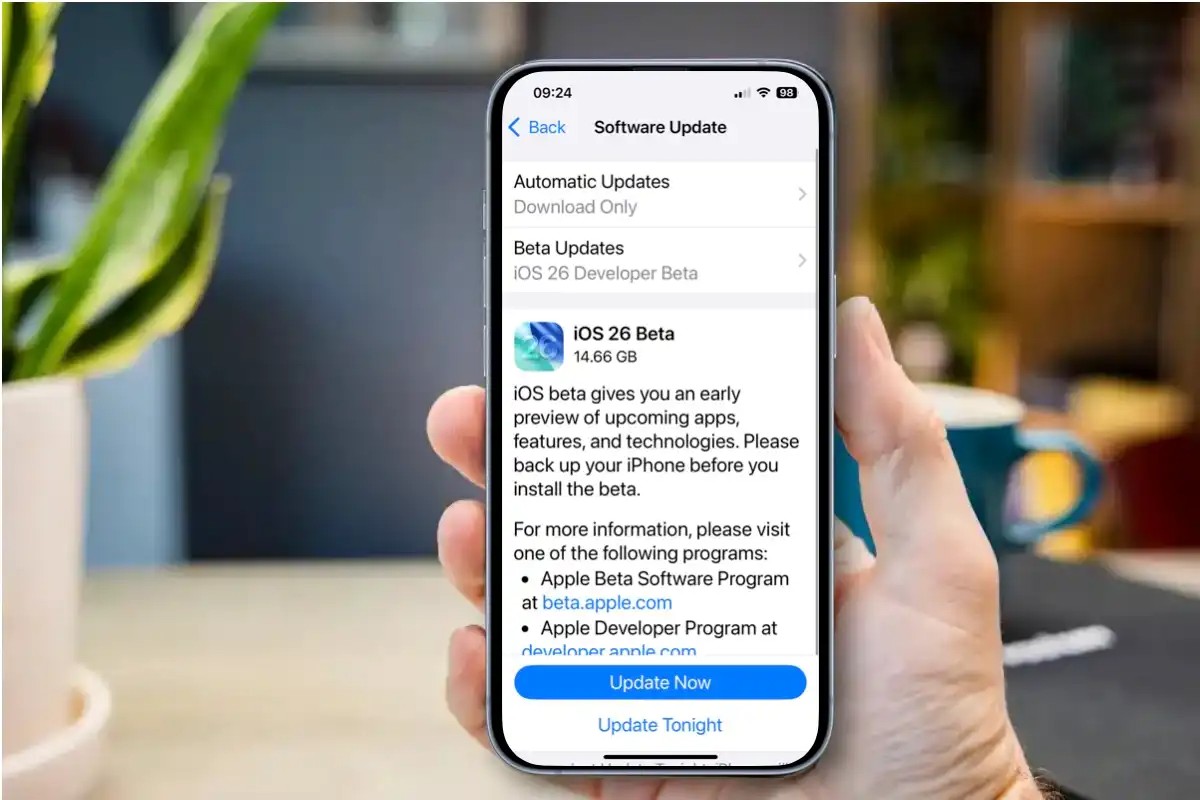
First, you need to make sure your iPhone is not too old for the new software. Think of it like this: A new, complicated video game won’t run on an old game console. Apple does this to make sure the software runs fast and smoothly.
If you try to install a new iOS version on a device that doesn’t support it, the update will likely fail or your phone will get stuck in an endless loop. This is a big headache!
Clear Out Space Get Rid of Insufficient Storage
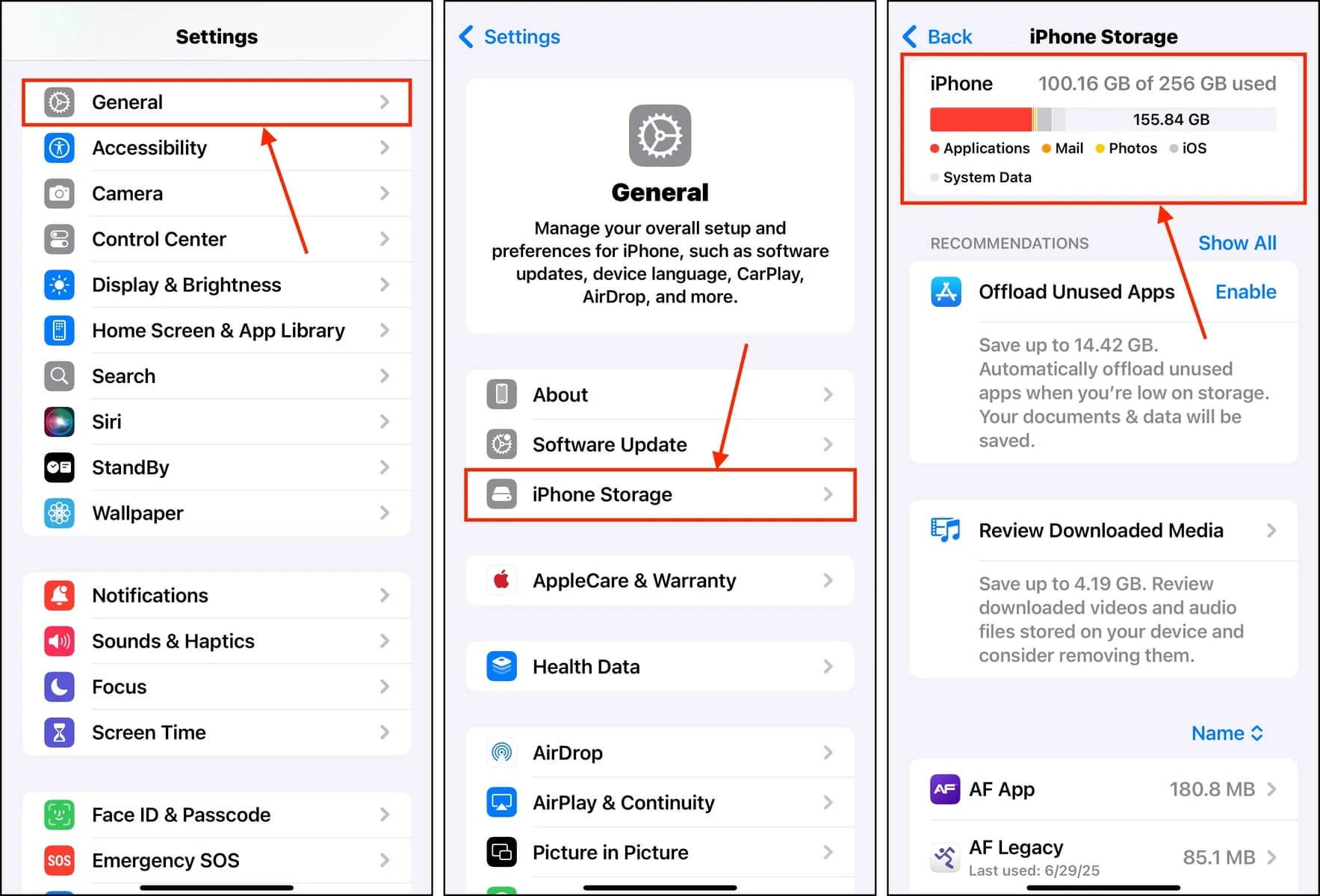
The new iOS file is big, usually 2GB to 5GB or more. Your phone needs this space just to download the file. But wait, it needs even more room to actually open, install, and replace the old files. If you don’t have enough room, your update will crash. You need to make sure you have at least 5GB free before you start. How to Check and Clear Space:
- Go to Settings.
- Tap General.
- Tap iPhone Storage.
Update Your Apps for Better App Compatibility
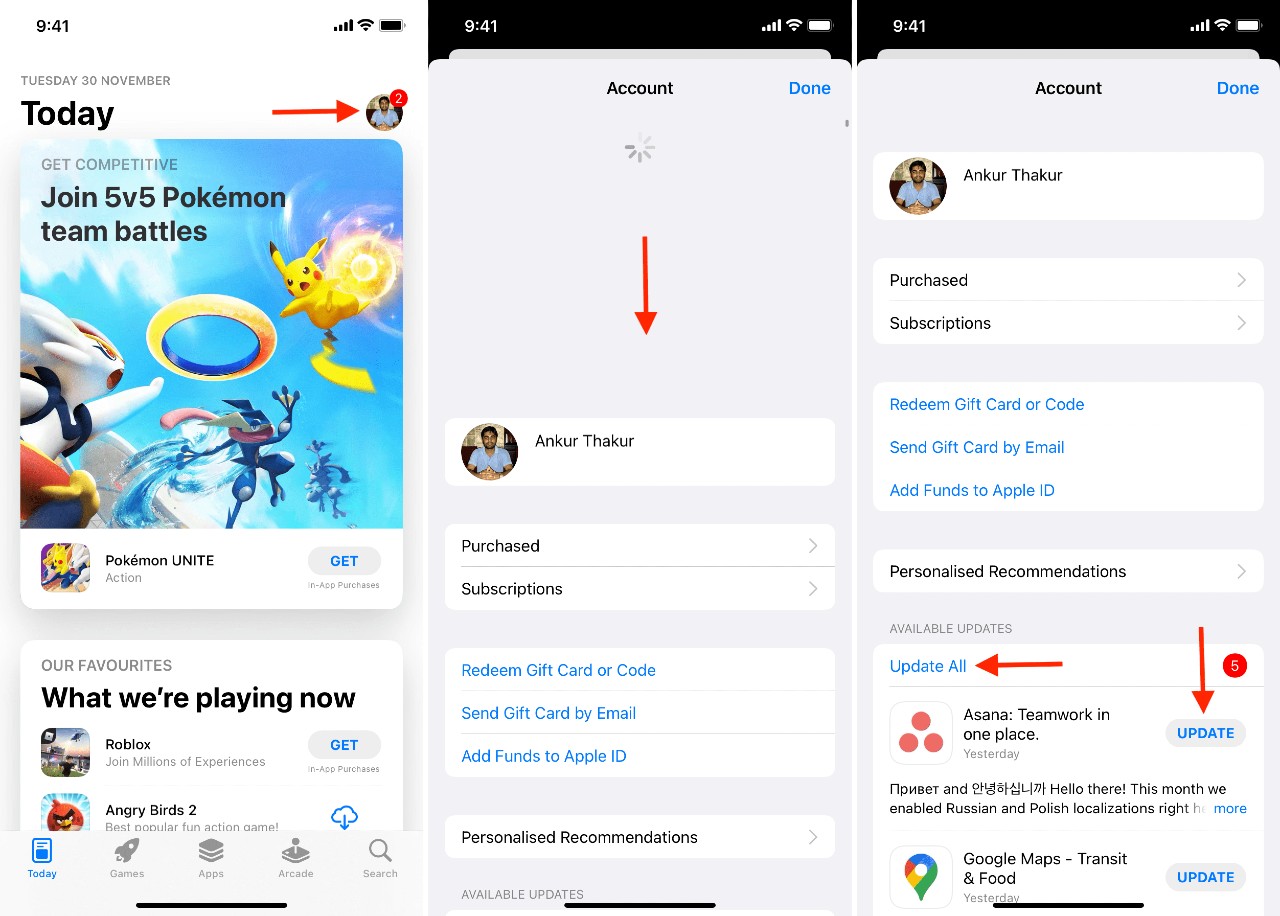
After the new iOS is installed, it runs a little differently than the old one. If your apps are ancient, they might not know how to work with the new software. This can cause apps to freeze, crash, or act strangely. We call this an app compatibility issue. To prevent these performance issues right after the update:
1. Go to the App Store.
2. Tap on your profile picture.
3. Check for any waiting app updates and install them all before you start the OS update.
Check Power and Connection for a Stable Update
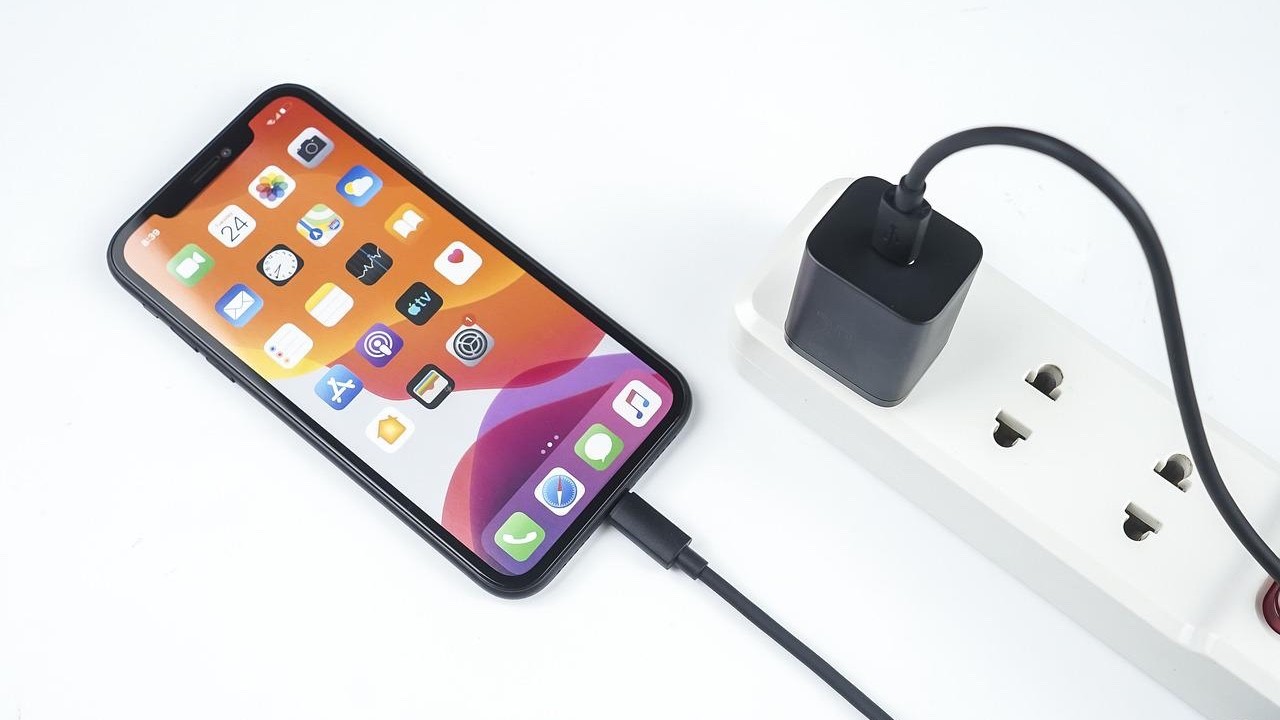
This is maybe the most important safety check. You must avoid an interrupted update at all costs.
1. Plug In: You must be connected to a power source, or at least have over 50% battery. If your battery dies during the installation, the phone is likely to fail and become unusable.
2. Use Strong Wi-Fi: You need a stable Wi-Fi connection that won’t cut out. Downloading a huge file on a weak or slow connection takes too long and increases the risk of corruption.
#3. How to Create Your Bulletproof Backup (The Core Action)
This is the most essential part of your iOS update preparation. You are creating the digital copy of your life. This one step will prevent data loss iPhone if anything goes wrong. You have two main ways to make sure you Backup iPhone Before Update.
iCloud Backup (The Easiest Way)
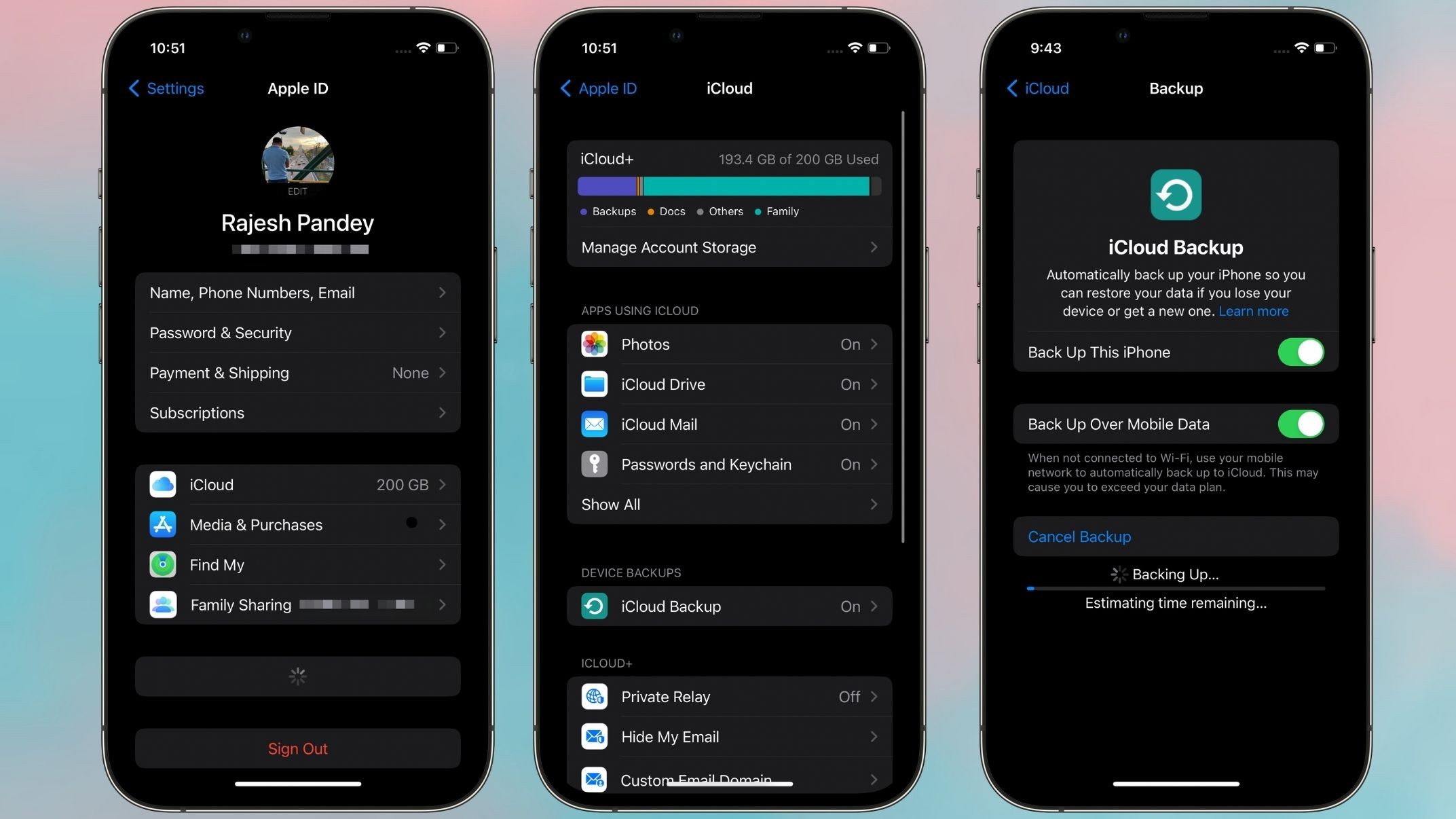
This method sends your data over the internet to Apple’s secure servers. It’s fast and easy, but it has one big problem for most people: storage limits.
- Check Your Space: Every Apple ID gets 5GB of free iCloud Backup space. For most people, 5GB is not enough for their photos and apps.
- Upgrade if Needed: If your phone’s data is more than 5GB, you will need to buy an iCloud+ plan.
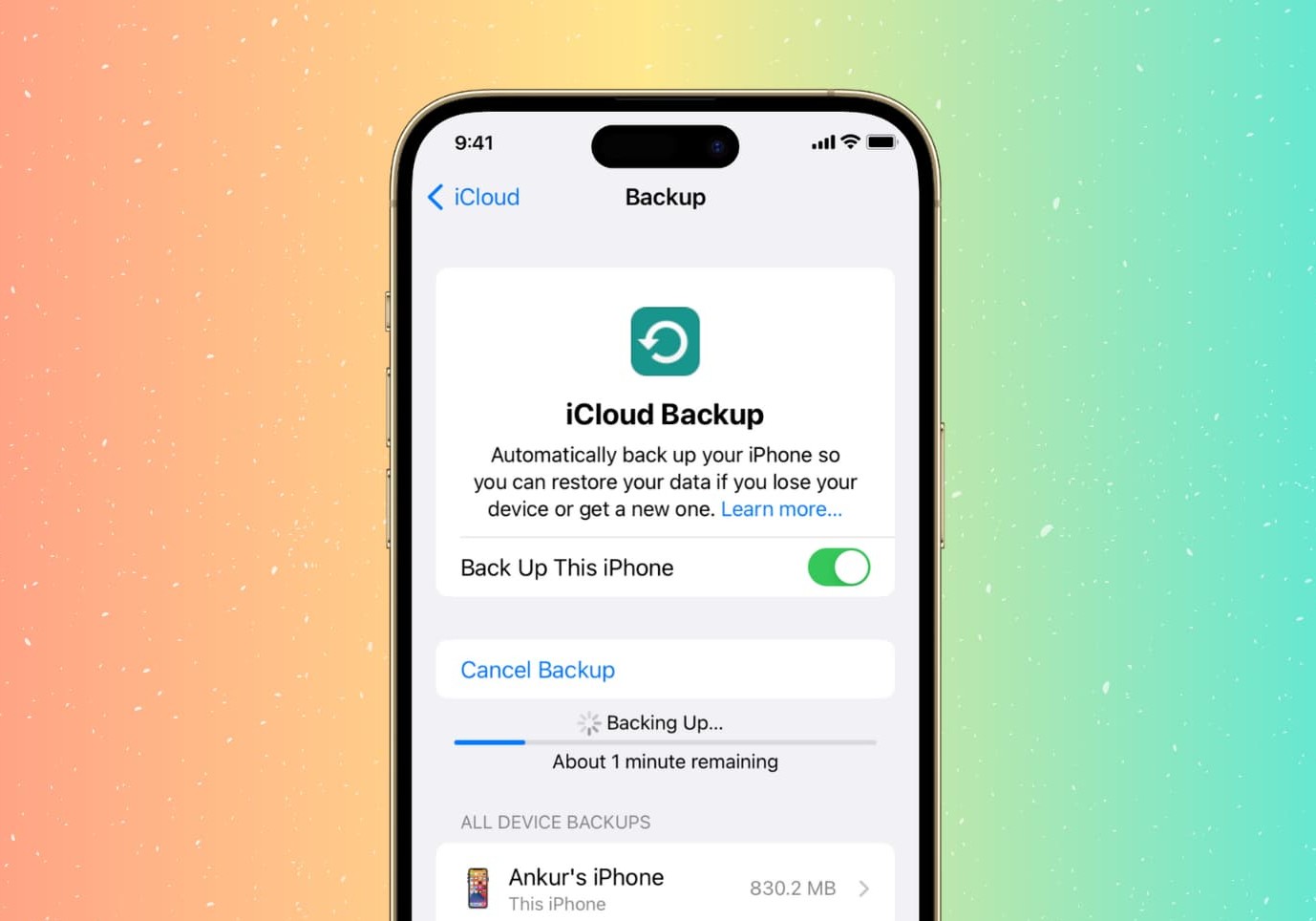
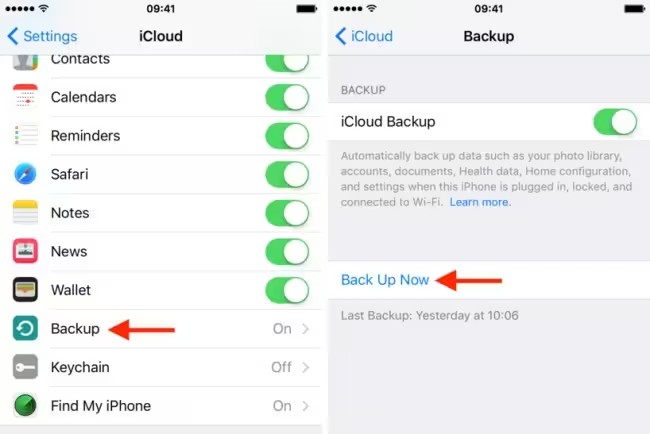
- Start the Backup Manually:
- Go to Settings.
- Tap your name at the very top.
- Tap iCloud.
- Tap iCloud Backup.
- Tap Back Up Now.
Computer Backup (The Fullest Protection)
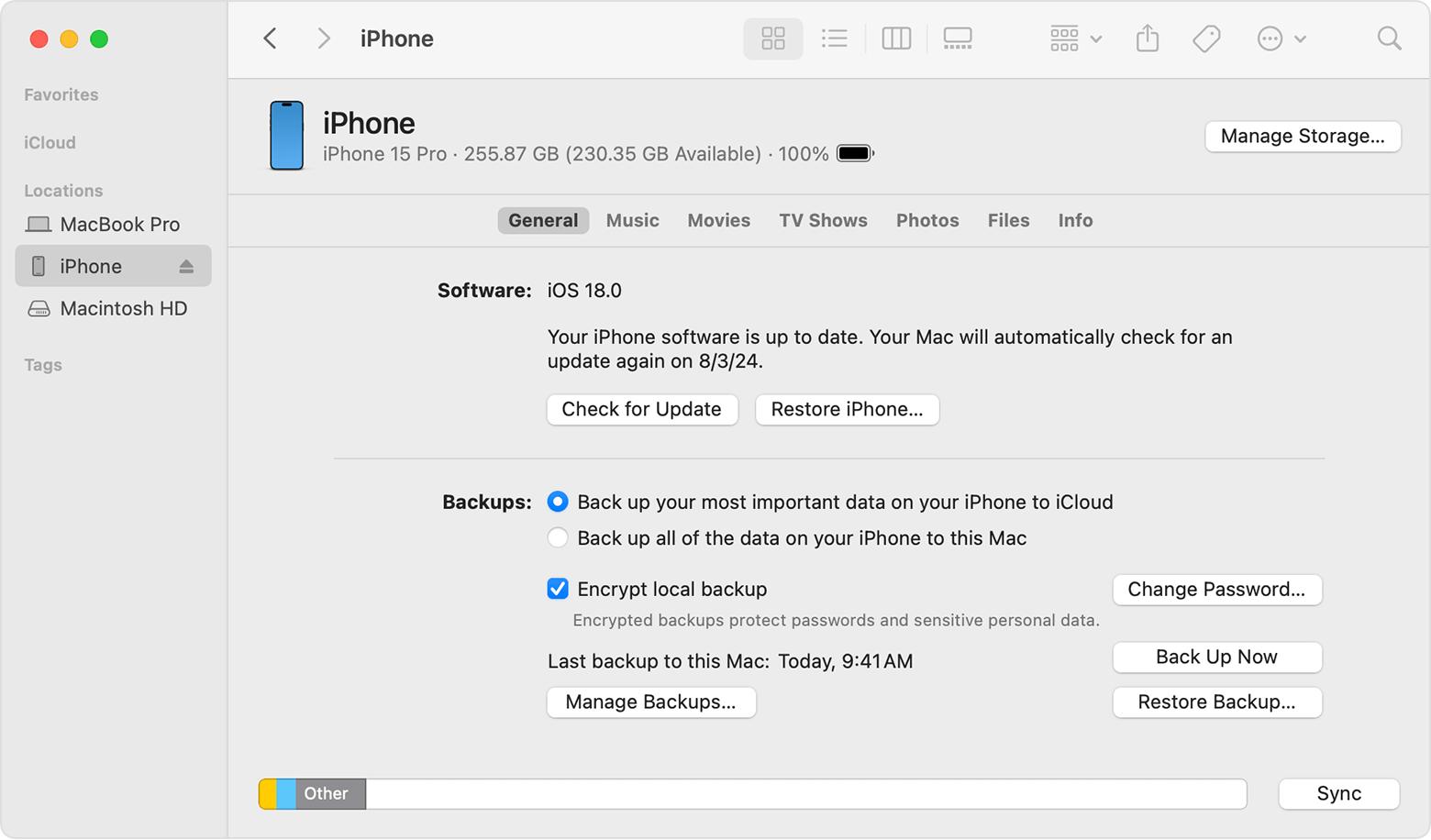
Saving your data to your Mac or PC is the best option for a complete data copy. It doesn’t rely on your internet speed as much, and storage space is usually not an issue.
1. On a Mac: Use the Finder app.
2. On a Windows PC: Use the Apple Devices App or the older iTunes program.
Verification Make Sure the Backup Worked
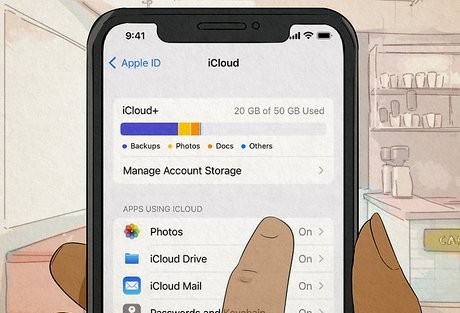
A backup is useless if it didn’t finish. You must check the timestamp to be certain your data is safe.
1. For iCloud: Go back to the iCloud Backup screen. Look for the text that says “Last successful backup.” Make sure the time listed is just a minute or two ago.
2. For Computer Backup: In Finder or iTunes, look at the Summary tab for your device. It will show the date and time of the “Latest backup.”
#4. How to Restore Your Data if the Update Fails
The update failed. Your phone is stuck on the Apple logo. Don’t panic. This is exactly why you did the Backup iPhone Before Update.
The Recovery Mode Fix
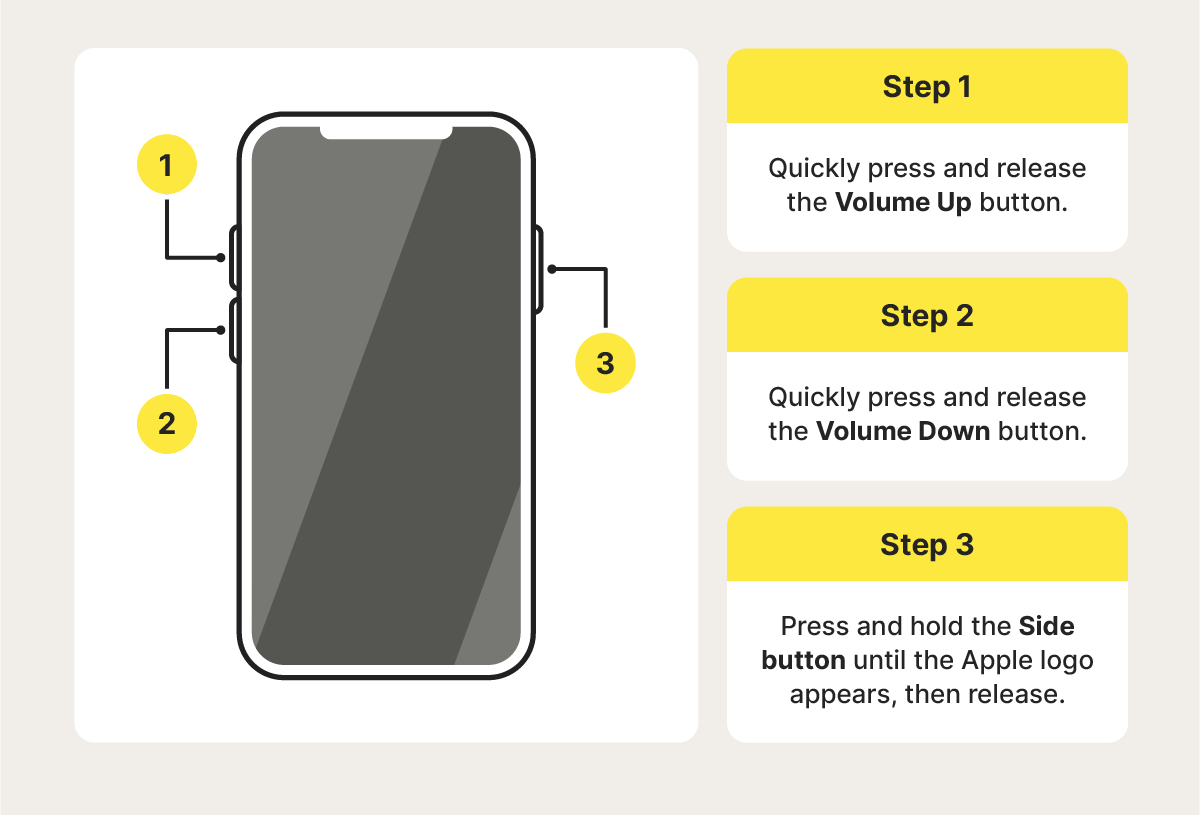
In a worst-case scenario, the phone software is so broken that it needs a factory reset. You will need to put your device into Recovery Mode (sometimes called DFU mode) and connect it to a computer. The steps for entering Recovery Mode are different for every phone model.
1. For newer iPhones (iPhone 8, X, and later): Press the Volume Up button quickly, then the Volume Down button quickly, and then press and hold the Side button until you see the Recovery Mode screen.
2. For older iPhones: You hold down different combinations of buttons.
Final Step Restore iPhone From Backup
After the computer wipes and re-installs the operating system, your iPhone will look brand new. It will show the “Hello” screen in many languages.
- Follow the setup steps (language, Wi-Fi).
- When you get to the “Apps & Data” screen, you will choose your saved data:
- Select “Restore from iCloud Backup” if you used the easy method.
- Select “Restore from Mac or PC Backup” if you used the local computer method.
The process will pull all your photos, messages, and settings back onto your phone. You have successfully used your backup to restore iPhone from backup and fix the problem without losing anything.
