
You saw the buzz about the new features, you hit the update button, and now your iPhone feels less like an exciting upgrade and more like a frustrating, hot mess. You are not alone.
The first release of iOS 26 was full of problems. Users found widespread issues like crippling battery drain and system lag. Many also disliked the new “Liquid Glass” redesign. The regret was immediate and massive.
In the days following the update, searches for ‘downgrade iOS 26’ skyrocketed by an astonishing 572%. That huge number tells you how many people need a fix, fast.
#1. The Downgrade Urgency: Why iOS 26 Regret is Widespread
You hit the update button, excited for the new features. Now your phone is slow, hot, and the battery dies before lunch. You are not alone. In the days right after the iOS 26 launch, the feeling of regret was massive. Searches for ‘downgrade iOS 26’ exploded by an astonishing 572%, according to data tracking.
The Most Annoying iOS 26 Problems
What exactly is driving people to urgently revert to iOS 18? It comes down to a few major pain points. These are the top iOS 26 problems that everyone is complaining about on forums like Reddit:
i. Crippling Battery Drain: This is the biggest issue. After updating, your battery life might have been cut in half. Your phone suddenly needs to be charged twice a day, or worse, gets burning hot even when you are just checking simple apps.
ii. System-Wide Lag and Jitter: The phone feels sluggish. Apps take longer to open. Swiping between screens is slow and choppy instead of smooth. This constant waiting makes using your expensive phone frustrating.
iii. Random App Crashes: You might be scrolling Instagram or reading an article when the app suddenly freezes and closes. We are seeing reports of core services failing, including the critical “No SIM Card Installed” error or issues where your AirPods simply refuse to connect.
The Problem with the Design Divide
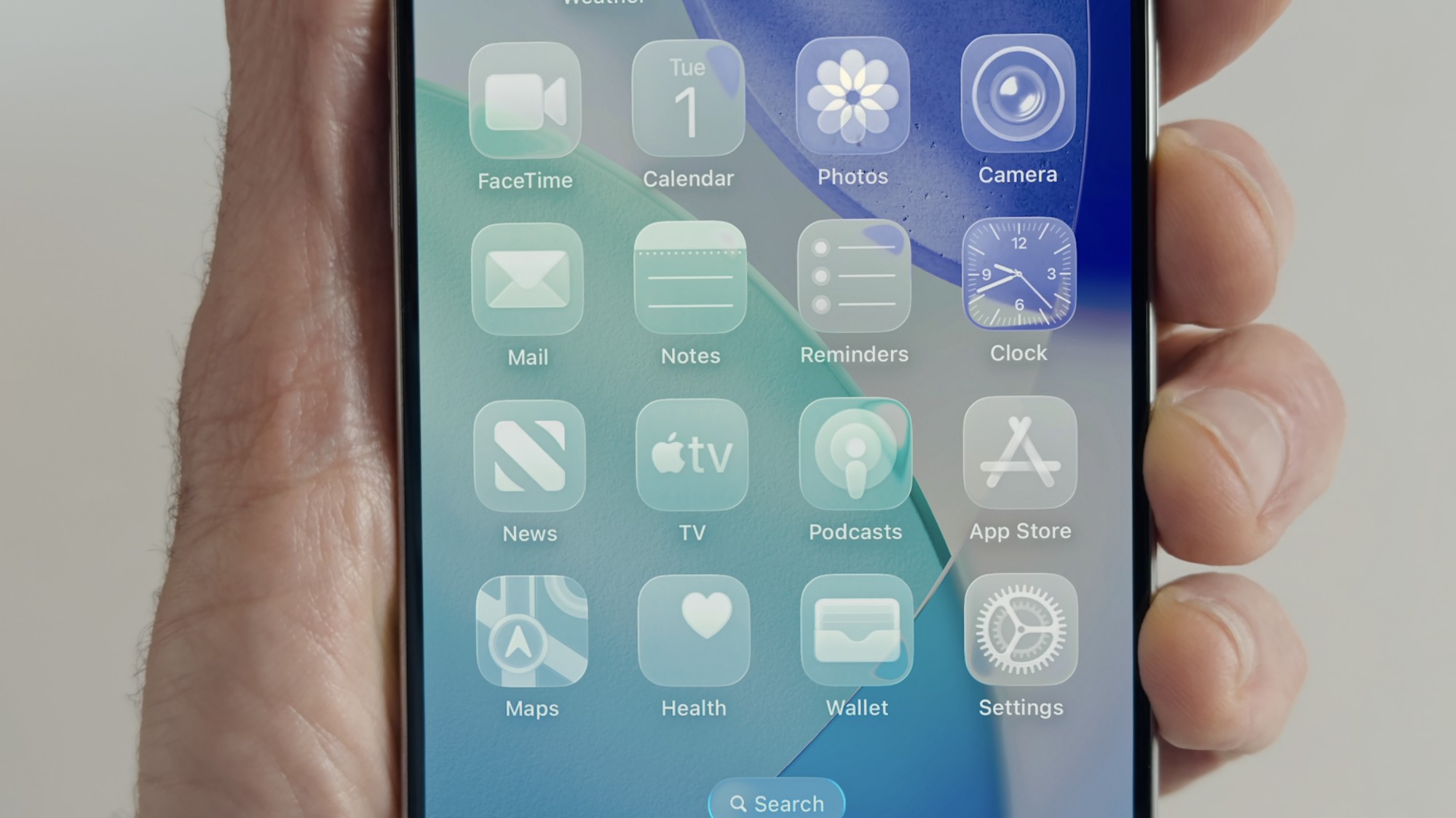
For many users, the bugs are bad, but the new look is also a factor. Apple made big changes with the “Liquid Glass” redesign in iOS 26. While some like the fresh look, many others simply hate it.
The Closing Door: Apple’s Signing Window
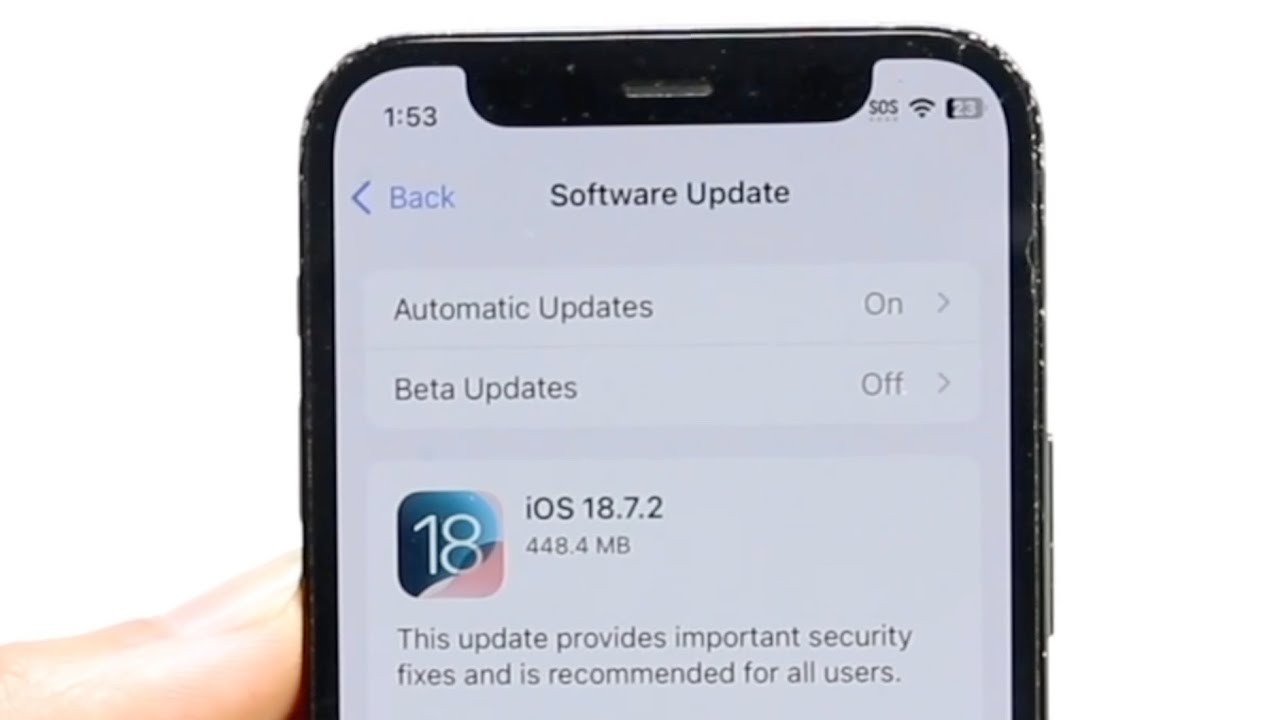
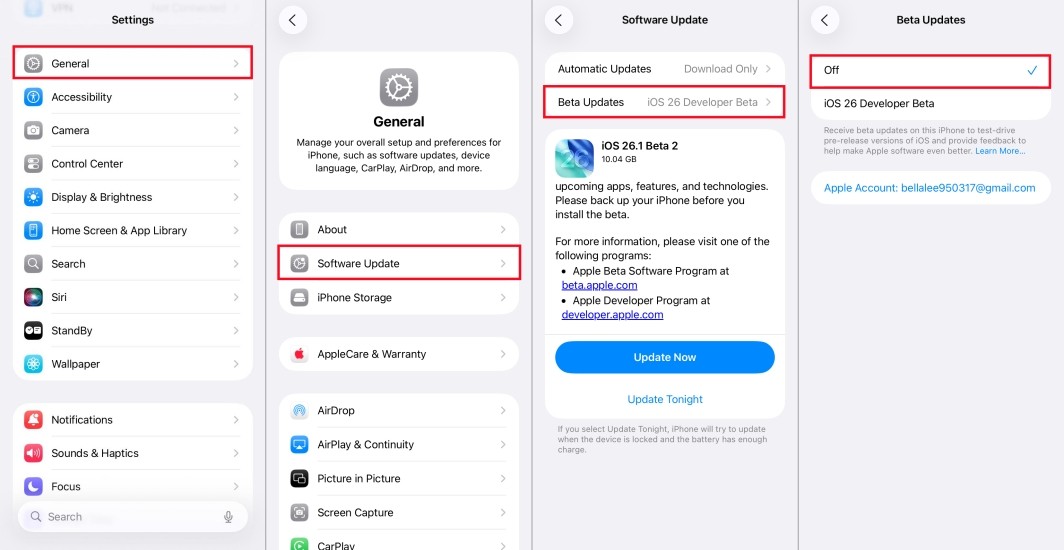
This is the most critical point. Your window to safely downgrade iOS 26 is closing fast. When Apple releases a new major update (like iOS 26), they keep “signing” the old version (likely iOS 18.7.2 or the last stable release) for a short time, usually about one to two weeks.
Because of this very short deadline, you need to prepare right now. You cannot wait. If you want a smooth, stable phone again, the process to downgrade iOS 26 must start immediately.
#2. Before You Downgrade iOS 26: Your Critical Checklist
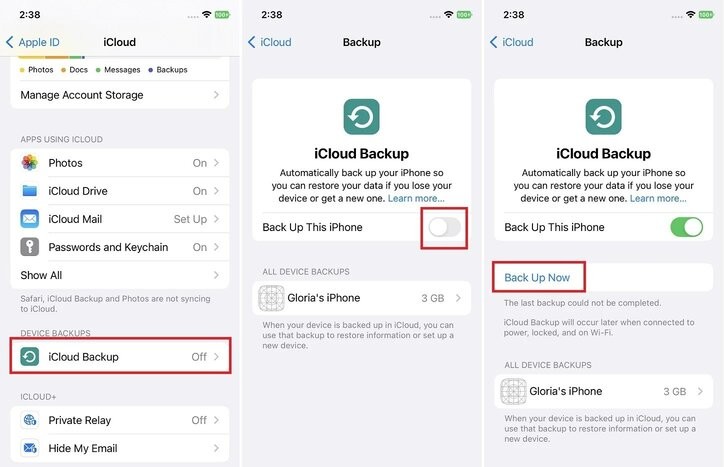
The downgrade process will completely erase your iPhone. It has to be that way. But you don’t have to lose your photos, messages, or apps. You must follow these steps perfectly before you start the actual downgrade to iOS 26 process. If you skip any part of this checklist, you risk losing all your data or getting stuck with a locked phone.
Make an Archived Local Backup (This is Mandatory)
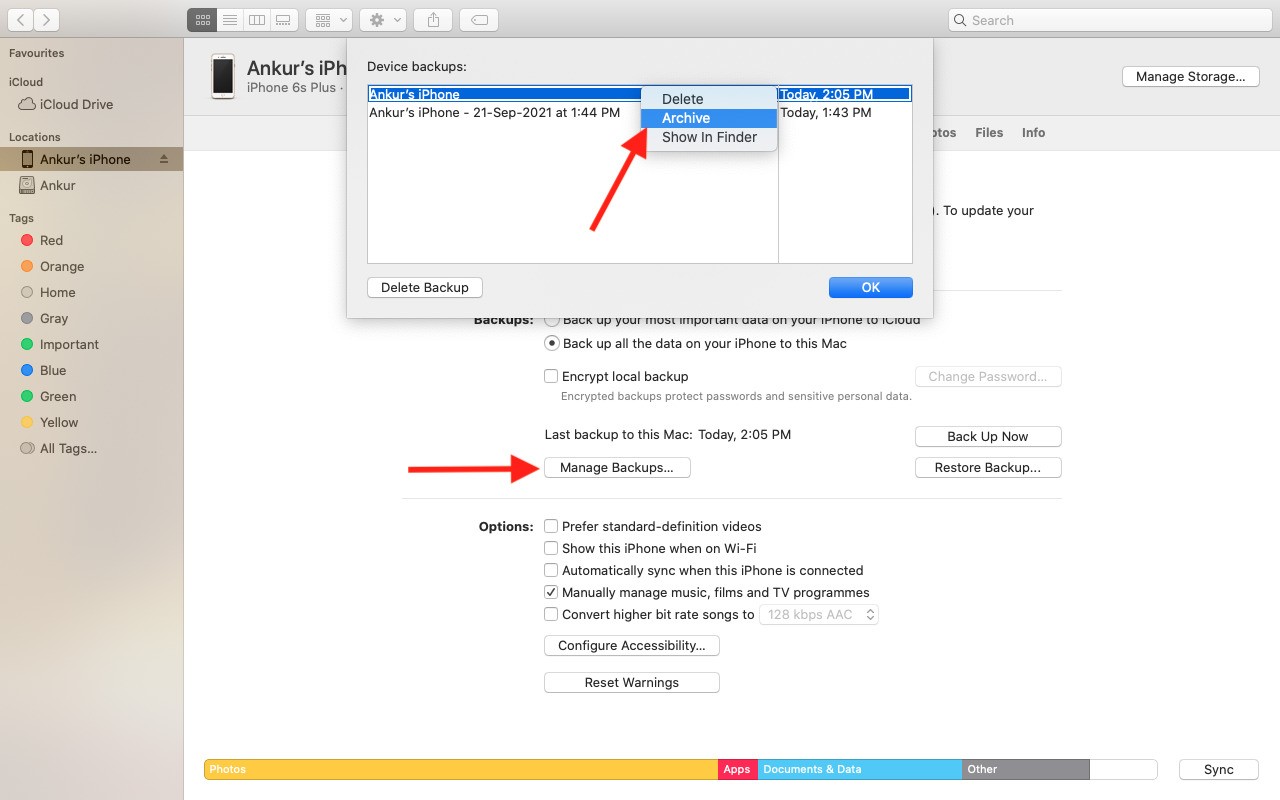
This is the most important step. When you move to an older operating system (like going from iOS 26 back to iOS 18), you cannot use a backup made on the newer system.
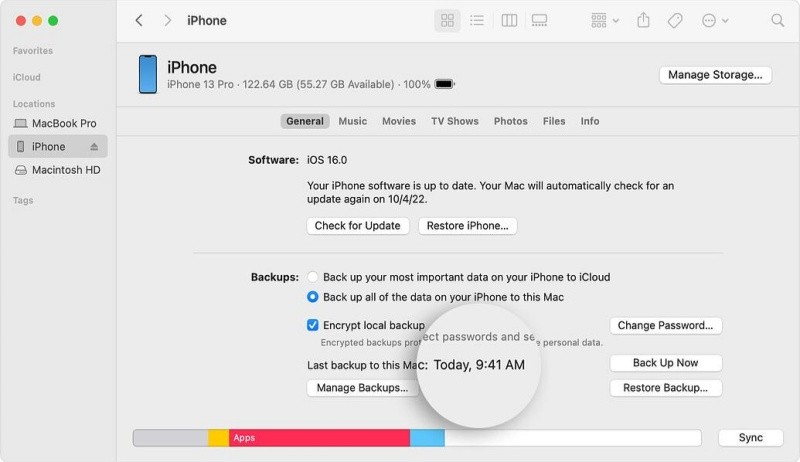
A backup made on iOS 26.1 has files that iOS 18.7 doesn’t understand. If you try to restore a newer backup onto the older OS, your phone will reject it. You need to create a special, archived local backup on your computer right now:
i. If you have a Mac: Plug in your iPhone. Open Finder. Click on your iPhone. Choose “Back up all of the data on your iPhone to this Mac.” To make sure it stays safe, check the box that says “Encrypt local backup.”
ii. If you have a Windows PC: Plug in your iPhone. Open iTunes. Click the phone icon. Choose “This Computer.” Check the “Encrypt local backup” box.
Disable Find My iPhone
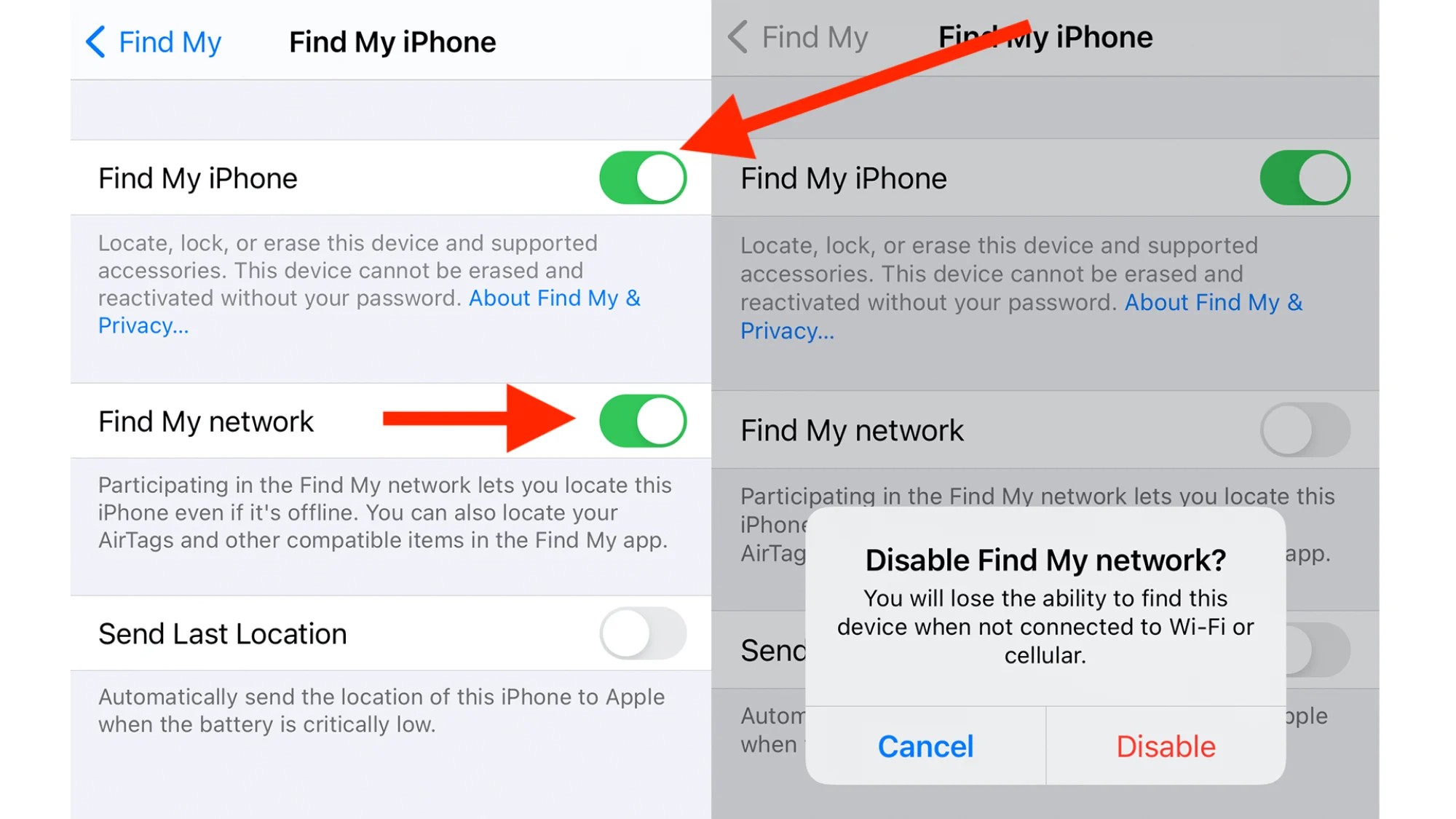
This step is quick, but it’s a huge security measure. If you try to restore your phone with “Find My iPhone” still on, Apple’s security system will assume a thief is trying to wipe the phone. It will trigger the Activation Lock, and you won’t be able to use the phone until you log in—sometimes not even then. To turn it off:
i. Go to Settings on your iPhone.
ii. Tap your name at the top (Apple ID section).
iii. Tap Find My.
iv. Tap Find My iPhone again and switch the toggle OFF.
v. You will need to enter your Apple ID password to confirm.
Get the Right IPSW File
You need the actual system file for the version you want to install. This file is called an IPSW file. You must download the exact file for your specific iPhone model (e.g., iPhone 15 Pro Max) and the exact iOS version that is still being signed (e.g., iOS 18.7.2).
i. The Resource: The most reliable place to get this is ipsw.me.
ii. The Check: Go to the site, find your device, and look at the iOS versions listed. You must see a green dot next to the version you want (like iOS 18.7.2). If the dot is red, Apple has stopped signing that version, and you missed the deadline. You cannot downgrade iOS 26 to that version.
#3. Step-by-Step Guide to Downgrade iOS 26 to iOS 18
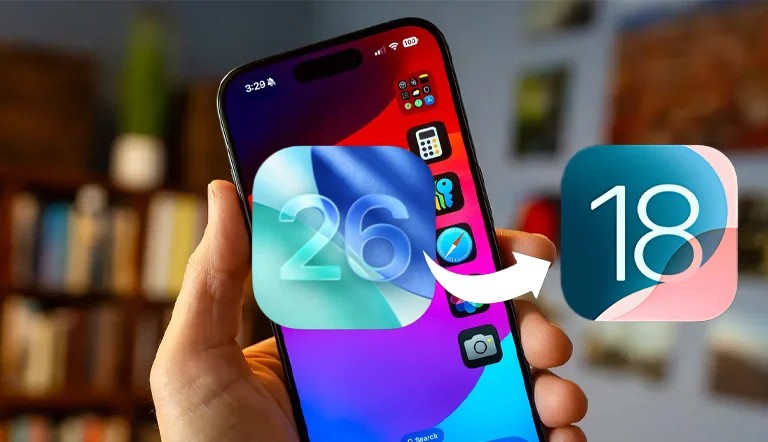
Now that your data is safe and you have the correct IPSW file, it is time for the main action. Follow these steps exactly to safely remove iOS 26 and revert to iOS 18. This process is technical, so take your time and read each step before you do it.
Enter DFU Mode (The Clean Slate)
You need to put your phone into DFU mode (Device Firmware Update). This is the deepest kind of restore. It is cleaner and causes fewer errors than a simple restart. First, make sure your iPhone is plugged into your Mac or PC using a stable USB cable.
Instructions for iPhones with Face ID (iPhone X and newer):
i. Press the Volume Up button and quickly let go.
ii. Press the Volume Down button and quickly let go.
iii. Press and hold the Side button (the power button) for about 10 seconds until the screen goes black.
iv. While still holding the Side button, press and hold the Volume Down button.
v. Hold both buttons for 5 seconds.
vi. After 5 seconds, let go of the Side button but keep holding the Volume Down button for another 5 to 10 seconds.
vii. The iPhone screen must stay completely black. If you see the Apple logo or the “Connect to Computer” screen, you messed up. Start over.
viii. Finder (Mac) or iTunes (PC) will pop up a message saying it has detected an iPhone in recovery mode.
Instructions for iPhones with a Home Button (iPhone 8 and older):
i. Press and hold the Side button (or Top button) and the Home button at the same time for 8 seconds.
ii. After 8 seconds, let go of the Side/Top button but keep holding the Home button until Finder/iTunes detects the phone.
iii. The screen should remain black.
Restoring the IPSW File
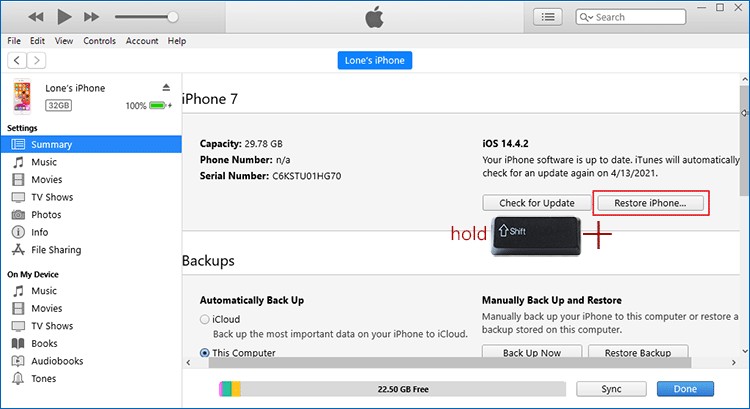
Your computer has detected your phone. Now we will tell it to use the older IPSW file you downloaded, instead of the newest iOS 26 update.
i. Look for the Restore Button: In the Finder window (Mac) or iTunes window (PC), you will see a box that says “Restore iPhone” or “Update.”
ii. The Secret Click: This is the crucial step to start the downgrade iOS 26 process.
- On a Mac: Press and hold the Option key on your keyboard, and then click the Restore iPhone button with your mouse.
- On a Windows PC: Press and hold the Shift key on your keyboard, and then click the Restore iPhone button.
iii. Select the File: A file window will pop up. You need to find and select the specific IPSW file you downloaded to your desktop (the one for iOS 18.7.2, for example).
iv. Confirm and Wait: A final message will ask you to confirm that you want to restore the phone. Click Restore.
Post-Restore Setup and Data
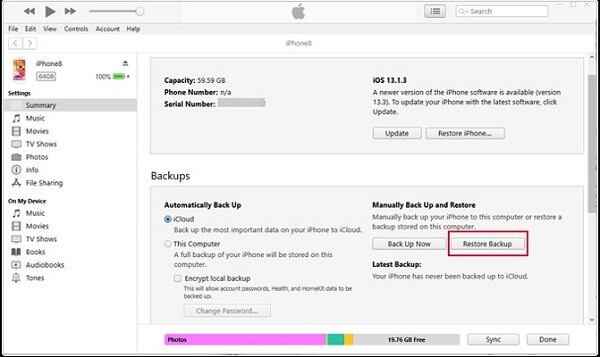
When the restore is finished, your iPhone will restart. The screen will show the standard “Hello” setup screen, just like a brand-new phone. You have successfully completed the downgrade iOS 26 process.
i. Set Up As New (Temporarily): Go through the initial setup steps (language, region, Wi-Fi). When it asks you to restore from a backup, choose “Set Up as New iPhone” first. This is important to ensure the freshly installed iOS 18 is stable before you put your old data back on it.
ii. Restore Your Data: Once the phone is running on iOS 18, connect it back to your computer. Open Finder/iTunes, and select the option to Restore from Backup. Choose the archived local backup you made in the first step.
iii. Enjoy the Stability: The iPhone will take time to put all your old apps and files back on. Once it is done, you will be back on a stable version of iOS 18, free from the worst bugs and lag of iOS 26. You successfully reverted to iOS 18.
#4. Downgrade Window Closed? Fixes for Remaining iOS 26 Problems
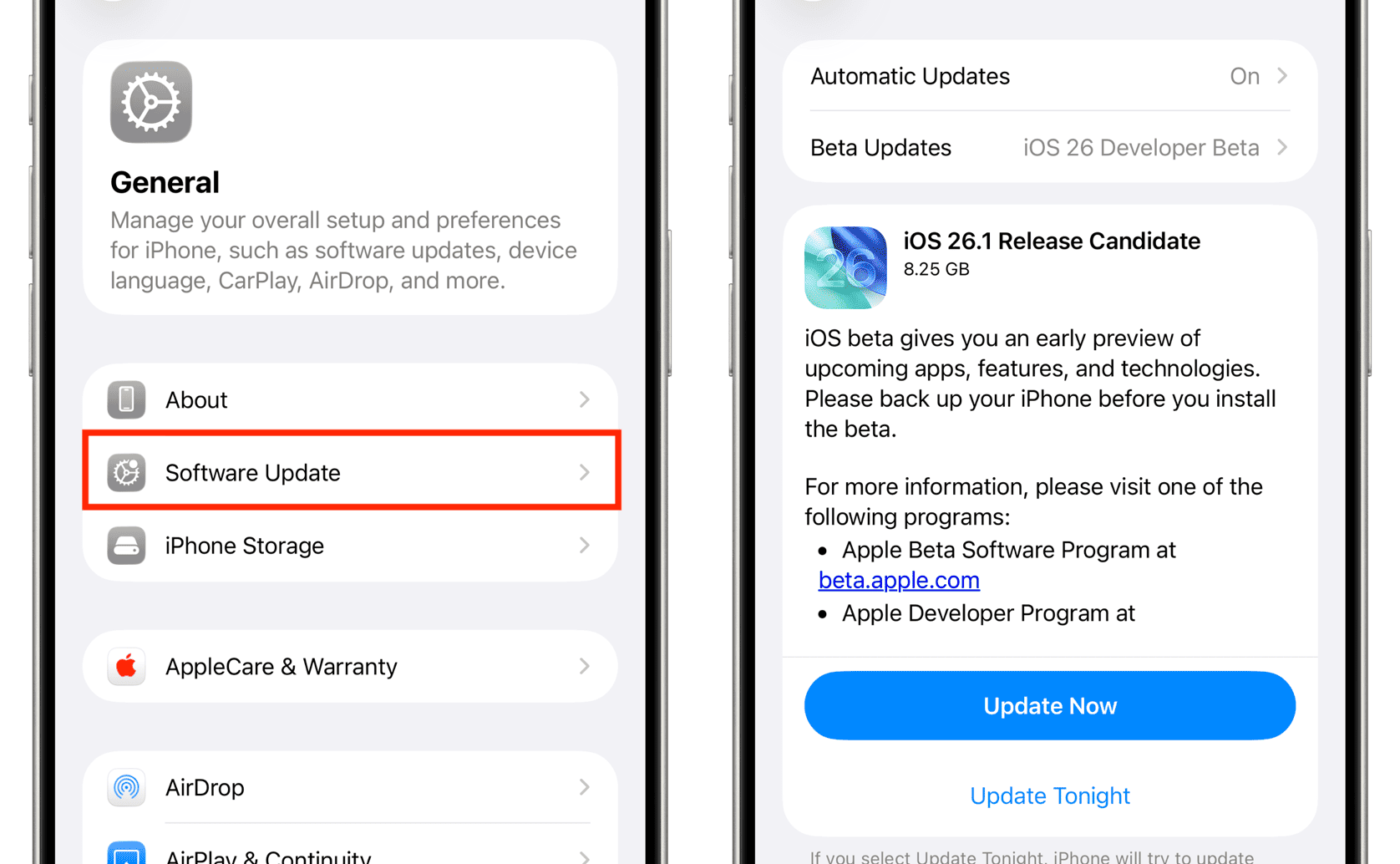
What if you tried to downgrade iOS 26 but Apple has already stopped “signing” the old version? You are stuck on the buggy operating system for now. Don’t worry, you still have options to make your phone usable until a proper fix arrives.
Temporary Fixes for Top Bugs
You can try these steps right now to deal with the most annoying issues:
| Problem | Actionable Fix | How to Do It |
| Severe Battery Drain | Reset All Settings. This clears out bad settings that might be draining your power. It won’t delete your apps or photos. | Go to Settings > General > Transfer or Reset iPhone > Reset > Reset All Settings. |
| System Lag/Jitter | Force Restart. This clears the device memory without erasing data. It is the classic “turn it off and back on” but stronger. | Press Vol Up, then Vol Down, then hold the Side Button until the Apple logo appears. |
| Wi-Fi or Bluetooth Issues | Reset Network Settings. This fixes common problems where your AirPods or Wi-Fi keep disconnecting. (Note: You will lose saved Wi-Fi passwords). | Go to Settings > General > Transfer or Reset iPhone > Reset > Reset Network Settings. |
Last Resort: Using Third-Party Repair Tools
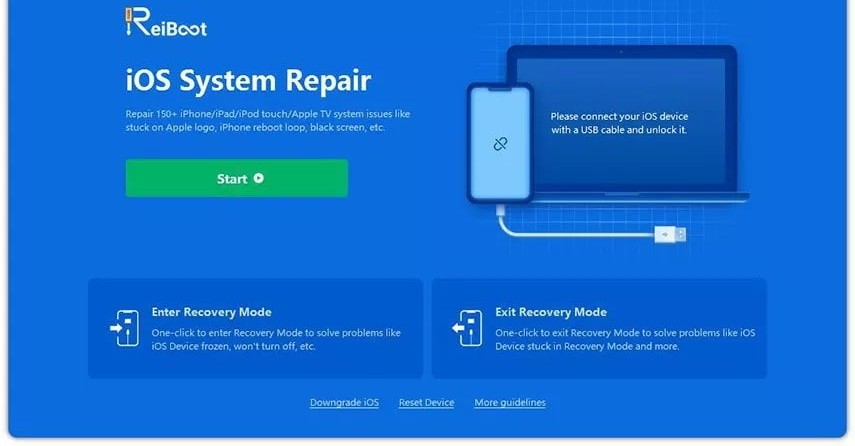
If your phone is stuck in a bad state—for example, it is frozen on the Apple logo or keeps restarting (a boot loop)—you may need a system repair tool.
Tools like Tenorshare ReiBoot or Dr. Buho offer “Standard Repair” options. These tools promise to fix major operating system issues without losing your data.
A Clear Warning: These tools are not made by Apple. Using them is risky. While they can save a bricked phone, there is always a small chance they could cause data loss or other problems. Use these only as a last resort if your phone is completely unusable. Most of the time, the temporary fixes above will be enough to manage the worst iOS 26 problems until the official patch comes out.
