
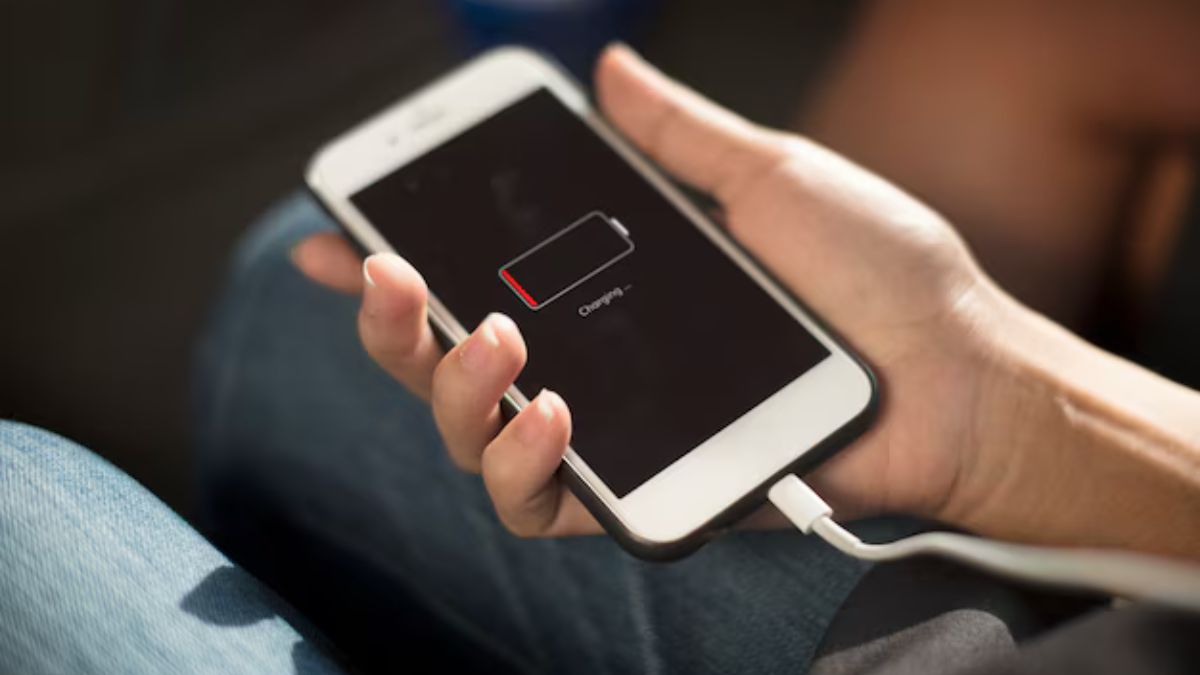
Every iPhone user knows the heart-stopping panic of seeing your battery icon turn red by mid-afternoon. It feels like your phone is fighting against you. You rely on your phone for everything, but the dying iPhone battery means you constantly search for a charger.
You’ve probably tried all the popular ideas. You force, quit your apps. You restart your phone. Maybe you even turn off your Wi-Fi when you leave the house. But none of those iPhone battery fixes truly work. You are drowning in confusing advice and seeing zero results.
These actionable list of the 7 truly effective iPhone battery fixes. Use these seven steps to actually fix iPhone battery drain 2025 and keep your phone running strong all day long.
The Big Battery Myths: 23 Fixes That Didn’t Work
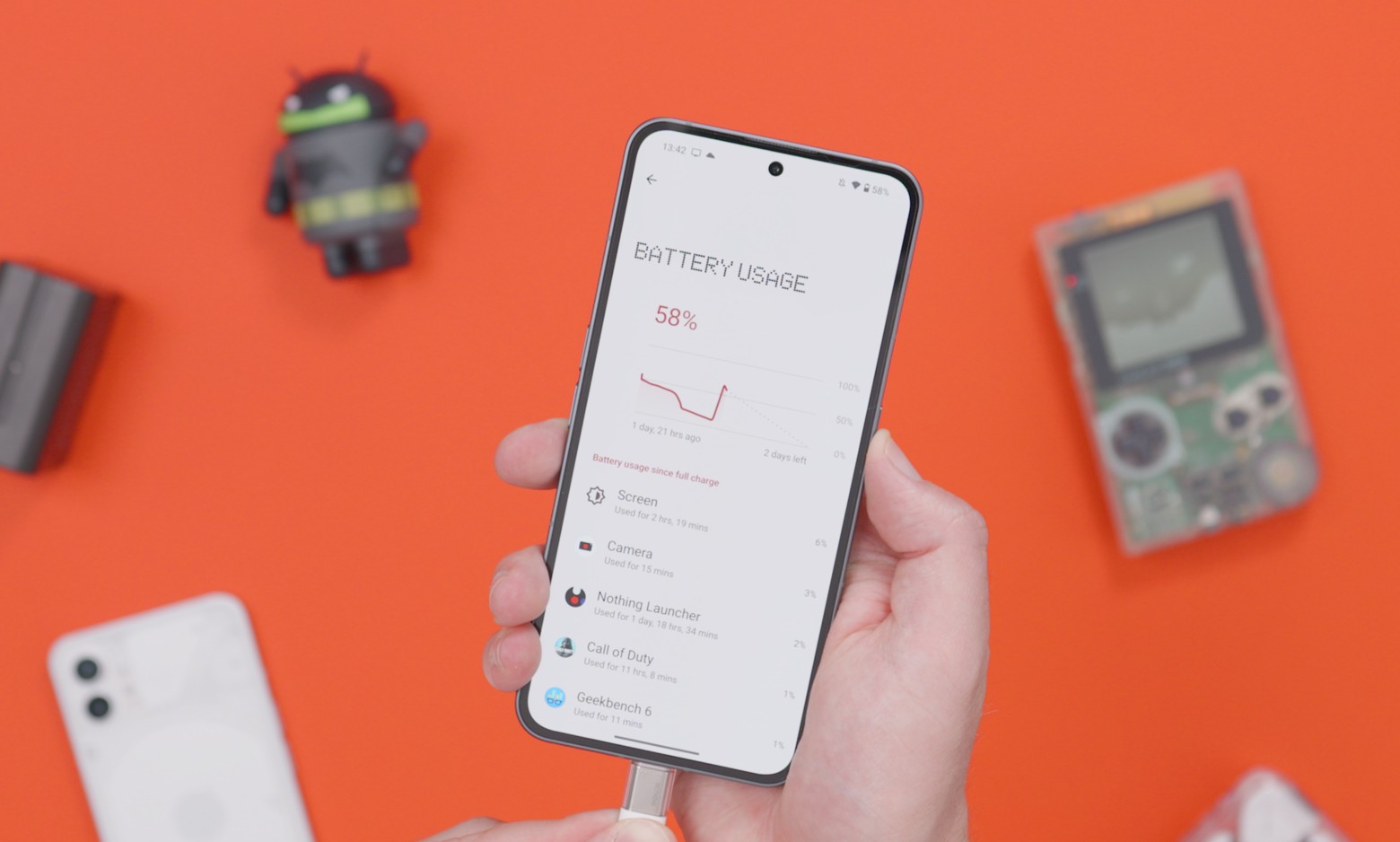
You are tired of your dying iPhone battery. So you searched online for iPhone battery life hacks. You probably read that you should force-quit all your apps, turn off your Wi-Fi when you leave the house, and always manually close Bluetooth.
I tried all of those things. I tested 23 of the most popular, oldest, and weirdest tips people suggest. And here is the blunt truth: They were all a waste of time.
Many of these old iPhone battery fixes don’t work anymore—or they actually make the problem worse.
The 7 Proven iPhone Battery Fixes That Actually Work
Fix#1. Master Adaptive Power Mode and Low Power Mode
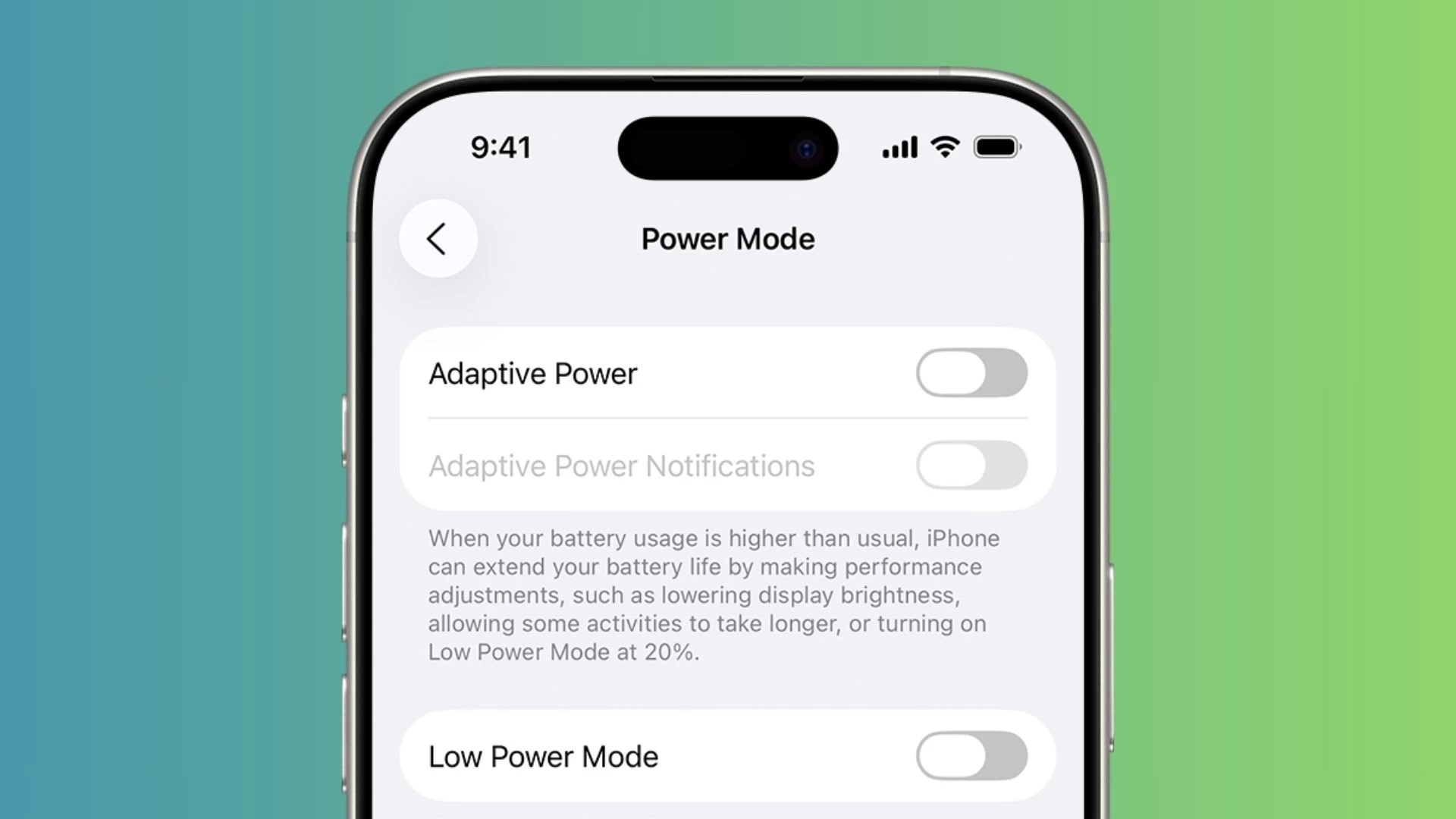
This is the most impactful way to immediately fix iPhone battery drain 2025. Your iPhone has powerful iOS battery optimization software built into it. When you activate Low Power Mode (LPM), it is like putting your phone into an emergency power-saving state.
Use LPM Strategically: Don’t wait until your battery hits 20%. If you know you have a long day ahead (like a flight or a trip away from a charger), turn on LPM when you hit 50% or even 60%.
Understand LPM: LPM automatically stops things like Background App Refresh, visual effects, and automatic downloads. This is the stuff that drains the battery silently.
The New Feature: The latest iOS versions (iOS 26+ is where we saw it shine) include an Adaptive Power feature. This mode learns your charging habits and usage patterns. It predicts when you are likely to need power and proactively limits non-essential activity before you even turn on LPM. Make sure this setting is enabled in the Battery settings.
Fix#2. Cut Down on Hidden Background App Refresh
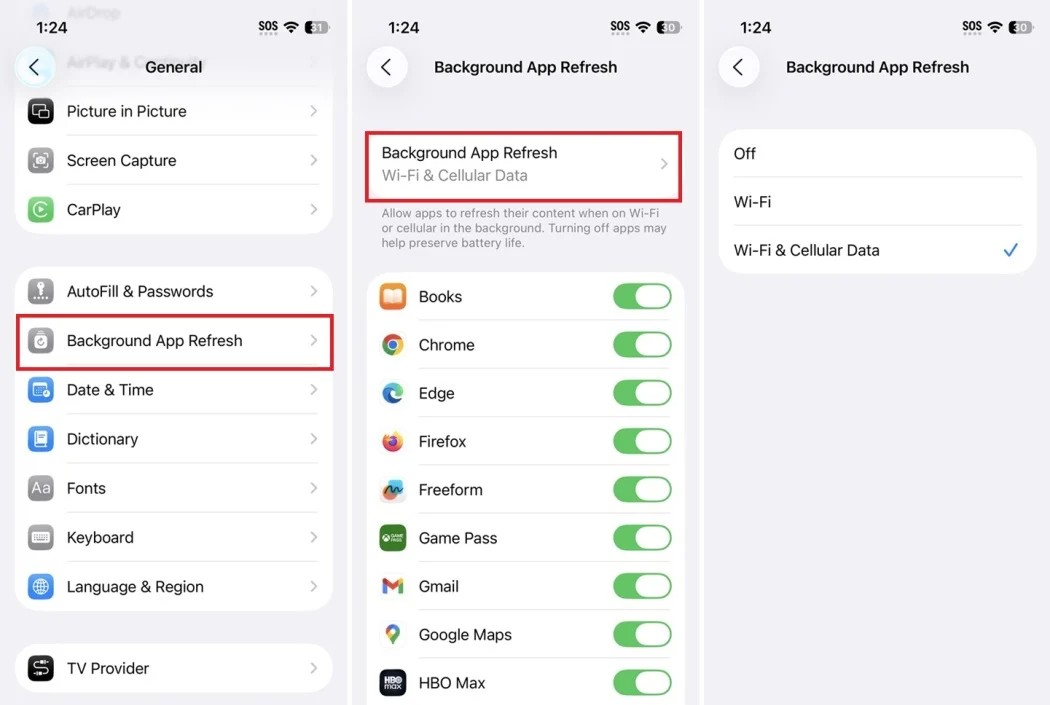
This fix targets sneaky apps that continue to run in the background while you think they are inactive. When an app uses Background App Refresh, it means the app is connecting to the internet, downloading data, and organizing itself even when you aren’t using it. This is why you constantly see your battery life ticking down.
Check the Usage Screen: Go to Settings > Battery. Scroll down and look at the list of apps. If an app you rarely open shows a high percentage of use labeled “Background Activity,” that app is a huge source of battery drain.
Set the Rule: Go to Settings > General > Background App Refresh. You can disable it entirely. Or, you can set it to Wi-Fi only.
Only Allow Essentials: Only allow essential apps to refresh in the background. Good examples are your Weather app (so it’s current) or your work email (if you need immediate messages). Leave everything else off.
Fix#3. Implement an 80% Charge Limit Strategy
This fix is about battery health. A healthy battery keeps a charge longer, giving you better daily iPhone battery life.
Your iPhone uses a lithium-ion battery. Charging these batteries all the way to 100% and letting them drop below 20% puts stress on the internal chemistry.
Aim for the Sweet Spot: Try to keep your charge level between 20% and 80%. This reduces the chemical stress.
Use Apple’s Tools: Your phone has features to help:
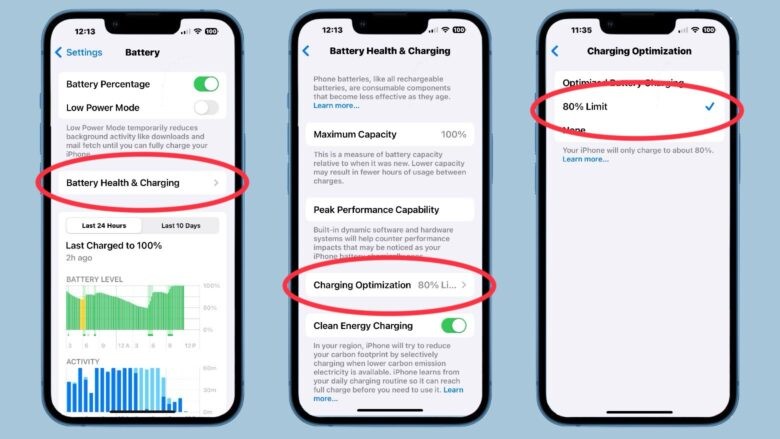
Optimized Battery Charging: This is on most models. It learns when you typically wake up and stops charging at 80% until just before you need it. Make sure this is enabled (Settings > Battery > Battery Health & Charging).
Charge Limit Feature: If you have an iPhone 15 or later, you have the ultimate iOS battery optimization tool. Go to the same section and set the Charge Limit to 80%. This prevents the phone from charging past the ideal level.
Fix#4. Optimize Display Settings (The Brightness Solution)
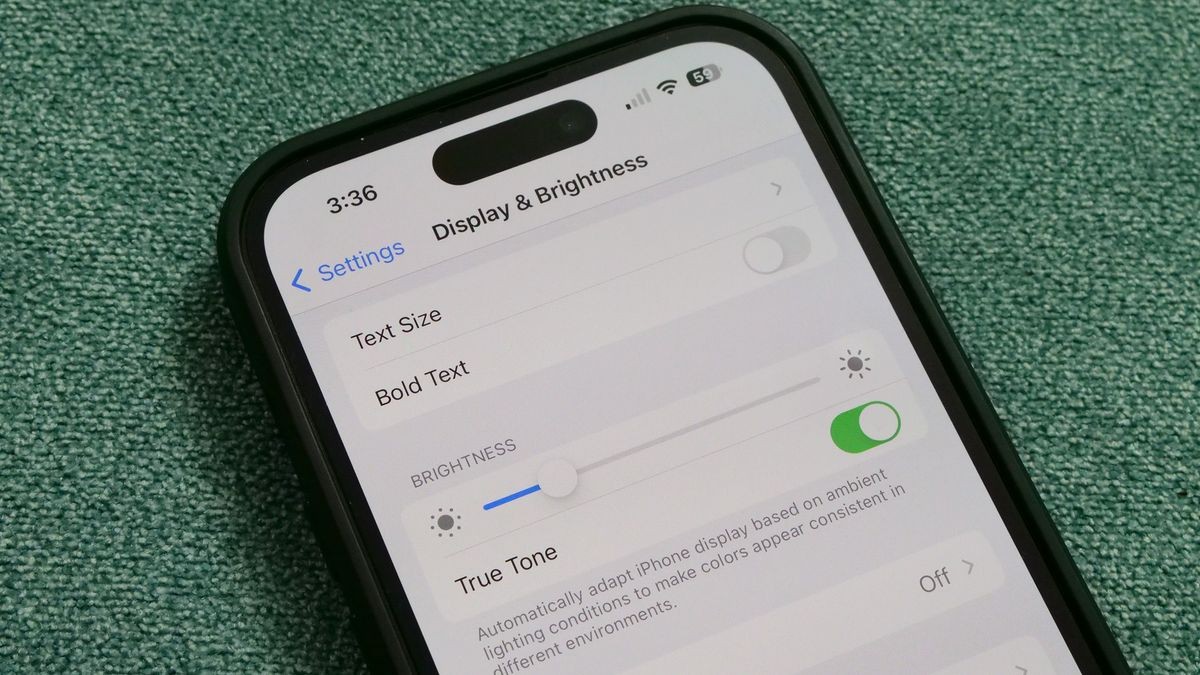
The screen is the single biggest energy hog in your phone. If your display is too bright or stays on too long, your battery drains fast. Learning to control the screen is a major way to fix iPhone battery drain 2025.
Turn on Auto-Brightness: This setting makes your phone adjust the screen to match the light around you. It uses less power than manually cranking the brightness to the max all the time.
Set a Short Auto-Lock: This controls how long your screen stays on after you stop touching it. Set this to 30 seconds. You will be surprised how often your phone sits unlocked on your desk, wasting power for minutes at a time. Go to Settings > Display & Brightness > Auto-Lock.
Manage Always-On Display: If you have a Pro model iPhone, the screen stays dimly lit even when locked. You get quick information, but you sacrifice battery life. If you don’t need it, turn the Always-On Display off completely. If you want to keep it, at least disable the wallpaper display so the screen is just black text.
Fix#5. Control Location Services and Cellular Data Use
This fix targets the hidden power used by your phone’s antennas. Your iPhone is constantly using its antennas to figure out where you are (Location Services) and to connect to the fastest network (Cellular Data). Both tasks use a lot of power.
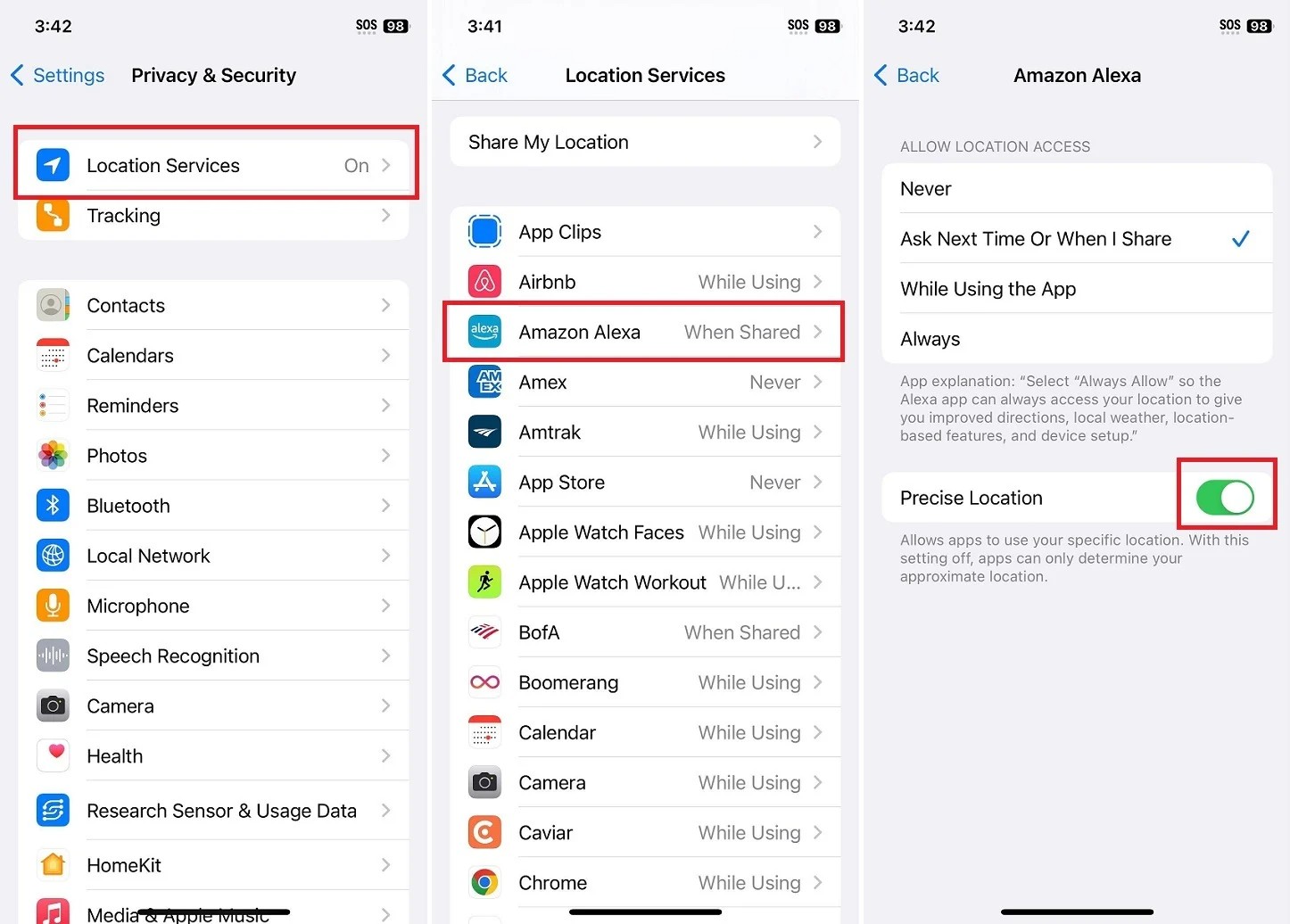
Limit Location Services: Most apps do not need to know your exact location all the time. Go to Settings > Privacy & Security > Location Services. For shopping apps, games, or social media, set the location permission to “Never.”
For essential apps (like maps), set it to “While Using the App.” Also, turn off Precise Location for anything that doesn’t need your exact address.
Prioritize Wi-Fi: Your phone uses less power to transfer data over Wi-Fi than over cellular data. Always connect to a safe Wi-Fi network when you can.
Manage Bad Signal Areas: When you have poor signal, your phone boosts its power to search for a better signal, like 5G. This can increase battery consumption by up to 30%. If you are in a building with no signal, switch on Airplane Mode.
Fix#6. Review Notifications and Mail Fetch Settings
Every time your screen lights up, your battery takes a hit. Notifications are constant mini-wakes that drain power.
Silence Unimportant Alerts: Think about which apps truly need to interrupt you. Does a random news alert or game notification need to wake your phone? Go to Settings > Notifications and go through the list. For apps you don’t want waking the screen, set them to Deliver Quietly or turn notifications off entirely.
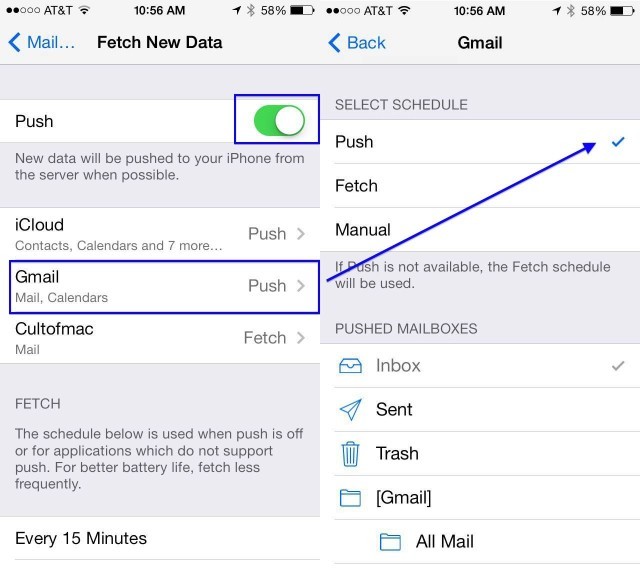
Stop Constant Email Checks: Your Mail app is constantly checking the server for new emails—this is called “Push.” If you don’t need real-time email, change this. Go to Settings > Mail > Accounts > Fetch New Data. Change the setting from “Push” to “Fetch” (for example, every 15 minutes) or even “Manual.”
Fix#7. Maintain Optimal Temperature (The Underrated Killer)
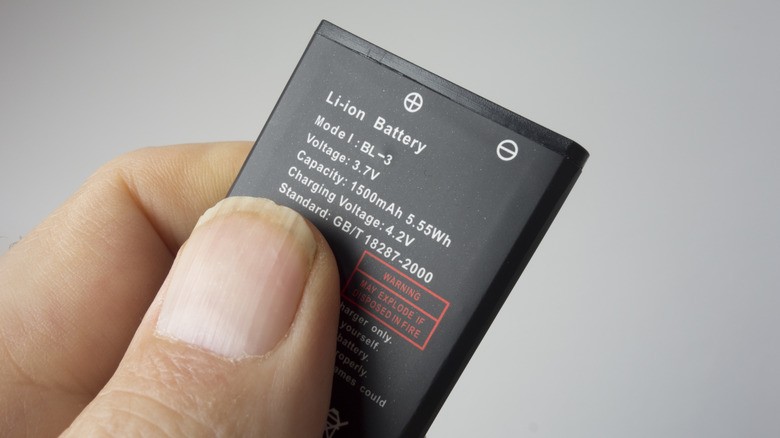
This fix protects your long-term battery health. Extreme heat is the number one permanent battery killer. Lithium-ion batteries hate being hot. High heat reduces the maximum capacity of your battery forever.
Avoid Extreme Heat: Apple says the ideal temperature for your phone is $62^{\circ}$ to $72^{\circ} \text{F}$ (around $16^{\circ}$ to $22^{\circ} \text{C}$). Never leave your phone.
Case Check While Charging: If you are fast-charging your phone, it will naturally get warm. If you use a thick, insulated case, that heat cannot escape. Remove thick cases when charging to allow the heat to get out.
The Warning: Apple officially warns that exposing your phone to ambient temperatures higher than $95^{\circ} \text{F}$ ($35^{\circ} \text{C}$) can permanently damage battery capacity. This means your battery health percentage will drop faster. This simple iOS battery optimization tip protects your investment.
