
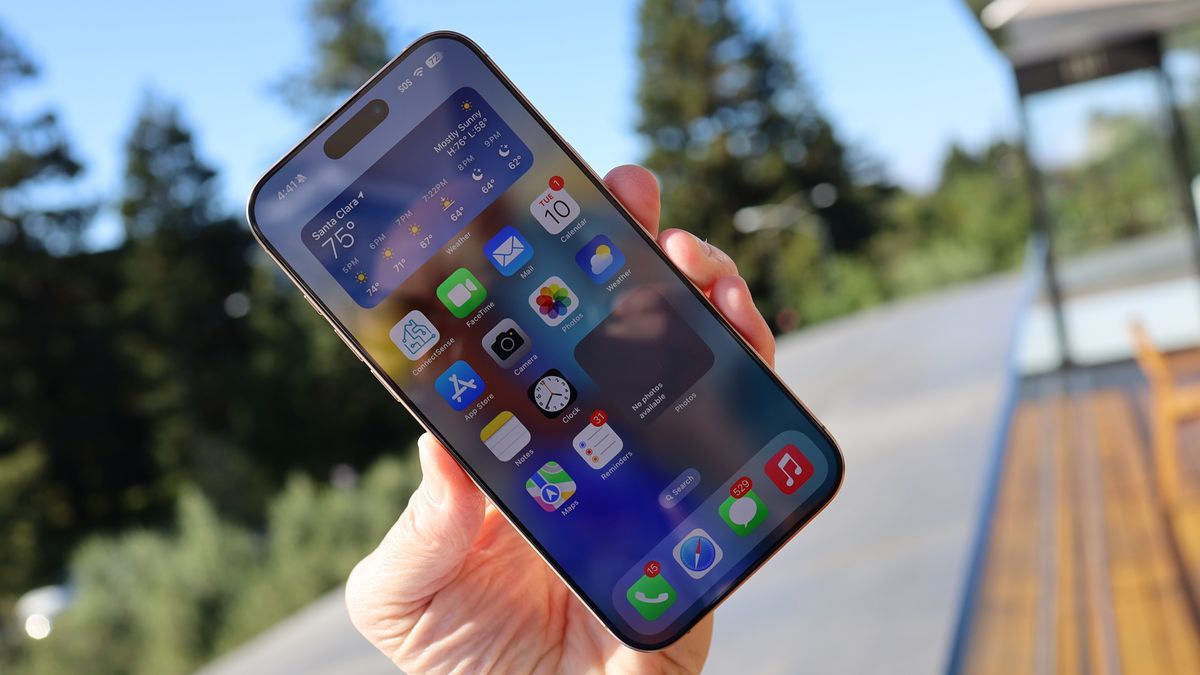
Apple’s new iOS 26 update looks stunning, but your phone might feel worse after installing it. You update your phone because you expect a clean, fresh look. Instead, you get a device that struggles to make it through the day. Suddenly, your battery dies faster than ever, and you cannot even read your screen when you walk outside in the sun.
This happens because the Apple Liquid Glass redesign forces your phone to work much harder. It creates clear, floating menus and moving backgrounds that look cool but cause serious iOS 26 battery drain. The gray text sitting atop those clear backgrounds also makes your screen impossible to read outdoors.
But you do not have to live with a dying, unreadable phone. You can fix these problems right now. The new design is slowing you down. More importantly, you will get quick, easy steps to turn off the worst parts of the update so you can get your phone running smoothly again.
#1. Why Does Your Phone Die So Fast? (And How to Fix It)
The new Liquid Glass design looks great, but it requires a lot of power. Your phone’s graphics chip works overtime to create those blurry backgrounds. Apple uses a feature called variable opacity. This means the background shifts between 20% and 80% transparency as you scroll.
Your phone constantly calculates exactly how much light should pass through the digital glass. That constant background processing is the main cause of the iOS 26 battery drain. Many users report their battery drops below 50% after just a few hours of normal work. Older iPhones struggle the most with this heavy workload.
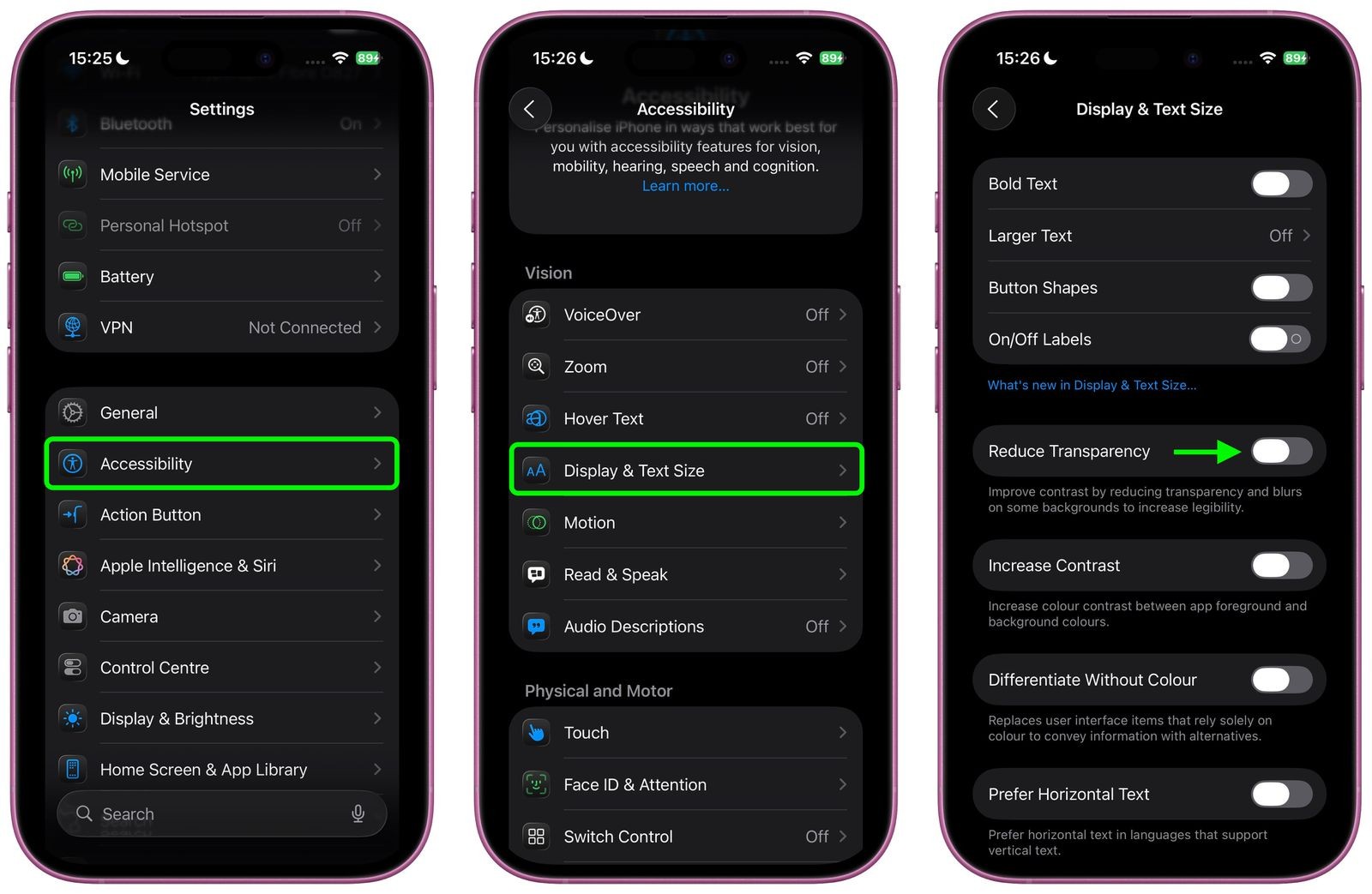
The fix takes about five seconds. Open your Settings app. Tap on Accessibility. Select Display & Text Size. Turn on the switch labeled “Reduce Transparency.” Your phone will use solid colors instead of clear glass. Your battery will finally last all day again.
#2. The 5-Minute Solution for Screens You Can’t Read Outdoors
The new, clear backgrounds look pretty indoors. But they ruin your screen contrast in the sun. Apple chose visual style over basic readability. Older software used solid backgrounds behind text and alerts.
Those solid colors made words pop off the screen. Now, gray text sits on top of clear app icons and floating alerts. The bright sun washes everything out. This lack of contrast is one of the biggest iPhone 17 display issues right now.
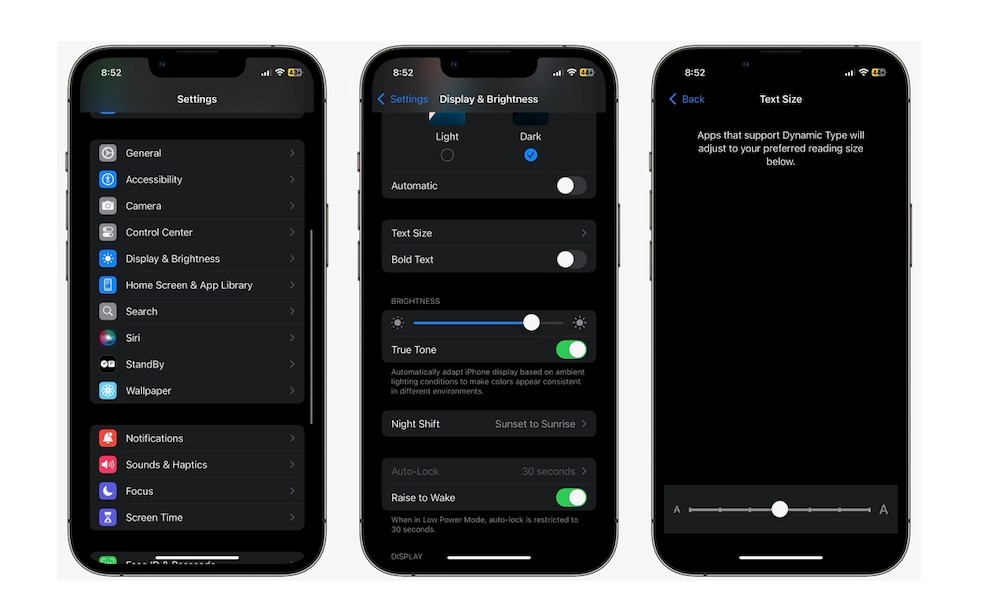
You can fix this without staying all day indoors. You just need to force your phone to use darker colors. Go back into your Accessibility settings. Tap on Display & Text Size again. Turn on the Increase Contrast setting. This makes text darker and the backgrounds more solid. You will finally be able to read your texts clearly in bright sunlight.
#3. Why Do Your Buttons Keep Disappearing? (And Where to Find Them)
The Apple Liquid Glass redesign makes buttons squish, morph, and vanish. Apple chose pretty shapes over basic function. This breaks your muscle memory completely.
Think about the new Share menu. It used to be simple. Now, it uses confusing vertical and horizontal menus. The buttons you actually use are often hidden. You have to tap three little dots just to find the copy or paste command. This takes extra taps for tasks that used to take one.
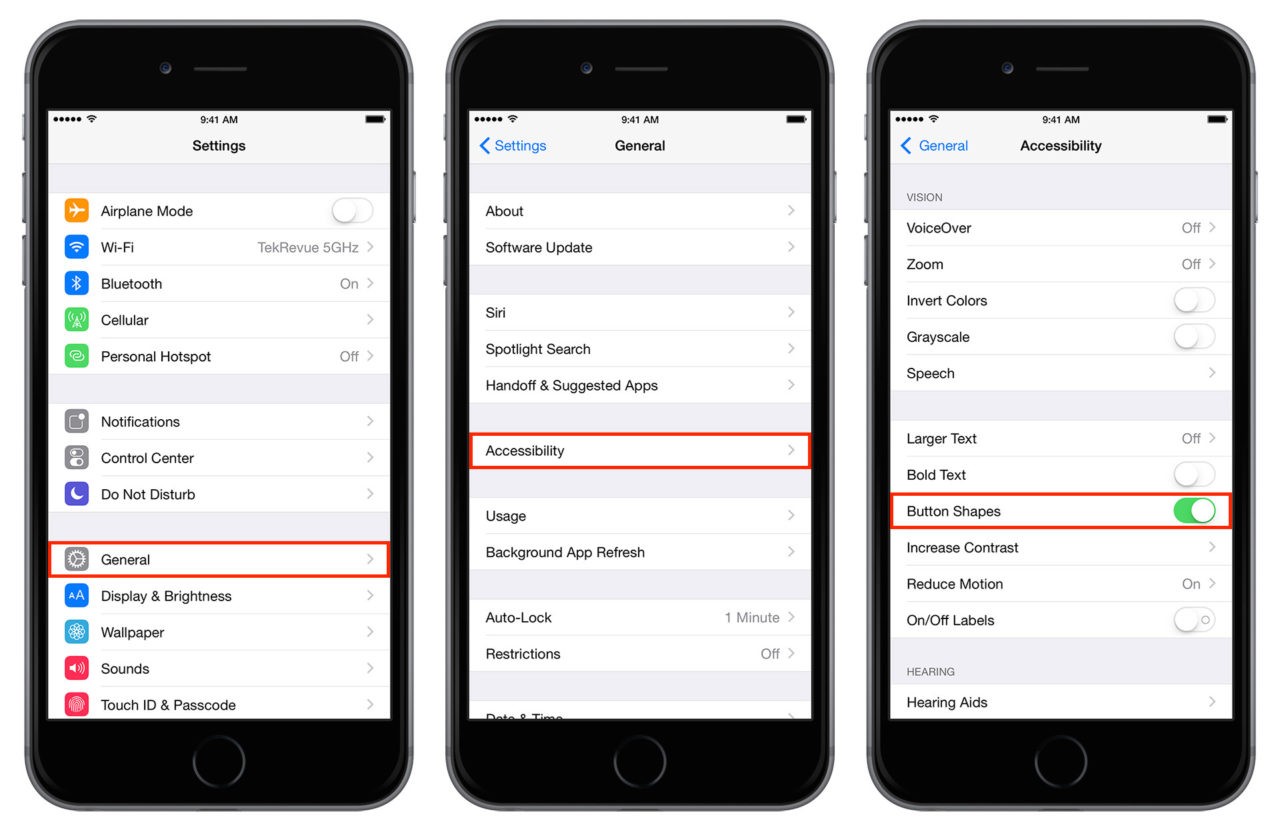
Open your Settings app. Go to your Accessibility menu. Tap on Display & Text Size. Turn on the switch for Button Shapes. This adds a solid background to text buttons. It will not bring back the old Share menu. But it helps you see exactly where to tap.
#4. How to Fix Wallpapers That Erase Your Settings?
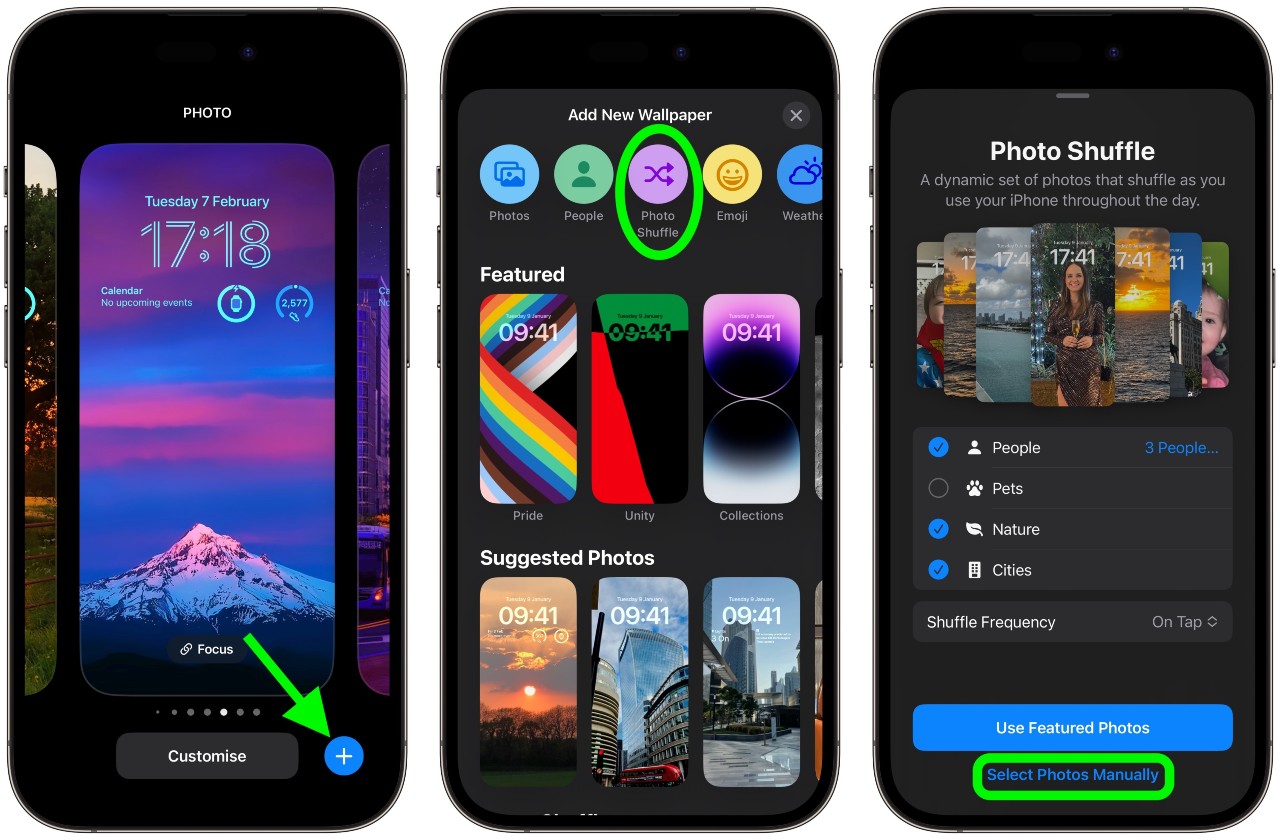
Dynamic wallpapers constantly rebuild their layers in the background. When you leave your lock screen, the phone resets the image. This glitch erases your custom clock transparency. It also deletes your font weight choices. You spend time setting it up, and the phone just throws it away.
The best way to stop this is to turn off Liquid Glass effects on your lock screen. You need to use a standard, still photo instead. Press and hold your lock screen. Tap the customize button. Choose a normal picture from your photo album. Do not pick a weather or astronomy background. A still photo stops the background from refreshing. This keeps your text and transparency settings locked in place.
#5. Why Is Your Older iPhone Lagging? (And the 10-Second Fix)
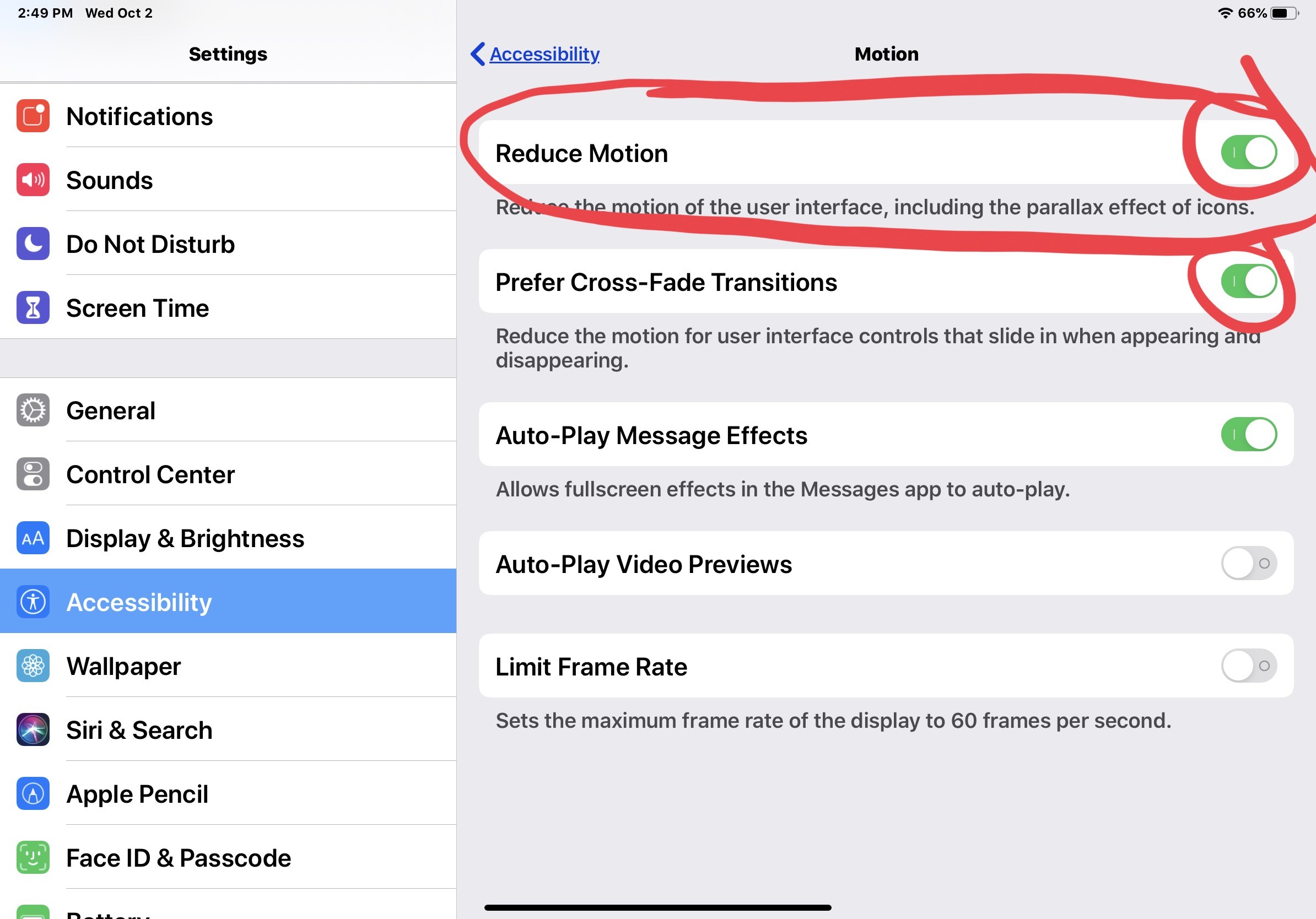
The new Apple Liquid Glass redesign forces your phone to process too many background layers at once. The hardware inside older models struggles to handle this heavy lifting. You feel a frustrating delay when opening a folder. Animations stutter when you swipe from your widgets back to the home screen.
Your screen might even freeze for a second. Your phone simply cannot keep up with all those floating, clear graphics. But you can make your phone fast again right now. You just need to turn off the extra visual effects.
Open your Settings app. Tap on Accessibility. Select Motion. Turn on the switch for Reduce Motion. This replaces the heavy zooming animations with a simple fade. Your phone stops trying to draw all that extra glass. It will instantly feel snappy and responsive again.
