
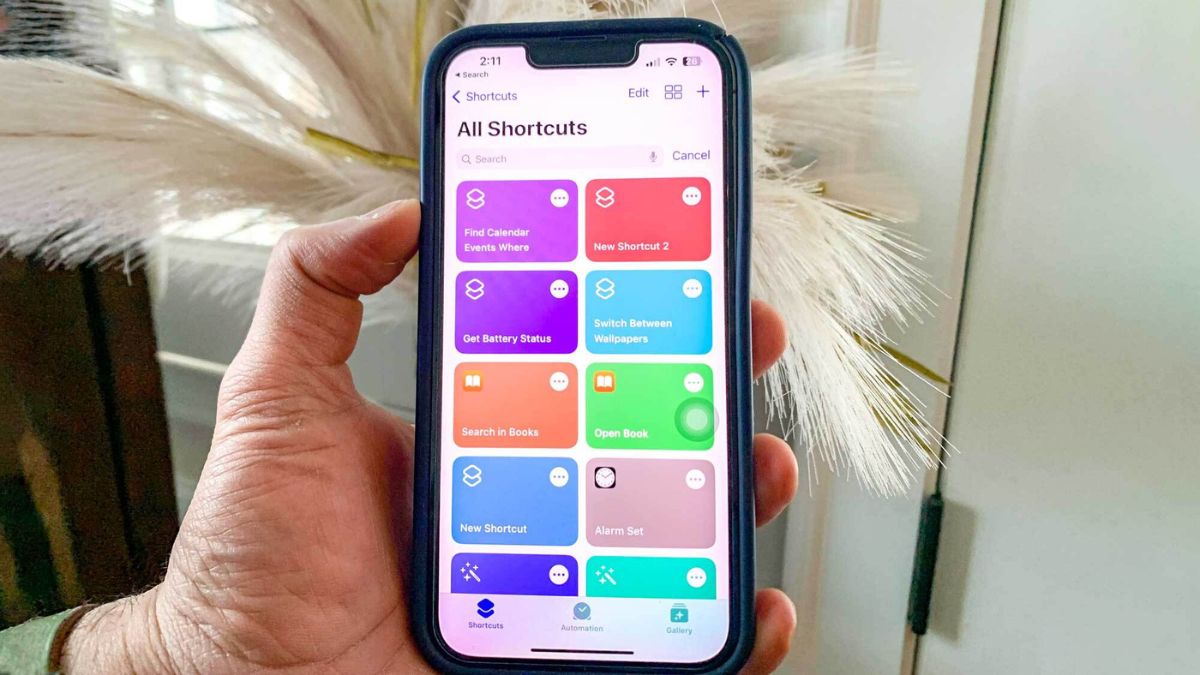
Studies show the average person taps their phone screen more than 2,600 times a day. Digging through menus to change settings steals minutes from your day. It breaks your focus when you have to do the same digital chores every single morning. That repetition is incredibly frustrating.
You do not have to keep doing it. You can put those daily phone habits on complete autopilot. The trick is using tools already built into your device, like the Shortcuts app and Apple Intelligence. Setting up these hidden iPhone automations takes just a few minutes. Once they are ready, they work quietly in the background.
These best iPhone shortcuts to save time every single day are real solutions that replace constant tapping with smart triggers to skip the extra screens and get things done faster.
#1. The AI Morning Briefing (Zero-Tap Wake Up)
Squinting at your phone to check the weather and your calendar is a terrible way to wake up. You end up tapping through three different apps before you even get out of bed. Now, you can use Apple Intelligence shortcuts to do this for you.
Your phone can read your first meeting, the weather, and unread texts out loud the second you turn off your alarm. It gives you all the details you need while you brush your teeth.
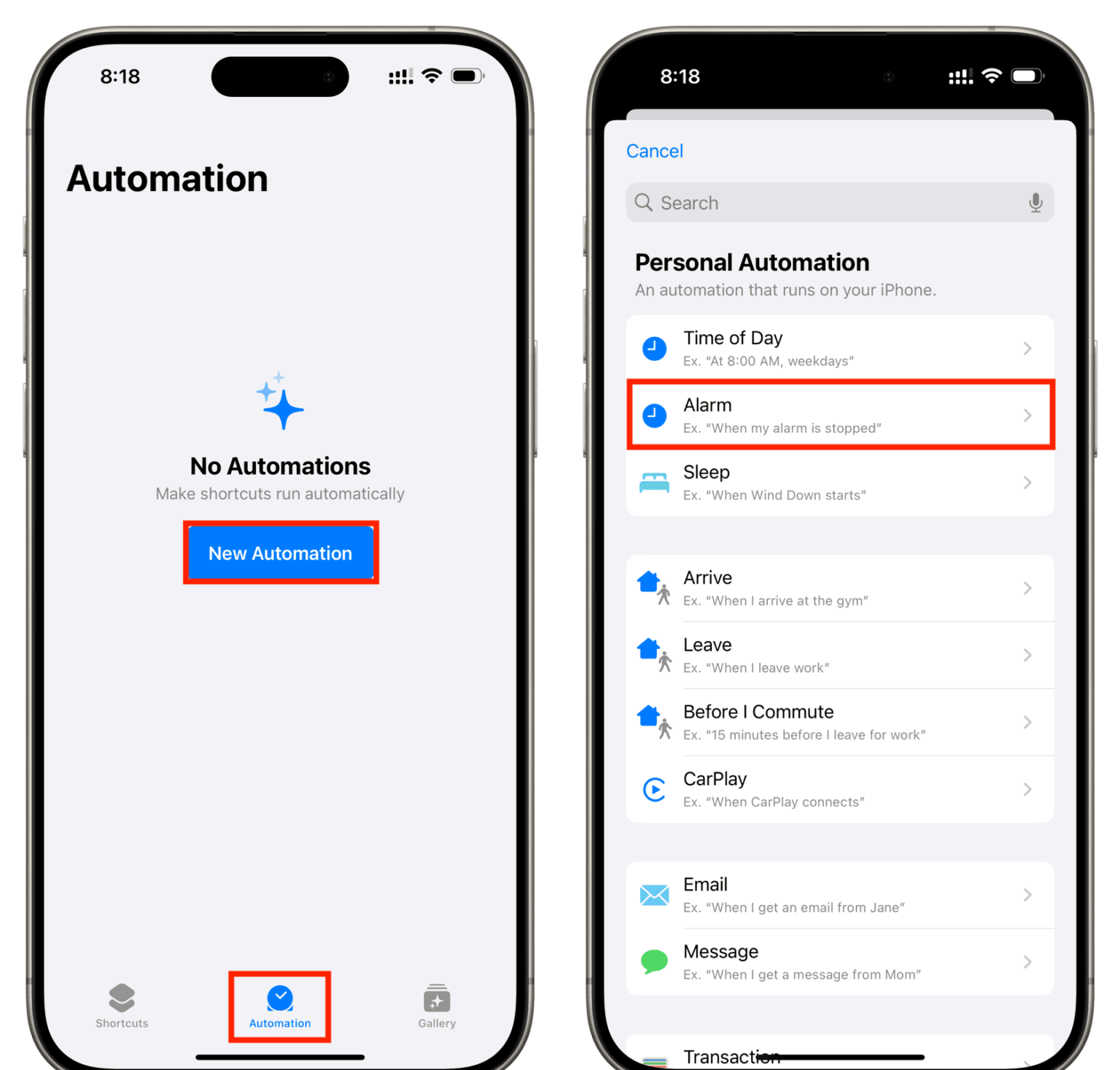
1. Open Shortcuts > Automation > +.
2. Choose Alarm and select “Is Stopped”.
3. Add the Summarize and Speak Text actions, then hit Done. (Remember to turn off “Ask Before Running”).
#2. Back Tap for Visual Intelligence
Trying to copy text from a sign or a menu takes too much effort. You usually have to snap a photo, open it, and try to highlight the tiny words. Instead, you can turn the actual back of your phone into a secret button.
These hidden iPhone automations let you double-tap the back of your device to scan and save text instantly to your Notes app. It is much faster than taking photos that you will forget to delete later.
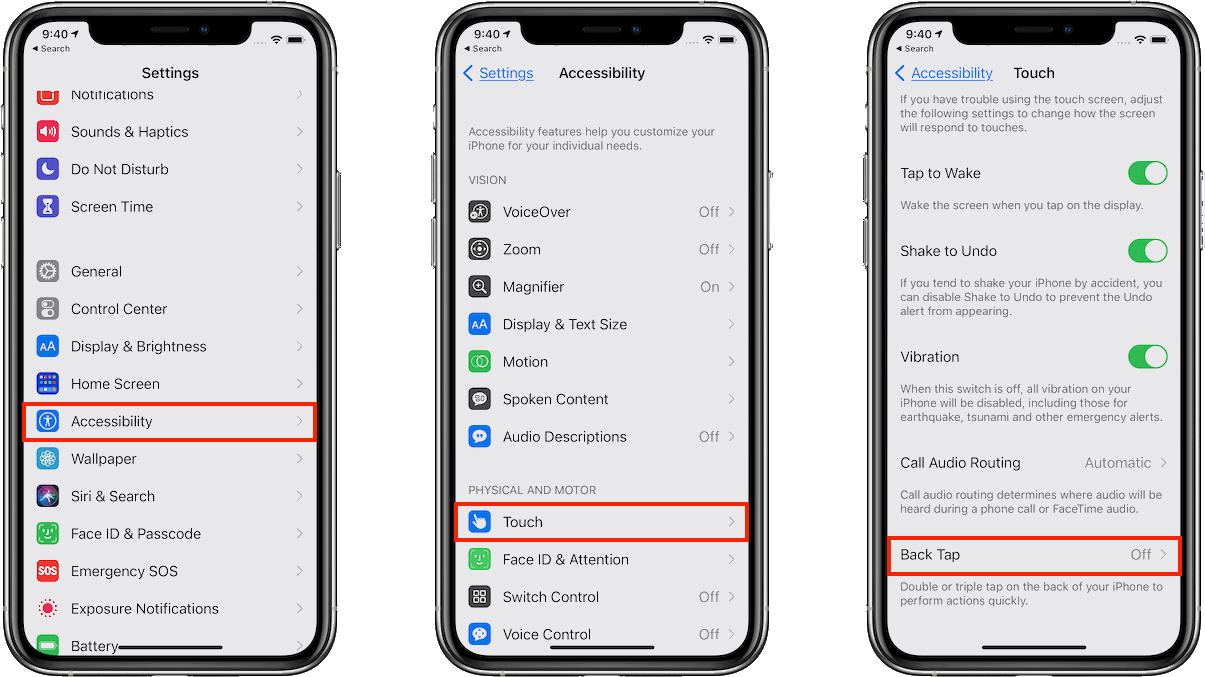
1. Go to Settings > Accessibility > Touch > Back Tap.
2. Choose Double Tap.
3. Scroll down and select your Visual Intelligence shortcut.
#3. Turn Voice Memos into Smart Summaries
Typing out a long brainstorm session on a tiny keyboard is frustrating. You often forget your train of thought while trying to fix a typo. You can stop typing completely.
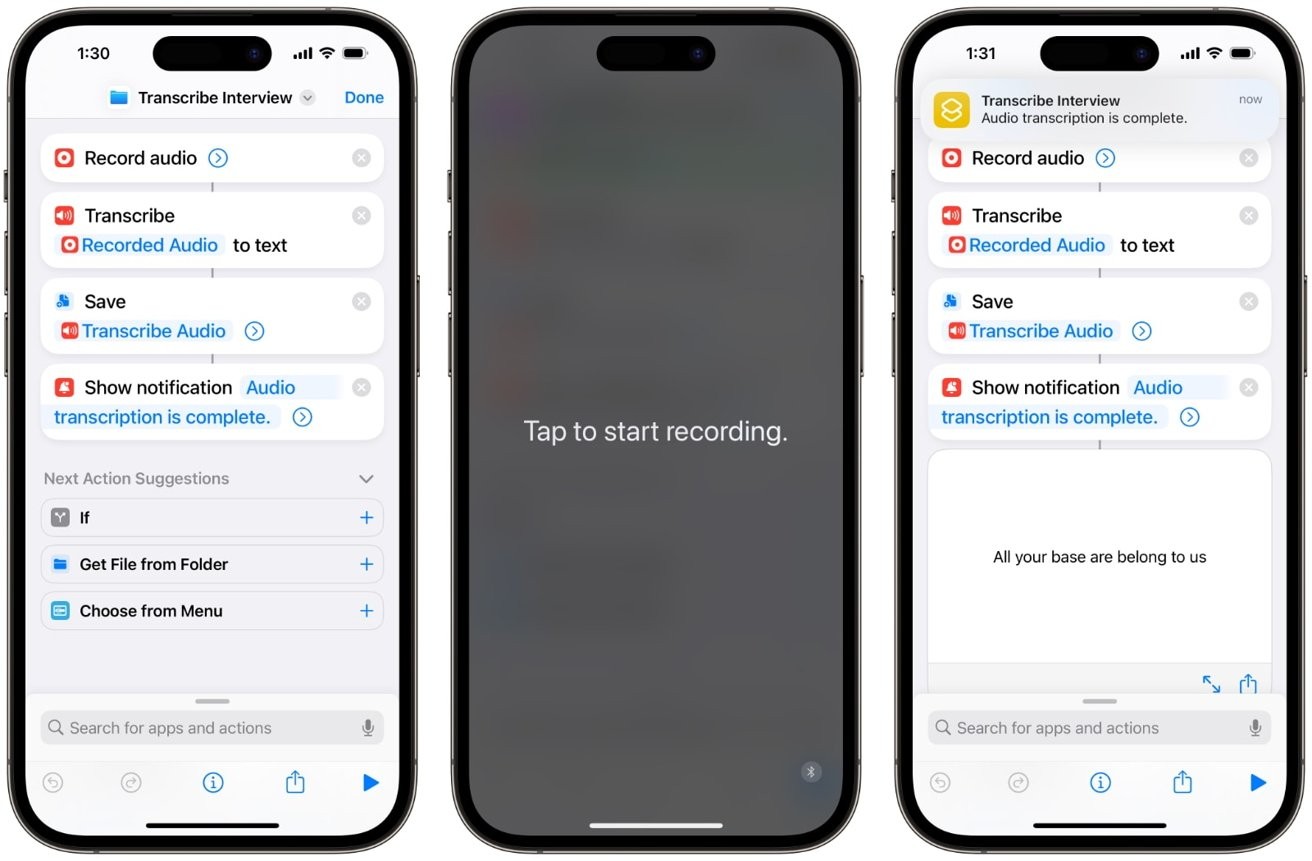
Create a simple shortcut that takes a recorded voice memo and sends it through on-device AI. The system transcribes your words and turns them into clean, organized bullet points. You get clear notes without typing a single letter.
1. Open Shortcuts and create a new shortcut.
2. Add the Record Audio action.
3. Add the Transcribe Audio and Summarize actions, then save.
#4. The “Phantom” Guided Access Trigger (The Hidden Gem)
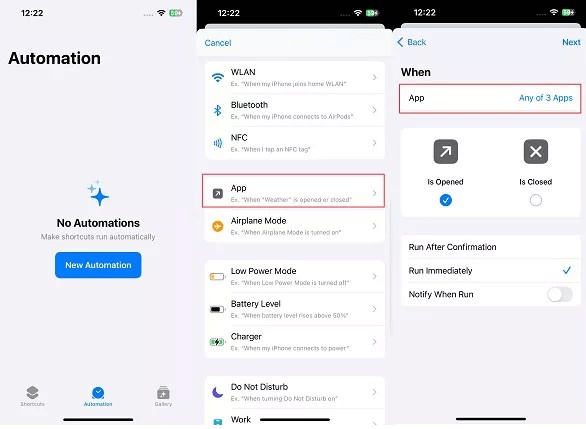
We have all handed our phone to a child to watch a video. Ten seconds later, they swipe out of the app and delete an important email. You probably know about Guided Access to lock the screen.
But clicking the side button three times is annoying to remember. Most people miss these hidden iPhone automations. You can make Guided Access turn on automatically the second a specific app opens.
1. Open Shortcuts > Automation > +.
2. Choose App, pick apps like Disney+, and select “Is Opened”.
3. Add the Start Guided Access action and tap Done. (Make sure to turn off “Ask Before Running”).
#5. App-Specific Auto Do Not Disturb
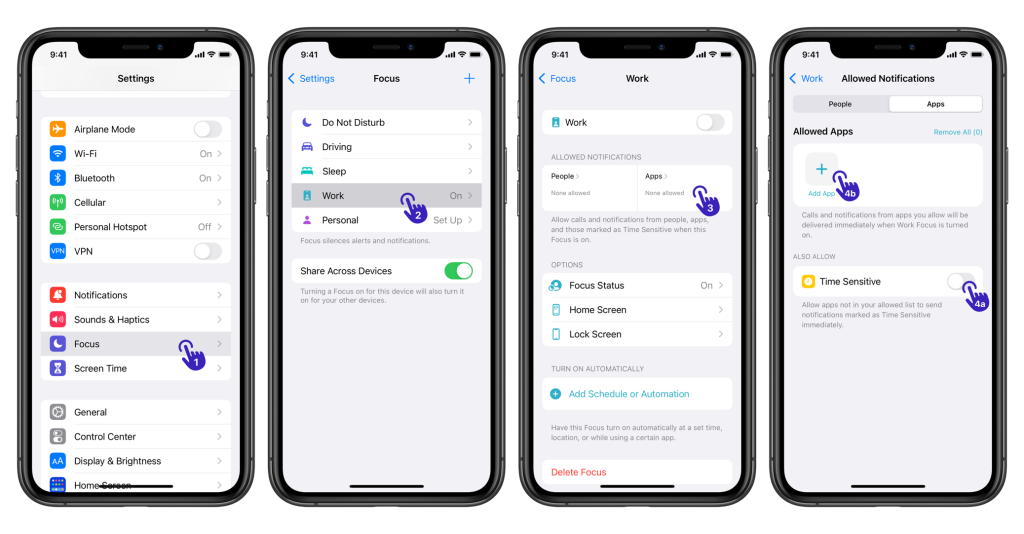
Text banners ruin the mood when you are watching a movie or reading a book on your phone. Swiping them away constantly gets old fast. You can set your phone to automatically block those alerts.
Make Do Not Disturb turn on the moment you open Netflix or Kindle. It will turn right back off when you close the app. You get zero interruptions while you relax.
1. Open Shortcuts > Automation > +.
2. Choose App and select your reading or video apps.
3. Add the Set Focus action to turn on Do Not Disturb, then save.
#6. Smart Battery Guardian
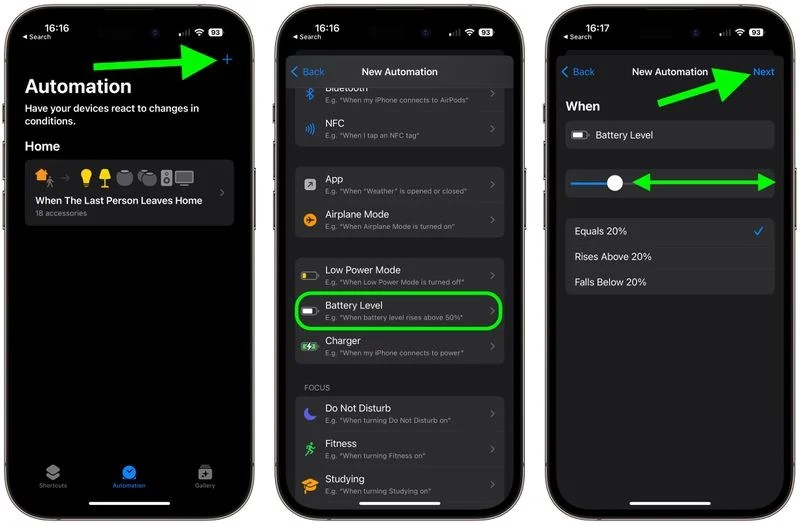
Waiting for the 20 percent battery warning is a bad idea. By the time you see it, your phone is basically dead. You do not have to dig into settings to save your battery anymore.
Set your phone to silently turn on Low Power Mode when it hits 40 percent. You can even make it trigger when you leave your home Wi-Fi network. It saves your battery automatically when you actually need it.
1. Open Shortcuts > Automation > +.
2. Choose Battery Level and slide it to 40%.
3. Add the Set Low Power Mode action and tap Done.
#7. The One-Tap Email Polisher
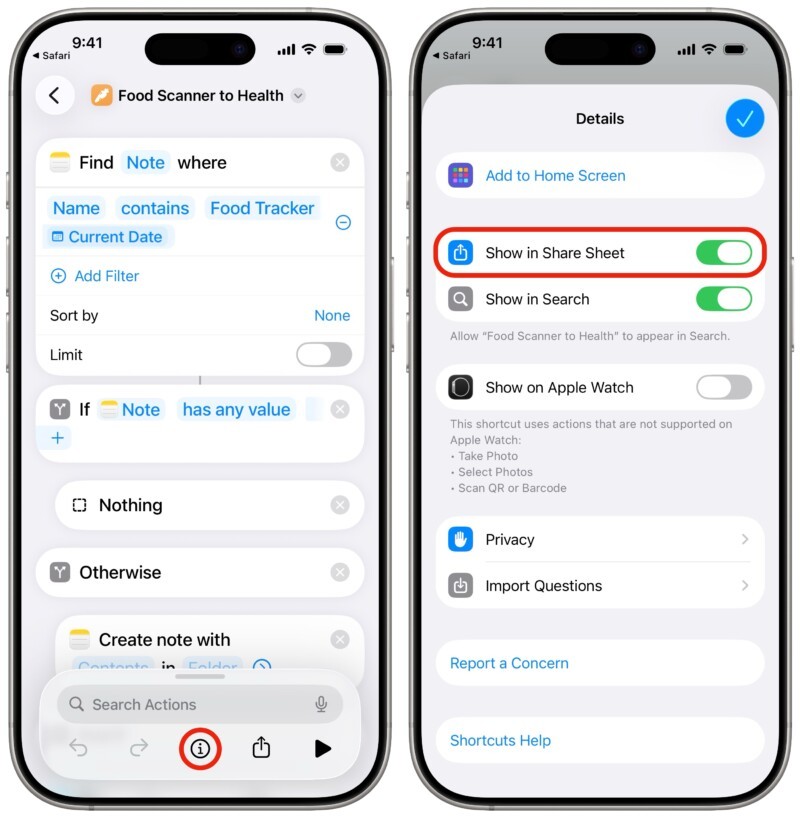
Writing a professional work email while walking down the street is a recipe for typos. Fixing bad grammar on a tiny screen wastes your time. Let Apple Intelligence shortcuts do the heavy lifting.
You can select your messy text and hit a custom button in your Share Sheet. Your phone will instantly rewrite your rough notes into a polite, clear message. You look completely professional without spending five minutes editing.
1. Open Shortcuts and create a new Share Sheet shortcut.
2. Add the Apple Intelligence Rewrite action.
3. Set it to replace the selected text and save.
#8. Instant Bulk File Renaming

Renaming vacation photos or work documents one by one is mind-numbing. Tapping, deleting, and typing new names takes forever. You can skip all that tedious work. Highlight a whole batch of files at once in the Files app.
Then, tap one shortcut to give them all a new name with matching numbers in two seconds. It keeps your files organized with almost zero effort.
1. Open Shortcuts and create a Share Sheet shortcut.
2. Add the Rename File action.
3. Set it to ask for a new name and add numbers sequentially.
#9. The Ultimate Commute Trigger
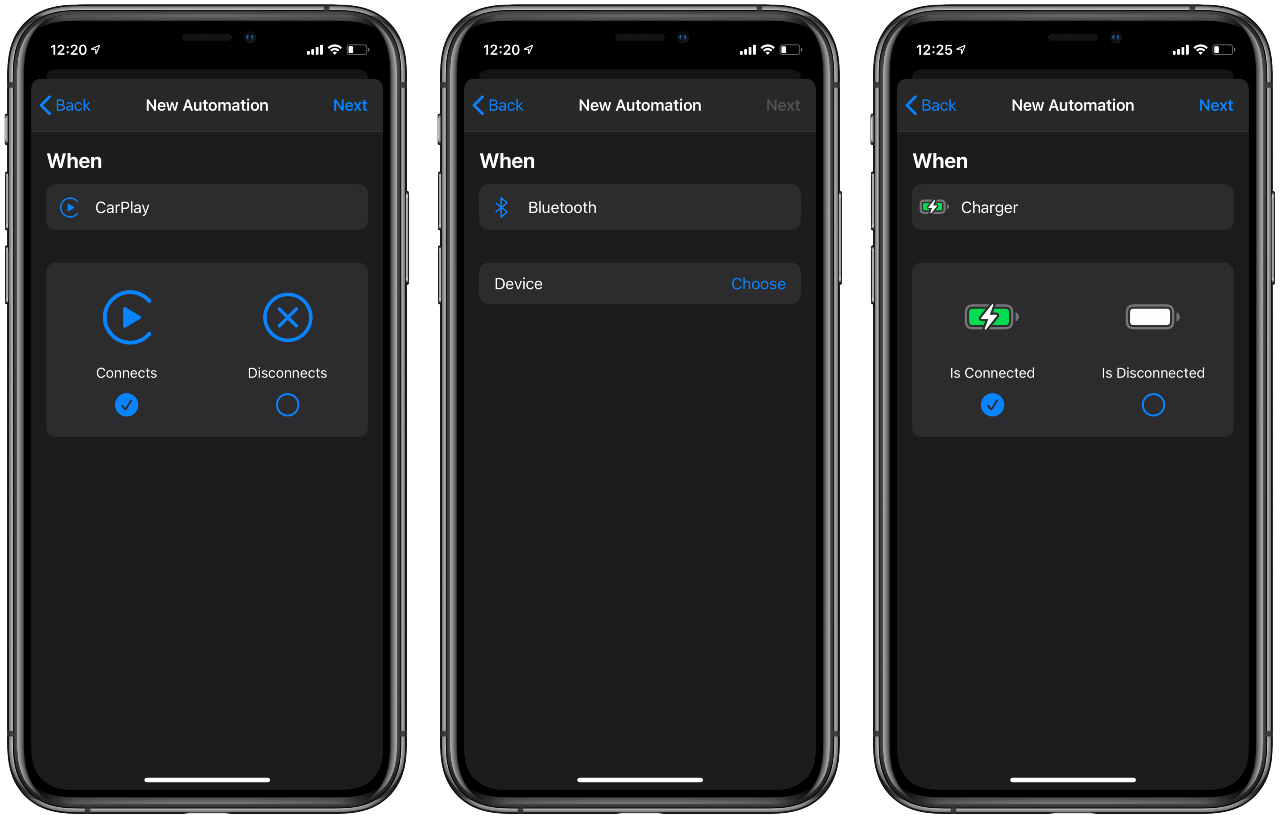
Fiddling with your phone when you get in the car is annoying and unsafe. You have to launch maps, find your podcast, and fix the volume every single morning. These iPhone shortcuts to save time put your commute on autopilot.
The moment your phone connects to your car, it can set the volume to 80 percent. Then it opens Apple Maps to your next meeting and hits play on your favorite show. You just put the car in drive and go.
1. Open Shortcuts > Automation > +.
2. Choose CarPlay or Bluetooth and select your car.
3. Add the Set Volume, Open App, and Play Podcast actions. (Remember to disable “Ask Before Running”).
