
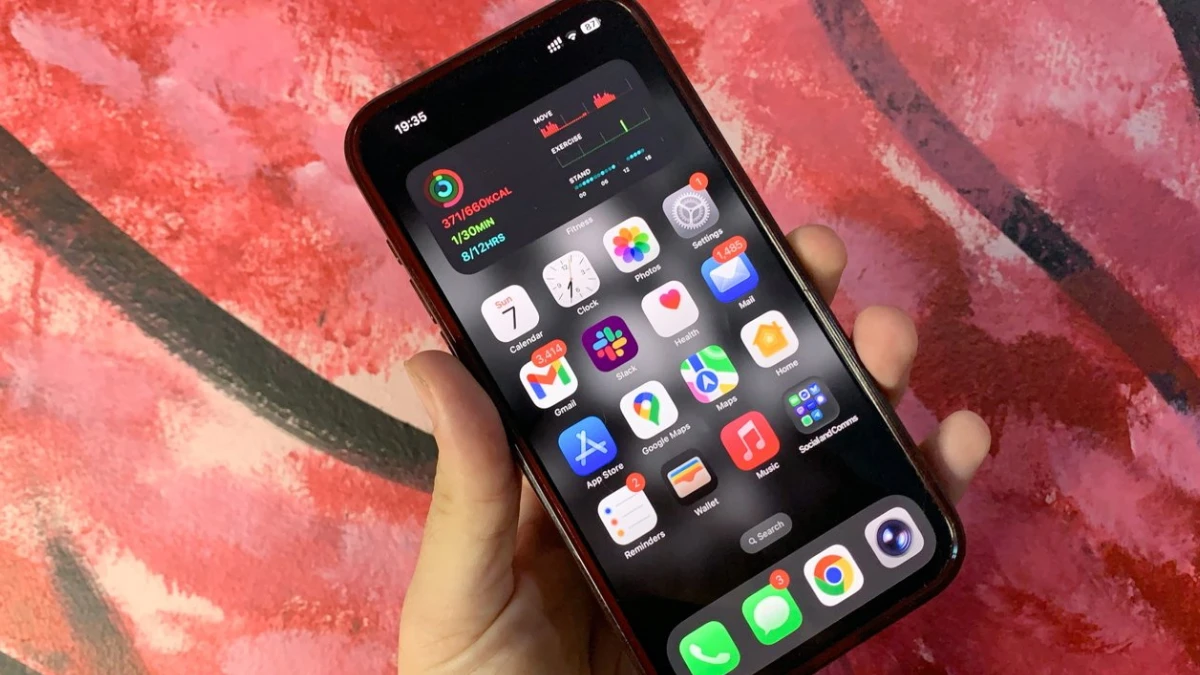
Apple spent hours talking about Liquid Glass and Apple Intelligence at WWDC, but they barely mentioned the features people will actually use every single day. The iOS 26 update arrived with its translucent design and AI capabilities, making headlines.
But something’s missing from the conversation. Apple doesn’t advertise every feature, some of the best ones get buried in Settings, while others simply appear when needed.
Most iPhone users never discover these tools, sticking with familiar habits and missing out on time-saving improvements hidden throughout the update. Here are 5 hidden iOS 26 features that solve real problems. Each section explains exactly where to find them and how to use them—no tech jargon, no complicated steps.
Checking iPhone battery charging time estimates to customizing alarm snooze duration, these practical tips work immediately. The Settings app holds more surprises than Apple’s keynote mentioned, and these features deserve attention.
1. See Exactly How Long Your iPhone Takes to Charge
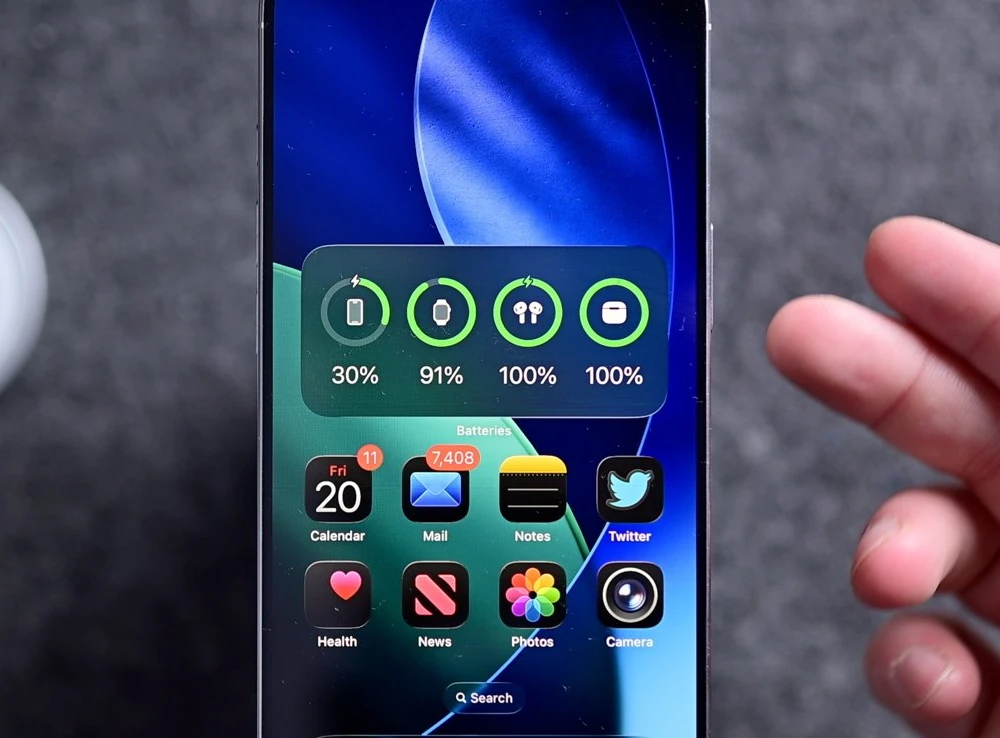
You plug in your iPhone before leaving the house. You wait. You check the percentage. Still charging. You have no idea if you should leave now or wait five more minutes.
iOS 18 solves this with charging time estimates that appear right on your Lock Screen. When your iPhone is below 80%, you’ll see messages like “7 minutes until 80%” displayed prominently. The estimate automatically switches to show time until 100% once you pass that 80% threshold.
For complete details, open Settings > Battery to see precise charging predictions. This feature also reveals if you’re using a slow charger—helpful when a 45-minute estimate seems suspiciously long for what should be a fast charger.
The real-world benefit: Know if you have time for a quick charge before leaving. If your Lock Screen says “18m,” you can decide whether to wait or grab your cable. No more standing around checking your battery percentage every thirty seconds.
This feature finally answers the question: “Do I have time to charge my phone?” No more guessing. No more checking every minute. Just look at your Lock Screen and decide.
2. Change Your Alarm Snooze Time
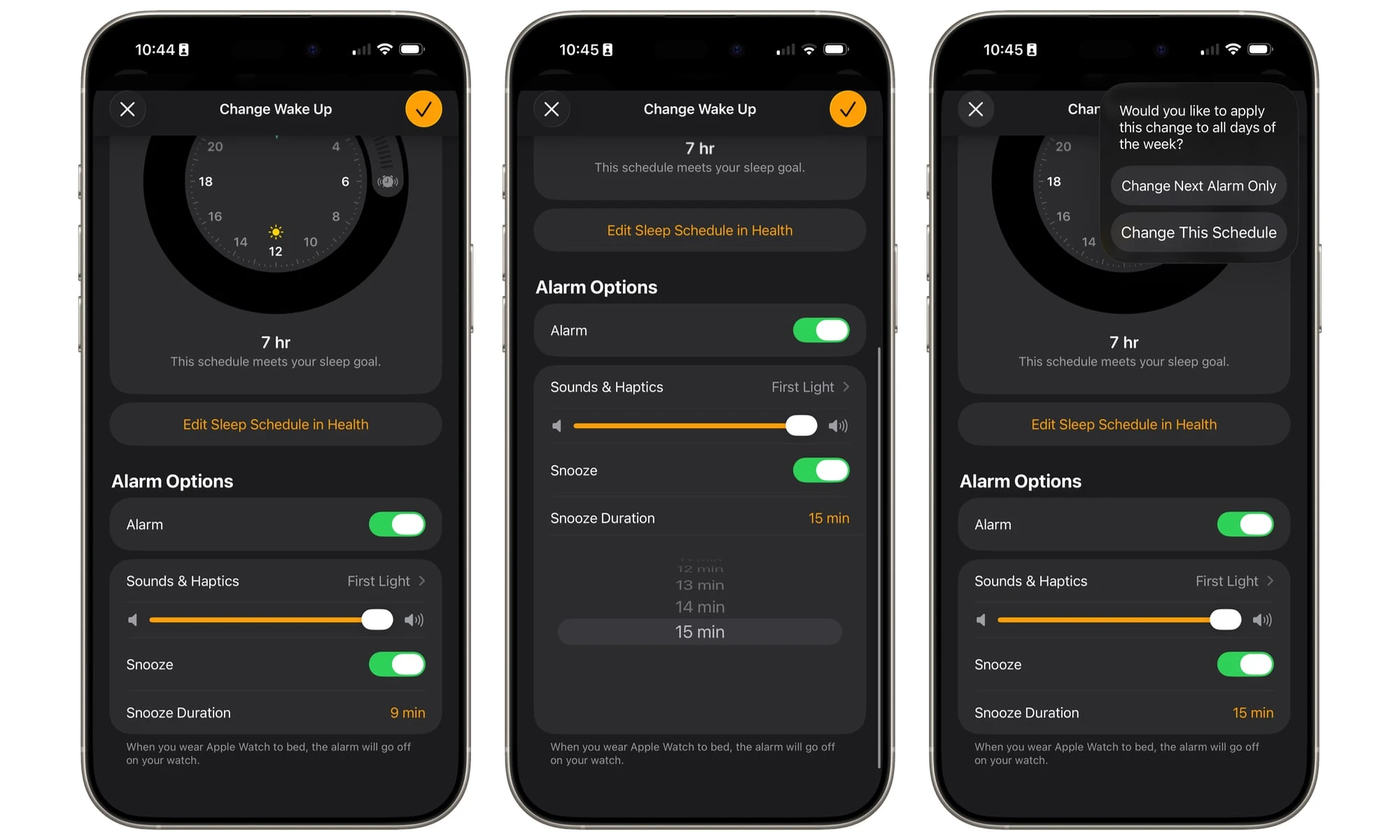
The iPhone’s 9-minute snooze has frustrated people for years. Who decided 9 minutes was the perfect amount? Not your brain at 6 AM, that’s for sure.
iOS 18 finally lets you customize snooze duration from 1 to 15 minutes for each alarm. Here’s how:
- Open the Clock app
- Tap the Alarms tab
- Select your alarm
- Tap Snooze Duration
- Choose your preferred time
This works differently than you might expect—each alarm has its own snooze setting. Your weekday 6 AM alarm can have a strict 5-minute snooze while your weekend alarm enjoys a luxurious 15 minutes. Even your Wake Up alarm in the Health app gets this customization.
The catch: You need to configure this separately for every alarm. Change one, and the others stay at their current settings.
It’s a small change. But when you’re half-asleep trying to get “just five more minutes,” those extra settings matter.
3. Copy Part of a Text Message (Not the Whole Thing)
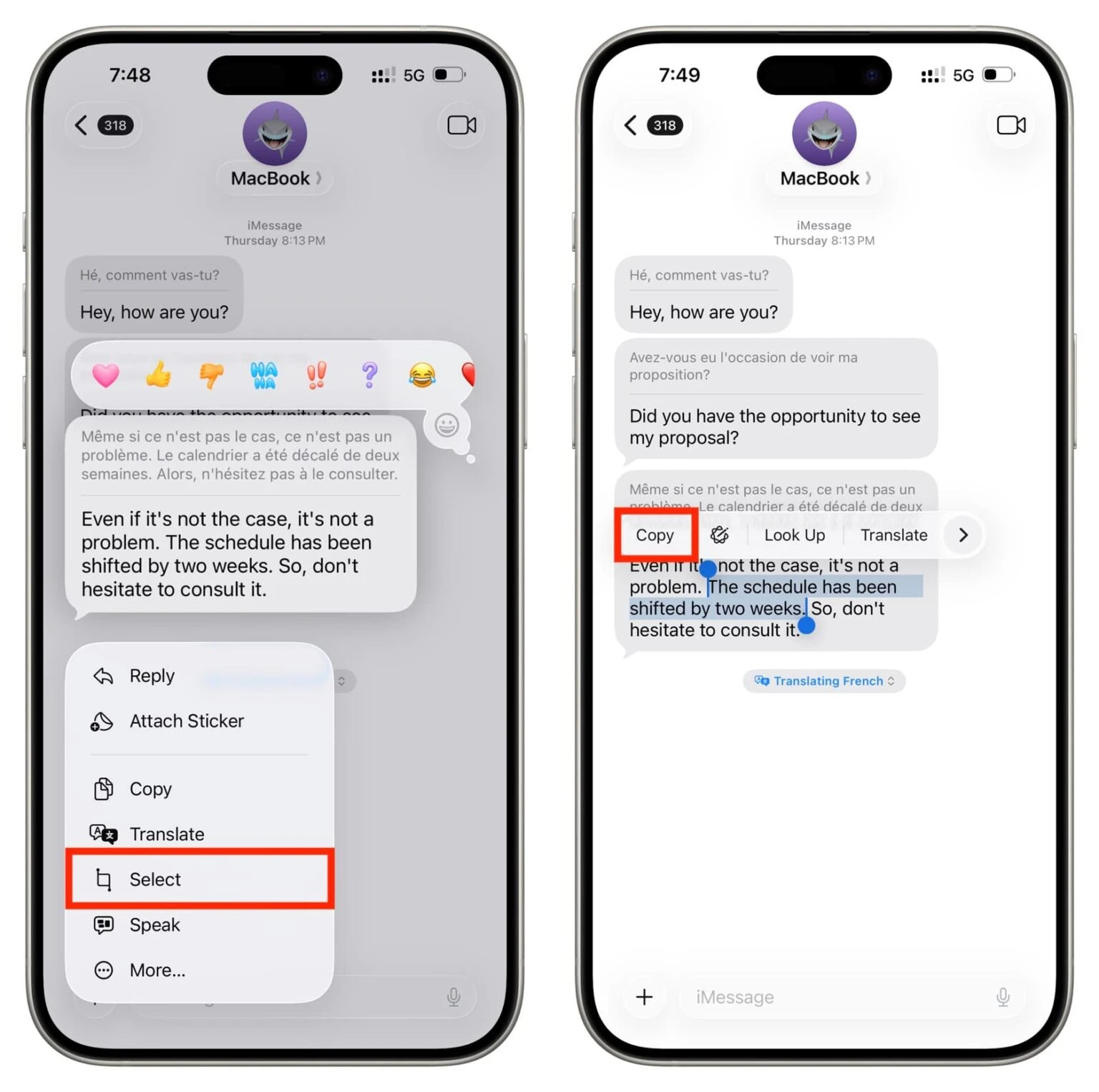
Your friend sends a long message. There’s an address buried in the middle. You need to copy just the address. In older iOS versions, you’d copy the whole message, paste it somewhere, then delete everything except the address. What a pain.
iOS 18 lets you select and copy specific words within any message bubble. Long press the message, tap Select, then drag the blue handles to highlight exactly what you need. The familiar copy/paste menu appears instantly.
This works in all Messages conversations—iMessage and SMS alike. It’s most useful for grabbing verification codes from longer texts, copying restaurant addresses without the surrounding commentary, or pulling web links from chatty group messages.
Real scenario: Your mom sends a paragraph about dinner plans with the restaurant name somewhere in the middle. Just select those two words, copy, and search Maps. Done in seconds instead of the old copy-paste-edit dance.
This seems obvious. Why didn’t iPhones have this before? Who knows. But it’s here now, and you’ll use it constantly.
4. Get Alerts When Your Camera Lens Is Dirty
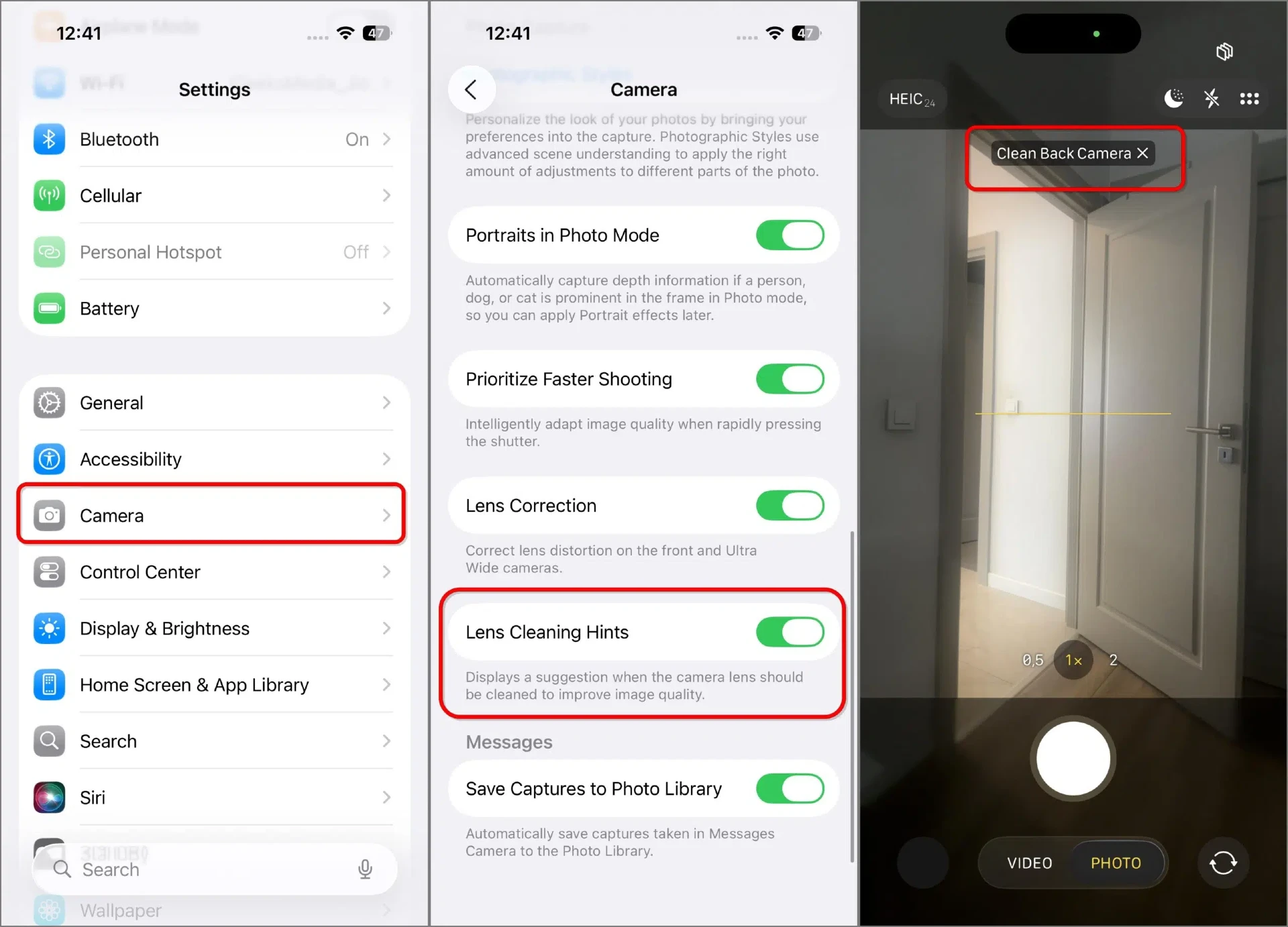
You take a photo. It looks foggy. You can’t figure out why. You check the settings. You try different modes. Nothing works. Then you realize: Your camera lens is covered in fingerprints.
iOS 18 on iPhone 15 and newer models solves this with automatic lens monitoring. Your iPhone constantly analyzes incoming light through the camera, detecting when smudges or dirt reduce clarity. When it spots a problem, you’ll get an alert right in the Camera app.
To turn it on, go to Settings > Camera > Lens Cleaning Hints. Once enabled, your phone watches for reduced light quality that indicates a dirty lens—no more wondering why every shot looks hazy.
The fix takes two seconds: Wipe your lens on your shirt. But knowing you need to clean it? That’s the valuable part. This feature explains those mysteriously blurry photos instead of leaving you to troubleshoot camera settings that were fine all along.
5. Use AirPods as a Wireless Microphone for Videos
You’re recording a video. You’re talking. But you’re standing 10 feet from your iPhone. The audio sounds terrible. Distant. Echoey. Your viewers will barely hear you.
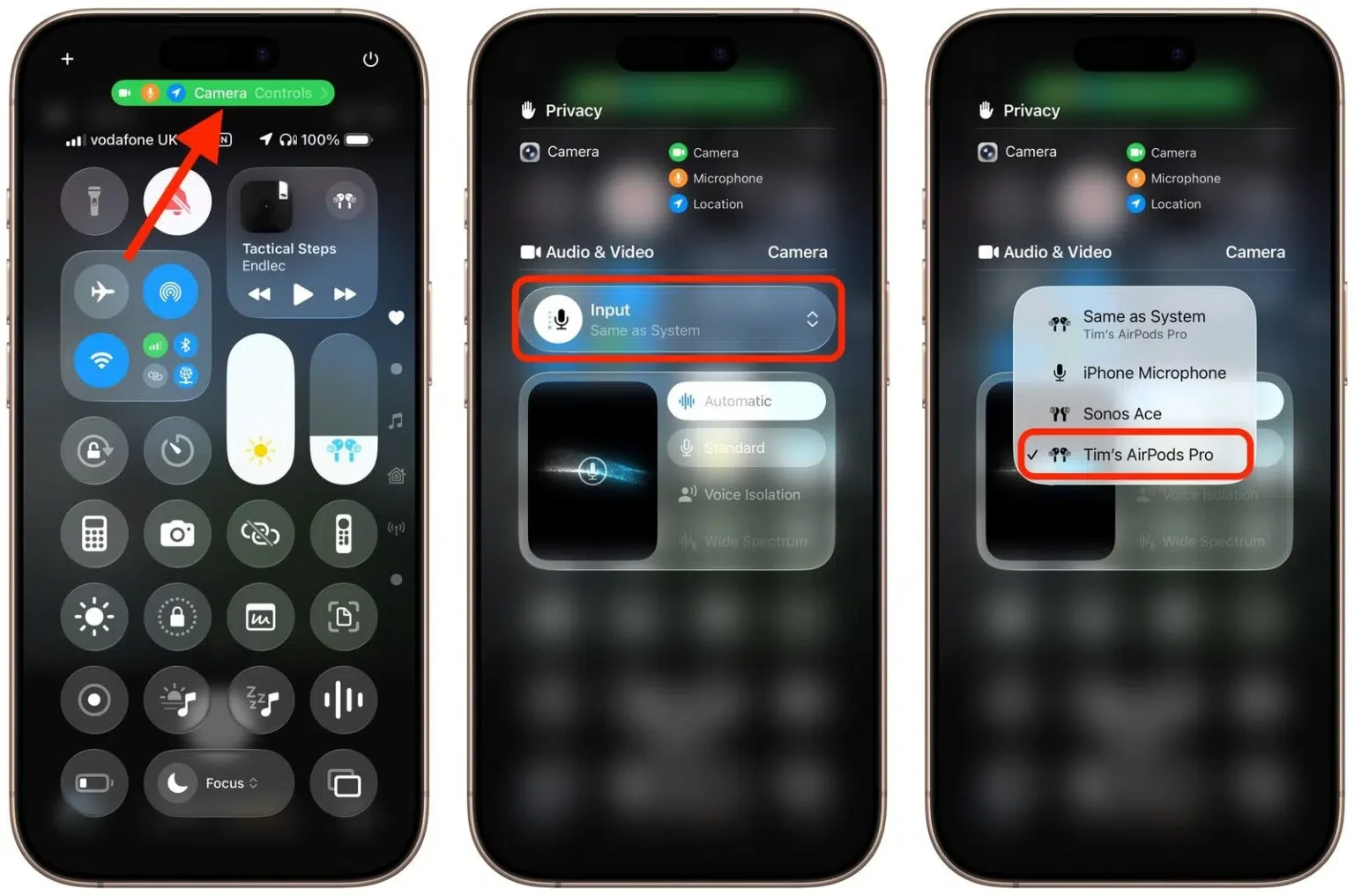
iOS 18 lets you use your AirPods as a wireless microphone when recording video. Here’s the setup:
- Put in your AirPods
- Open the Camera app to Video mode
- Swipe down to Control Center
- Tap Camera Controls
- Select Audio Input > AirPods
Now your voice comes through crystal clear, even from across the room. This works with all AirPods models and captures studio-quality audio, whether you’re recording cooking videos in your kitchen, interviewing someone 15 feet away, or filming family gatherings where the iPhone sits on a tripod.
The difference is dramatic. Your AirPods sit inches from your mouth while your iPhone can be anywhere in Bluetooth range. No more straining to hear what people are saying in your videos.
