
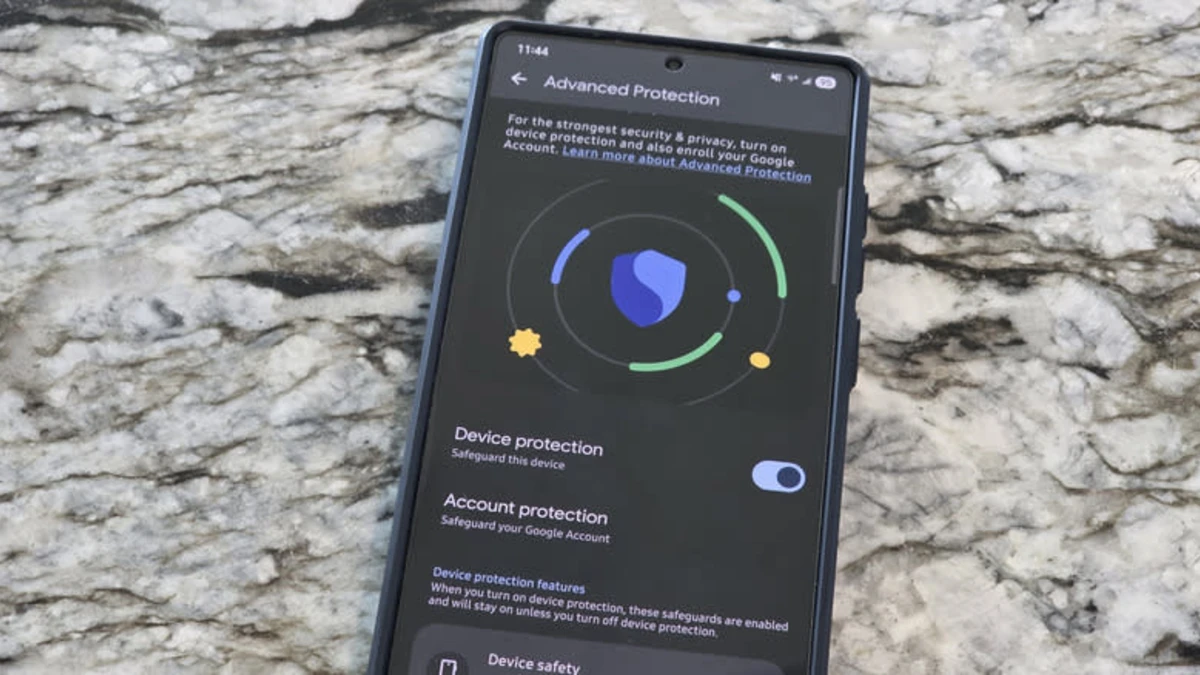
Your Android phone has 21 powerful features hiding in plain sight. 10% of what your phone can do. Your battery dies too fast. You miss important notifications. And you have no idea that simple settings changes. Google buried these Android hidden settings deep in menus most people never open.
Phone companies don’t advertise them because some of these secret features give you control they’d rather you didn’t have. 21 hidden Android settings that actually work in 2025. No technical skills needed. Just follow the steps and watch your phone transform.
Phone instantly, catch apps draining your battery, see every notification you accidentally dismissed, and access developer options that make your phone feel brand new. Most of these changes take less than a minute.
1. Speed Up Your Phone with Animation Controls
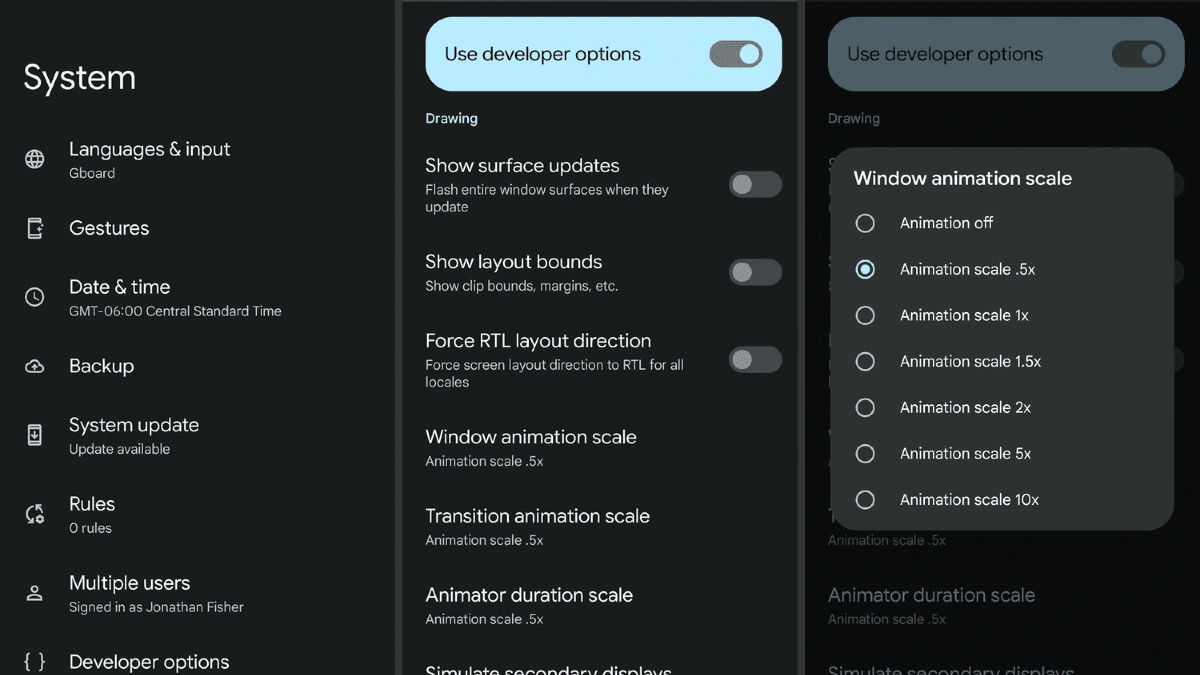
Your phone lags when you open apps. You tap something and wait. Then wait some more. It feels old and slow, even though you bought it less than a year ago. It’s the fancy animations Android added to look smooth.
You can make your phone respond twice as fast right now. No apps needed. Just change three simple settings.
2. See Every Notification You Ever Missed
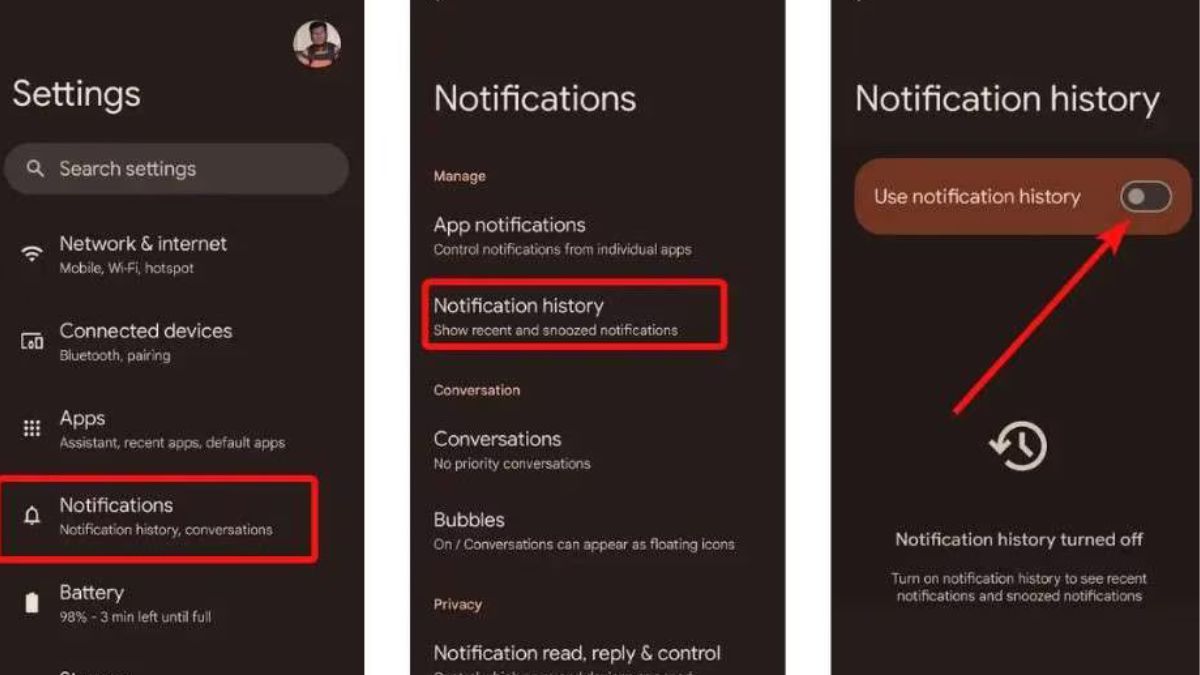
You accidentally swiped away a notification. Now it’s gone forever. Was it from your bank. That package delivery you’ve been waiting for. Android actually saves every notification you get. Every single one. But this feature is turned off by default, and Google never told you about it.
3. Double-Tap Your Phone’s Back for Instant Actions
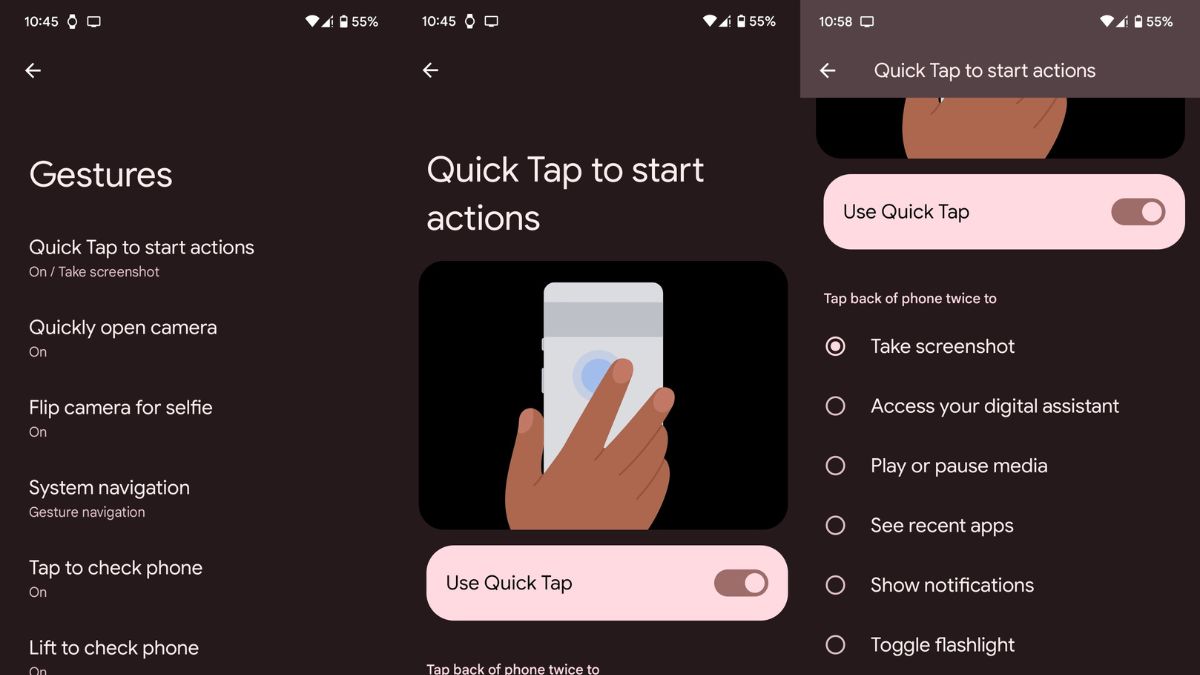
You see something worth photographing. You fumble to open your camera app. Swipe. Or you need your flashlight. You pull down the notification shade. Hunt for the flashlight button. By then, you’ve already stubbed your toe in the dark. Just tap the back of your phone twice.
4. Stop Apps from Killing Your Battery
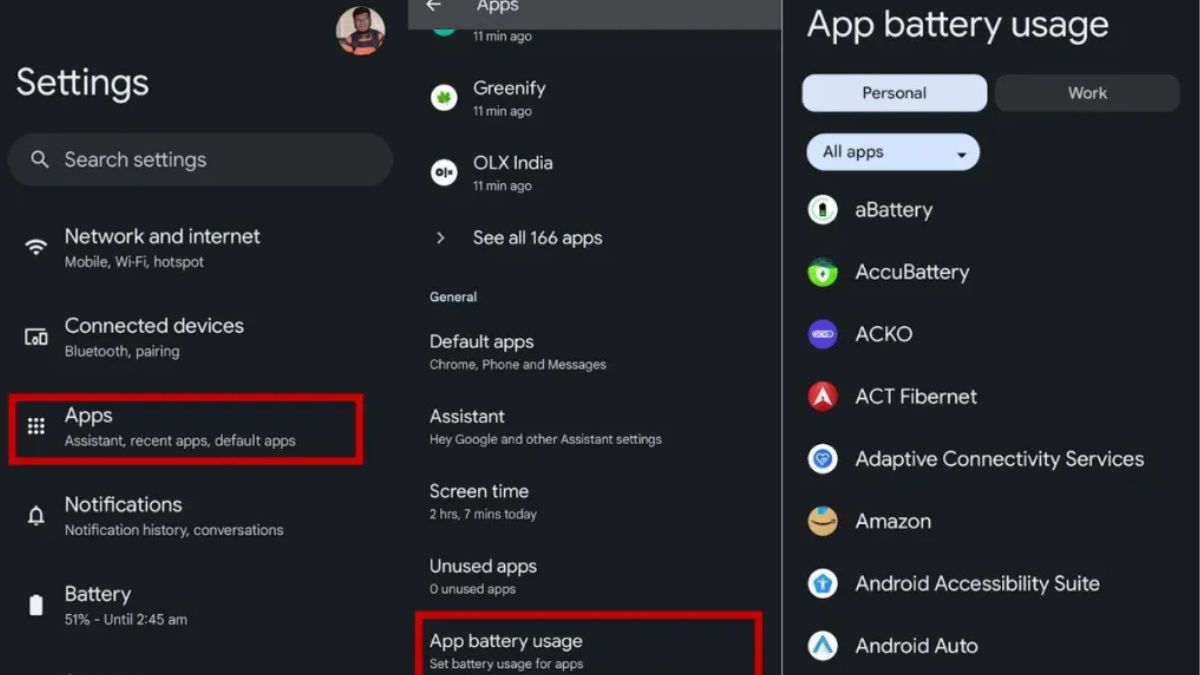
You barely used your phone. Maybe checked email twice. Scrolled social media for 10 minutes. So where did all the power go.
Background apps. They’re running constantly even when you’re not using them. Draining your battery while your phone sits in your pocket.
5. Find Hidden Apps Spying on You
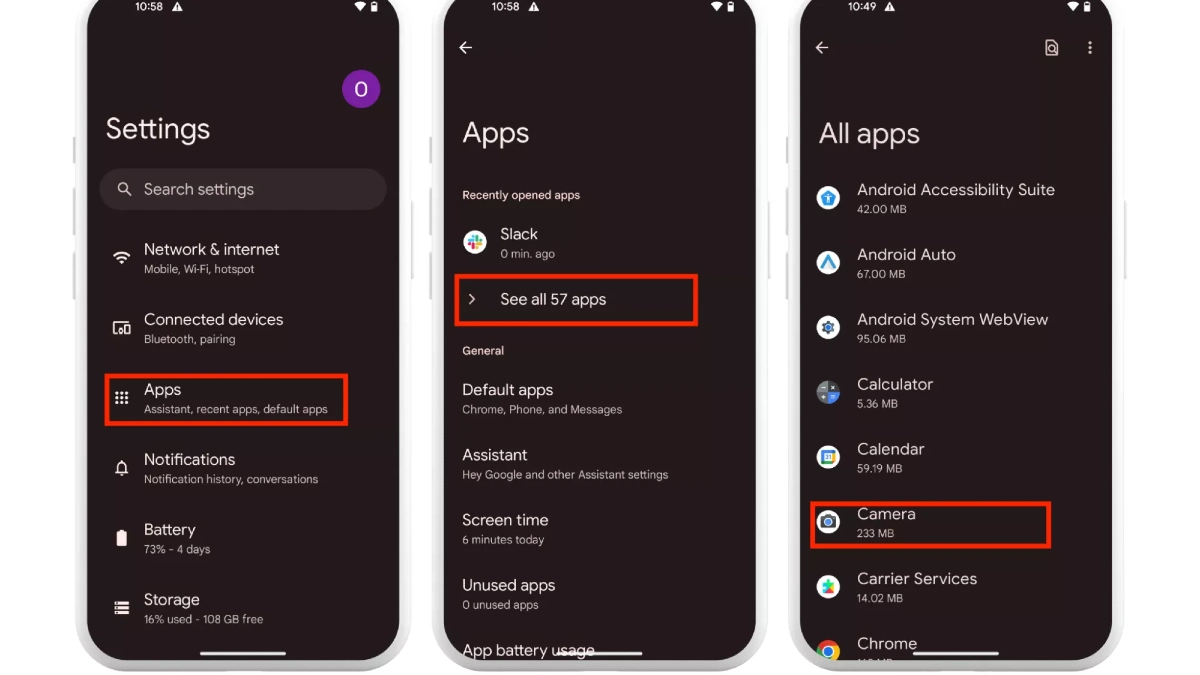
Some app is using your camera right now. Or your microphone. Or tracking your location. Apps ask for permissions when you install them. You tap Allow without reading. Now they can access your private data whenever they want. Even when you’re not using them.
6. Force Any App into Split-Screen Mode
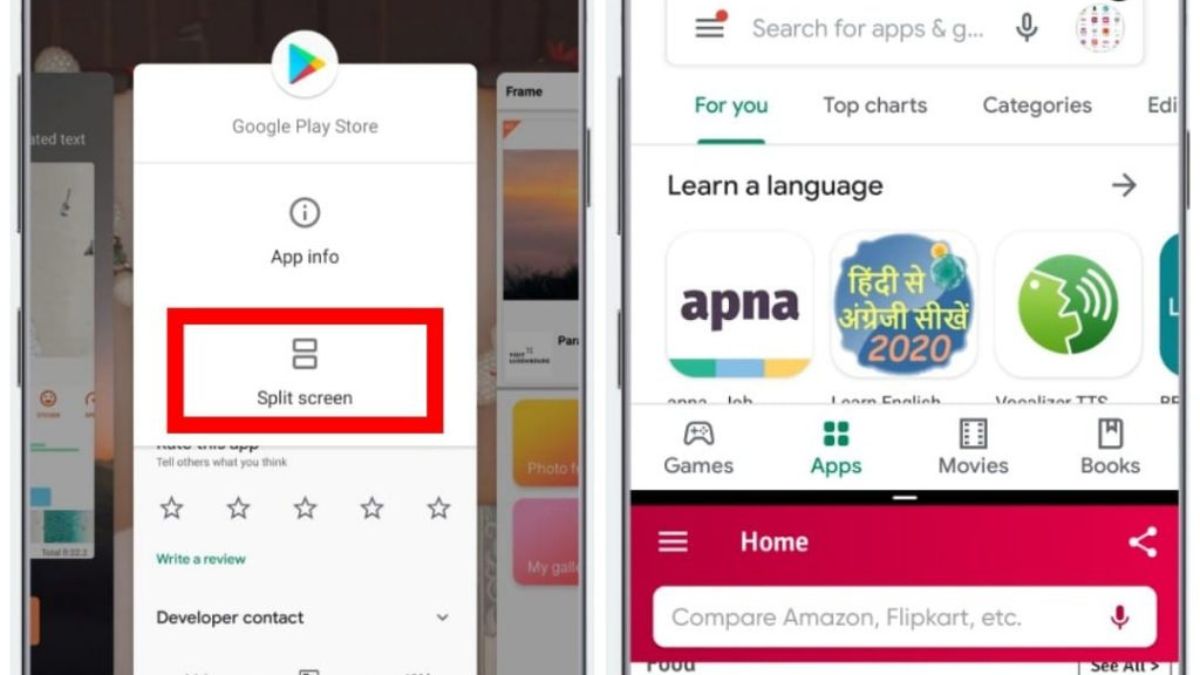
Check your email at your calendar. But when you try to use split screen, some apps refuse to cooperate. The app takes over your whole screen. You can’t put anything else beside it. The developer decided you’re not allowed to multitask with their app.
7. Make Your Phone Run Smoother with Force GPU
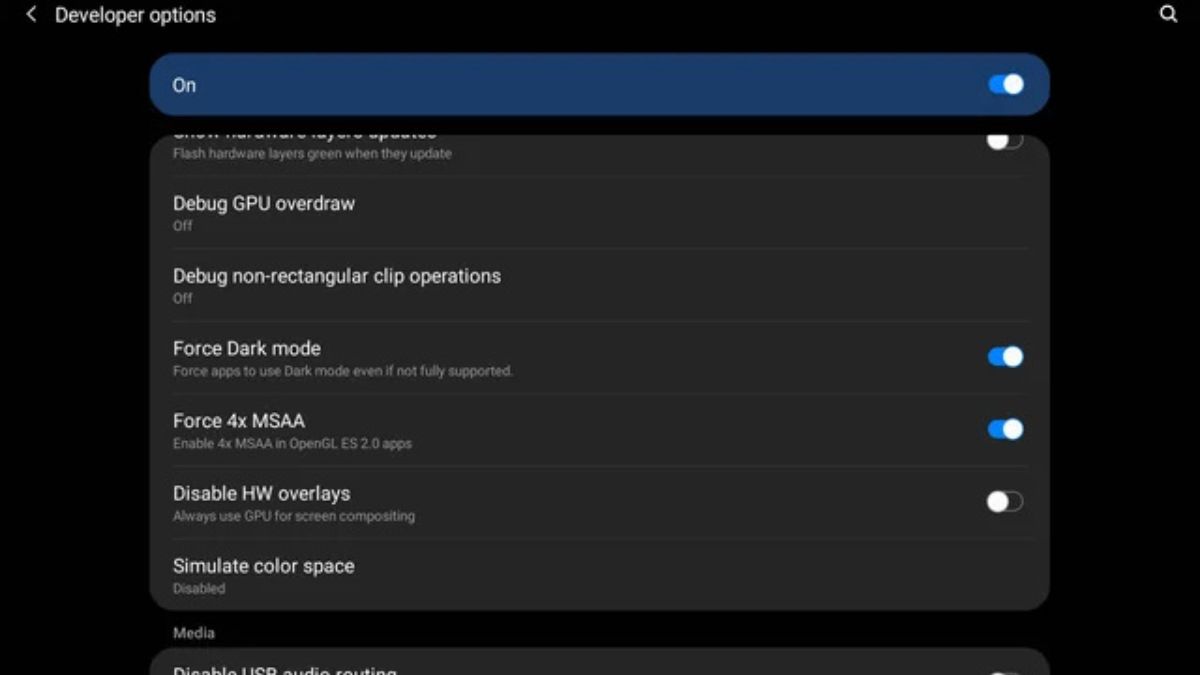
Graphics look choppy. Scrolling through photo heavy apps feels laggy. Your phone has a powerful graphics chip inside, but it’s not using it for everything. Android lets your regular processor handle most graphics tasks. That’s fine for basic stuff, but it slows down when you need smooth visuals.
8. Lock Your Phone to One App

Your kid wants to play a game on your phone. You hand it over. Two minutes later, they’re in your photos. Or your messages. Or they’ve somehow opened your banking app.
You need a way to lock your phone to just one app. So people can use what you allow and nothing else.
9. Change What Happens When You Plug In USB (Phone Companies Hate This)
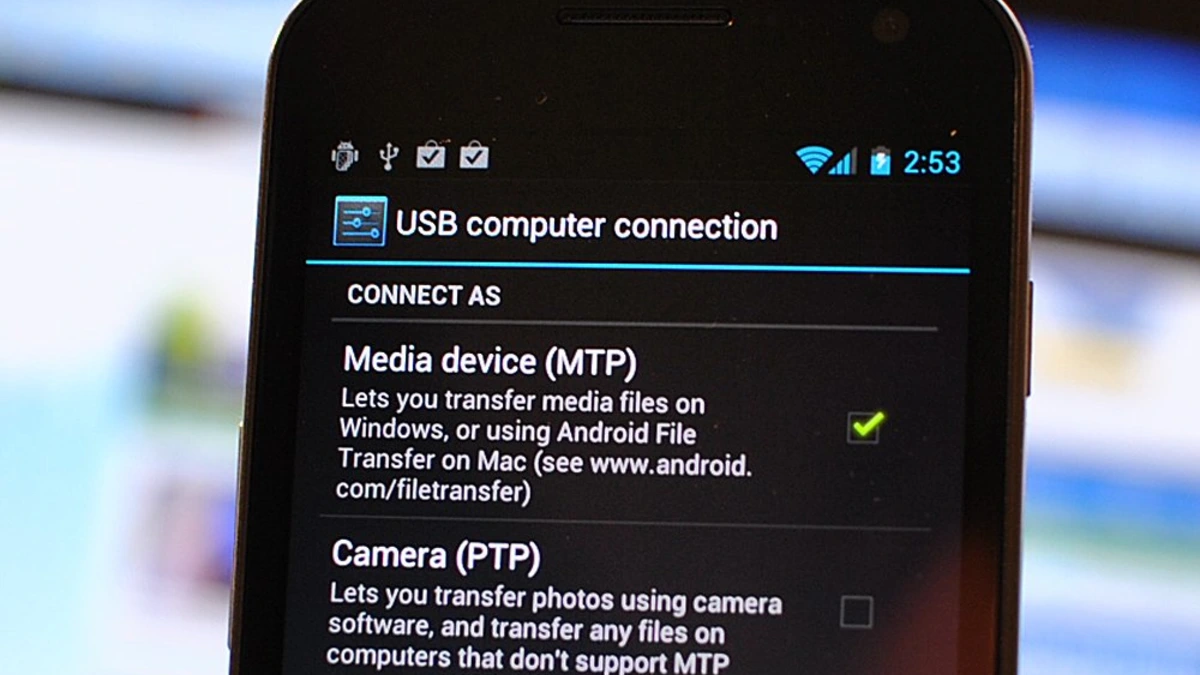
You plug your phone into your computer. A notification pops up asking what you want to do. You always pick the same option. Your phone should just know what you want by now.
10. See Which Apps Wake Your Phone
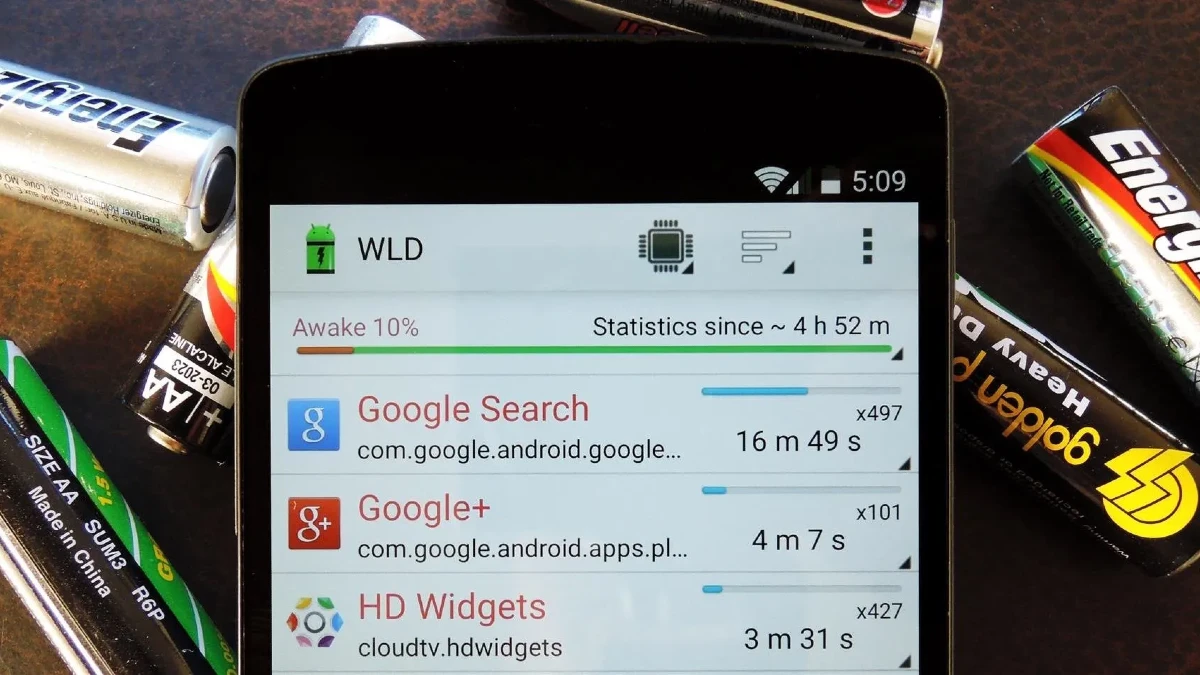
You charged your phone to 100% before bed. You wake up and it’s at 60%. You barely touched it. 40% of your battery overnight. Some app kept your phone awake all night. It prevented your phone from going into deep sleep mode. Your screen was off, but your phone was working hard doing something you didn’t ask it to do.
11. Use One-Handed Mode on Big Phones

Your phone is huge. You’re holding it with one hand while carrying groceries. You need to tap something at the top of the screen. Your thumb can’t reach. You either drop a bag or use two hands.
Modern phones keep getting bigger. A 6.5 inch screen looks great for videos. But it’s impossible to use with one hand. The top half of your screen might as well not exist when you’re holding your phone normally.
12. Hide Sensitive Apps in Private Space
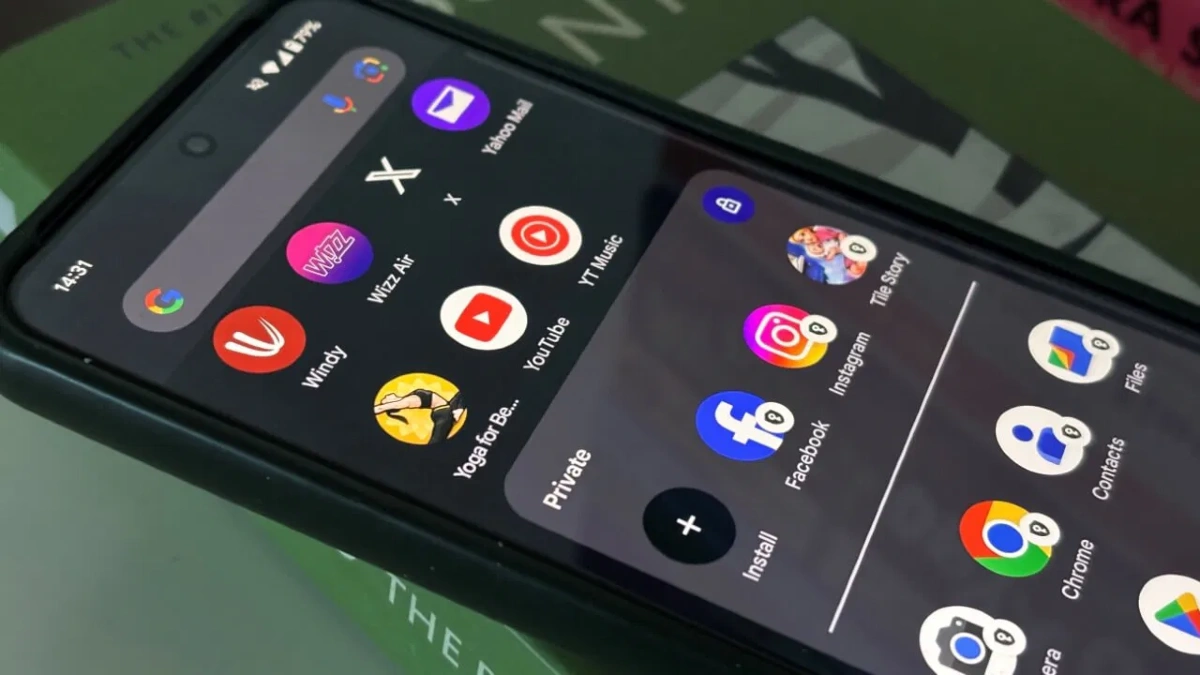
Someone borrows your phone to make a call. They open your app drawer. Your banking apps are right there. Your medical apps. Your dating apps. Everything personal is visible to anyone who looks.
13. Enable Dark Mode for Every App
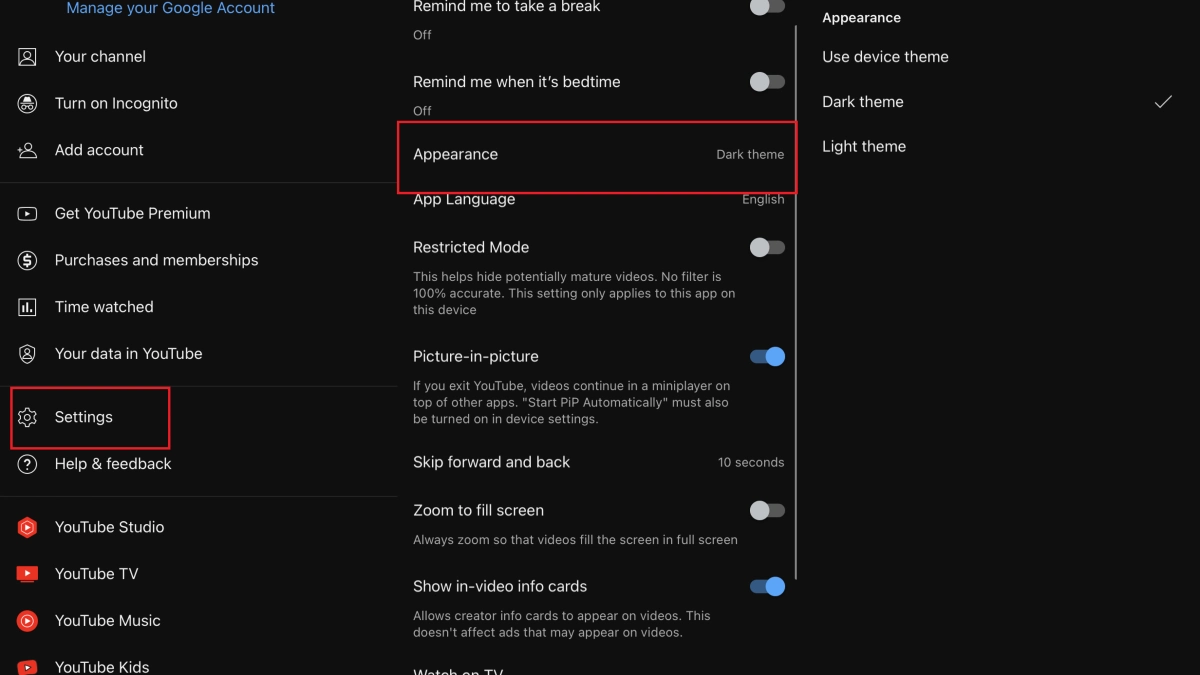
You enabled dark mode on your phone. Most of your apps look great with dark backgrounds. But some apps still blind you with bright white screens at night. These apps never added dark mode support. The developers don’t care or haven’t gotten around to it. So you’re stuck with a blazing white screen burning your retinas.
14. Record Your Screen with Hidden Shortcuts
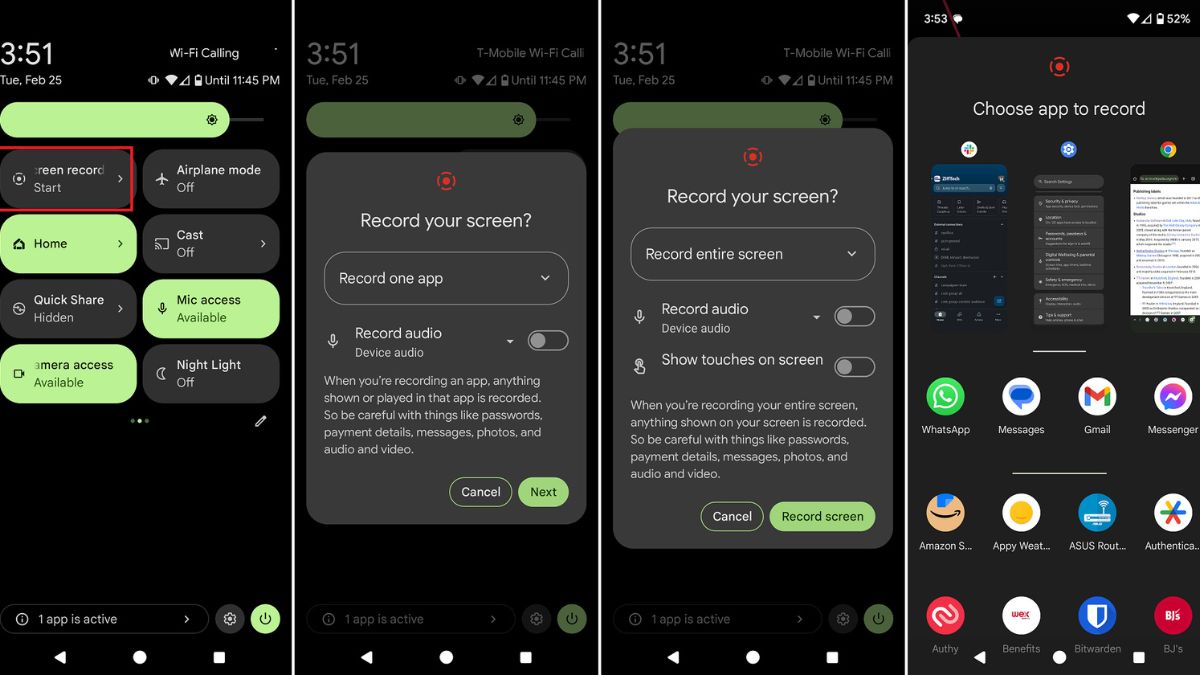
You want to show someone how to do something on your phone. Or record app. But you don’t know how to record your screen without downloading sketchy third party apps.
Android has screen recording built in. You just need to add it to your Quick Settings where you can actually find it.
15. Stop Phone from Auto-Restarting Apps
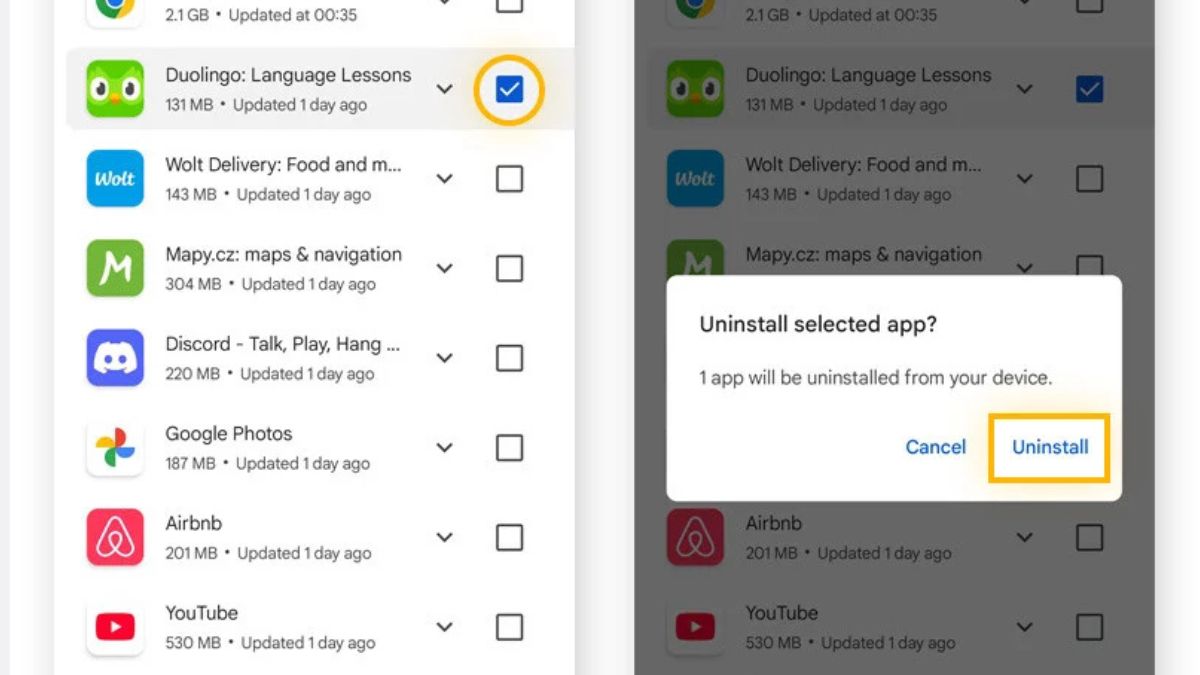
You’re using Chrome. You switch to Messages to reply to someone. You go back to Chrome. The page reloads from scratch. You lost your place. Your half written comment disappeared.
Android tries to keep apps running in the background. But when your phone runs low on RAM it kills background apps to make room. Then when you switch back, the app has to restart completely.
16. Enable Live Captions for Everything
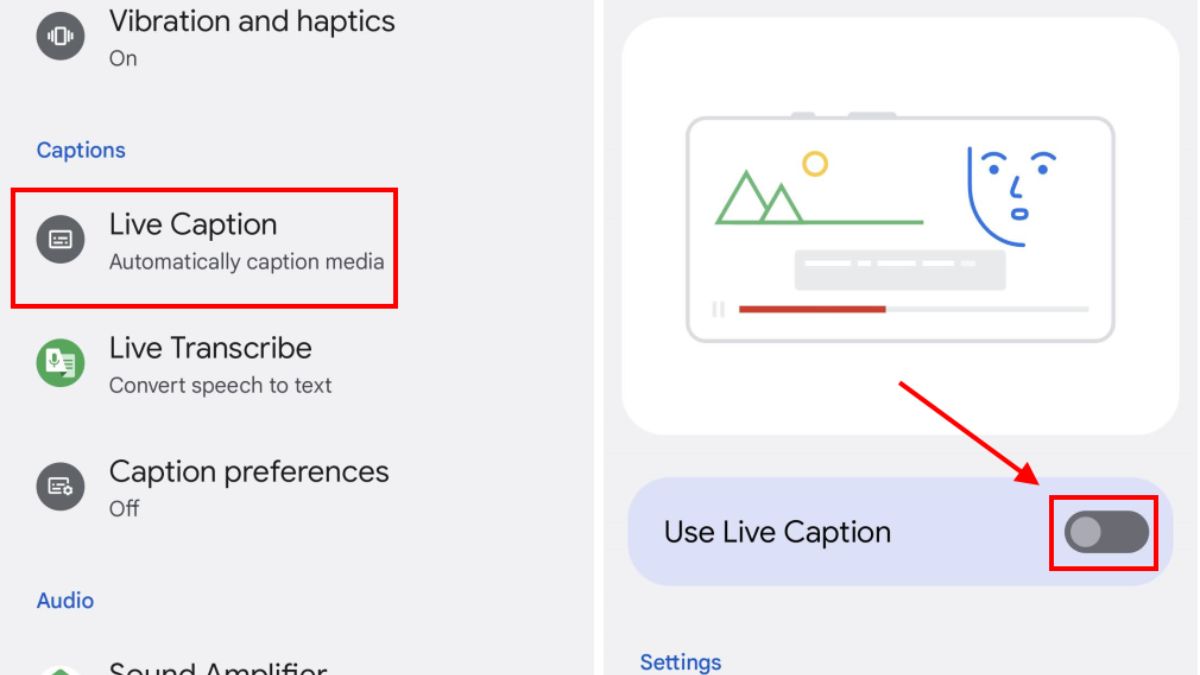
You forgot your headphones. You can’t turn on the sound because everyone around you will hear it. But the video doesn’t have captions. Or you’re in a noisy coffee shop trying to watch something.
Android can anything playing on your phone in real time. Any video. Any podcast. Even phone calls.
17. Create Shortcuts to Any Hidden Setting
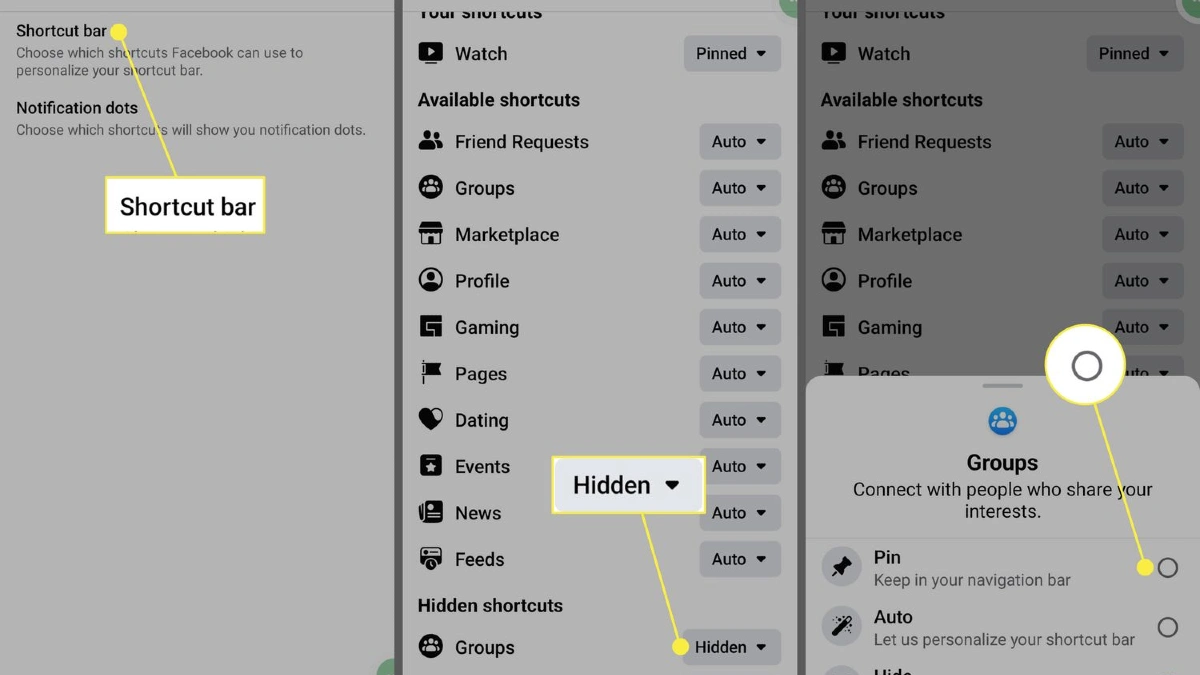
You need to check your notification history. You open Settings. Tap Notifications. Tap Notification history. Three steps every single time. Or toggle Developer Options. Open Settings. Tap System. Tap Developer Options. Scroll to find what you need.
All these hidden settings you just learned about. They’re buried deep in menus. You’ll forget where half of them are by tomorrow.
18. See CPU and Memory Usage Live
Your phone gets hot for no reason. Apps slow down randomly. Something is working hard in the background. Phone’s processor and memory at any moment. A small overlay shows you time stats you use your phone normally.
19. Stop Apps from Using Data in Background
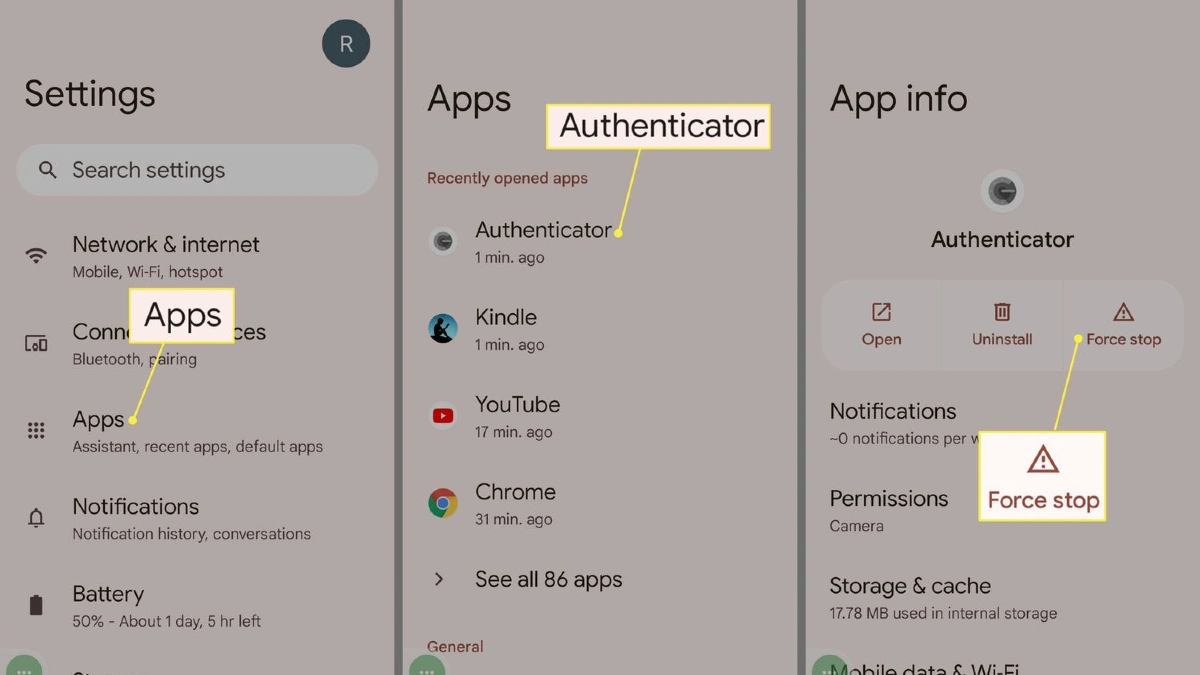
Your phone bill you went over your data. You barely used your phone this month. Maybe watched a few videos on WiFi. So where did 5GB of mobile data go.
Apps are using data when you’re not even looking at them. They’re downloading updates, syncing files, preloading content, all while sitting in your pocket.
20. Enable Theft Protection Features
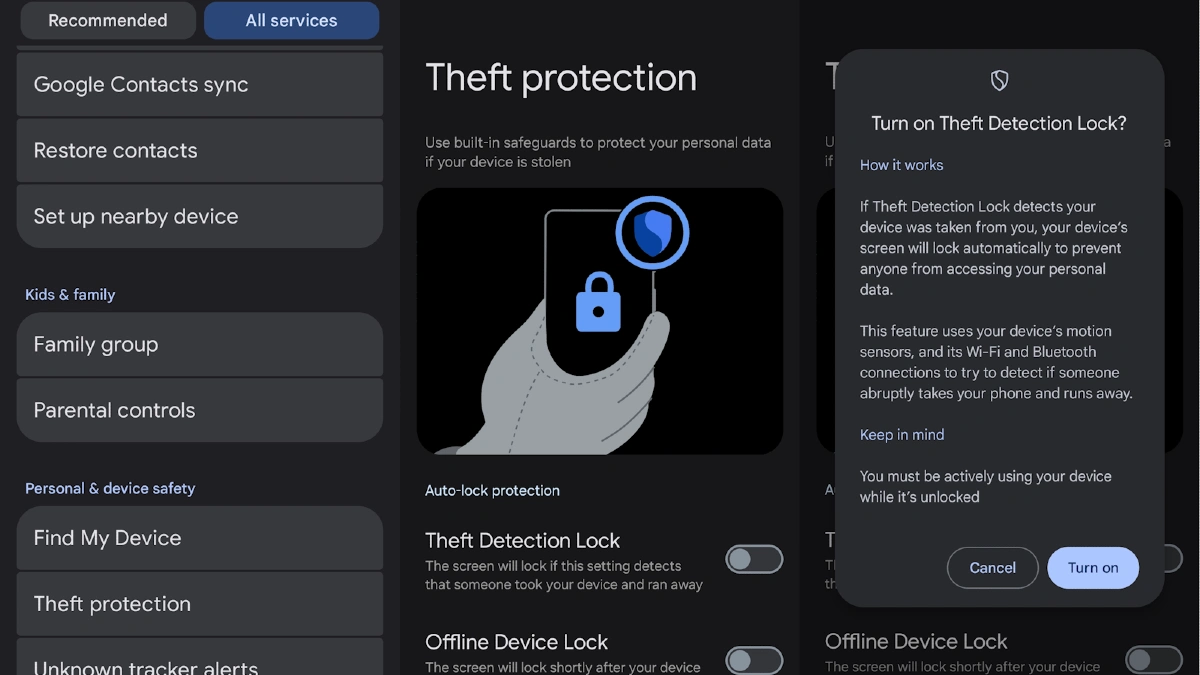
Someone grabs your phone from your hand and runs. By the time you realize what happened, they’re gone. Your unlocked phone with all your photos, messages, banking apps, and personal data is in a thief’s hands.
Android has theft protection that locks your phone the instant it detects someone snatching it. But it’s turned off by default.
21. Make Phone Stay Awake While Charging

You’re using your phone as a kitchen timer cooking. It’s plugged in on the counter. The screen keeps turning off every 30 seconds. You have to keep tapping it to the time.
Your phone can stay awake forever when it’s charging. No more screen timeouts. No more constant tapping.
