
Walk into an Apple Store with a battery complaint, and the Genius Bar staff will often perform a silent ritual on your phone. They quietly toggle off specific switches you didn’t even know existed. They hand the device back, and suddenly, your battery lasts all day.
The default settings prioritize flashy features and data collection over your battery health. Apple turns almost everything “on” to impress you, but that convenience comes at a cost. Your phone ends up working harder than it needs to, draining power and sharing your location even when you aren’t looking.
These exact hidden iPhone settings for 2025 that employees use on their own devices to optimize iPhone performance for the long haul. By changing these secret Apple settings, you will stop the drain and get a faster, more private phone.
#1. Stop “Wi-Fi Assist” From Burning Power
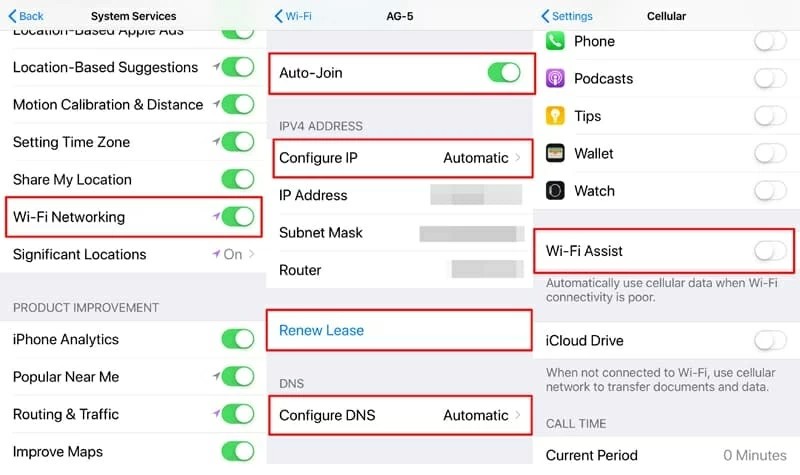
This is the sneakiest setting on your iPhone. Apple hides it at the very bottom of a long menu. Wi-Fi Assist is supposed to help you. If your Wi-Fi signal gets weak, your phone automatically switches to cellular data. That sounds good, but it is a disaster for your battery.
When this is on, your phone is constantly testing the Wi-Fi speed. It is always asking, “Is this fast enough? Should I switch?” That constant checking burns through power. It also eats up your monthly data plan without you noticing.
- Go to Settings > Cellular.
- Scroll all the way to the very bottom (past all your apps).
- Turn off Wi-Fi Assist.
#2. The Smart Way to Handle Background App Refresh
Apps like Instagram and Facebook are greedy. They want to be ready the second you open them. So, they keep refreshing their content in the background even when your phone is in your pocket. If you have 50 apps doing this, your processor never sleeps.
You might read advice saying, “Turn it off completely.” That is bad advice. If you turn it off completely, your email won’t update, and Google Photos won’t back up your pictures automatically. You need a middle ground.
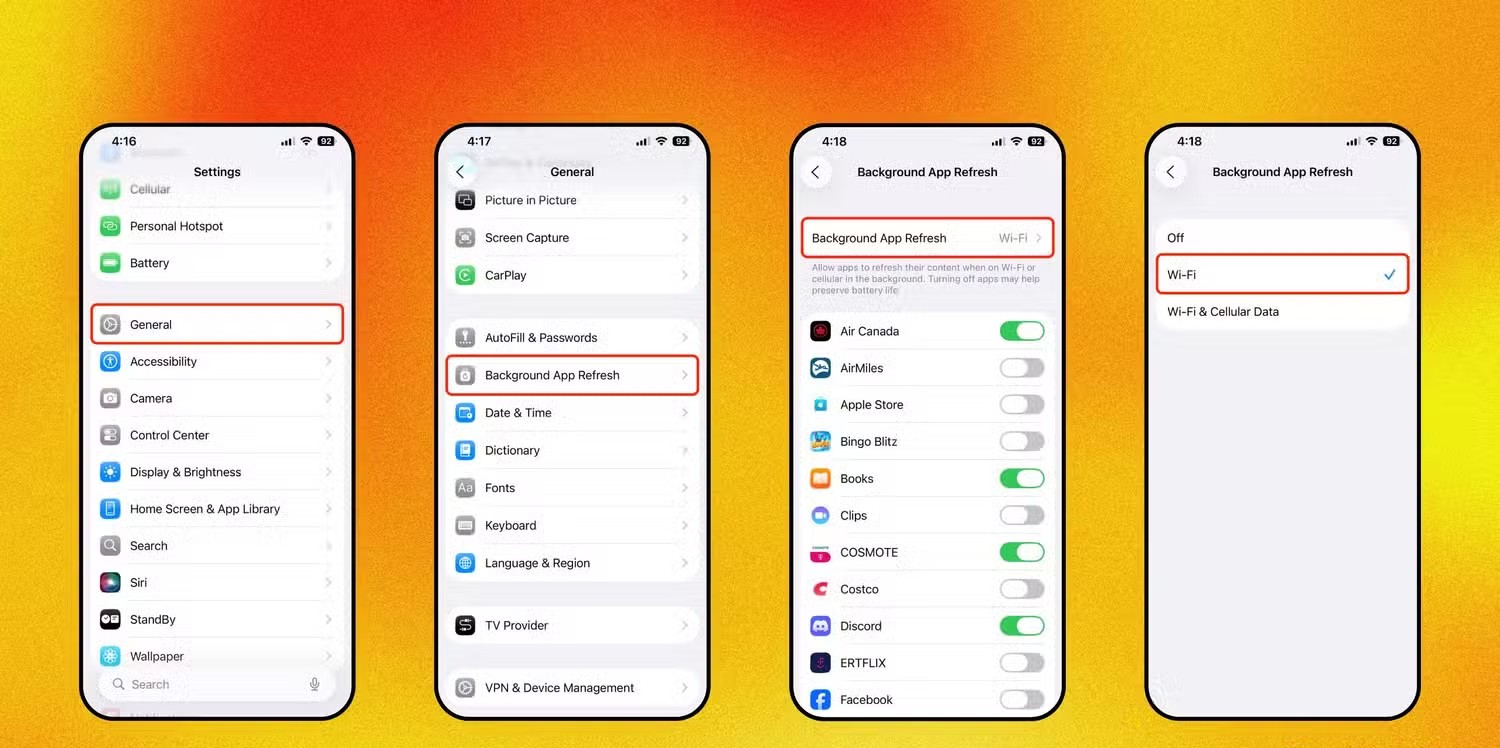
- Go to Settings > General > Background App Refresh.
- Tap the top menu and select Wi-Fi and Cellular Data. Change this to Wi-Fi Only. This prevents apps from draining battery when you are out and about.
- Go back one screen. Look at the list of apps.
- Turn off the switch for apps that don’t need to be instant. You don’t need Uber, Amazon, or TikTok updating in the background. Keep it on for things like Email or Weather.
#3. Switch 5G From “On” to “Auto”
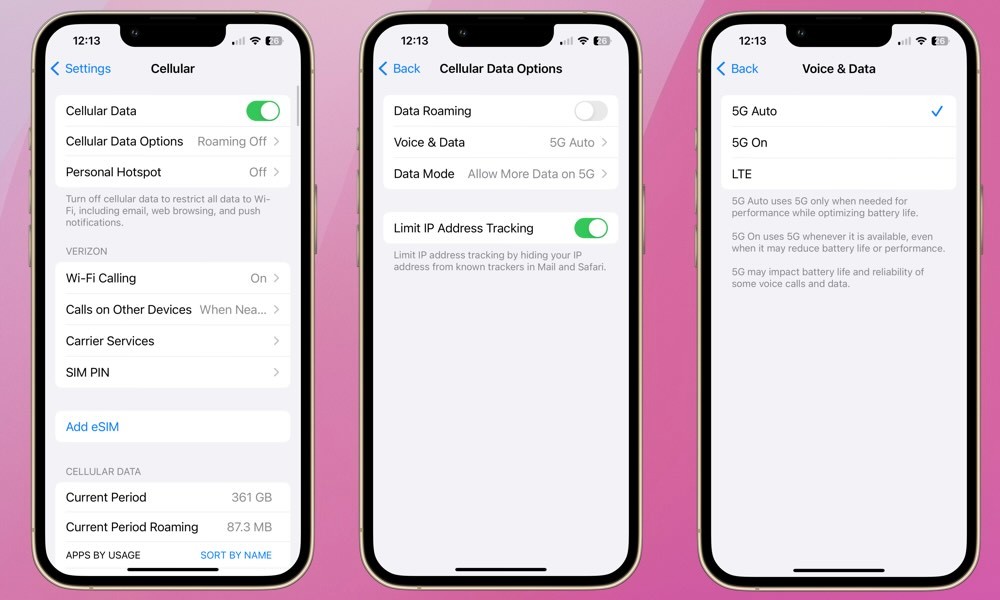
5G is fast, but it is a massive battery hog. There are two main settings: “5G On” and “5G Auto.” “5G On” forces your phone to use 5G whenever it is available. It does this even if you are just sending a text message or checking the time. It is wasteful.
Tests and data show that forcing a constant 5G connection can drain your battery roughly 20% faster than using 4G or the Auto setting. The modem has to work much harder to maintain that high-speed signal.
- Go to Settings > Cellular > Cellular Data Options.
- Tap Voice & Data.
- Select 5G Auto.
#4. Use the “Dark Pixel” Trick
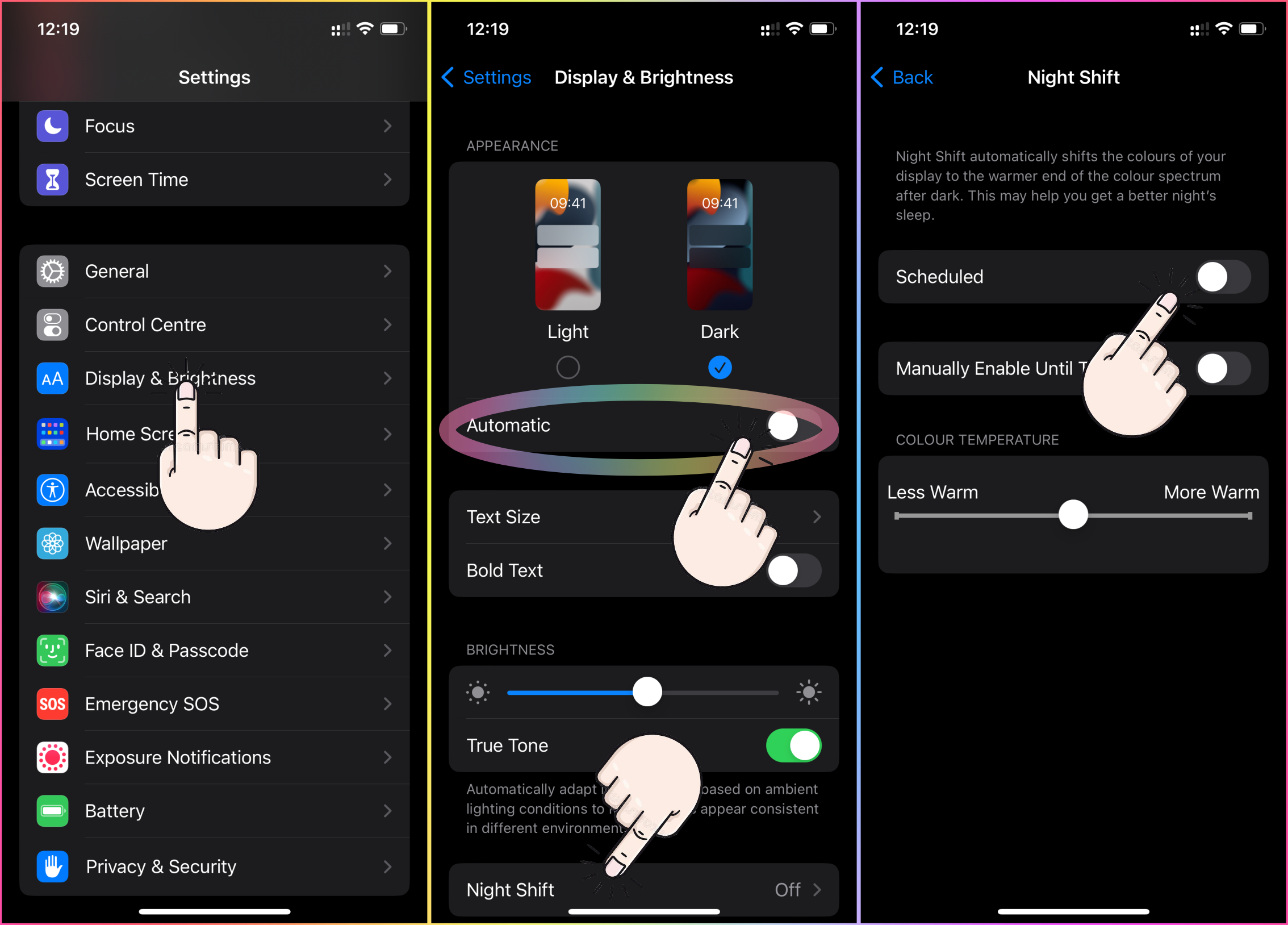
If you have an iPhone X or newer (excluding SE models), you likely have an OLED screen. This screen technology is special. On an old LCD screen, the phone uses a big backlight to show images. Even if the screen is black, that light is on.
On an OLED screen, every single pixel provides its own light. To show the color black, the pixel simply turns off. It uses zero power. This means a white background uses the maximum amount of battery. A black background uses the minimum.
- Go to Settings > Display & Brightness.
- Select Dark.
- For maximum effect, choose a wallpaper that is mostly black. The more black on your screen, the less work your battery has to do.
#5. Clear Your “Significant Locations” History
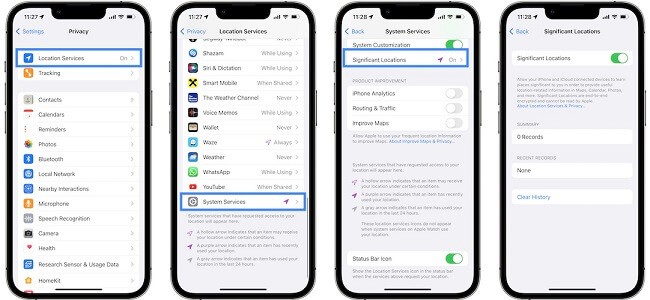
Your iPhone keeps a detailed log of everywhere you go. It knows where you live, where you work, and where you grab coffee. It tracks how often you visit these places and exactly when you arrived and left.
Apple says this data stays on your device to help with Maps and Photo Memories. That is true. But if someone ever guesses your passcode or forces you to unlock your phone, they have a complete map of your daily movements.
- Go to Settings > Privacy & Security.
- Tap Location Services.
- Scroll all the way down and tap System Services.
- Scroll down again to find Significant Locations. You will need FaceID or your passcode to enter.
- Look at the “Summary.” You might see hundreds of records.
- Turn the switch Off.
- Tap Clear History to erase the old data.
#6. Stop Being a Free Beta Tester
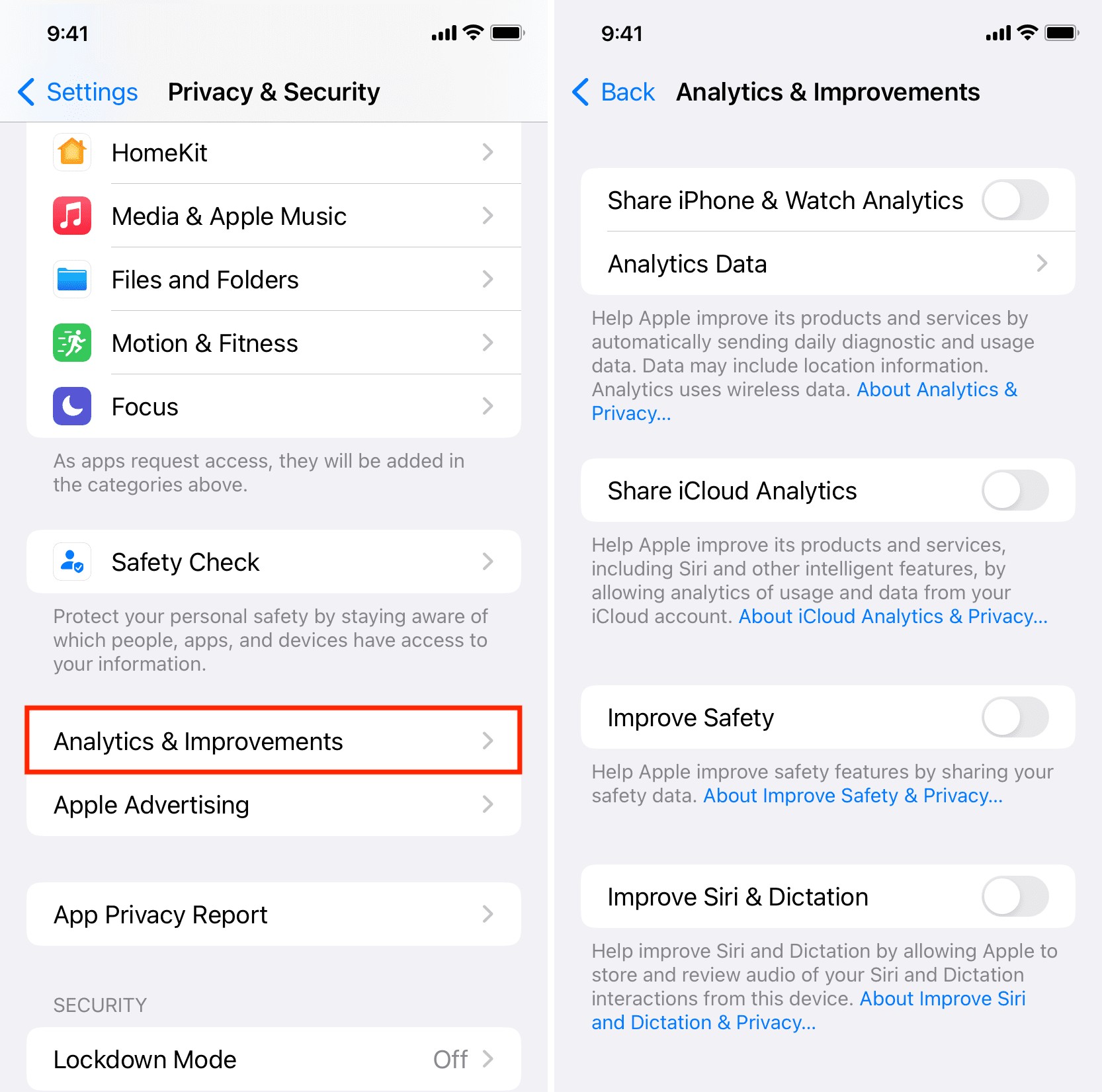
This setting sends daily reports to Apple about how your phone behaves. If an app crashes or the battery runs out, your phone bundles that data and uploads it to Apple.
While this helps Apple engineers fix bugs, you are essentially working for them for free. This process uses your battery life and your data plan. It also means your device is constantly logging your activity.
- Go to Settings > Privacy & Security.
- Scroll down to Analytics & Improvements.
- Turn off Share iPhone Analytics.
- Also turn off Improve Siri & Dictation if you don’t want Apple employees reviewing random snippets of your voice commands.
#7. Stop Safari From Pre-Loading Sites
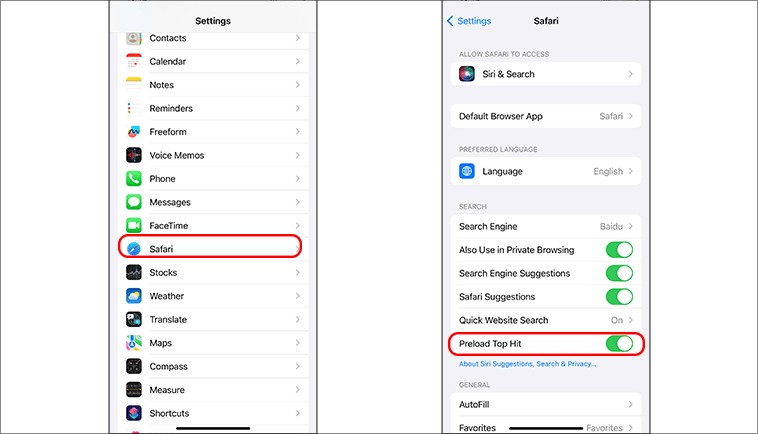
Safari attempts to be helpful by suggesting what you are likely to search for. If you type “Wiki,” Safari assumes you want Wikipedia. To make it feel instant, it loads the Wikipedia homepage in the background before you even tap “Go.” This is called “Preload Top Hit.”
The problem is that you might not actually click that result. But because your phone pre-loaded it, that website now has your IP address. You also used data to download a page you never looked at. It wastes data and exposes your digital footprint to sites you didn’t intend to visit.
- Go to Settings > Safari.
- Scroll down to the “Search” section.
- Turn off Preload Top Hit.
#8. Block Email Spies with Mail Privacy Protection
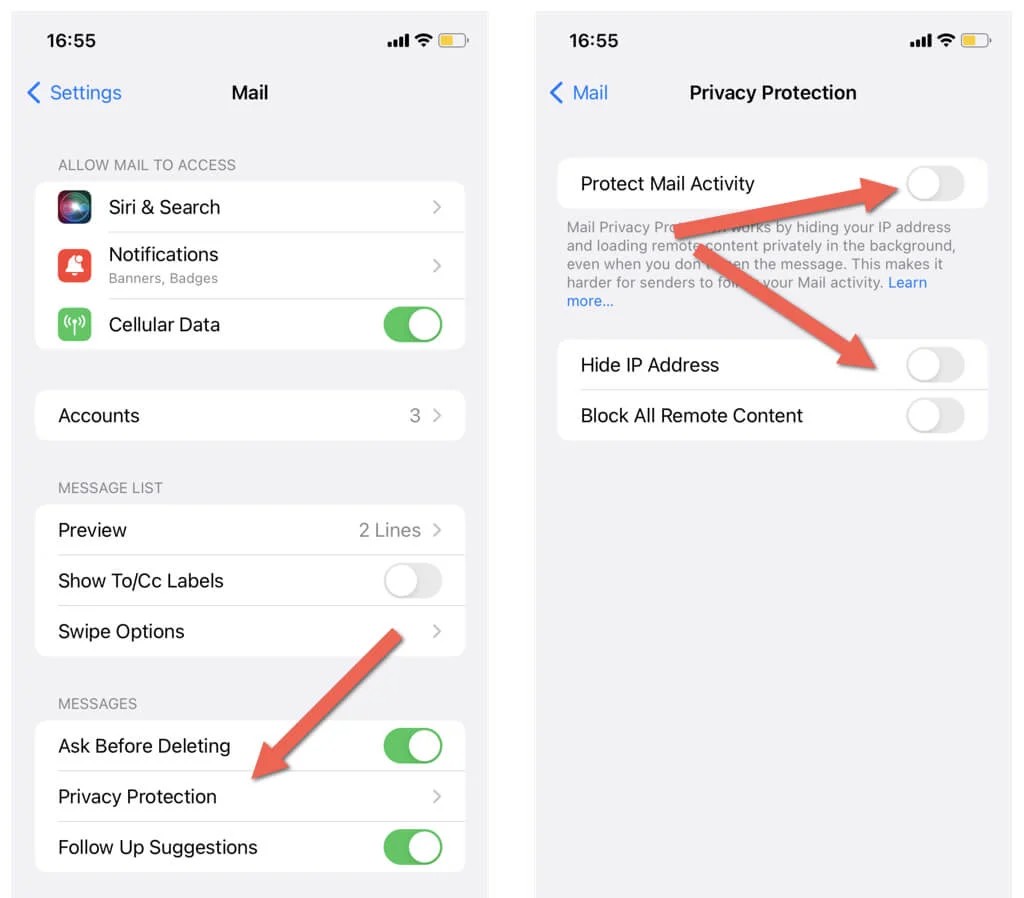
Marketing emails often contain tiny, invisible images. When you open the email, that image loads. This tells the sender two things: exactly when you opened the message and your rough location based on your IP address.
It is creepy, but Apple has a tool to stop it. This feature hides your IP address and loads remote content privately in the background, so senders can’t see what you are doing.
- Go to Settings > Mail.
- Tap Privacy Protection.
- Turn on Protect Mail Activity.
#9. Turn Off Animations with “Reduce Motion”
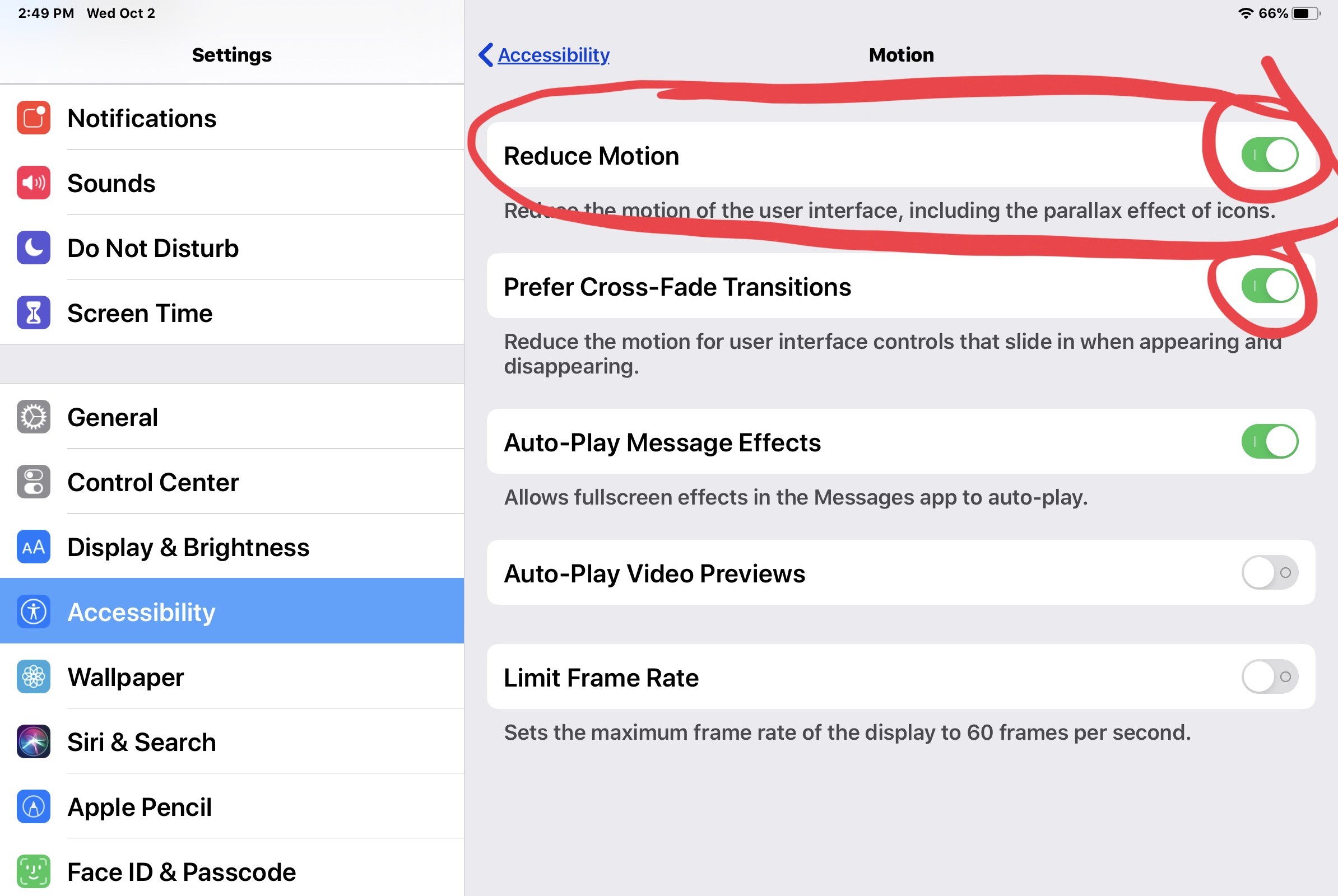
When you open an app, iOS zooms the window open. When you close it, it zooms back down. This animation takes about half a second. That adds up if you open your phone 50 times a day.
“Reduce Motion” replaces the zoom with a simple fade. It is much faster and puts less strain on the graphics processor.
- Go to Settings > Accessibility.
- Tap Motion.
- Turn on Reduce Motion.
- Your phone will now feel snappy and direct.
#10. Type Better with Haptic Feedback
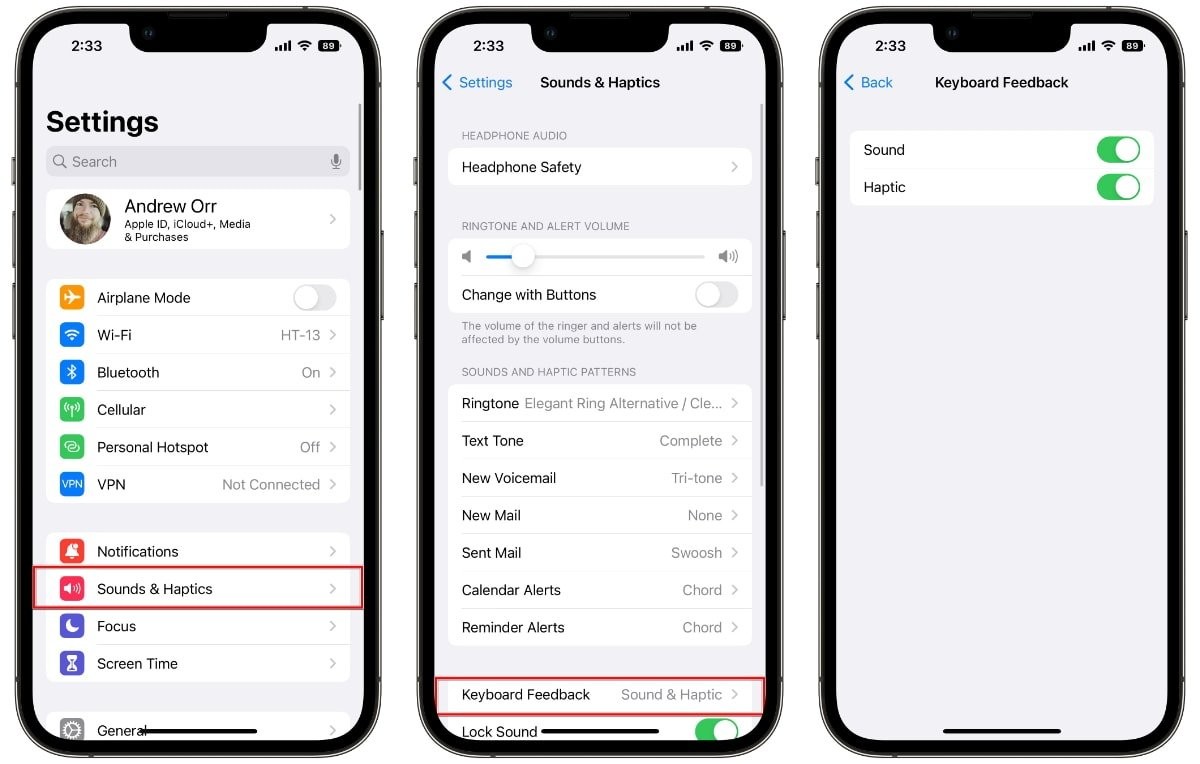
Typing on a glass screen is hard because you can’t feel the keys. You often miss letters because your brain is waiting for physical confirmation that you pressed the button.
Apple added a feature that makes the phone vibrate slightly with every keystroke. It mimics the feel of a real keyboard. By default, this is turned off to save a tiny amount of battery. But the boost in typing accuracy is worth it.
- Go to Settings > Sounds & Haptics.
- Tap Keyboard Feedback.
- Turn on Haptic.
#11. Activate the Secret “Back Tap” Button
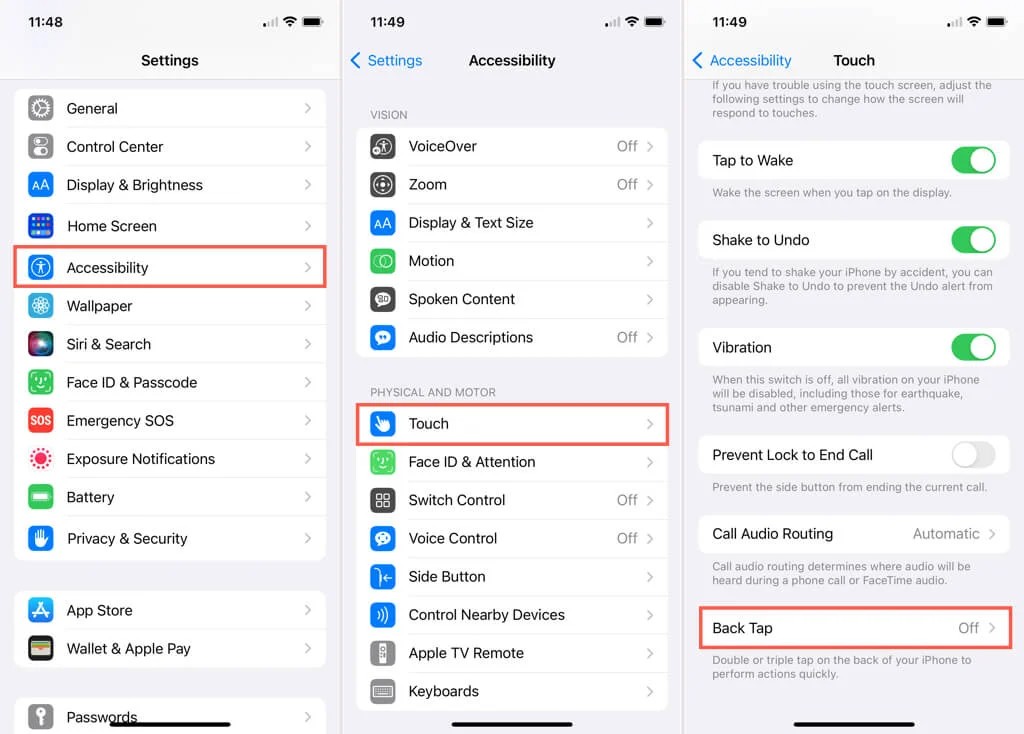
There is a hidden button on your phone that you can’t see. It’s the Apple logo on the back of your device. Sensors inside the phone can detect when you tap the back of the case.
You can program this to do almost anything. Retail employees often use this to quickly bring up tools without digging through menus.
- Go to Settings > Accessibility > Touch.
- Scroll to the bottom and tap Back Tap.
- Set Double Tap to something useful like Screenshot or Camera.
- Set Triple Tap to Flashlight. Now you can turn on your light without even looking at the screen.
#12. Automate Typing with Text Replacement
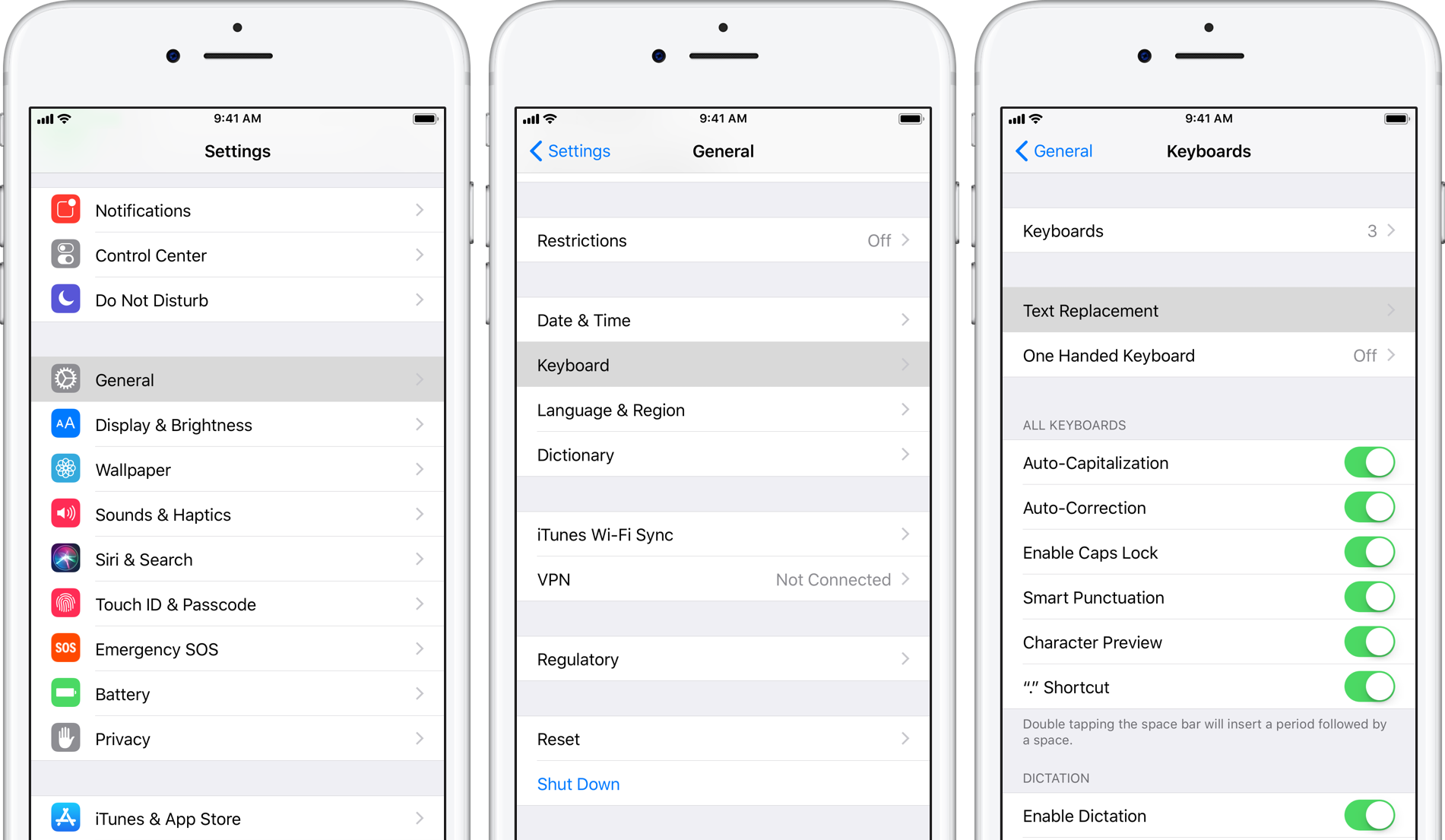
You type the same things every day. Your email address, your home address, and your phone number. Stop typing them out completely. You can teach your iPhone to recognize short codes and replace them with long phrases.
- Go to Settings > General > Keyboard > Text Replacement.
- Tap the + sign.
- Phrase: Enter your email address (e.g., john.doe@gmail.com).
- Shortcut: Enter “@@”.
- Now, whenever you type “@@”, your email appears instantly.
- Try these others:
- Set “ph#” to your phone number.
- Set “addr” to your full home address.
#13. Tune Your AirPods with Headphone Accommodations
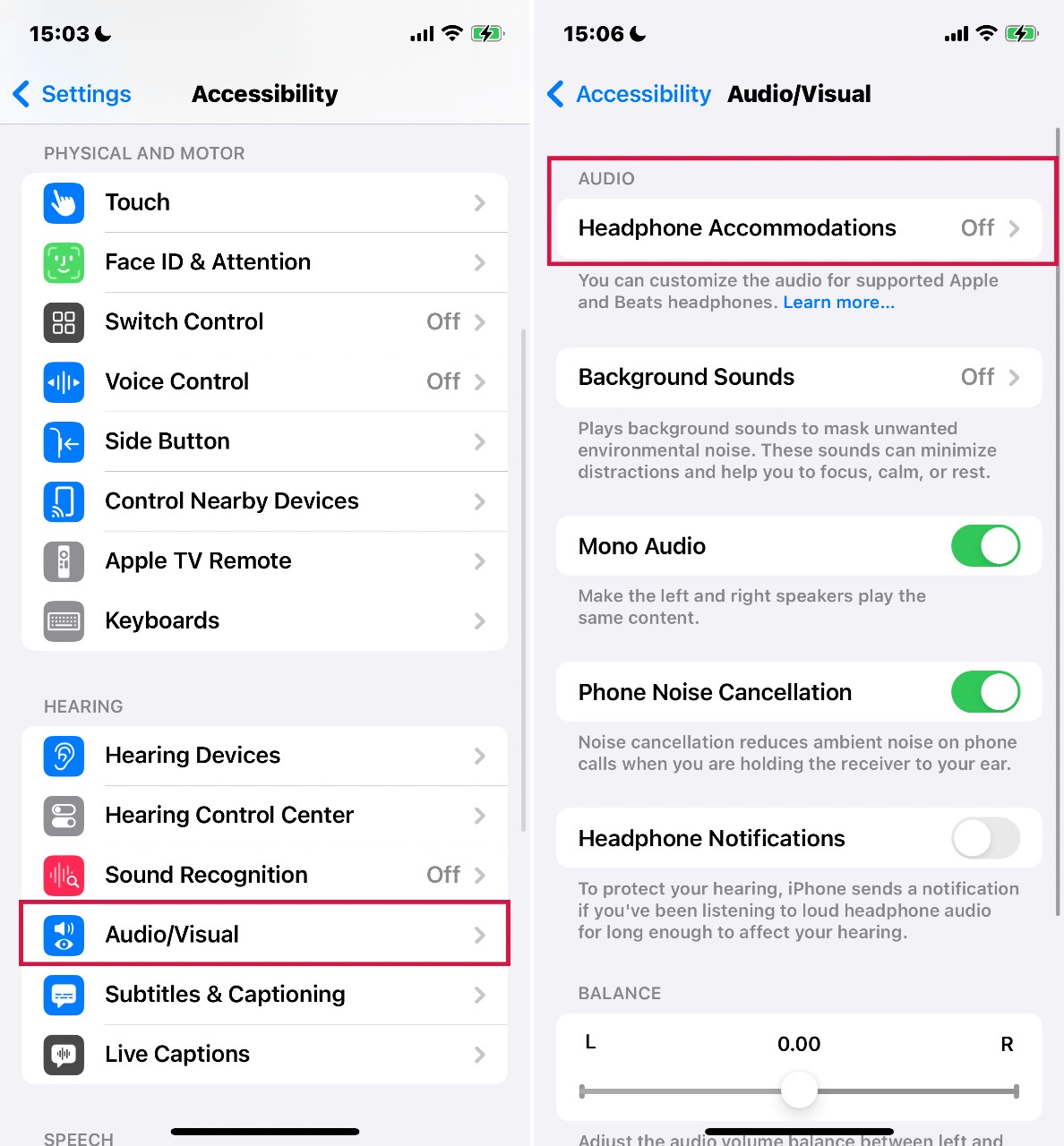
Most people think AirPods sound the way they sound, and you can’t change it. That is wrong. There is a hidden equalizer called “Headphone Accommodations.” It allows you to boost vocal frequencies. This makes phone calls and podcasts sound much crisper. It works with AirPods and Beats headphones.
- Put your headphones in.
- Go to Settings > Accessibility > Audio & Visual.
- Tap Headphone Accommodations and turn it on.
- Choose Vocal Range for clearer voices, or Brightness for better music details. You can also run a “Custom Audio Setup” to take a quick hearing test.
#14. The Hidden Trackpad Trick
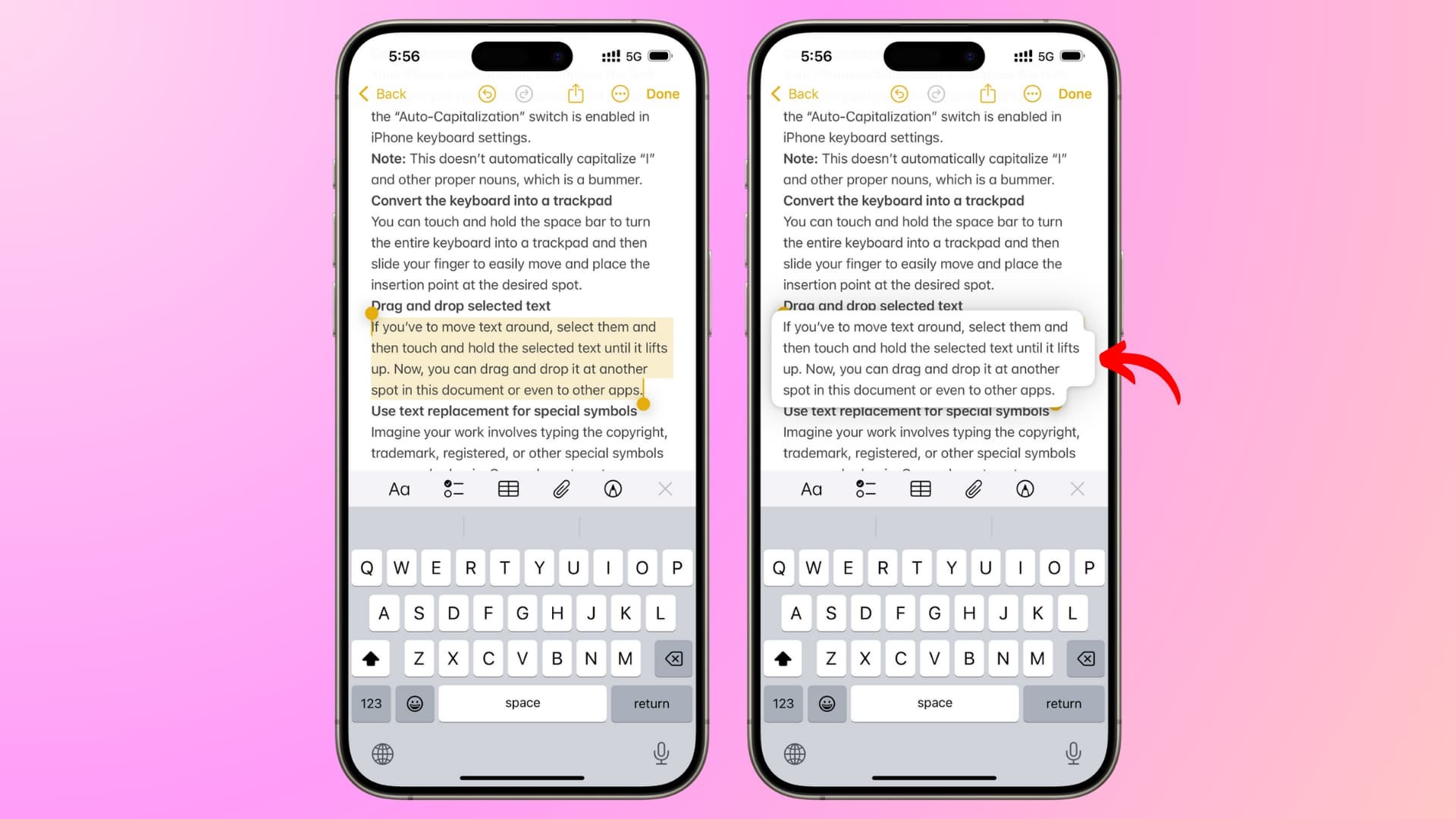
Editing text on an iPhone can be frustrating. You try to tap exactly where you made a typo, but your finger is too big, and you miss the spot. You don’t need to tap the screen. Your keyboard is actually a trackpad, just like on a laptop.
- Open any app where you can type (like Notes or Messages).
- Press and hold the Spacebar.
- Wait for the letters on the keyboard to disappear.
- Keep your finger down and slide it around. You can now move the cursor anywhere you want with perfect precision.
#15. Straighten Your Shots with Grid & Level
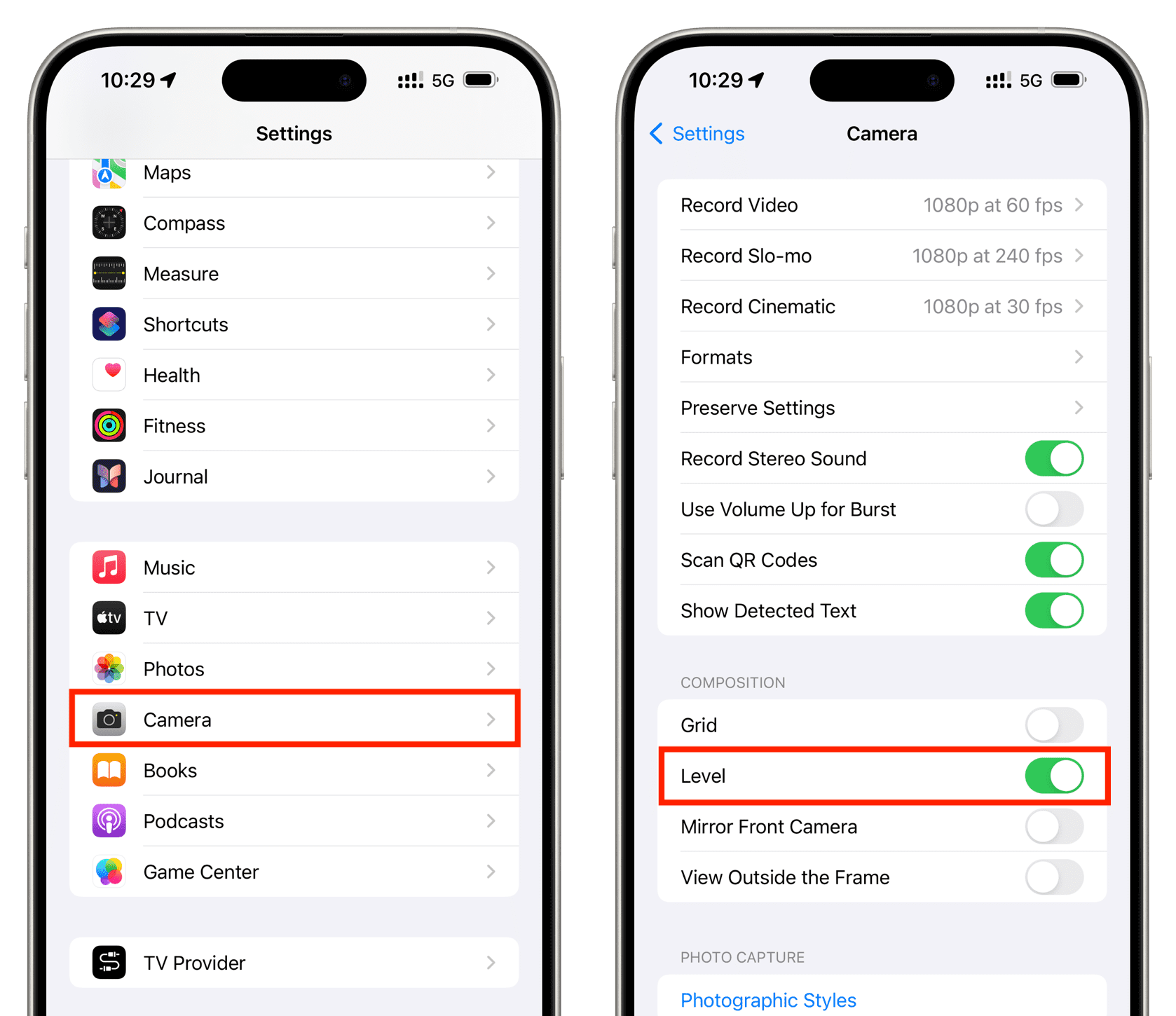
Have you ever taken a photo of a sunset, only to realize later that the horizon is crooked? It ruins the picture. Professional photographers never shoot without a guide. Apple includes these tools, but you have to turn them on manually.
- Go to Settings > Camera.
- Turn on Grid. This divides your screen into nine squares, helping you center your subject.
- Turn on Level. When you hold your phone up to take a picture, a small broken line will appear in the center. When the line connects and turns yellow, your photo is perfectly straight.
#16. Stop Typing Use “Scan Text”
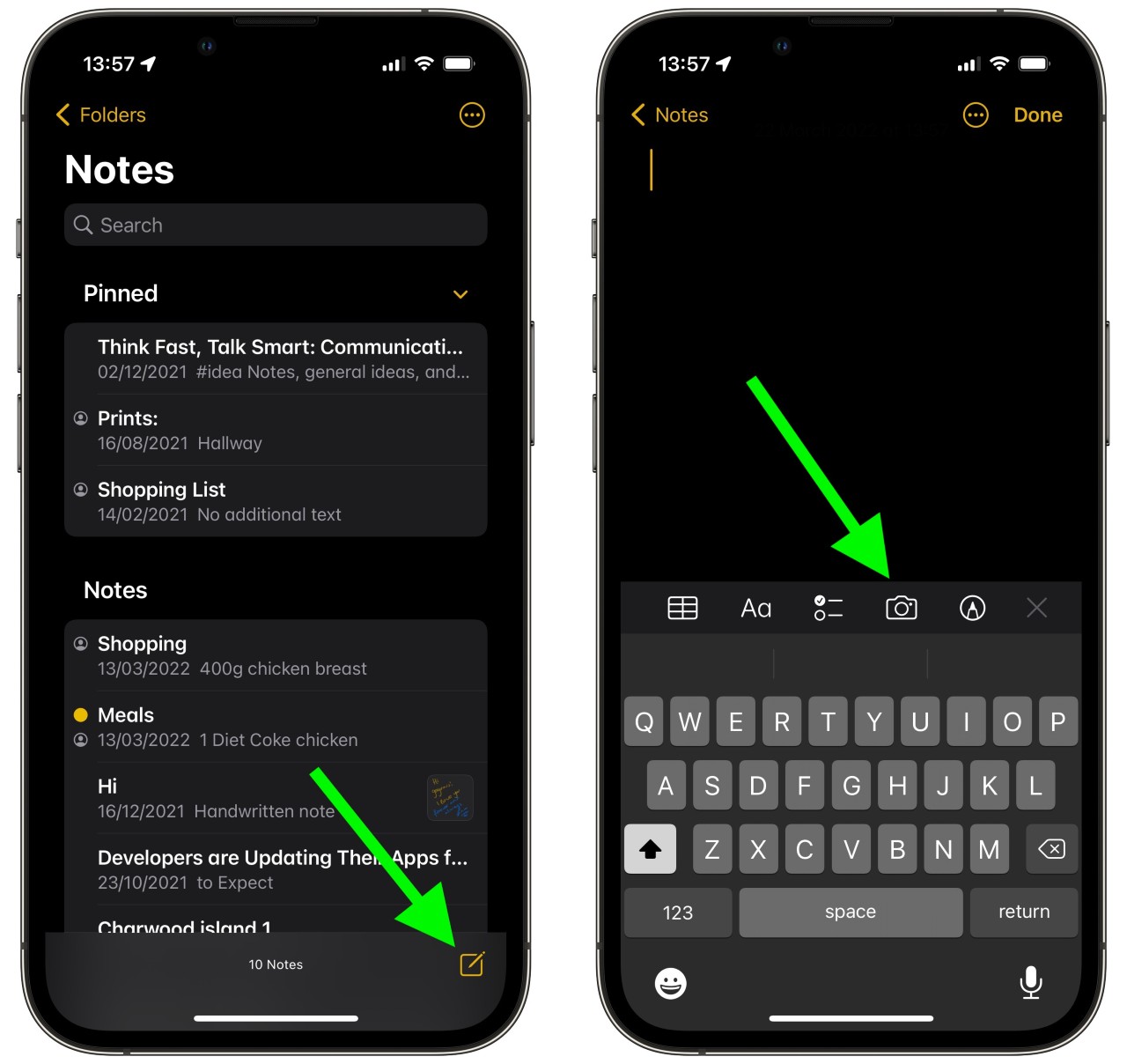
Sometimes you need to save a recipe from a book or copy a tracking number from a shipping label. Typing this manually is slow and leads to mistakes.
Your camera has a built-in scanner that works inside any text field. It converts images to text instantly.
- Open the Notes app (or any app you can type in).
- Tap the screen to bring up the cursor.
- Tap the cursor again to see the pop-up menu.
- Select Autofill or look for the Scan Text icon (it looks like a square with lines in it).
- The camera will open in the bottom half of the screen. Point it at the paper, and the text will type itself onto your screen.
