
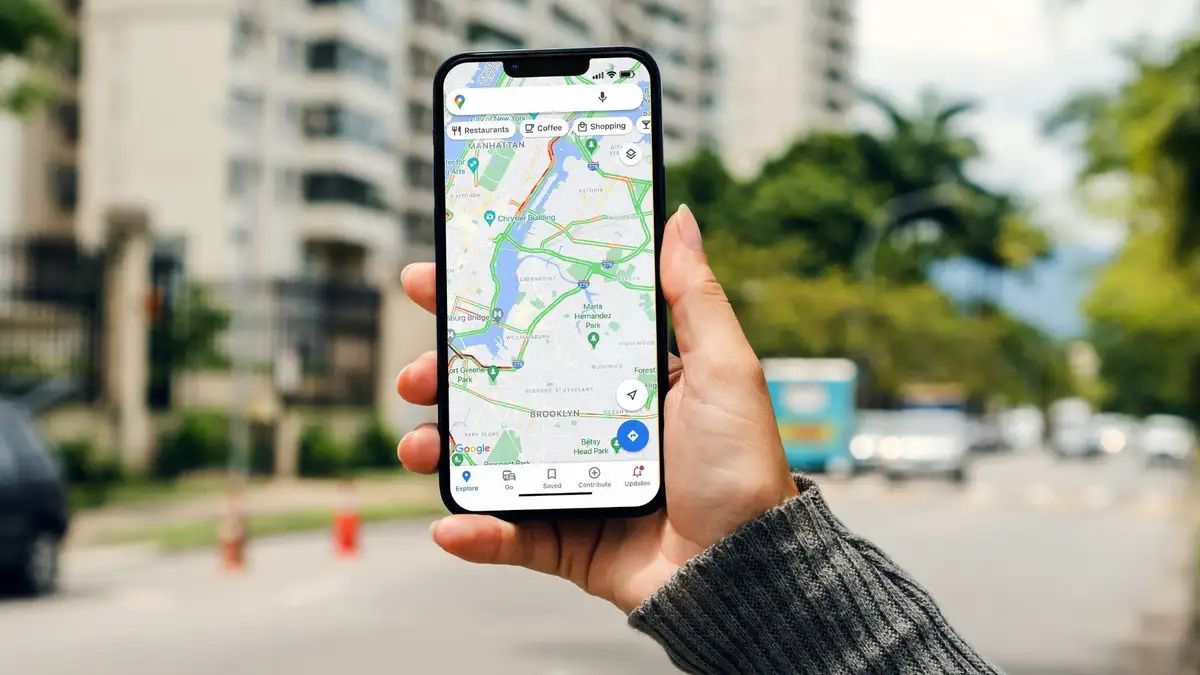
You probably use Google Maps every day to check traffic or find the nearest coffee shop. Most people do. But you are likely ignoring the tools that actually make travel easier. Your trip planning is probably scattered across dozens of open browser tabs. You have confirmation emails, booking sites, and messy group texts.
Finding your way around a new city is stressful when things go wrong. Unexpected road closures pop up out of nowhere. A dead phone battery can easily ruin a whole vacation day. You can fix this by using the app’s newest AI tools and shared lists.
These hidden Google Maps features help you skip the tourist traps and get around like a local. Use these Google Maps secrets to plan a trip on Google Maps without the usual headaches.
#1. Gemini Plan Your Itinerary with “Ask Maps”

You know the headache of jumping between ten different tabs just to plan a single day out. You search for a place, check the reviews, and then map the distance. Now, you can just ask Google Maps directly. The new “Ask Maps” feature works like a smart travel agent.
You type a conversational question into the search bar. Try asking, “I’m headed to the Grand Canyon—any hidden hiking trails along the way?” The app uses Gemini AI to scan millions of local data points. It gives you a customized list of stops.
#2. Time-Travel with Immersive View

A scenic coastal drive looks great on a map. But it might be a parking lot at 4:00 PM. Immersive View fixes this problem. It gives you a 3D bird’s-eye view of your entire route. You can see the actual roads, buildings, and bike lanes.
The best part is the time slider at the bottom of the screen. You slide it forward to see simulated traffic and weather for a specific time of day. It helps you plan a trip on Google Maps with total confidence.
#3. Find AI “Know Before You Go” Insider Tips
Showing up to a restaurant only to find out there is no parking for your large car ruins the mood fast. Finding out about strict dress codes at the door is even worse. You no longer need to read hundreds of reviews to find these details. Google Maps now gives you a summary of the most important facts. You search for a place and scroll down to the place card.
The AI pulls the most helpful facts from recent reviews. It highlights the vibe, secret menu items, and parking rules. These hidden Google Maps features give you the inside scoop instantly. You can make faster choices and avoid annoying surprises.
#4. The 5-Minute Way to Build Collaborative Itineraries
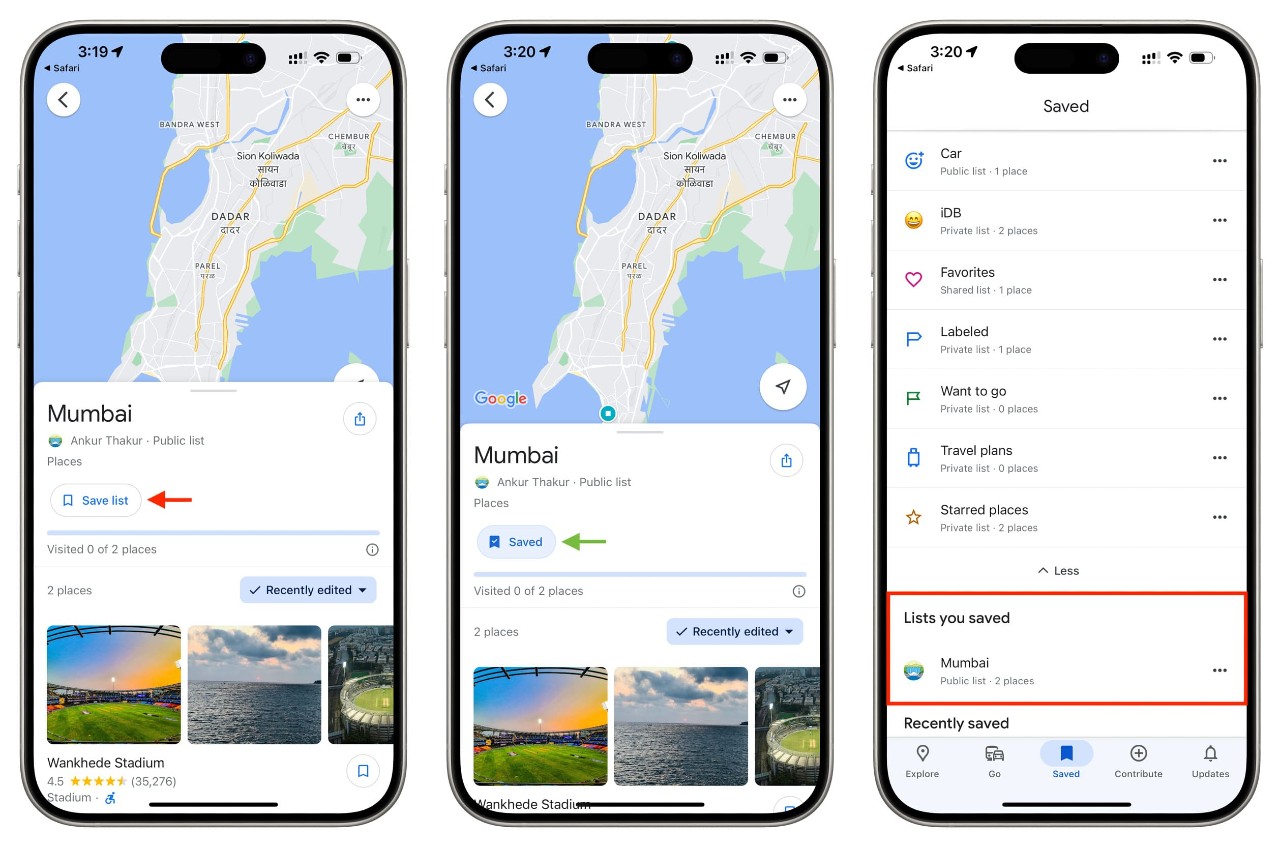
Planning a group trip usually involves a messy group text full of random links. Someone always disagrees on where to eat. You can stop the fighting by sharing a ‘Saved’ list directly in the app. You create a list of places and invite your friends. Everyone can see the options on their own phones.
The app now lets your friends react to locations with emojis. They can drop a fire emoji for a great spot or a thumbs down for a bad one. This makes picking a museum or cafe very easy. It is one of those Google Maps secrets that makes group travel fun again. The majority rules, and everyone gets a say.
#5. Save Phone Battery with Glanceable Directions

Staring at an unlocked screen while walking through a new city drains your battery fast. It also makes you look like a lost tourist. You can fix this by turning on Glanceable Directions. This setting puts your turn-by-turn directions right on your lock screen. You just glance down to see your next turn. Your screen stays locked, which saves your battery life.
You also stay more present and aware of your surroundings. To turn it on, tap your profile icon, go to Settings, and select Navigation. This is one of the most practical Google Maps travel tips you can learn. It keeps your phone alive when you need it most.
#6. You Should Turn On Accessible Routing
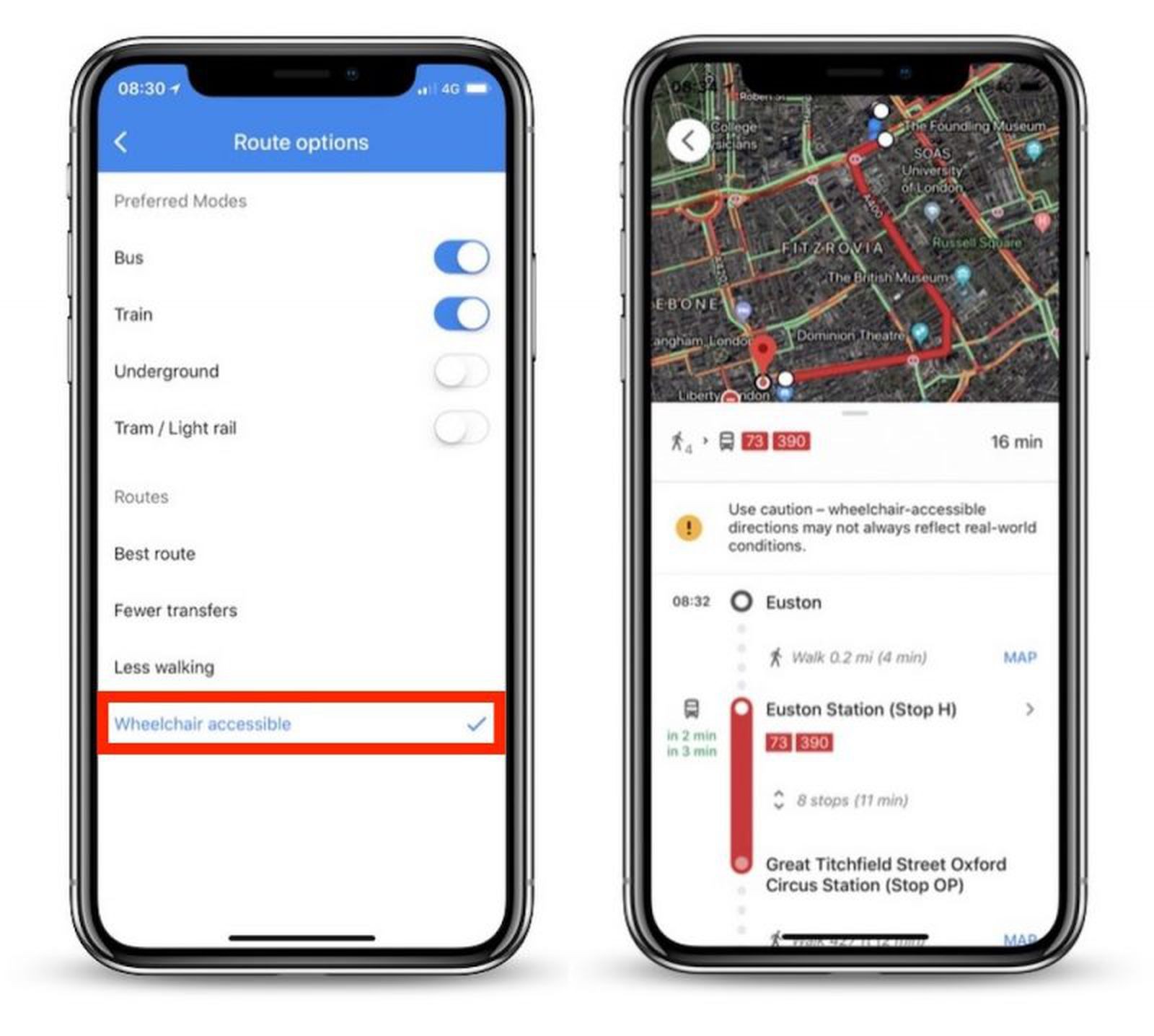
Stairs are a huge problem when you travel with heavy luggage. They are even worse if you have a stroller or use a wheelchair. You can force the map to avoid stairs completely. You just filter your walking or transit route by selecting “Wheelchair accessible.” The app then picks paths with elevators and ramps.
It maps out a path that is actually easy to use. These hidden Google Maps features save you from dead ends and painful lifting. You get to your destination with much less physical stress.
#7. Predict EV Charger Availability
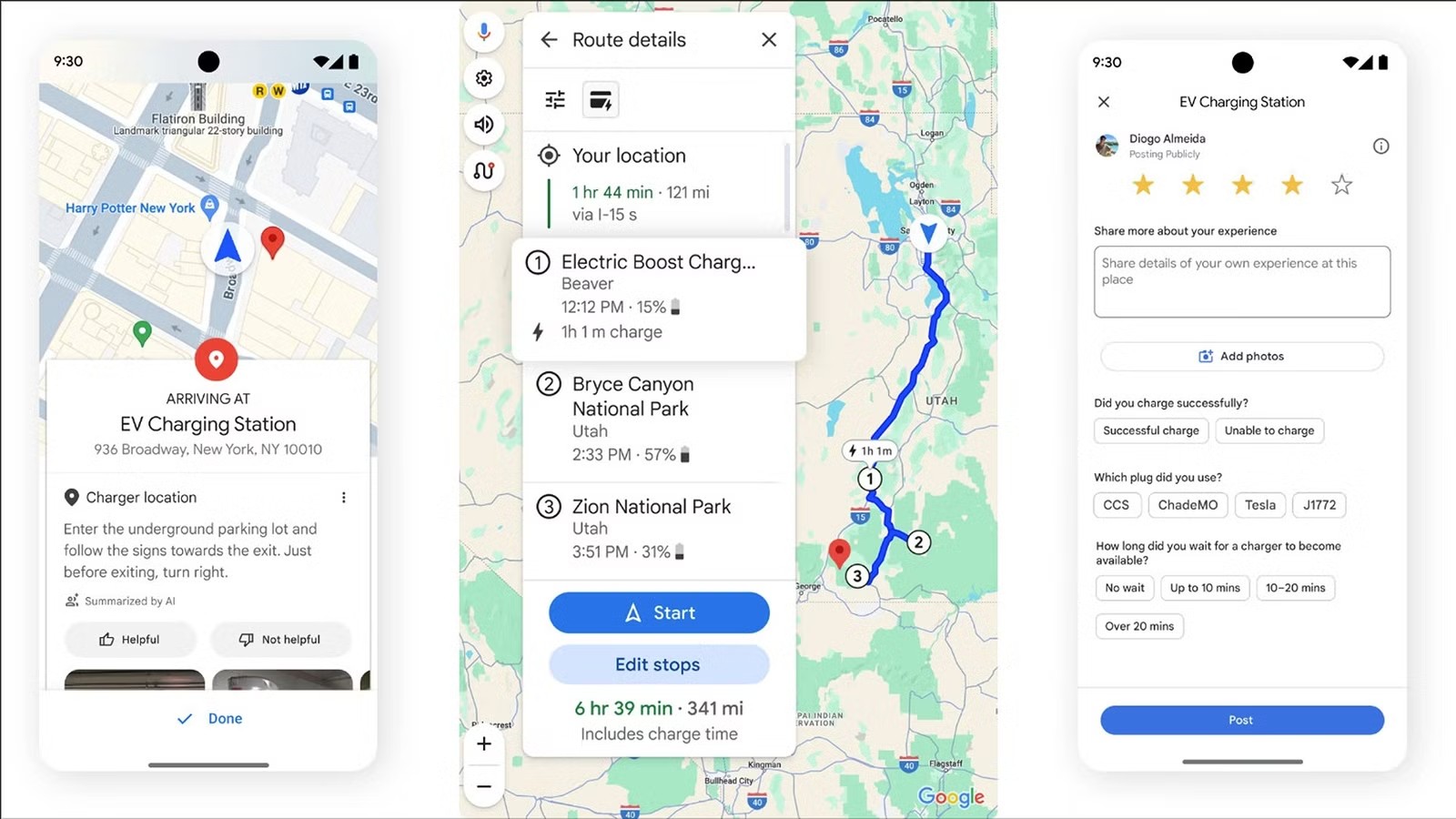
Waiting in line for an EV charger in the cold ruins your schedule. You need to know if a plug will be open before you get there. Google Maps uses real-time data to guess charger availability. You enter your exact car make and model into the app. It filters the map to show only the plugs that fit your car. It tells you if the station is currently full.
It even tries to guess if a spot will open up by the time you arrive. The guesses are not always perfect, but they help a lot. This helps you plan a trip on Google Maps without the range anxiety. You stay on schedule and skip broken chargers.
#8. The Quick Fix for Getting Lost on Foot
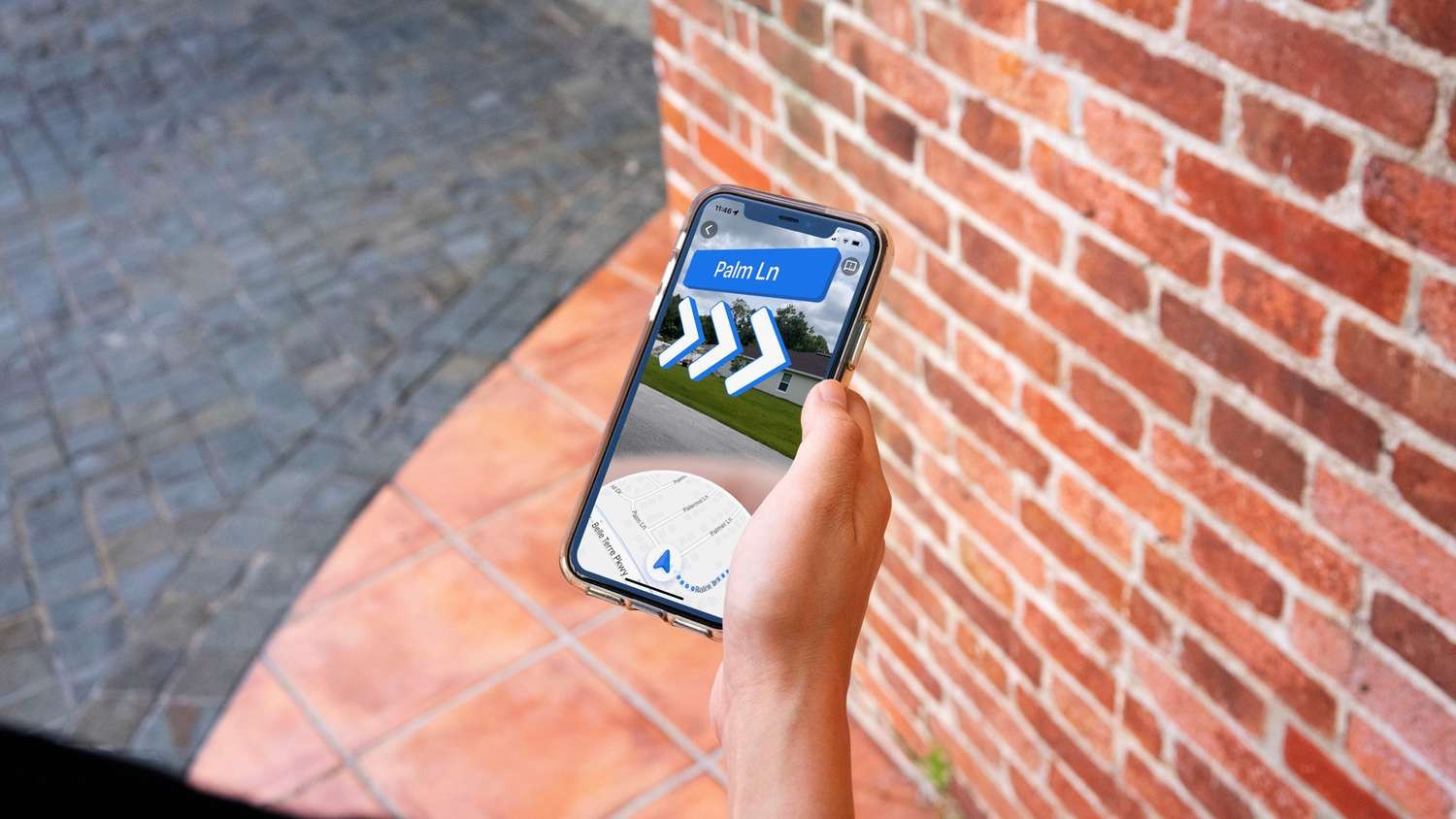
Exiting a dark subway station into a busy city leaves you confused. You look at the blue dot on your phone. But you have no idea which way is North. Live View AR solves this right away. You just tap the camera icon while using walking directions. You hold your phone up to the street.
The app uses your camera to show giant 3D arrows in the real world. It points exactly where you need to go. It also shows shop names and street signs on your screen. This is one of the best Google Maps secrets for walking in a new place. You start walking the right way immediately.
#9. How to Turn Screenshots into Saved Maps
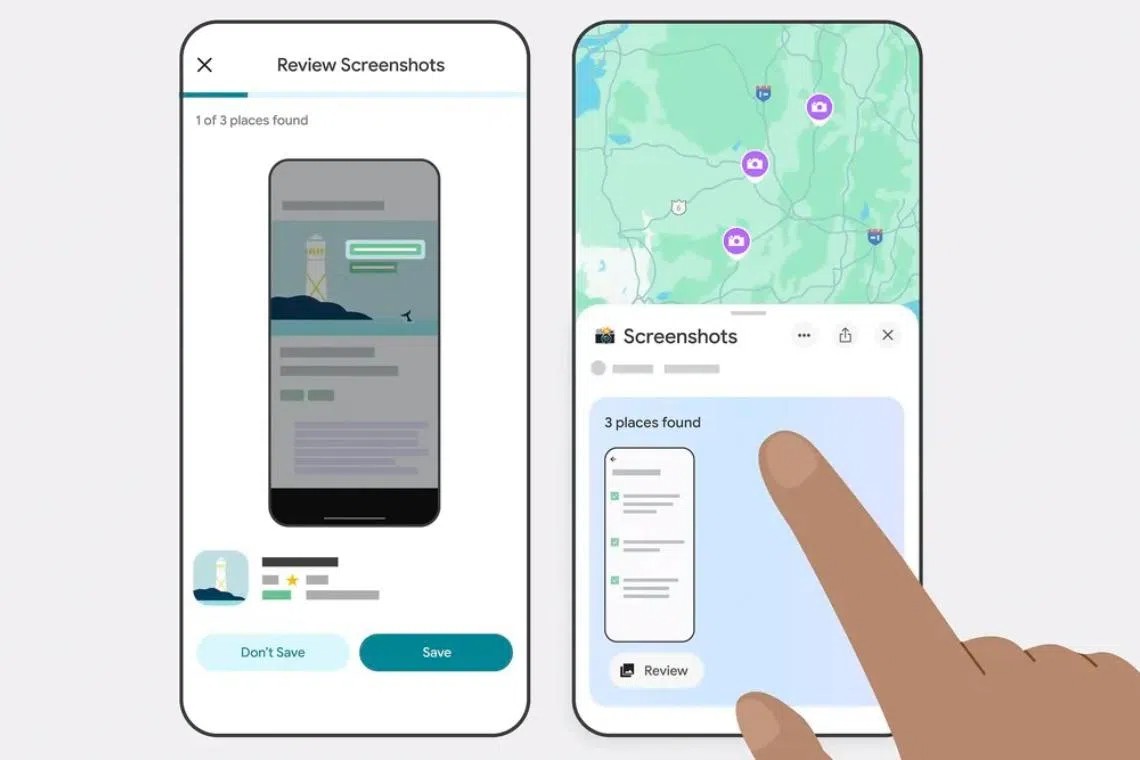
You probably take screenshots of cool spots you see on social media. But those screenshots usually just get lost in your camera roll. You never actually visit the places. Google Maps now has a “Screenshots” feature in the “You” tab. The app scans your photo library for screenshots of addresses or travel blogs. It pulls the text from the image and finds the exact location.
You can then save those spots to a travel list with one tap. It sometimes misses messy text, but it usually works well. This is one of those Google Maps travel tips that changes how you organize trips. You never lose a great recommendation again.
#10. Get Real ETAs with Future Departure Times
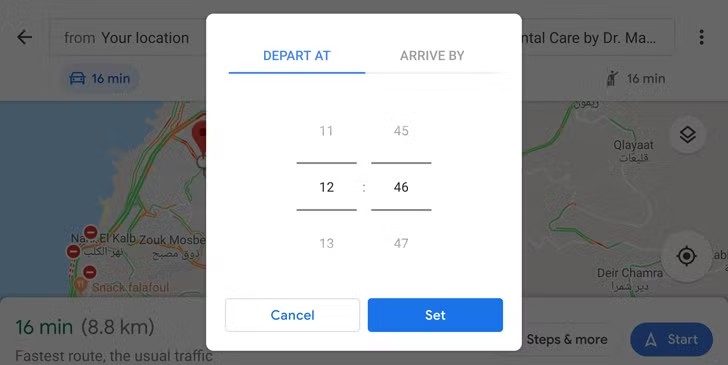
Checking a route at midnight for a 5:00 PM drive gives you a fake ETA. The roads are empty at night. You will end up late for your flight if you trust that number. You need to use the “Set a departure time” function. You pick the exact day and time you plan to leave.
The app then looks at historical rush hour traffic for that specific time. It gives you a much more accurate estimate of your travel time. It helps you plan a trip on Google Maps like a pro. You know exactly when you need to walk out the door. It saves you from unexpected delays.
#11. 3 Steps to Measure Exact Distances Anywhere
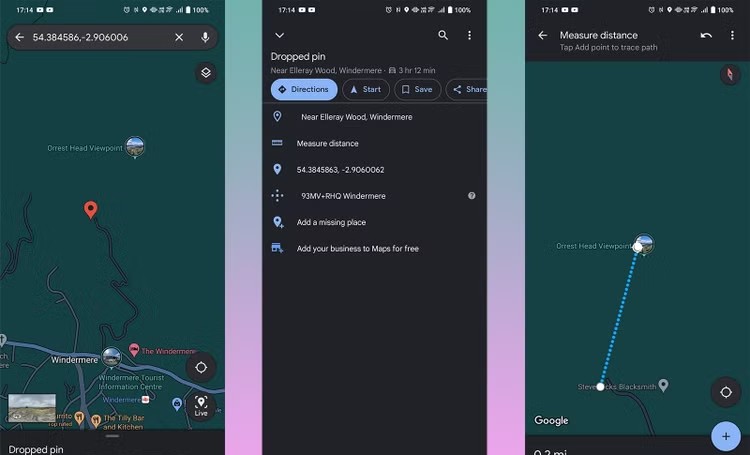
Sometimes you need to know the exact distance between two random points. You might want to map out a morning run in a foreign city. Or you want to see how far your rental home is from the beach. Standard directions do not always work for custom paths. You can fix this with the “Measure distance” tool.
You just drop a pin on the map and select the tool. Then you tap along your custom route to trace a path. The app calculates the exact mileage for you. These hidden Google Maps features are best for custom adventures. You get exact numbers for paths that do not have real roads.
#12. Find Your Way in Massive Airports
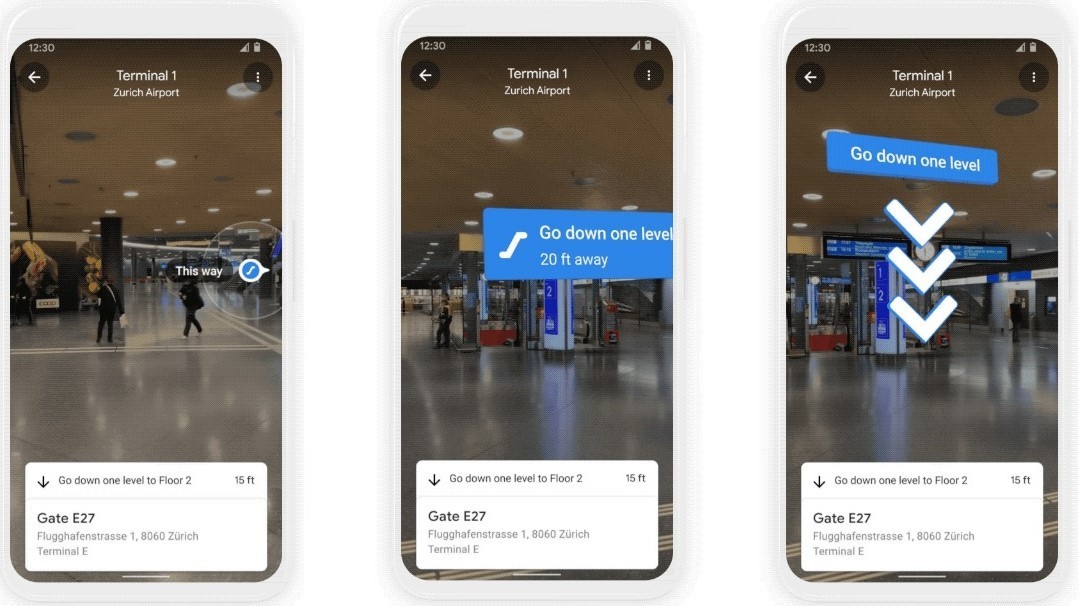
Running through a giant airport looking for your gate is a nightmare. Finding a restroom or a specific food court in a crowded terminal is just as bad. You do not have to rely on confusing airport signs anymore. You just zoom all the way in on a major transit hub in the app.
The map switches to an indoor layout. You can switch between different floors to find exactly what you need. Google even supports indoor Live View in over 10,000 locations worldwide. This is one of the most helpful Google Maps secrets for frequent flyers. You find your gate quickly and lower your travel stress.
#13. Plan the Ultimate Multi-Stop Road Trip
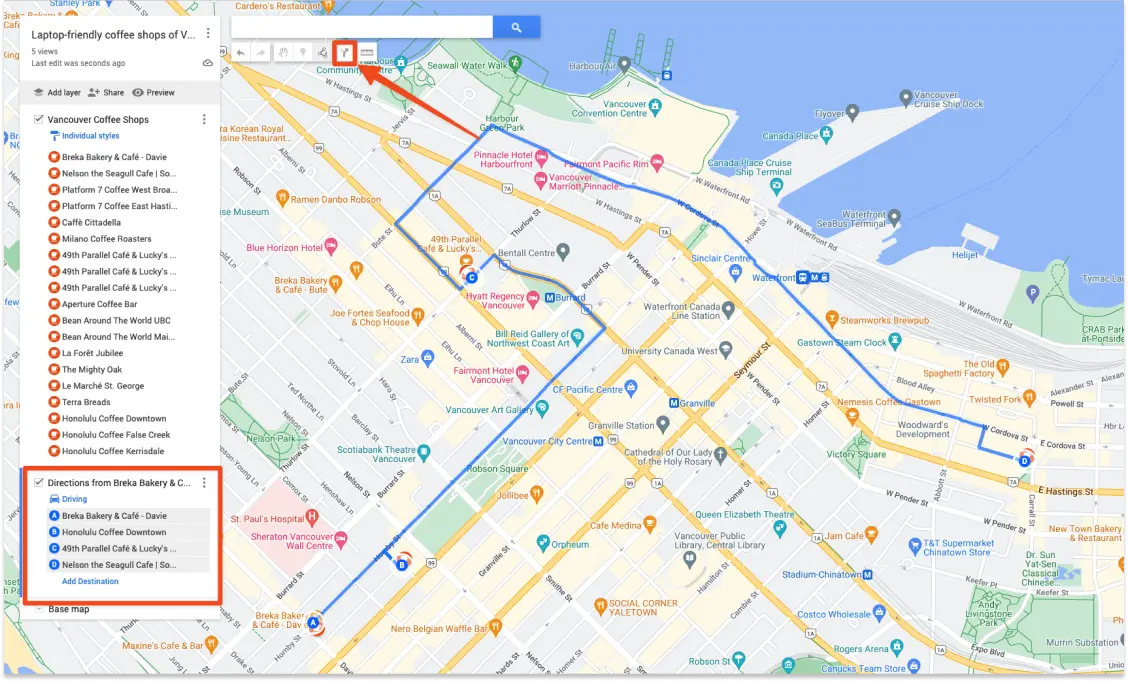
A good travel day has multiple stops. You go from your hotel to a coffee shop, then a national park, and finally a scenic overlook. Mapping each stop one by one is a waste of time. You can string them all together using the “Add Stop” feature. The app lets you add up to nine different destinations on a single route.
You can drag and drop the stops to reorder them. The app then finds the most efficient path between all of them. This is the best way to plan a trip on Google Maps for a full day of sightseeing. You spend less time looking at your phone and more time driving.
#14. Order Like a Local with Menu Highlights
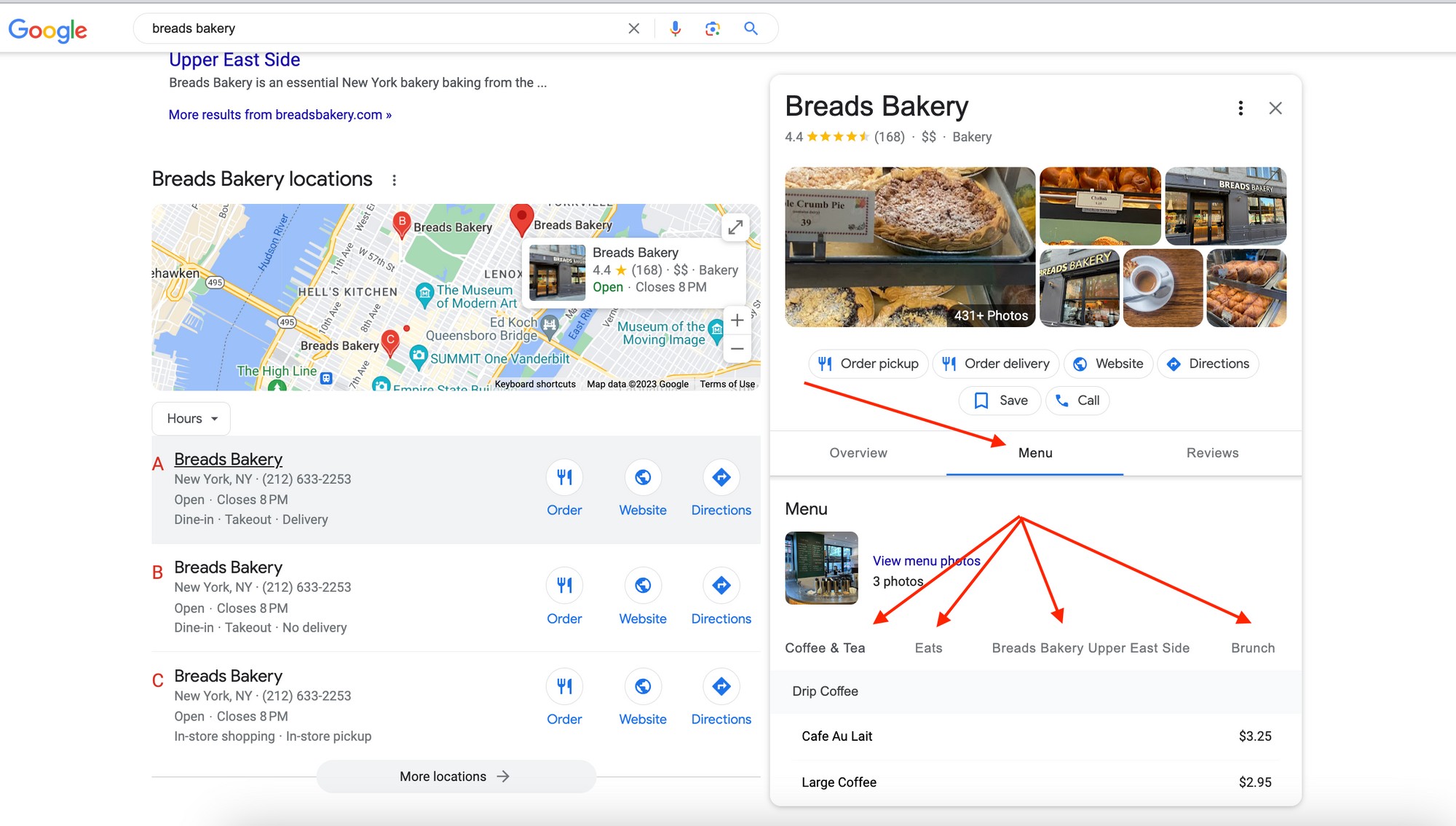
Ordering food in a foreign country is scary when you do not speak the language. You do not want to guess what is on the menu. You can remove the guesswork completely. You just search for the restaurant in the app. Then you scroll down to the menu highlights.
The app spots specific dishes from photos uploaded by other users. It shows you the name of the dish. These Google Maps travel tips help you eat better on vacation. You can point to a picture and get exactly what you want.
#15. The 5-Minute Setup for Offline Maps
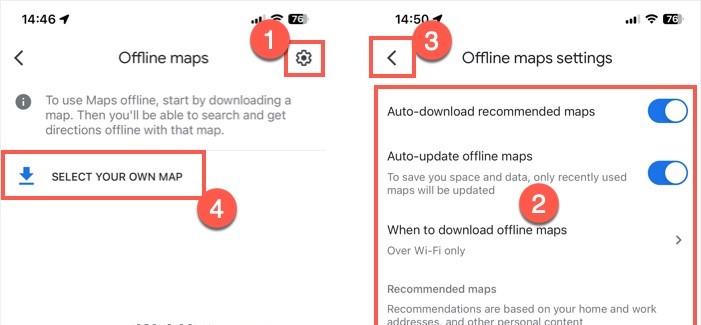
Losing your cell signal in the middle of a remote road trip is dangerous. Data roaming can also cost you a lot of money in another country. You need a backup plan. You can download a specific area of the map directly to your phone. You just search for your destination, tap your profile icon, and select “Offline maps.”
The map will still give you driving directions even without the internet. The pro tip here is to make sure your maps auto-update before you leave. These hidden Google Maps features act as your ultimate safety net. You will never get stuck in the middle of nowhere without directions.
