
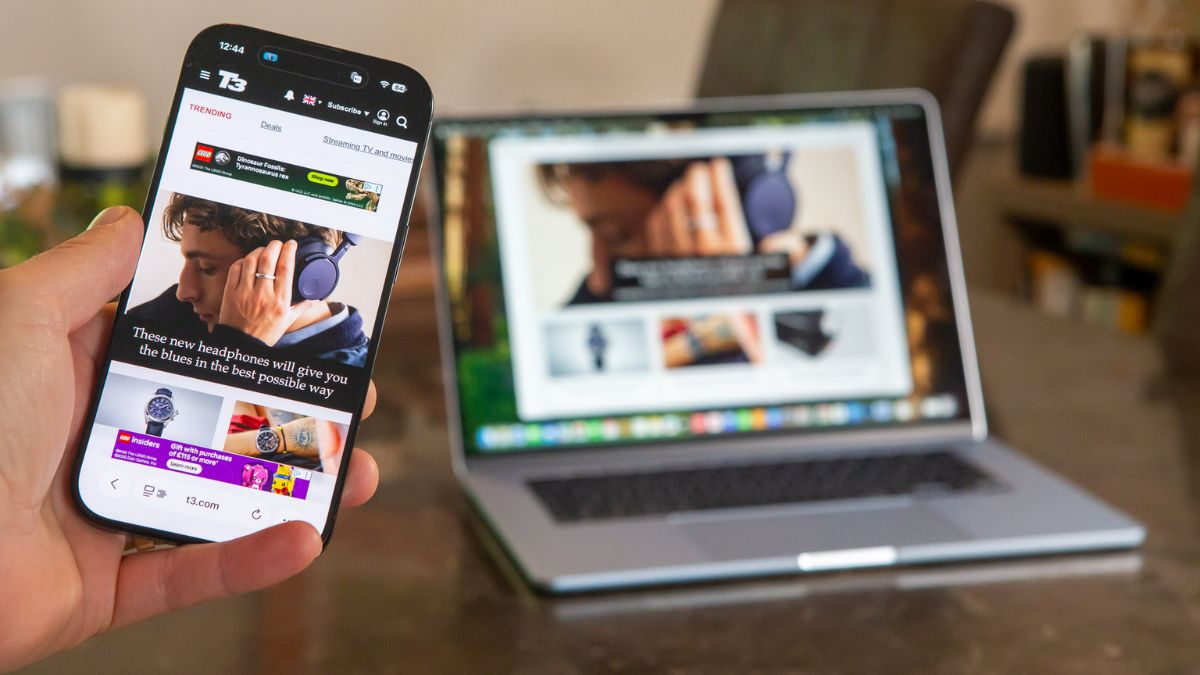
If you still email yourself photos while sitting at your laptop, you are working in the past. The same is true if you keep checking your phone for simple notifications. It feels extremely frustrating. You spend good money on powerful Apple devices.
Switching back and forth constantly ruins your focus. It forces you to restart your train of thought. It wastes valuable time every single day. You can merge your computer and your phone into a single workspace.
The smooth iPhone and Mac integration is already built into your hardware. You need to activate specific Apple Continuity features. These 12 simple tools connect your screens. They eliminate the clunky multi-device juggle.
#1. Control Your Phone Without Touching It
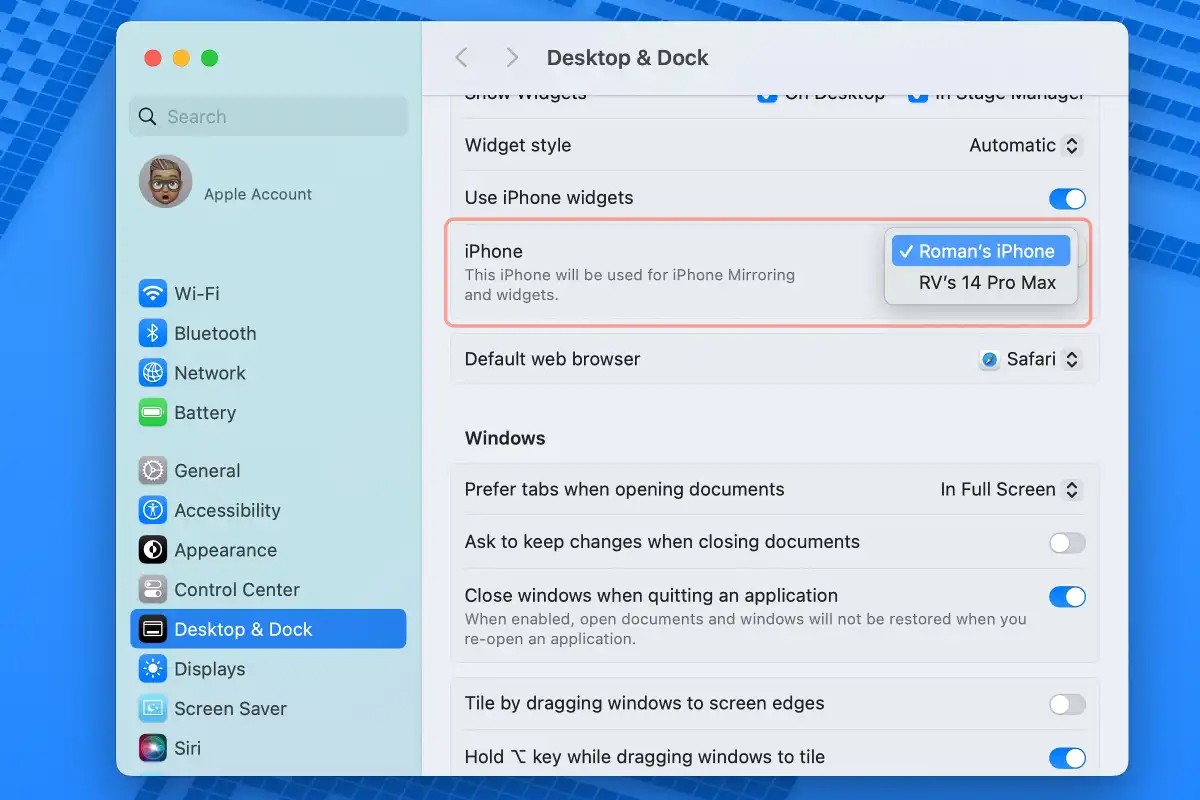
You are typing on your Mac, and your phone buzzes. Usually, you break your focus, pick up the device, and get distracted. You do not have to do that anymore.
With macOS Sequoia iPhone mirroring, your phone screen appears right on your Mac display. You can click, swipe, and type using your Mac trackpad and keyboard.
Privacy is a big concern with screen sharing. Apple handled this well. While your phone is on your Mac screen, your actual physical phone stays locked and black.
1. Click the iPhone Mirroring app in your Mac Dock.
2. Follow the quick on-screen steps to connect them wirelessly.
3. Keep your phone locked and nearby to maintain the connection.
#2. Stop Emailing Yourself Photos
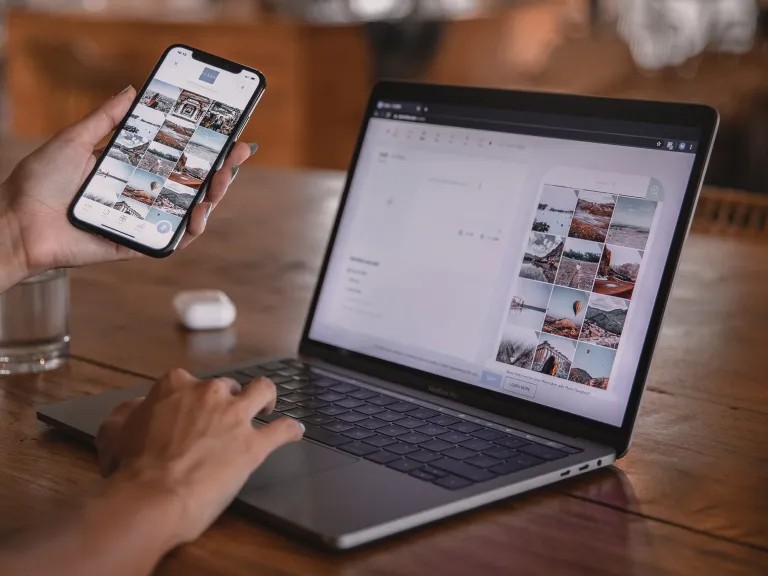
Emailing yourself a photo or a link is a massive waste of time. It clutters your inbox and interrupts your work. Universal Clipboard fixes this annoying problem instantly.
It lets you copy text, a link, or a photo on your iPhone. Then, you just hit paste on your Mac. The file appears right there. It works flawlessly through a mix of Bluetooth and Wi-Fi.
Small interruptions ruin your focus. Skipping the clunky email-to-self routine saves the average person more than 20 minutes a week in minor task-switching friction.
1. You do not need to install an app.
2. Turn on Wi-Fi, Bluetooth, and Handoff on both devices.
3. Copy something on your phone and press Command-V on your Mac to paste it.
#3. Fix Your Grainy Mac Video Calls
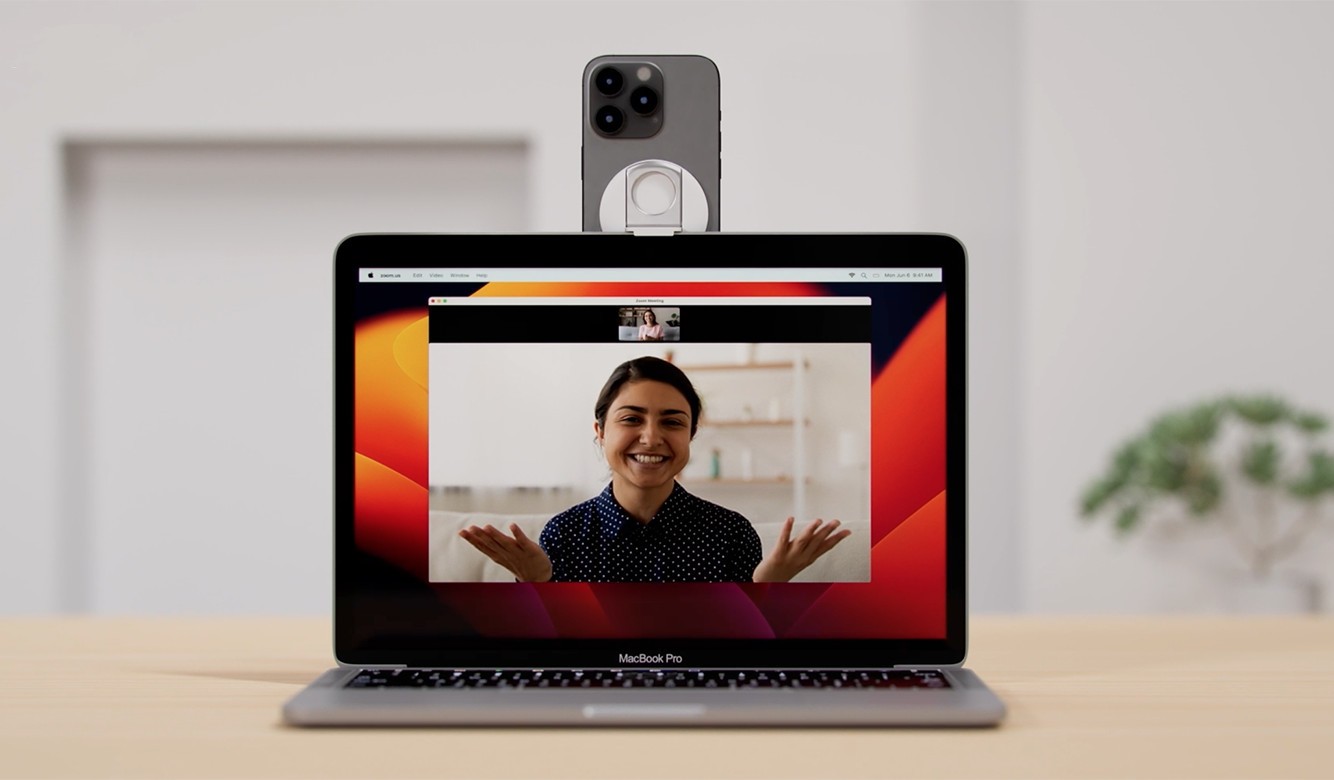
You look blurry, and the lighting is usually bad. But you already carry a premium camera in your pocket.
Your phone has superior lenses and better sensors. It makes a massive difference in video calls. iPhone and Mac integration happens completely wirelessly.
Desk View uses your phone’s ultrawide lens to show your face and your desk at the same time. It is good if you need to show physical sketches or printed documents on a Zoom call.
1. Buy a basic mount to clip your phone to the top of your Mac screen.
2. Open FaceTime or Zoom.
3. Click the video settings and select your iPhone from the camera list.
#4. Never Lose Your Place When Switching Devices
You start reading a long article on your phone while riding the train. You get to your desk and open your Mac. Now you have to find that exact article again. It kills your momentum.
It lets you start a task on one device and finish it on another. It improves your Apple ecosystem productivity instantly. You can start typing a long email on your phone.
When you sit at your Mac, an icon appears in your Dock. Click it, and your email pops up exactly where you left off. It works smoothly with Safari, Mail, Pages, and many third-party apps.
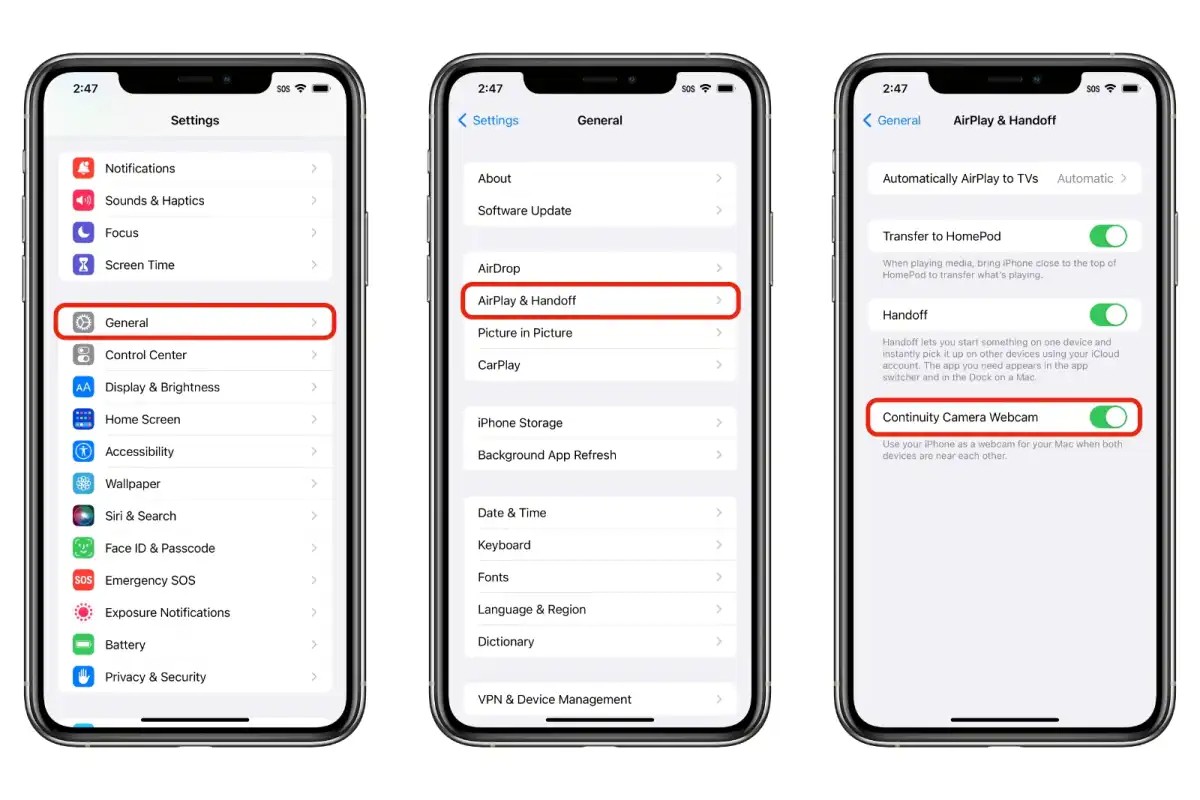
1. Go to Settings on your iPhone. Tap General, then AirPlay & Continuity to turn on Handoff.
2. On your Mac, go to System Settings.
3. Click General, then AirDrop & Handoff, and toggle it on.
#5. Stop Phone Notifications from Ruining Your Focus
Your phone screen lights up with ten new text messages. You stop working to read them. This breaks your concentration completely. You can fix this by viewing your iPhone alerts directly on your Mac.
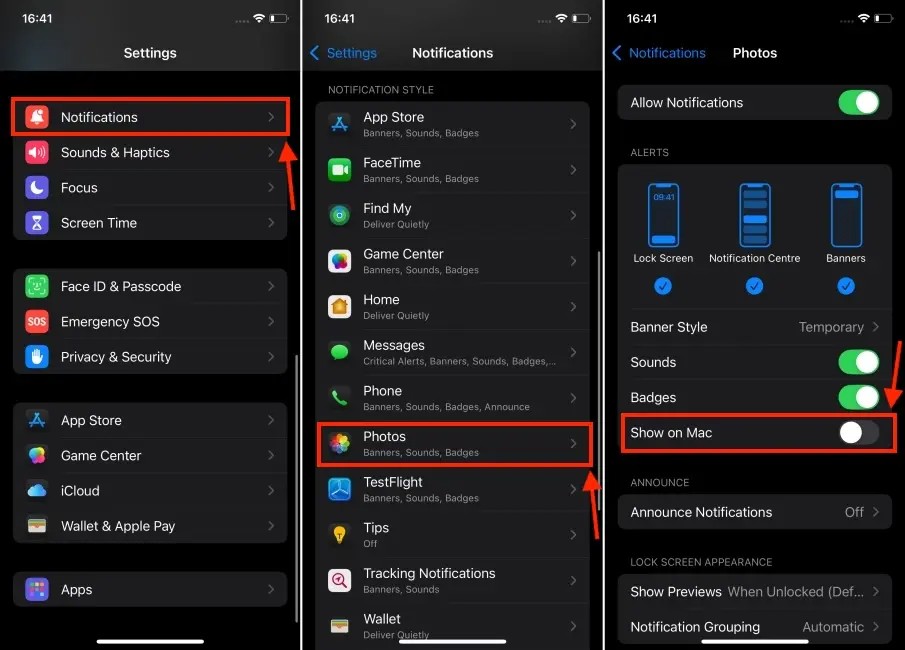
Apple Continuity features now bring smarter notifications to your desktop. You see everything without touching your phone. It gets better. You read the summary, pick a suggested smart reply, and get right back to work.
1. Go to System Settings on your Mac.
2. Click Notifications.
3. Turn on the switch to allow notifications from your iPhone.
#6. The 2-Minute Trick to Track Phone Habits On Your Mac
You want to check your daily step count or your water tracker. These apps live on your phone. Checking them usually means picking up your device and risking distraction.
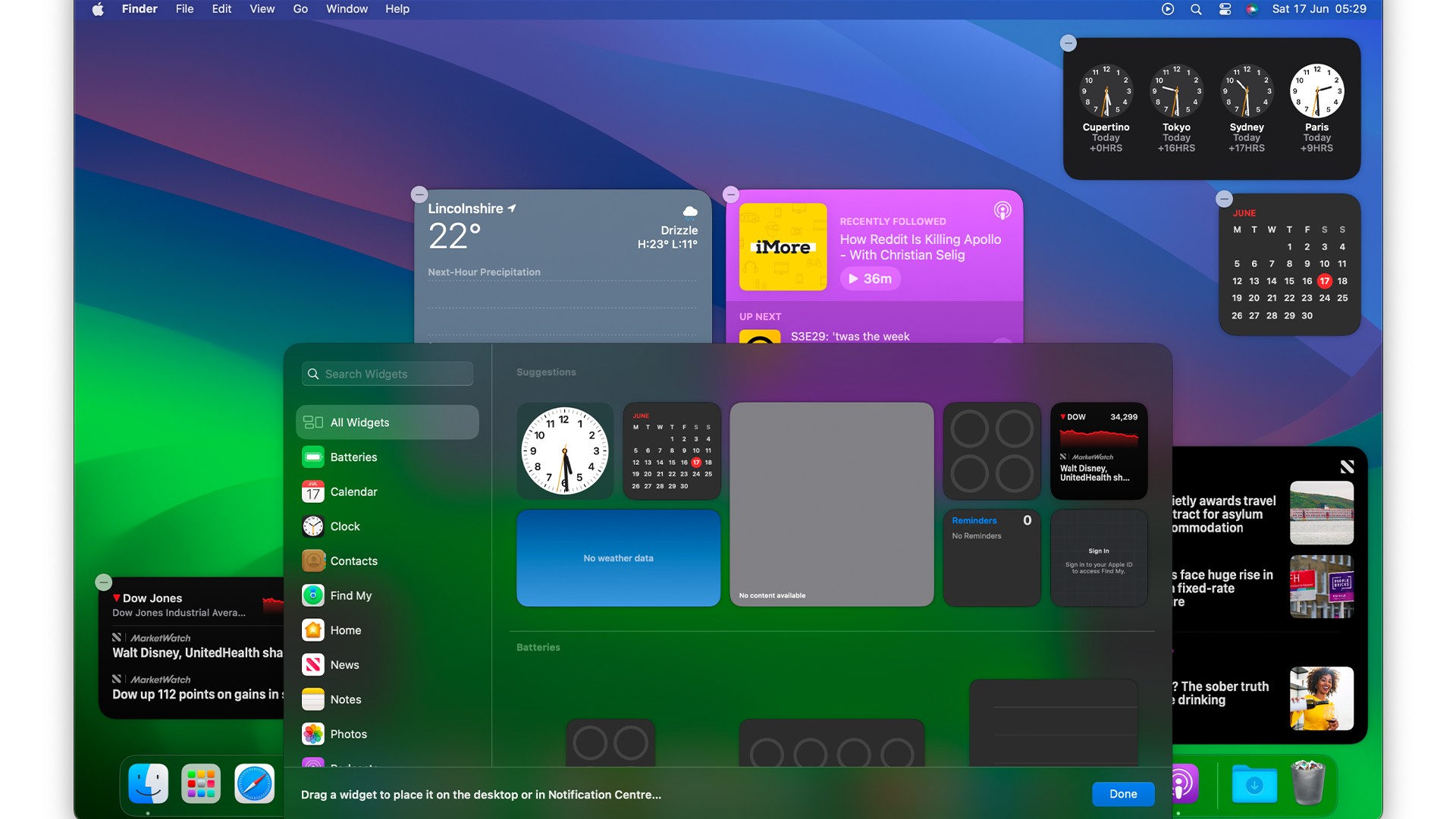
You can place interactive iPhone widgets right on your Mac desktop. The best part is that you do not even need the Mac version of the app installed. Your Mac pulls the data directly from your phone in real-time.
1. Right-click your Mac desktop.
2. Click “Edit Widgets”.
3. Search for your iPhone apps and drag them onto your screen.
#7. Get Online Fast When There Is No Wi-Fi
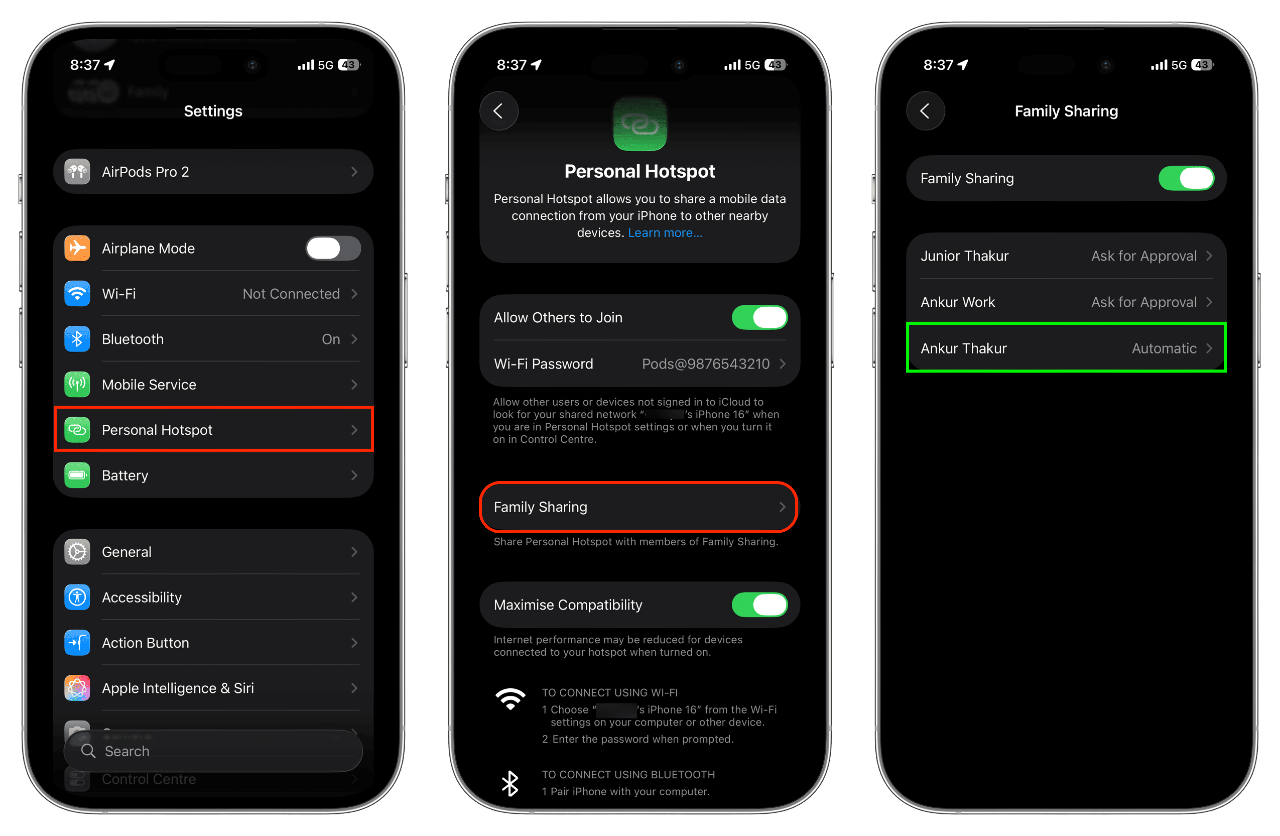
You open your laptop at a coffee shop. The public Wi-Fi is broken. Normally, you would dig out your phone, turn on the hotspot, and type in a long password. Instant Hotspot removes all those steps.
It boosts your Apple ecosystem productivity by letting you connect instantly. Your Mac detects your phone automatically. You just click the Wi-Fi icon on your Mac and select your phone.
1. Make sure both devices use the same Apple ID.
2. Click the Wi-Fi icon on your Mac.
3. Choose your iPhone under the “Personal Hotspots” section.
#8. Take Phone Calls Without Leaving Your Keyboard
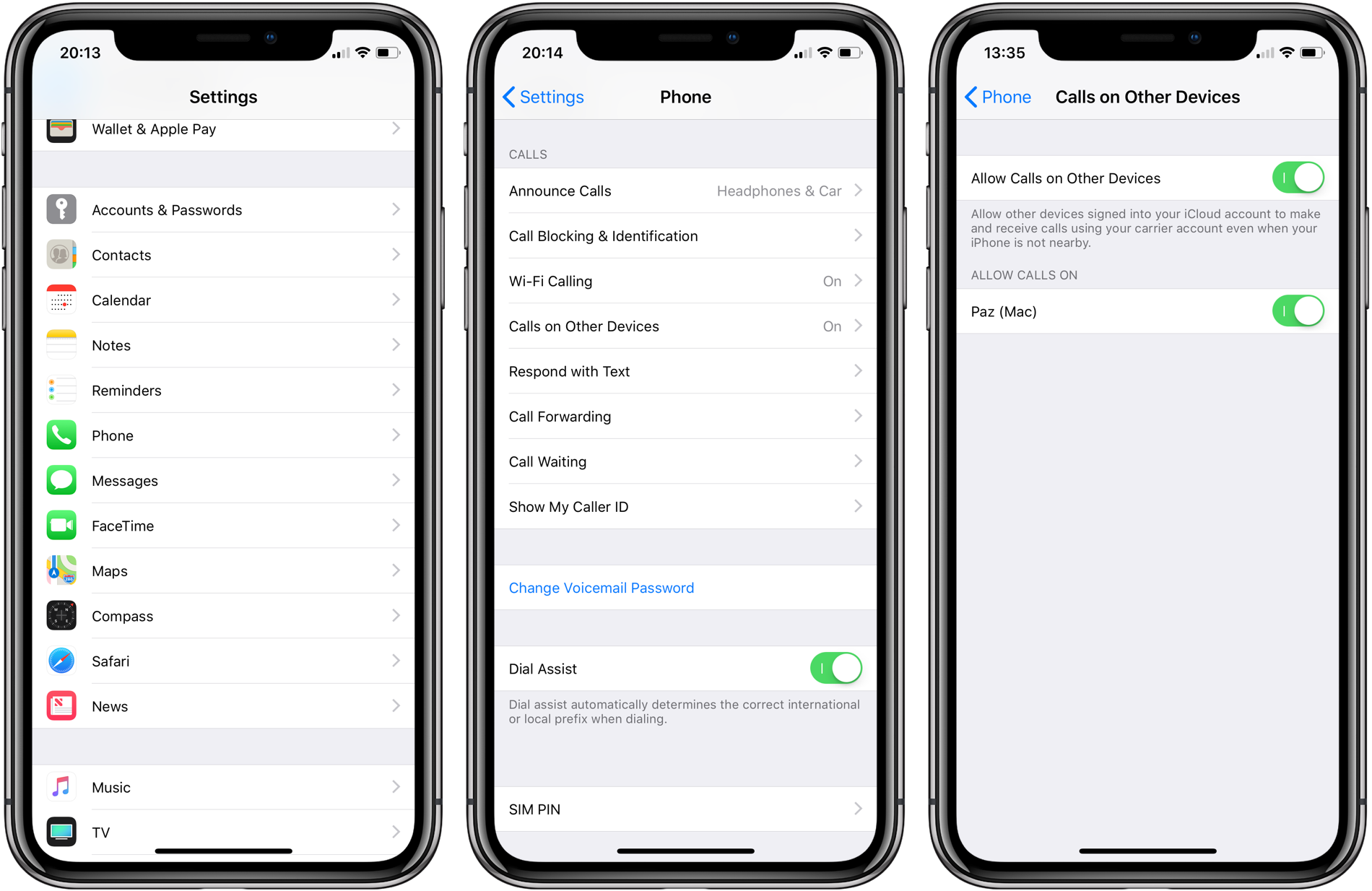
Your phone rings loudly from across the room. You scramble to find it before the caller hangs up. You can stop doing this entirely. Your Mac can act as a giant speakerphone.
You can leave your phone on the charger while taking a client call through your Mac speakers. You keep your hands on the keyboard and keep working. This is one of the most practical Apple Continuity features.
1. On your iPhone, go to Settings.
2. Tap Phone, then “Calls on Other Devices”.
3. Turn the switch on for your Mac.
#9. The Fastest Way to Send Massive Files
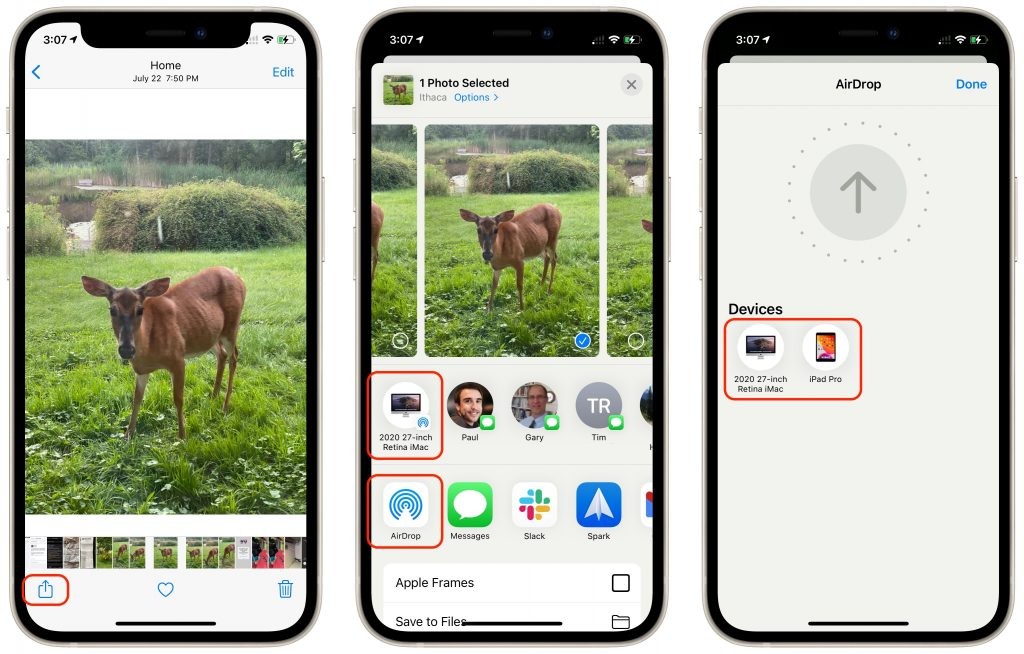
You just shot a massive video on your phone. Now you need it on your Mac to edit. Uploading it to cloud storage takes forever. Sometimes the upload crashes halfway through.
AirDrop solves this headache. It transfers files instantly without losing any quality. You do not even need an active internet connection. It creates a direct, high-speed link between your devices.
1. Open the file on your phone.
2. Tap the Share button.
3. Tap AirDrop and select your Mac from the list.
#10. Sign Digital Documents in Seconds
Trying to sign a digital PDF with your Mac trackpad is frustrating. Your signature always looks terrible. You can fix this by using your phone as a digital sketchpad. It is another great use of Apple Continuity features.
You click a button on your Mac. Your iPhone screen immediately turns into a blank drawing board. You use your finger to draw your signature smoothly on the glass.
The second you finish, the signature appears right inside the document on your Mac. It makes your digital paperwork look professional.
1. Open a document on your Mac.
2. Click the “Add Sketch” icon in the toolbar.
3. Select your iPhone. Draw on your phone and tap Done.
#11. The 3-Step Trick to Scan Receipts Instantly
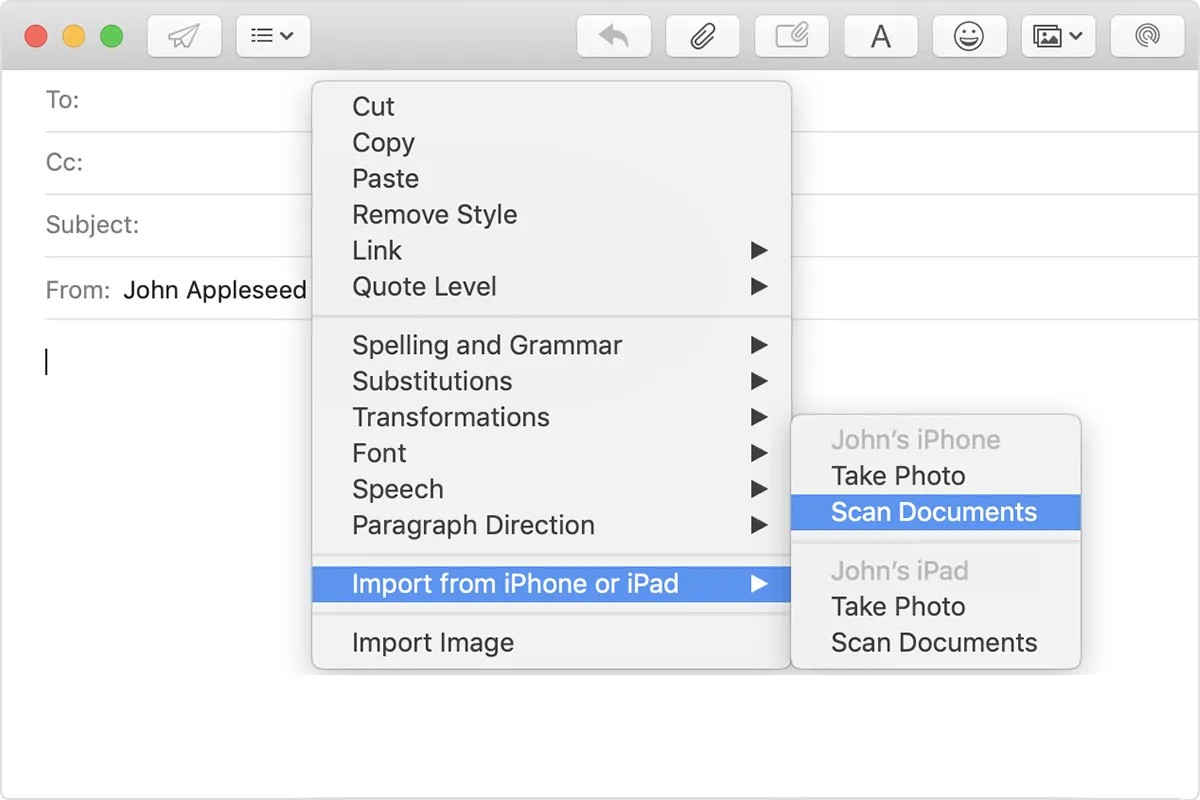
You have a paper receipt on your desk. You need to put it into a digital expense report on your Mac. Typing the details manually is boring. Buying a bulky scanner is expensive.
You can right-click anywhere on your Mac and choose to scan a document. Your iPhone camera opens automatically. You point it at the receipt. It takes the picture, flattens the edges, and inserts a clean PDF right into your Mac folder.
1. Right-click inside a Mac folder or document.
2. Choose “Import from iPhone”.
3. Click “Scan Documents” and use your phone camera.
#12. Skip Typing Your Mac Password
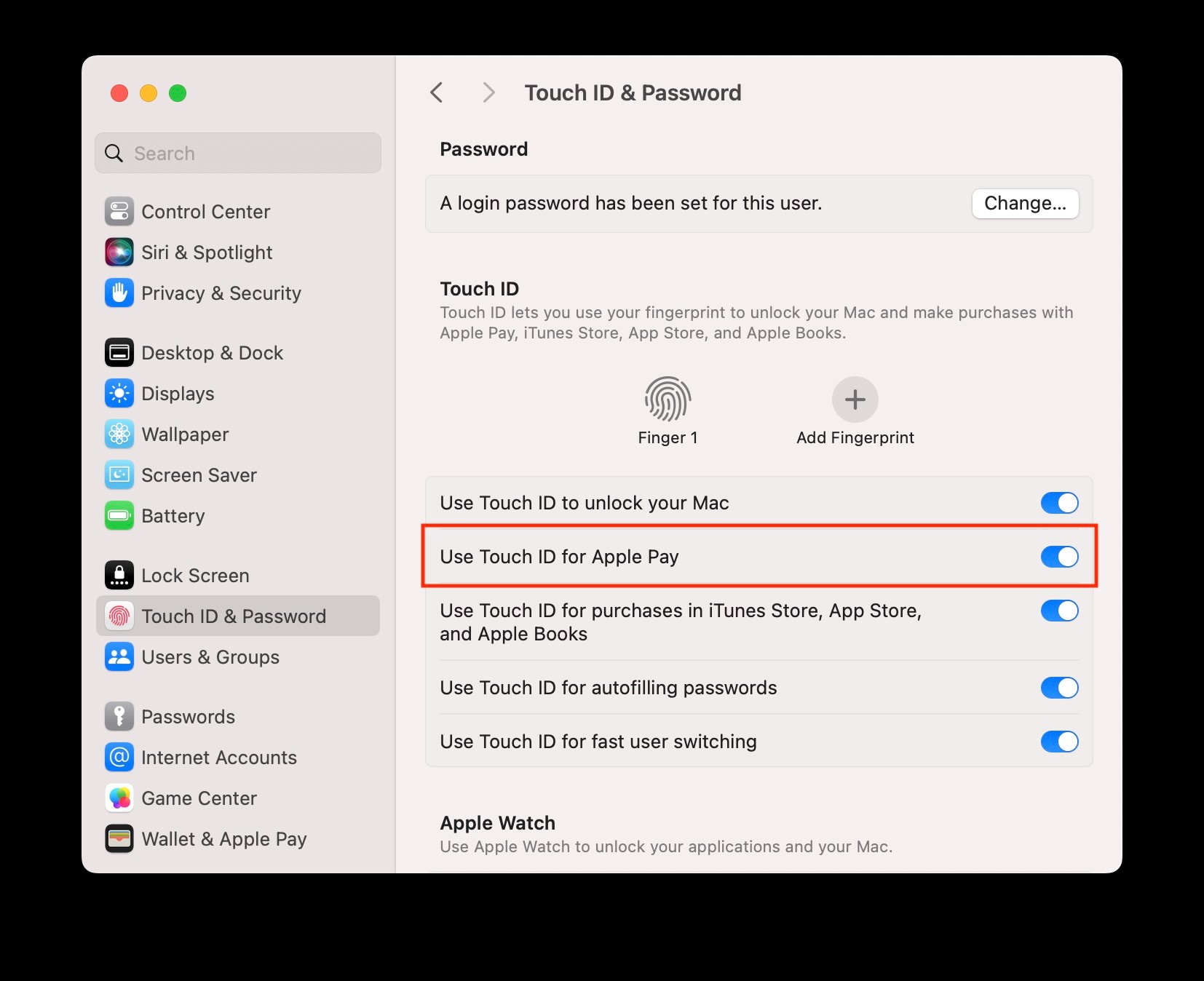
Typing your long computer password every time you sit down gets annoying quickly. Your Mac knows when you are nearby. If you are wearing an Apple Watch or holding your iPhone, your Mac uses proximity sensors to verify it is you.
You sit down at your desk. You turn on your computer. It opens instantly before you even touch the keyboard.
1. Go to System Settings on your Mac.
2. Click “Touch ID & Password” or “Login Password”.
3. Turn on the option to allow your Apple Watch or phone to open your Mac.
