
Maybe your other hand was holding a hot coffee or a heavy bag of groceries. We have all been there. It looks silly, but sometimes you just need to answer a call without dropping everything. Most users treat the Apple Watch like a tiny iPhone. They try to poke at the small screen with one finger.
But using your watch this way is often frustrating. Your finger blocks the text you are trying to read, and the glass gets covered in smudges. You are missing out on the device’s most useful capabilities. Your watch is packed with sensors that track your muscle movements.
Some of these are brand new watchOS 11 features that just came out. Others are hidden deep in the accessibility settings where most people never look. These are 11 Apple Watch gestures that will make your life easier starting today.
#1. The Double Tap Control Your Watch One-Handed
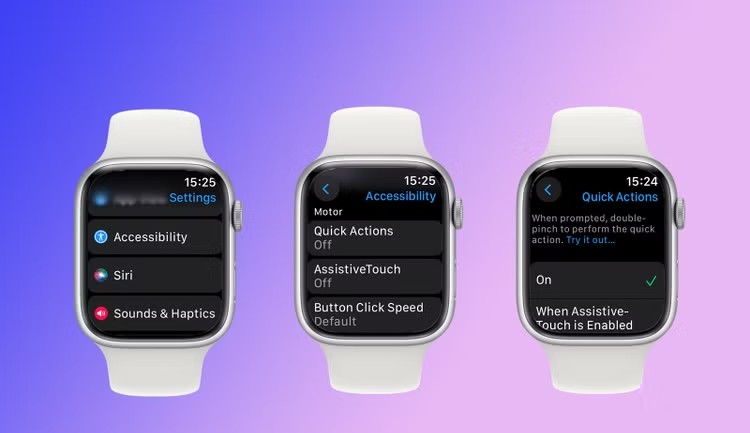
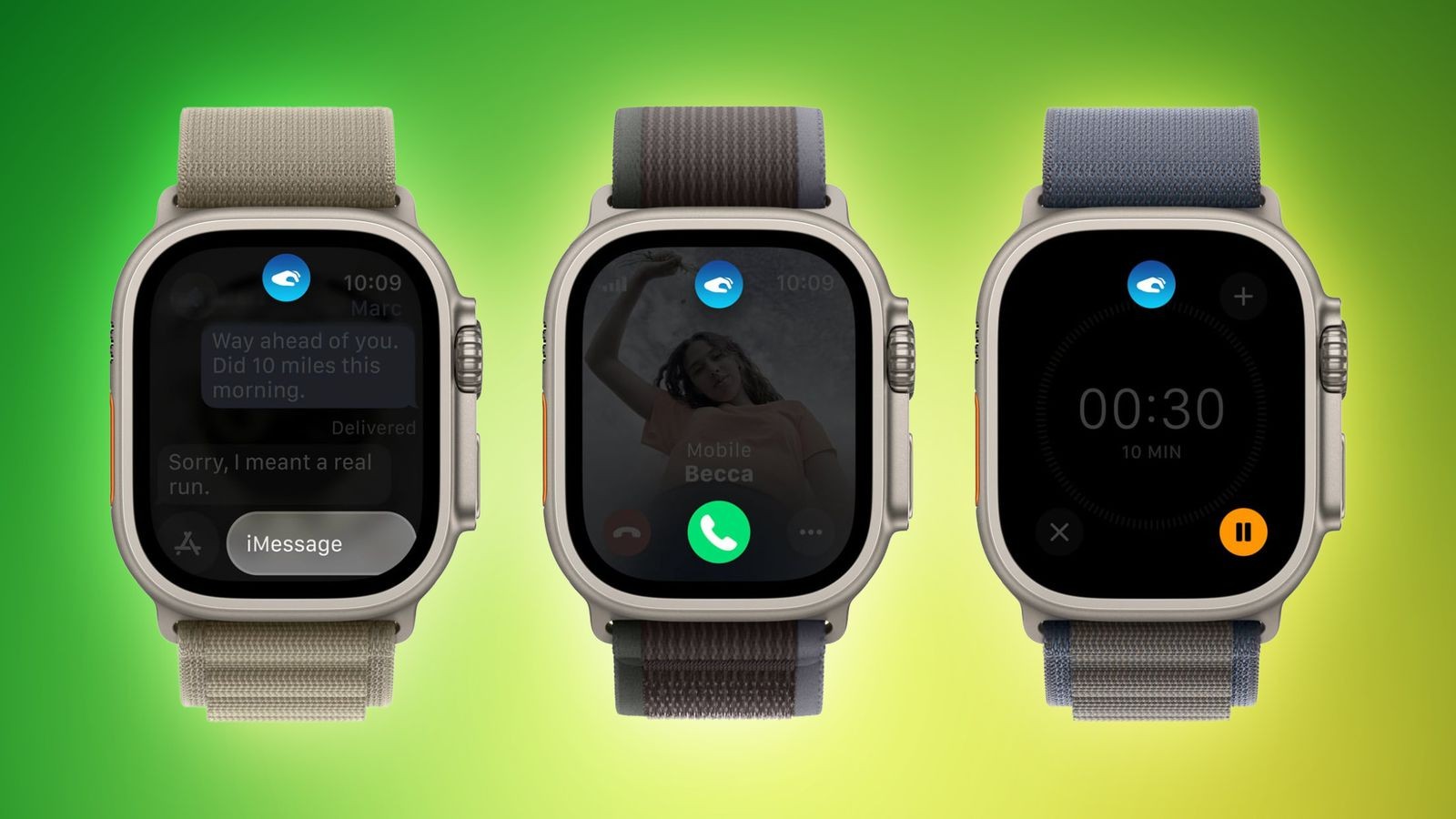
You are carrying a hot coffee in one hand and a grocery bag in the other. Then your watch starts ringing. You can’t touch the screen with your nose, so what do you do? If you have a newer model, you just tap your fingers together.
This feature is the headliner for the Series 9, Series 10, and Ultra 2. It uses the S9 chip to sense tiny movements in your wrist. By tapping your index finger and thumb together twice, you press the “primary button” on your screen without touching the glass.
The thing it controls:
1. Answering or ending phone calls.
2. Pausing your music or podcast.
3. Stopping a timer.
4. Dismissing a message notification.
#2. The Clench The Hidden Trick for Older Watches
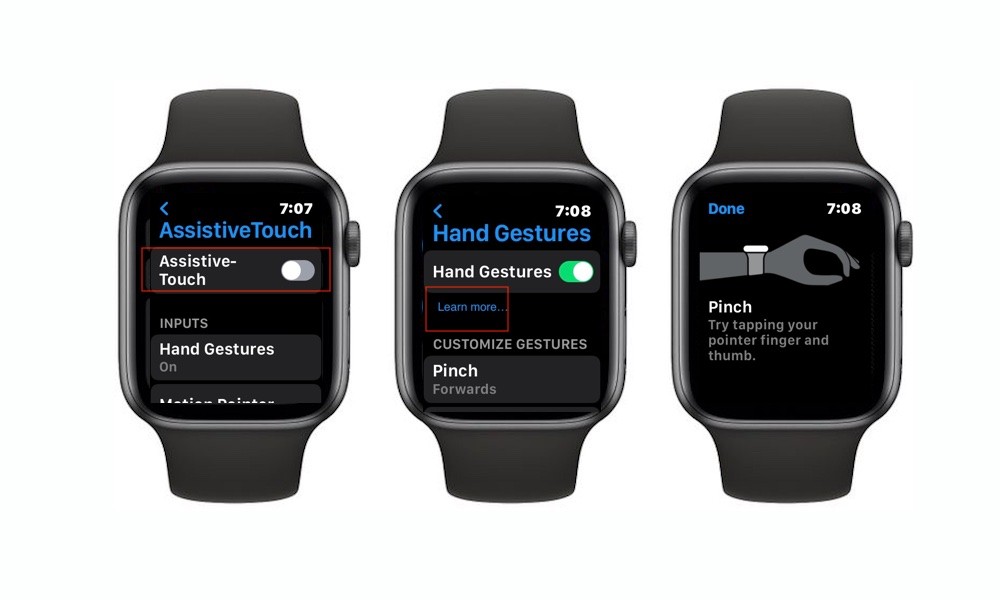
Apple actually created a version of gesture control years ago for accessibility, and it works on Series 4 and later. It is called AssistiveTouch, and many power users prefer it because it is more customizable than the new Double Tap. This feature tracks two main hand movements:
- Pinch: Tapping your index finger and thumb (moves the cursor forward).
- Clench: Making a fist (acts as a “tap” or confirm).
You can set this up to do almost anything. I use the “Clench” gesture to open Apple Pay. It saves me from fumbling with the side button when I’m at the checkout register. Go to Settings > Accessibility > AssistiveTouch. Turn it on, then tap Hand Gestures to choose what your hand movements do.
#3. The Flash Ping Find Your iPhone in the Dark
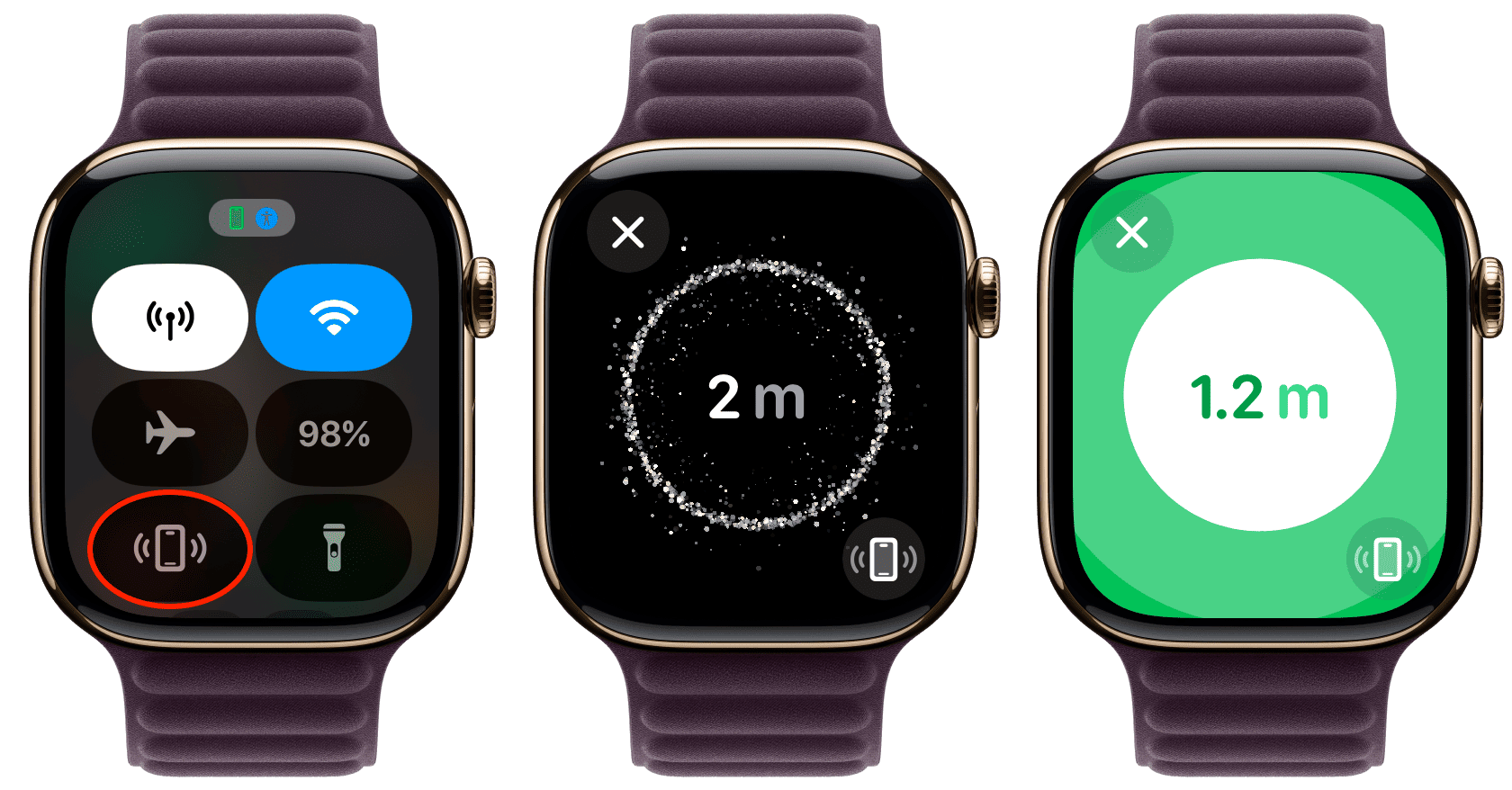
We have all used the “Ping iPhone” button in the Control Center. You tap the phone icon, and your phone makes a noise.
But that noise doesn’t help when your phone slides under the car seat at night. Or when you leave it in a dark room while everyone else is sleeping. You hear the sound, but you still can’t see the device.
Instead of just tapping the phone icon, tap and hold it. When you long-press that button, your iPhone will play the sound and flash its LED camera light. It turns your lost phone into a strobe light.
#4. Swipe to Switch Faces Fix the Missing Feature
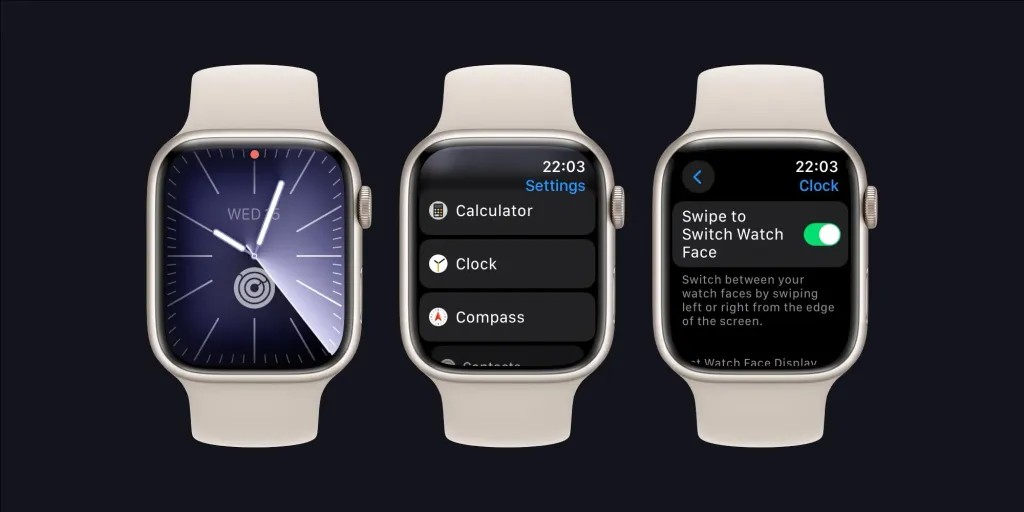
A couple of years ago, Apple removed the ability to swipe left or right to change your watch face. Users were not happy. It made switching from a “Work” face to a “Gym” face annoying and slow.
If you try to swipe your screen right now and nothing happens, don’t worry. Your watch isn’t broken. You just need to flip a switch to get the old functionality back.
- Open Settings on your watch.
- Scroll down to Clock.
- Turn on Swipe to Switch Watch Face.
#5. Cover to Mute The Polite Way to Silence Calls
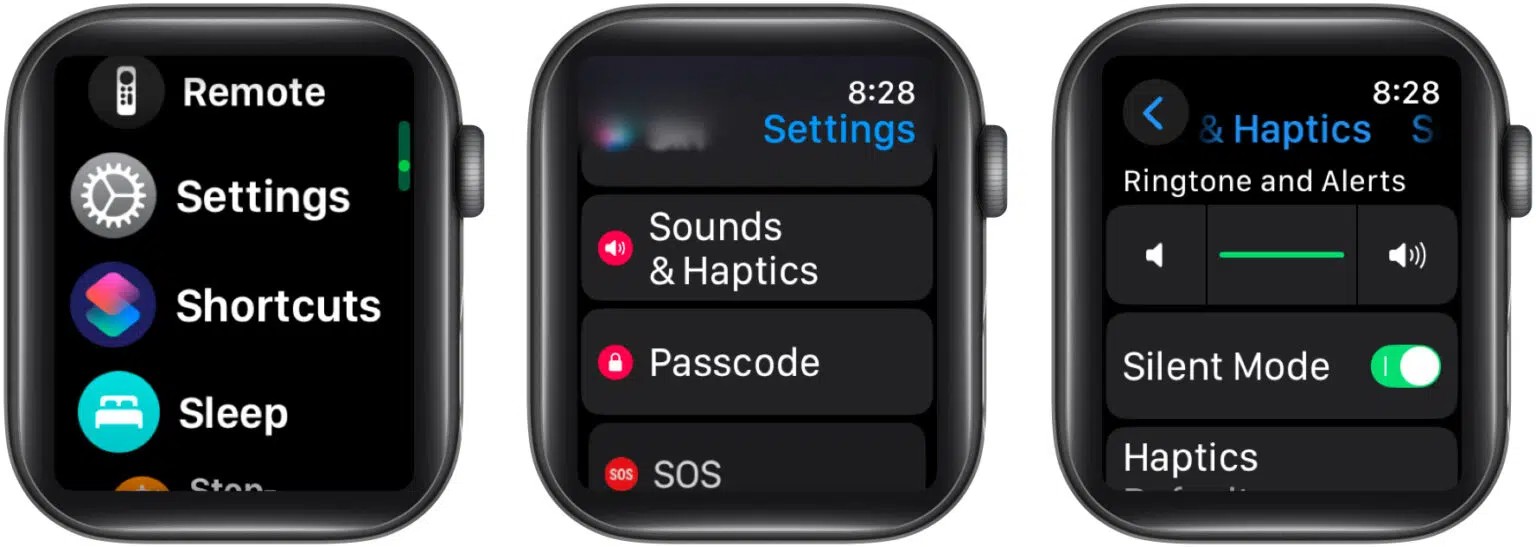
Imagine you are in a quiet meeting or a movie theater. Suddenly, your wrist starts ringing loudly. Everyone looks at you. Panic sets in. You frantically try to tap the red decline button, but you miss. Next time, just cover the watch with your other hand.
If you rest your palm over the display for three seconds, the watch will instantly go silent and the screen will turn off. It works for incoming calls, alarms, and timers.
Check your settings:
Make sure this is active by opening the Watch app on your iPhone and going to Sounds & Haptics > Cover to Mute.
#6. Palm Down to Sleep Save Battery Instantly
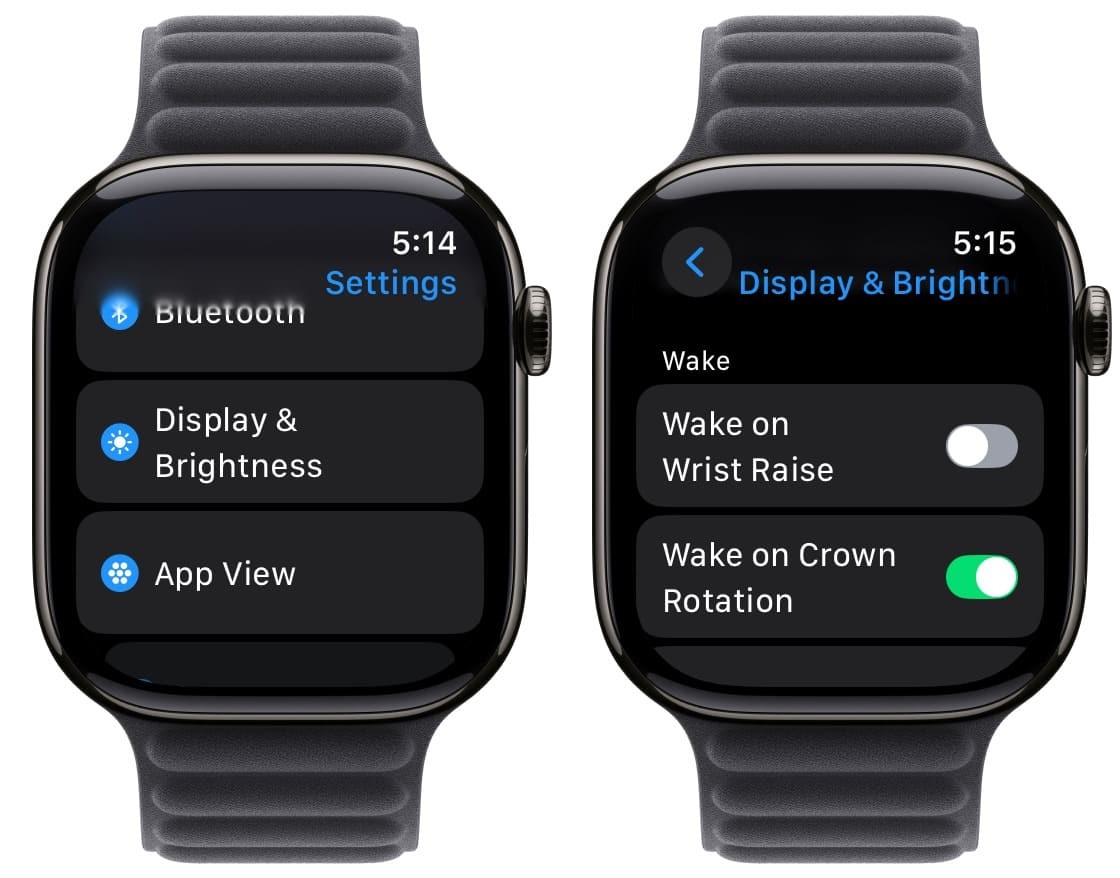
Most people wait for their wrist to drop before the screen turns off. This wastes precious seconds of battery life hundreds of times a day. You can force the watch to sleep instantly. Just briefly slap your palm over the screen.
This simple motion does two things. First, if you are inside an app, it acts like a “Home” button and sends you back to the clock face. Second, it dims the display immediately. Use this habit to save power and keep your notifications private.
#7. Taptic Time Check the Time Without Looking
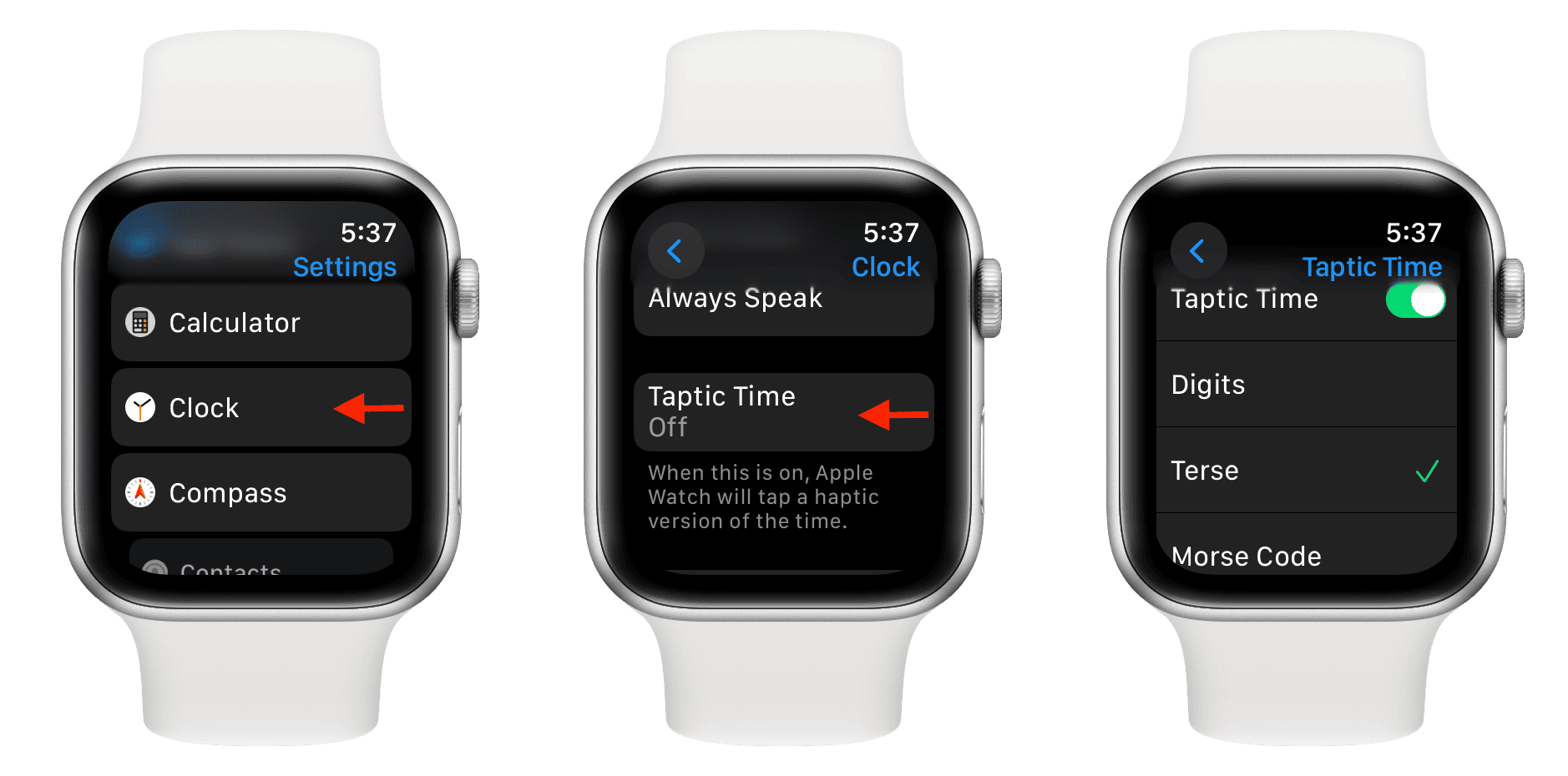
Checking your watch in a dark movie theater is annoying. The bright screen lights up the whole row and disturbs everyone. There is a silent, invisible way to check the time. It is called Taptic Time. When your watch is in Silent Mode, hold two fingers on the screen. The watch will vibrate the time to you.
1. A long buzz equals 10 hours.
2. Short taps count the single hours.
3. Another set of taps counts the minutes.
It takes a moment to learn the pattern. But once you know it, you can check the time in a serious business meeting without anyone noticing.
#8. Raise to Speak Stop Shouting “Hey Siri”
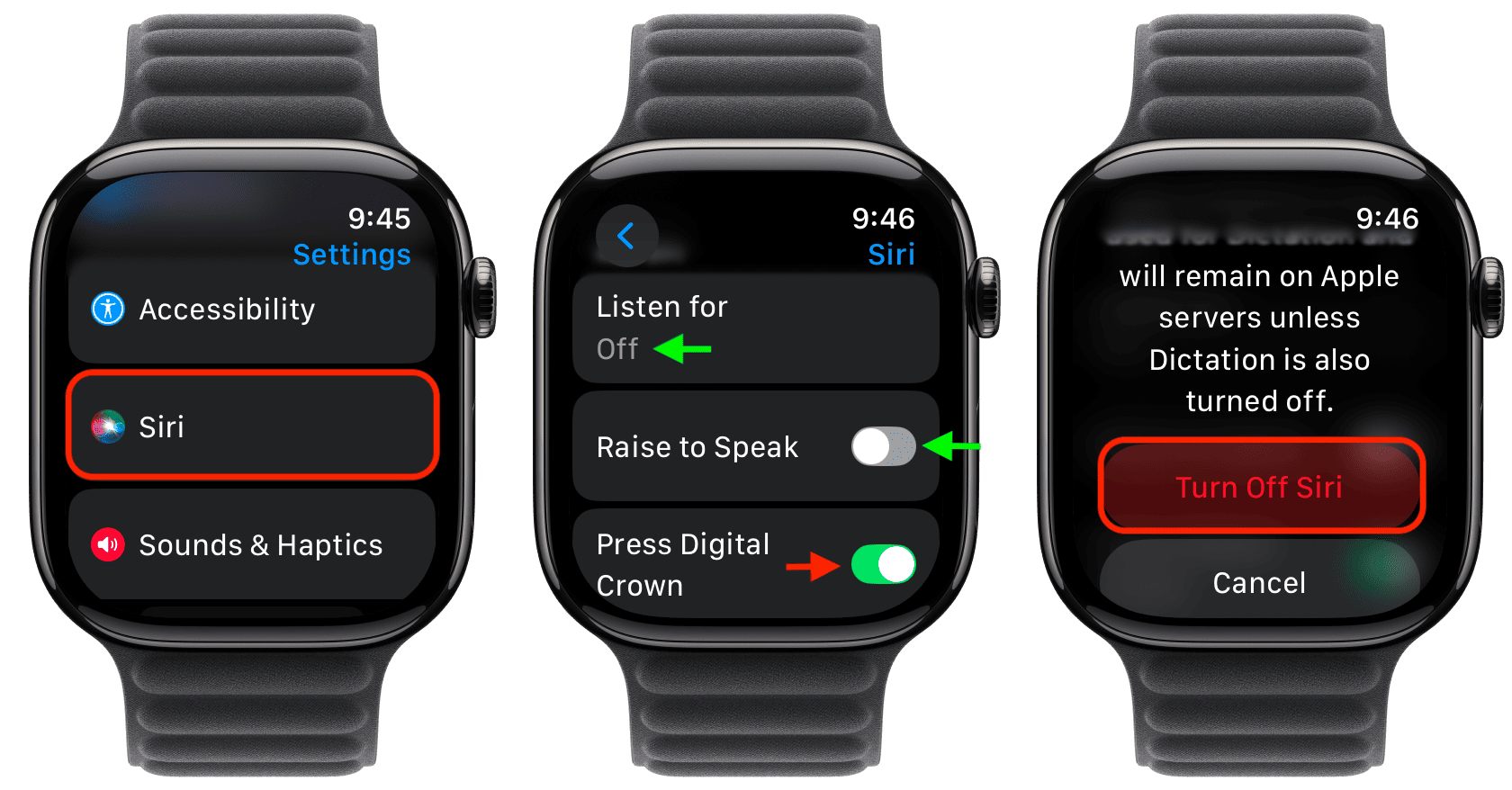
Talking to your wrist can feel silly. It is even worse when you have to shout “Hey Siri” in a quiet coffee shop or a gym. You actually don’t need to say those wake words anymore. Just lift your wrist close to your mouth and start speaking your command immediately.
“Set a timer for 10 minutes.”
“Call Mom.”
The trick to making it work:
You have to be quick. Start talking the moment the screen wakes up. If you wait too long, the watch stops listening to avoid recording accidental conversations.
#9. The Smart Stack Stop Opening Apps
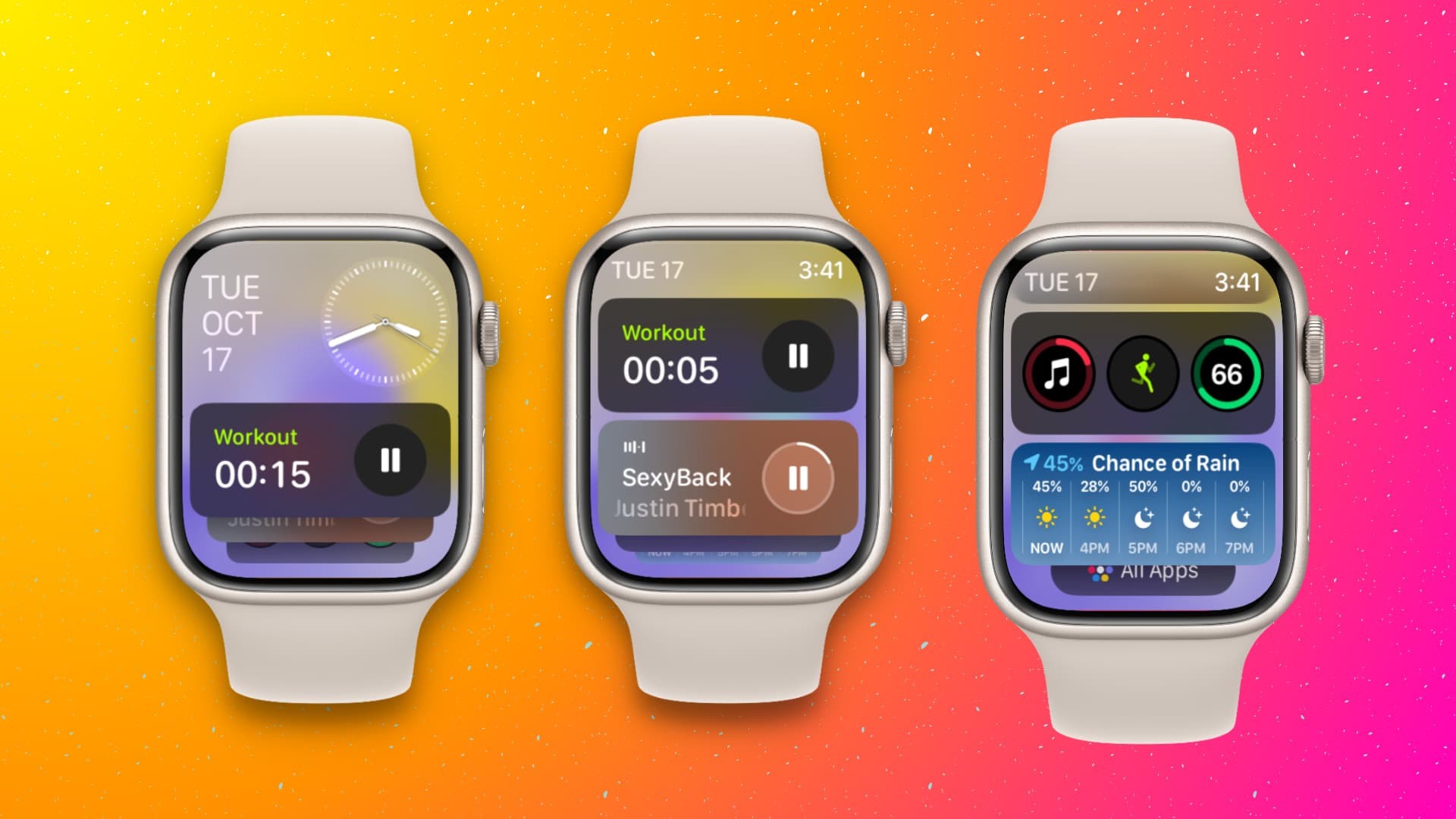
We used to open specific apps to check the weather or see our calendar. That takes too many taps and requires hunting for tiny icons. In 2025, there is a faster way to see your day. From your main watch face, just turn the Digital Crown up.
This opens your Smart Stack. It is a pile of widgets that shows you exactly what you need right now. It might show the rain forecast in the morning or your boarding pass when you are at the airport. It is the quickest way to get information without launching a single app.
#10. Three-Finger Zoom Make Your Screen Ultra-Dim
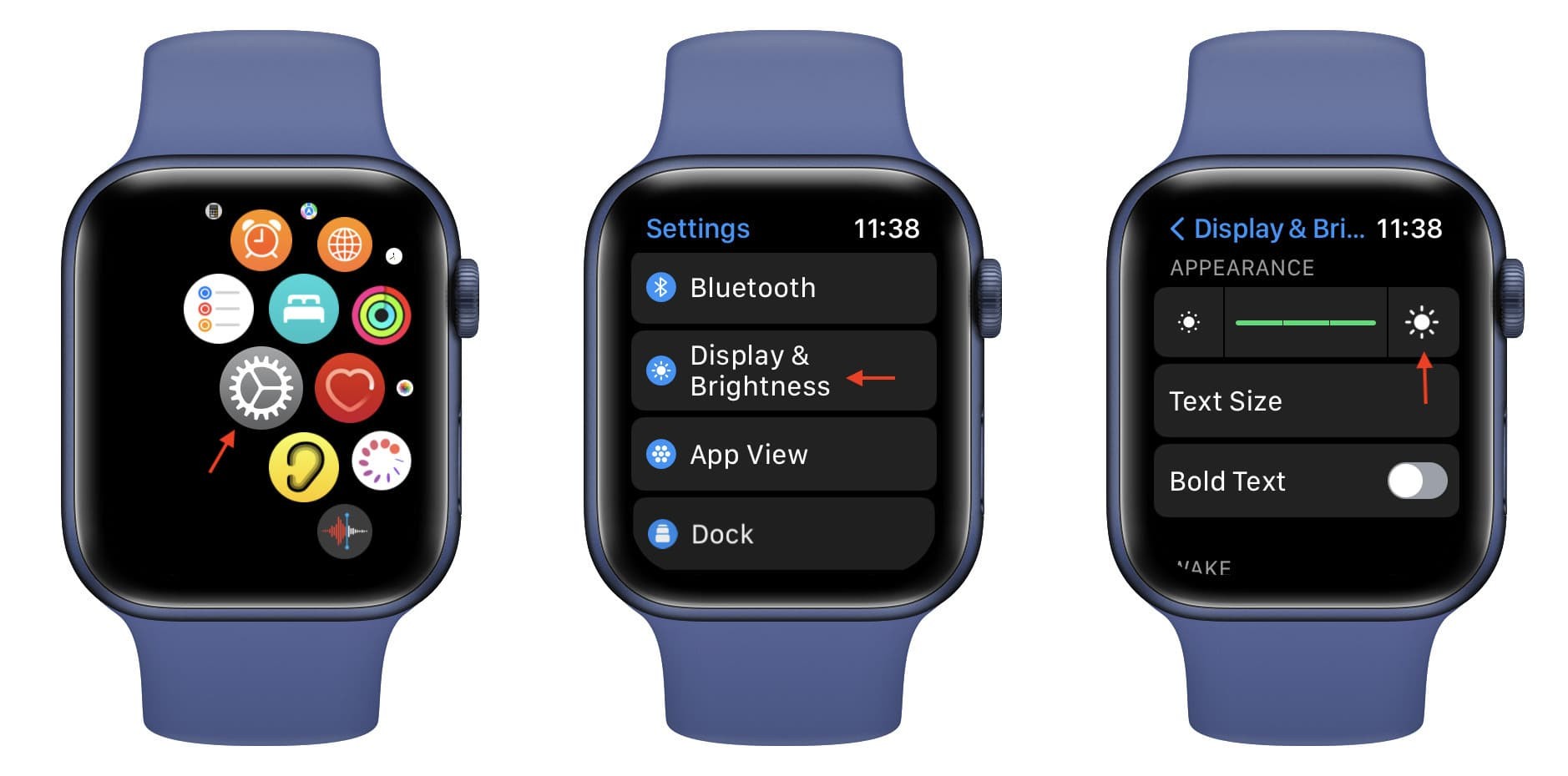
Even the lowest brightness setting can be too bright in a pitch-black room. It hurts your eyes and can wake up your partner in bed. There is a hidden trick to make the screen darker than Apple normally allows. You need to use an Accessibility feature called Zoom.
- Go to Settings > Accessibility > Zoom.
- Turn it on.
- Scroll down to Zoom Filter and select Low Light.
Now, double-tap the screen with three fingers. Your screen will instantly turn ultra dim. Use this whenever you need to check your watch at night without being blinded by the light.
#11. Side Button Double-Click Pay in Seconds
People often panic at the checkout counter. They scroll through their app cloud looking for the little Wallet icon while a line forms behind them. You never need to hunt for the Wallet app. Just double click the long side button. (Do not press the round Digital Crown.)
This brings up your credit cards instantly. It works no matter what you are doing. You could be in the middle of a workout or have the screen turned off entirely. Double click, hold near the reader, and you are done.
