
Your hands leave the keyboard. Your eyes hunt for the cursor. Your brain switches from doing work to finding buttons. Focus breaks. But they add up fast. People who switch between keyboard and mouse lose about 2 seconds per minute during computer work.
Over a standard 8, hour workday, that becomes 64 hours wasted per year. That’s 8 full workdays you could get back.Mac keyboard shortcuts fix this problem. Keep your hands on the keyboard and your productivity doubles. Your fingers learn patterns.
The 10 most powerful Mac keyboard shortcuts that work in macOS 2025. You’ll learn exact key combinations, when to use each one, and how to remember them in two weeks. Just shortcuts built into your Mac that save time starting today.
Why Mac Keyboard Shortcuts Actually Matter?
Every time you reach for your mouse to click a menu, you lose focus. Your hands leave the keyboard. Your eyes scan the screen. Your brain switches from “doing work” to “finding buttons.”Research shows that keyboard shortcuts save 1 to 2 seconds per minute.
Muscle memory forms fast. After three days of pressing Command + Space, your fingers remember it forever. But finding an app in Launchpad? Your brain has to search every single time.Command + C copies text in Mail, images in Safari, and files in Finder.
Learn once, use everywhere.Studies on Microsoft Word found that shortcuts cut task time by half a second to 1.5 seconds compared to clicking menus. Do that 100 times a day, and you save 2.5 minutes. Do it 250 workdays a year, and you save 10 hours.
1. Command + Space: Find Anything Instantly
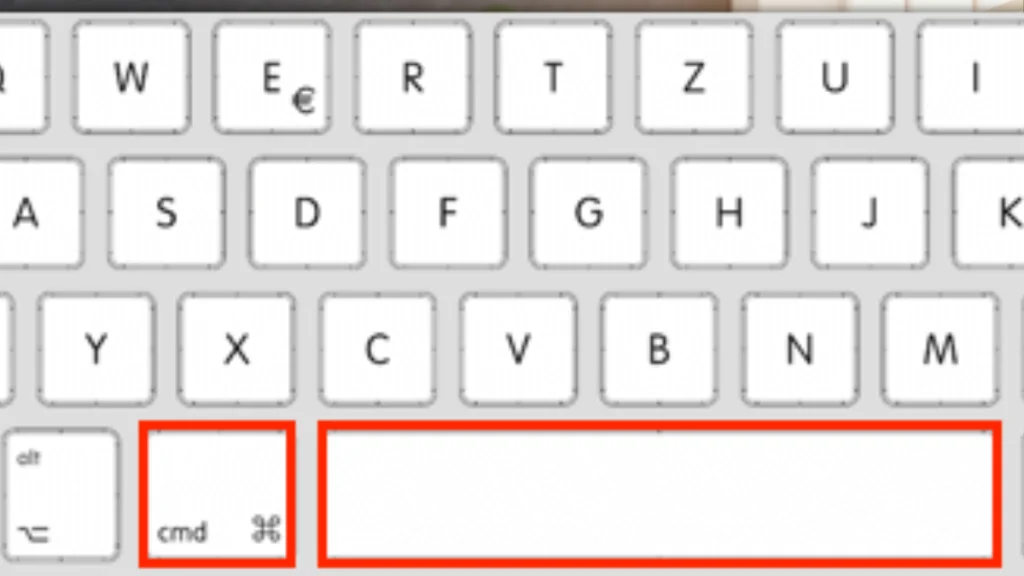
Command + Space opens Spotlight search. This is the most powerful shortcut on your Mac. A search bar appears in the middle of your screen. Type “Mail” and hit Return. Your email opens in one second.
Type “budget.xlsx” to find that file instantly.No folders to click through. Type “15 * 24” and Spotlight does the math. Type “50 USD to EUR” for currency conversion. Hold Command and press Return to see where that file lives on your Mac.
Press Escape once to clear your search. Press it twice to close Spotlight. Your hands never leave the keyboard.This single shortcut saves you hours every week. Everything on your Mac becomes three seconds away.
2. Command + Tab: Switch Apps Like Lightning
Command + Tab shows all your open apps at once. Switch between them in one second.A row of app icons appears across your screen. Keep holding Command and tap Tab again to move right through your apps.
Going too far? Hold Command + Shift and tap Tab to move backward through the list. Your most recent apps appear first, so switching back and forth between two apps takes just one tap.
Stop wasting time clicking around your Dock looking for the right window. No more clicking the Dock. No more hunting for windows hiding behind other windows. Your open apps are always one keystroke away. This beats the mouse every single time.
3. Command + W vs Command + Q: Close Smart
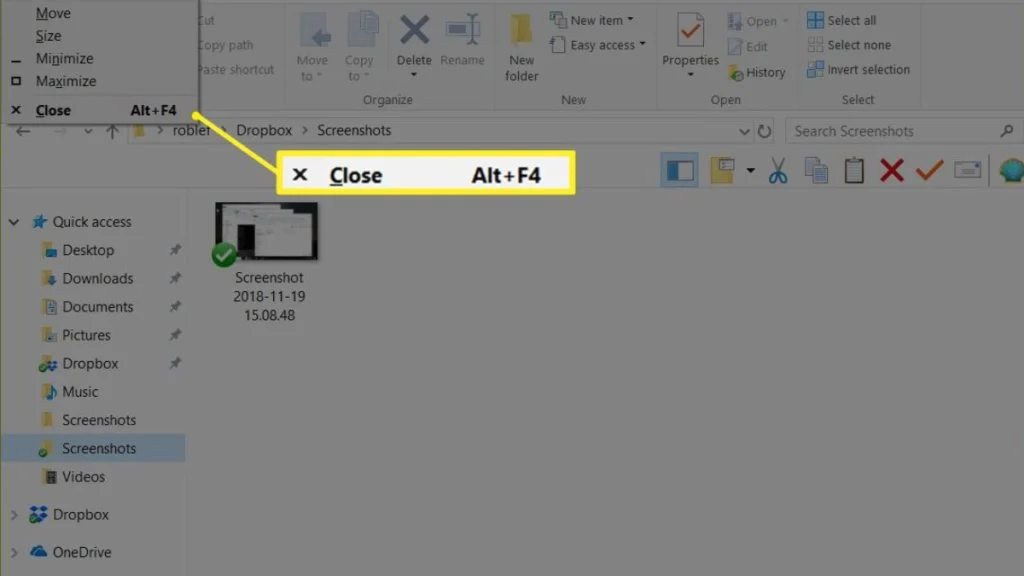
Command + W closes one window. Command + Q quits the entire app. Press Command + W to close the current window. Your Safari tab disappears, but Safari stays open with your other tabs. Your Pages document closes, but Pages keeps running with your other files.
Press Command + Q to quit the app completely. Everything closes. Safari shuts down with all tabs.Command + W when you’re done with one thing but still working. Command + Q when you’re completely finished and want to free up memory.
Both shortcuts beat clicking the tiny red X button in the corner. Your hands stay on the keyboard. You close windows in half a second instead of aiming your mouse at a dot.Close what you need. Keep what you want.
4. Command + (Backtick): Cycle Through Windows
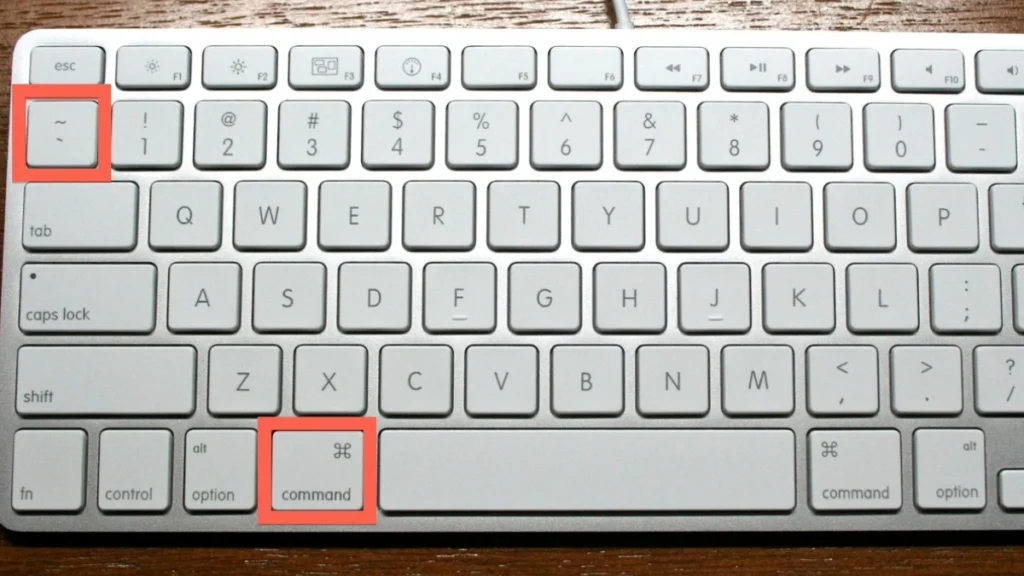
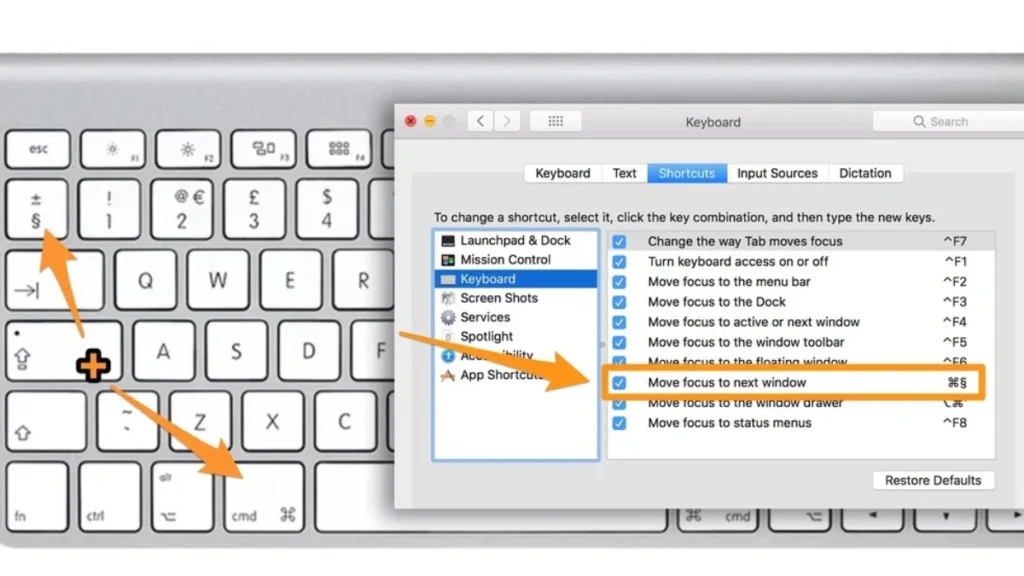
Command + ` switches between windows of the same app. Find that backtick key above Tab, left of the number 1.You have three Pages documents open. Command + Tab switches between apps, but you need to jump between those three documents. .
Keep pressing to move through them all. Add Shift to go backward through the list. Or when you have two Safari windows open and need to compare information. Or when three Finder windows are scattered across your screen and you need to find the right one fast.
Command + Tab moves between different apps. Command + ` moves between windows of the same app. Learn both and you control everything on your screen.No more clicking through window lists. No more losing track of which document you just had open.
5. F3 or Control + Up Arrow: See Everything at Once
F3 opens Mission Control. Every window you have open appears on screen at once.Press F3 (or Fn + F3 on newer keyboards). Or press Control + Up Arrow. Or swipe up with three fingers on your trackpad. All three do the same thing.
Every window spreads out so you can see them all. A row of desktops sits at the top. Click any window to jump straight to it.One desktop for email and Slack. Another for design work. Click the + button at the top to add new desktops.
Drag windows from one desktop to another to organize your work. Everything becomes visible with one keypress.Lost a window behind five other windows. Press F3. Done in two seconds. Mission Control turns window chaos into instant clarity.
6. Command + C, X, V: Master Copy-Paste
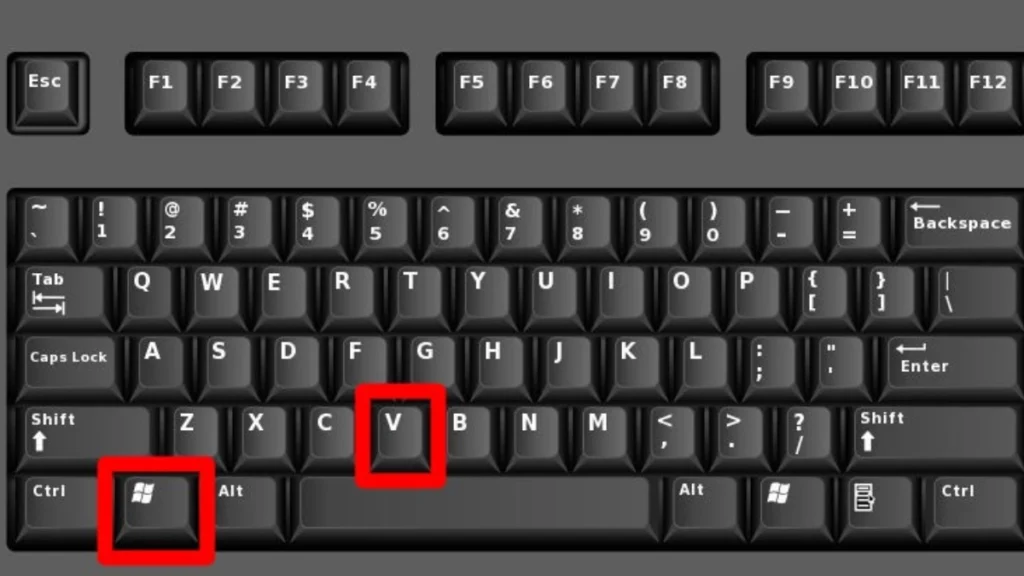
Command + C, X, V are the three shortcuts you’ll use more than any others. Copy, cut, and paste in half a second.Select text and press Command + C to copy it. Press Command + V to paste it somewhere else.
Command + X cuts instead of copies. The text disappears from the original spot and moves to your clipboard. Press Command + V to paste it in the new location.These work everywhere. Copy text in Safari and paste into Mail.
Copy an image from a website and paste it into Pages.Command + Option + Shift + V pastes without formatting. You copy bold red text from a website, but you just want plain text. This strips all formatting and pastes clean text.Too many people still right, click and select “Copy” from a menu. That takes four seconds.
7. Command + Z: Undo Mistakes Instantly
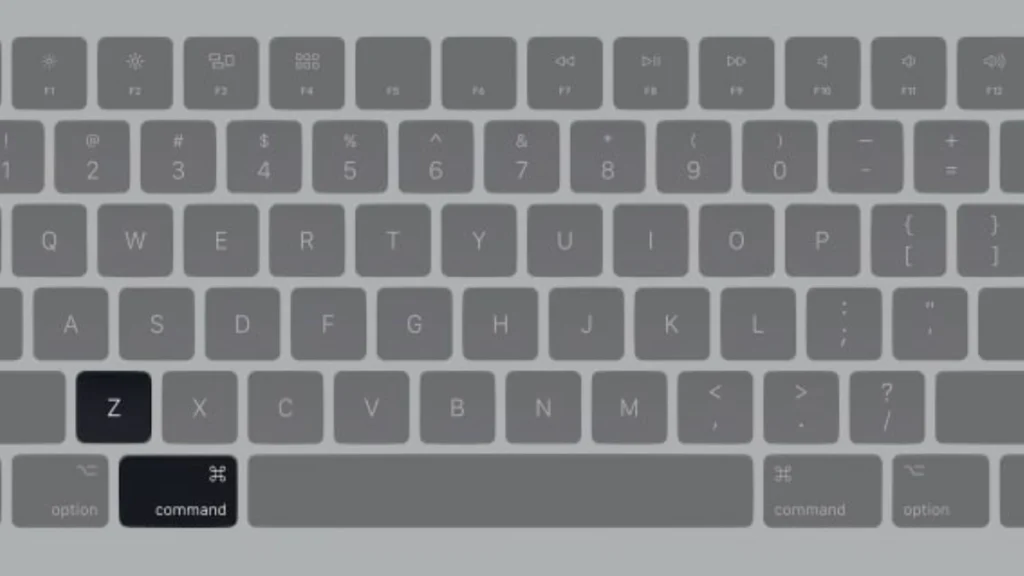
Command + Z fixes mistakes before they become problems. Press it and your last action disappears.Deleted a paragraph by accident? Command + Z brings it back. Command + Z puts it back. Made an edit you hate? Command + Z reverses it instantly.
Press Command + Z multiple times to undo several steps backward. Each press takes you one action earlier. Go back five steps, ten steps, as far as the app allows.Changed your mind about undoing? Press Command + Shift + Z to redo.
You undo too far, press redo, and you’re back where you wanted to be.This works in almost every Mac app. Mail, Safari, Pages, Finder, Photos. Your fingers learn Command + Z once and use it everywhere.Most people waste five seconds hunting for the Edit menu and clicking Undo.
8. Command + F: Find Text on Any Page
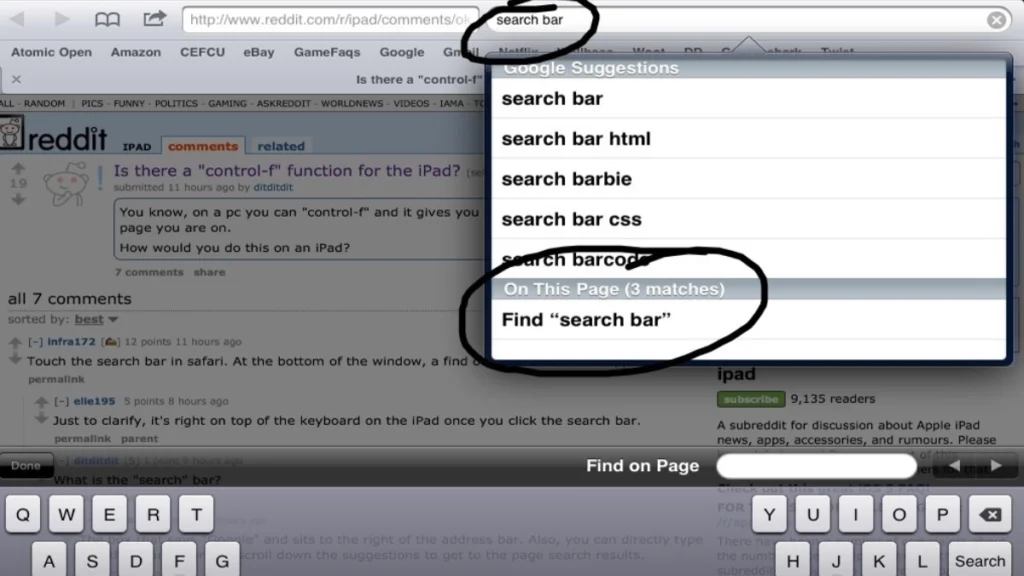
Command + F finds any word on your current page in two seconds. Stop scrolling through 50 pages looking for one sentence.Press Command + F and a search box appears. Press the arrow buttons to jump from one to the next.
Reading a 30, page PDF contract and need to find where your name appears? Command + F, type your name, done. Scanning a long web article for specific data? Command + F finds it instantly.
The search box shows you how many times that word appears. “3 of 12” means you’re on the third result out of twelve total. Keep clicking the arrow to see them all.This works in Safari, Chrome, Preview, Pages, PDFs, everywhere.
9. Command + Option + Esc: Force Quit Frozen Apps
Command + Option + Esc kills frozen apps instantly. No need to restart your entire Mac.Safari stops responding. Your cursor moves but nothing happens. Press Command + Option + Esc and a Force Quit window appears. Every running app shows up in the list.
Click the frozen app. Click the Force Quit button. That app shuts down immediately. Everything else keeps running normally.This is safer than holding the power button. A hard restart closes everything and might lose unsaved work in other apps.
Hold Shift + Option + Command + Esc for three seconds. The current app force quits without even showing the dialog box. Perfect when an app freezes your screen completely.One frozen app doesn’t mean your whole Mac needs to restart.
10. Command + Shift + 3 or 4: Screenshot Anything
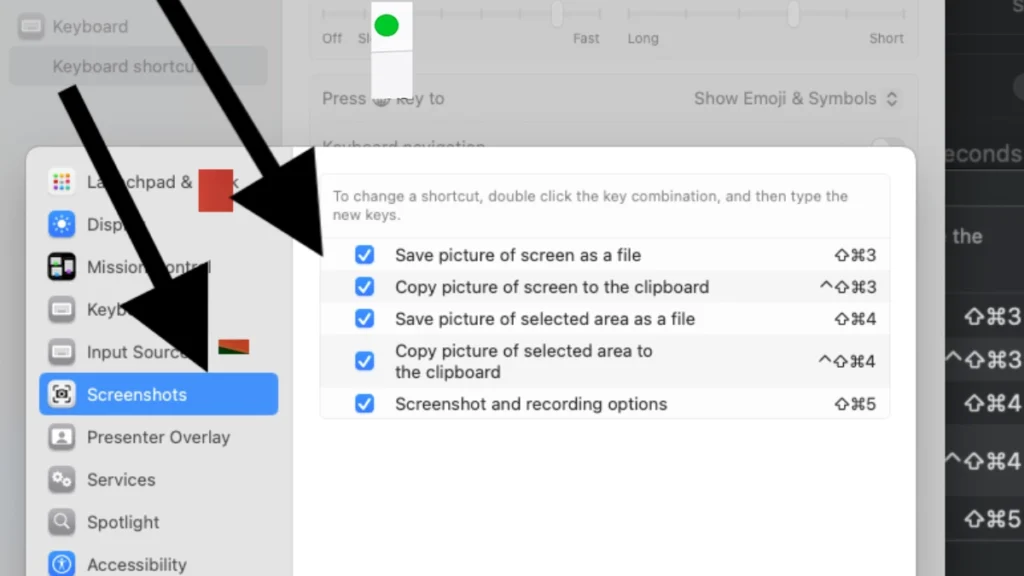
Command + Shift + 3 captures your entire screen. Command + Shift + 4 lets you select exactly what you want. Both save to your desktop instantly.Press Command + Shift + 3 and hear a camera click.
Need just part of your screen? Press Command + Shift + 4. Your cursor turns into a crosshair. Click and drag to select the area you want. Release and that section saves as an image.Press Command + Shift + 5 to open the full screenshot too.
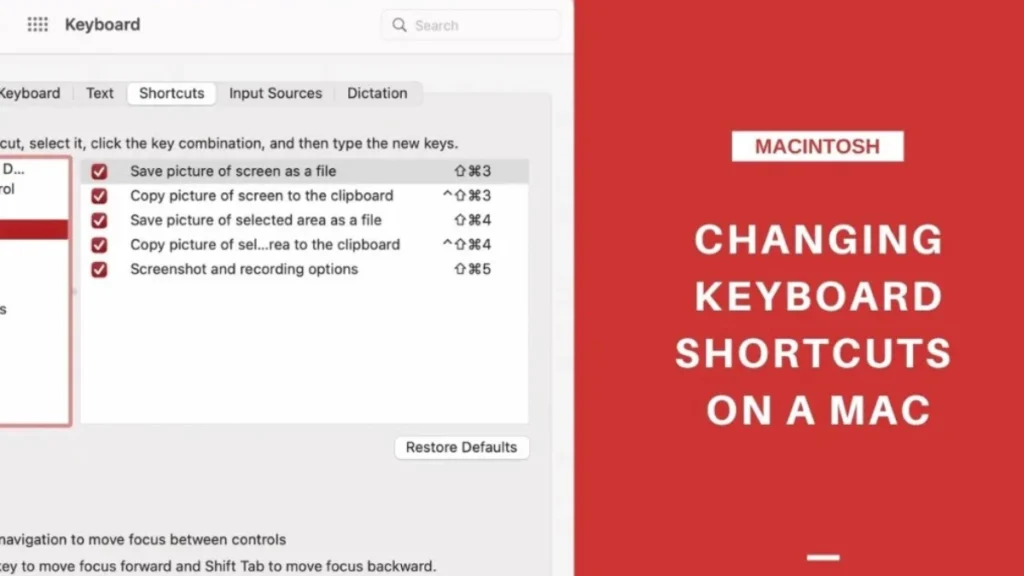
You get options for screen recording, timer delays, and where to save files.Add Control to any screenshot command. Command + Control + Shift + 4 copies the screenshot to your clipboard instead of saving a file. No third party apps needed.
How to Actually Remember These Shortcuts?
Your hands learn by doing, not reading. Start with just two shortcuts: Command + Space and Command + Tab. Use only these for one week. Every time you reach for your mouse, stop and use the shortcut instead.
Week two, add two more. Week three, add two more. Your fingers build muscle memory one shortcut at a time.Write your current shortcuts on a sticky note next to your screen. After two weeks, throw it away. You won’t need it anymore. Your hands will remember.
Practice beats memorization every single time. Force yourself to use shortcuts even when the mouse feels faster. After 50 repetitions, your fingers move automatically without thinking.
